The Candidate Portal feature is only available in the Enterprise Plus plan.
The Candidate Portal is a dedicated space where applicants can manage their interactions with a company’s job openings. It allows candidates to maintain a reusable profile, including their experience, education, and resume, to speed up future applications through automatic pre-filling. Through the portal, candidates can also view their submitted applications and view a history of their referrals in one centralized location.
User Types
There are two types of users who can access and use the Candidate Portal, depending on their relationship with the company hosting that careber page:
- External Candidates: Applicants who create an account to apply for public job openings, view their applications, and manage their candidate profile.
- Internal Employees: Current employees who use their company email address to log in and access internal-only job listings and view their referrals.
Creating an account and log in
Candidates can submit an application without logging in (account creation is optional for public roles).
Sign up / log in
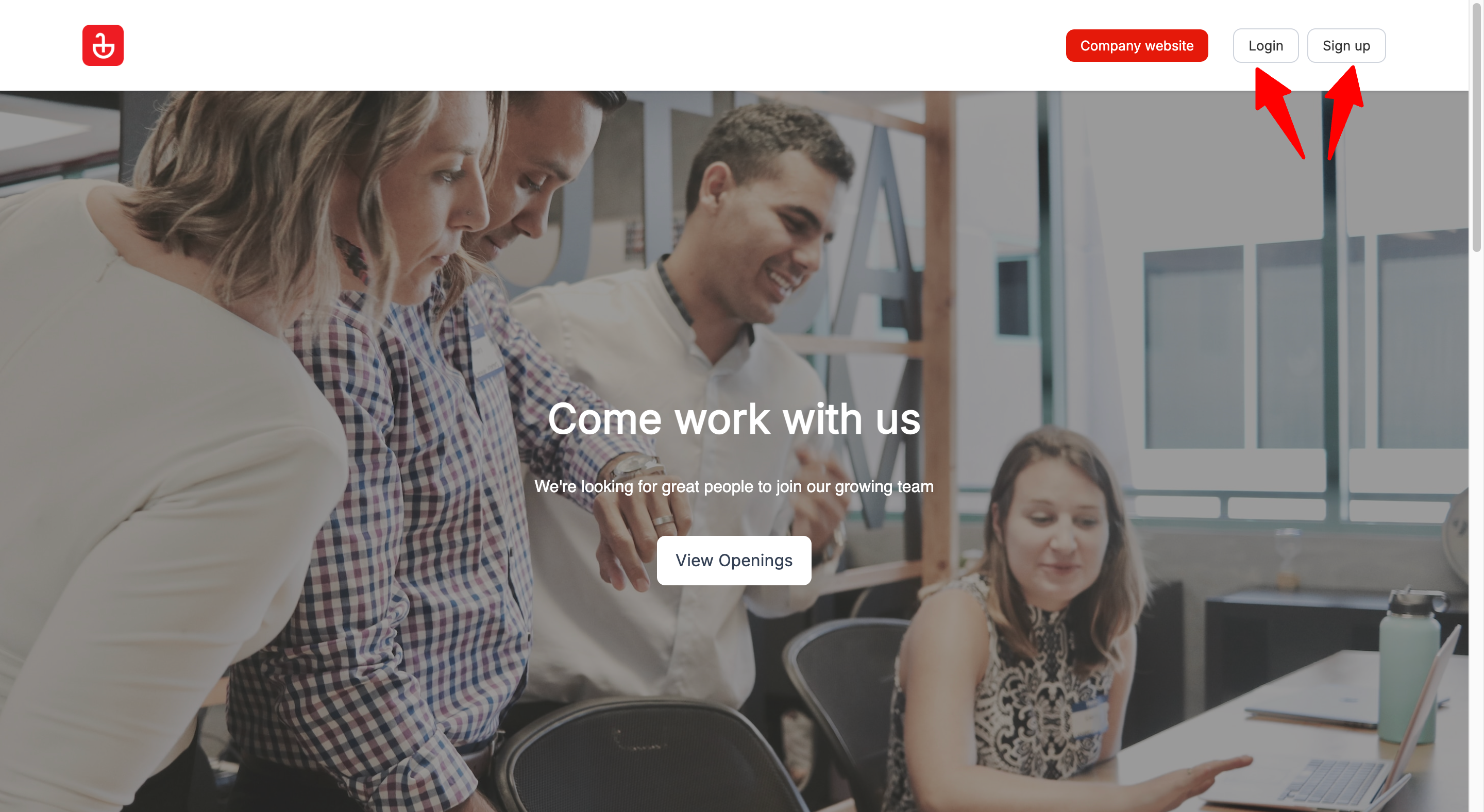
- On the career page, click "Sign Up" or "Login".
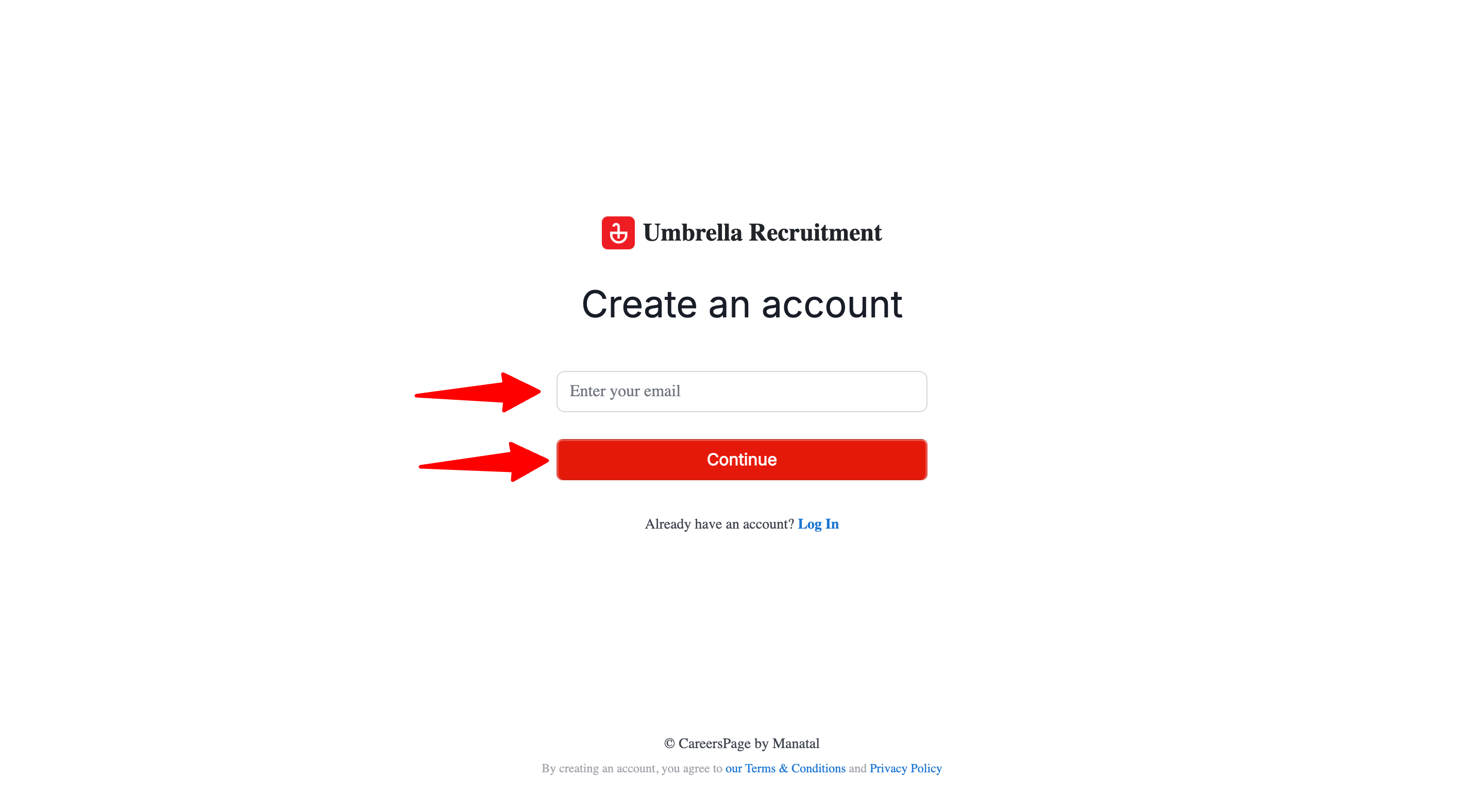
- Enter your email address and click "Continue".
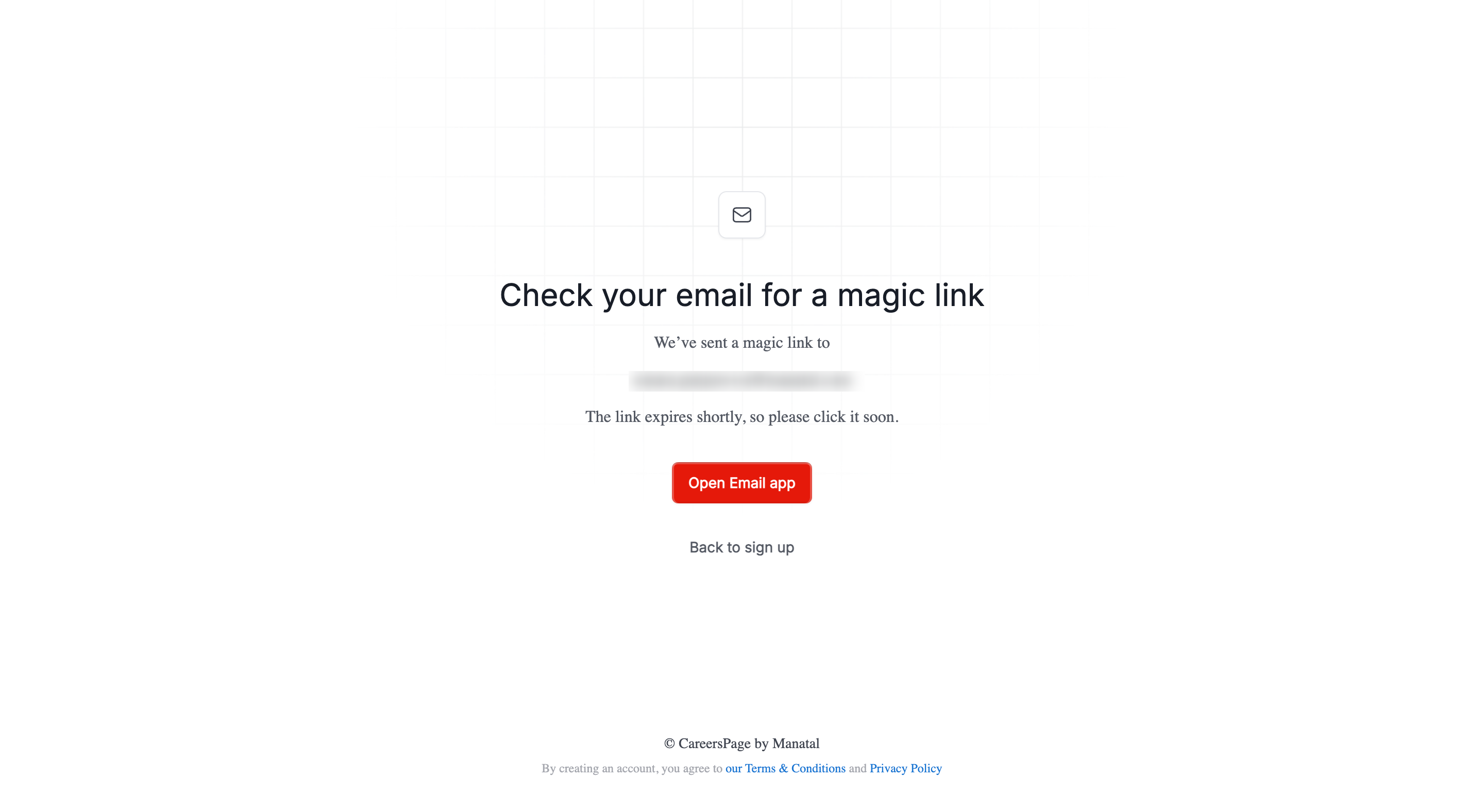
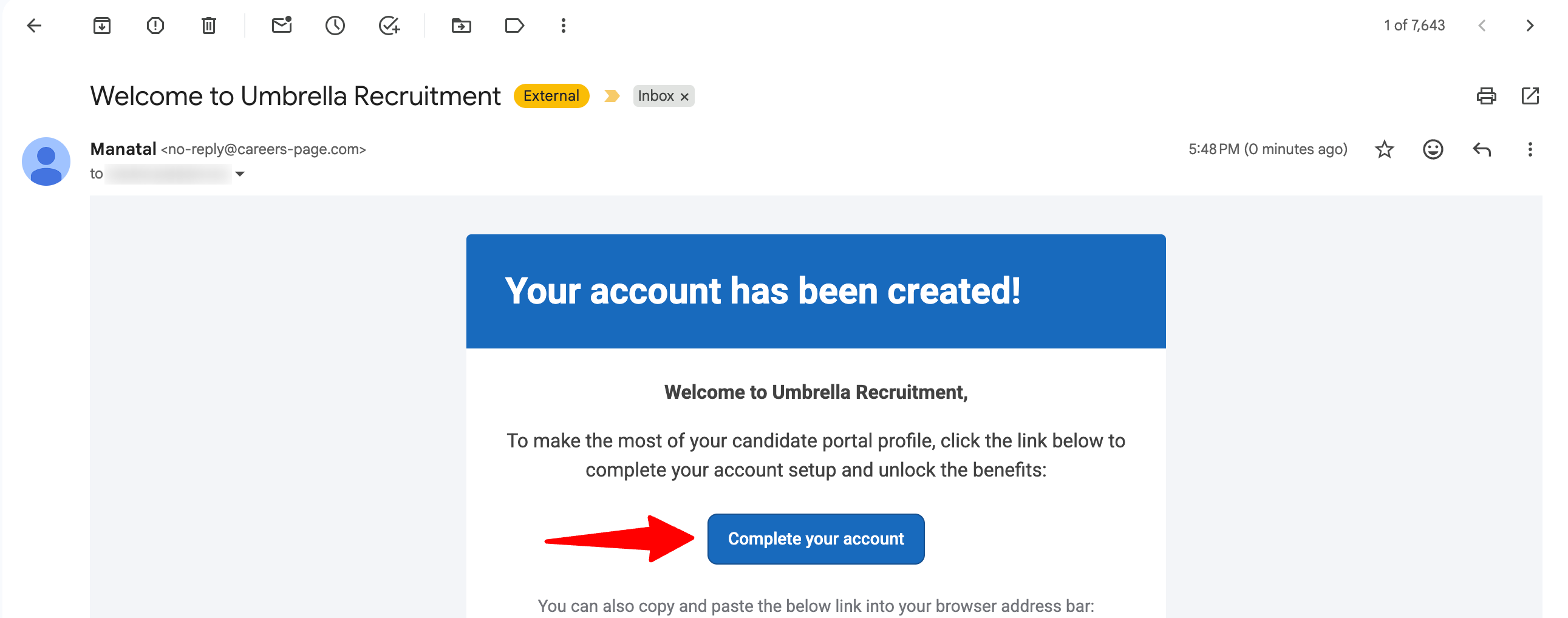
- Open the email you receive and click “Complete your account” button.
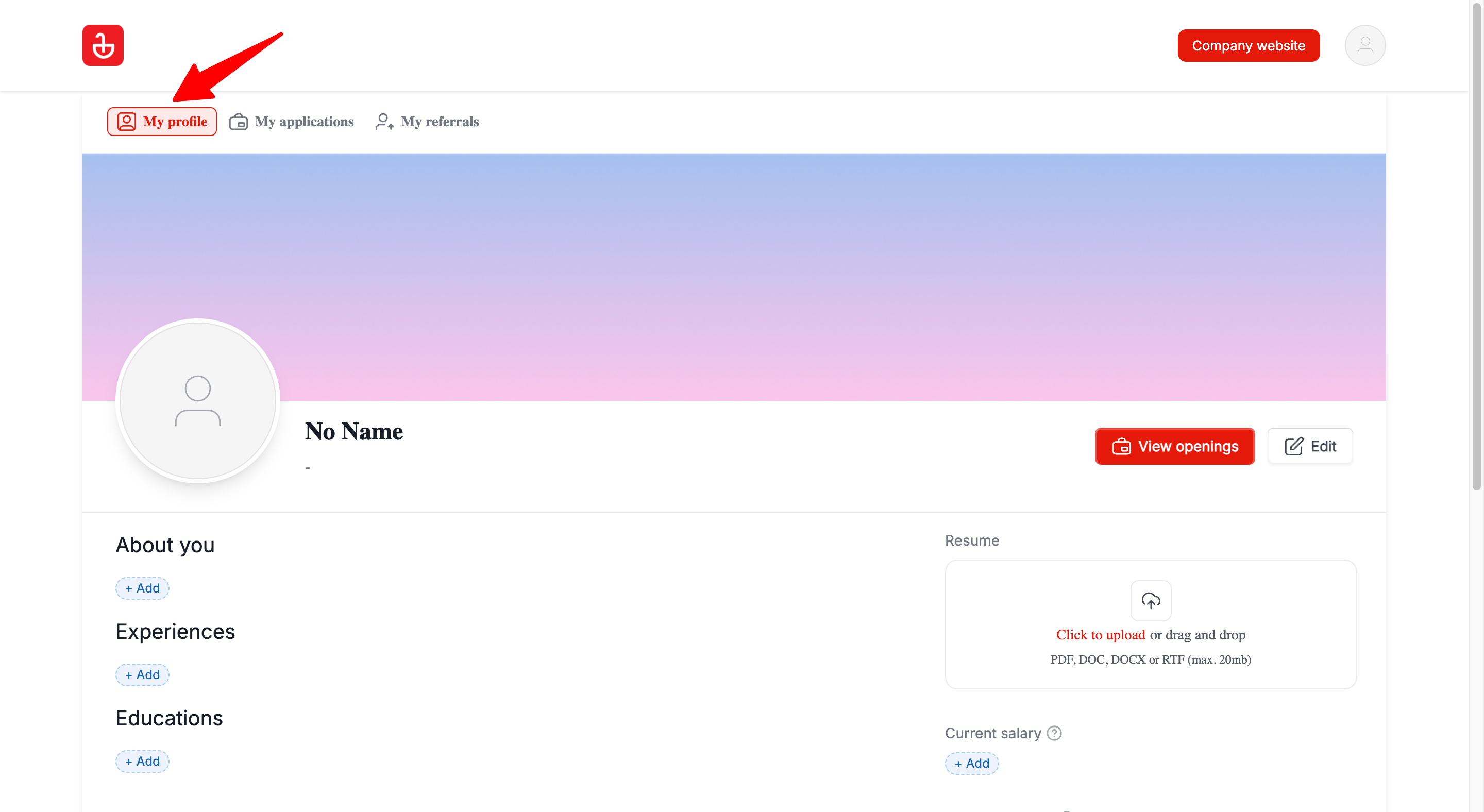
- You'll see your profile under the "My Profile" tab.
 Note
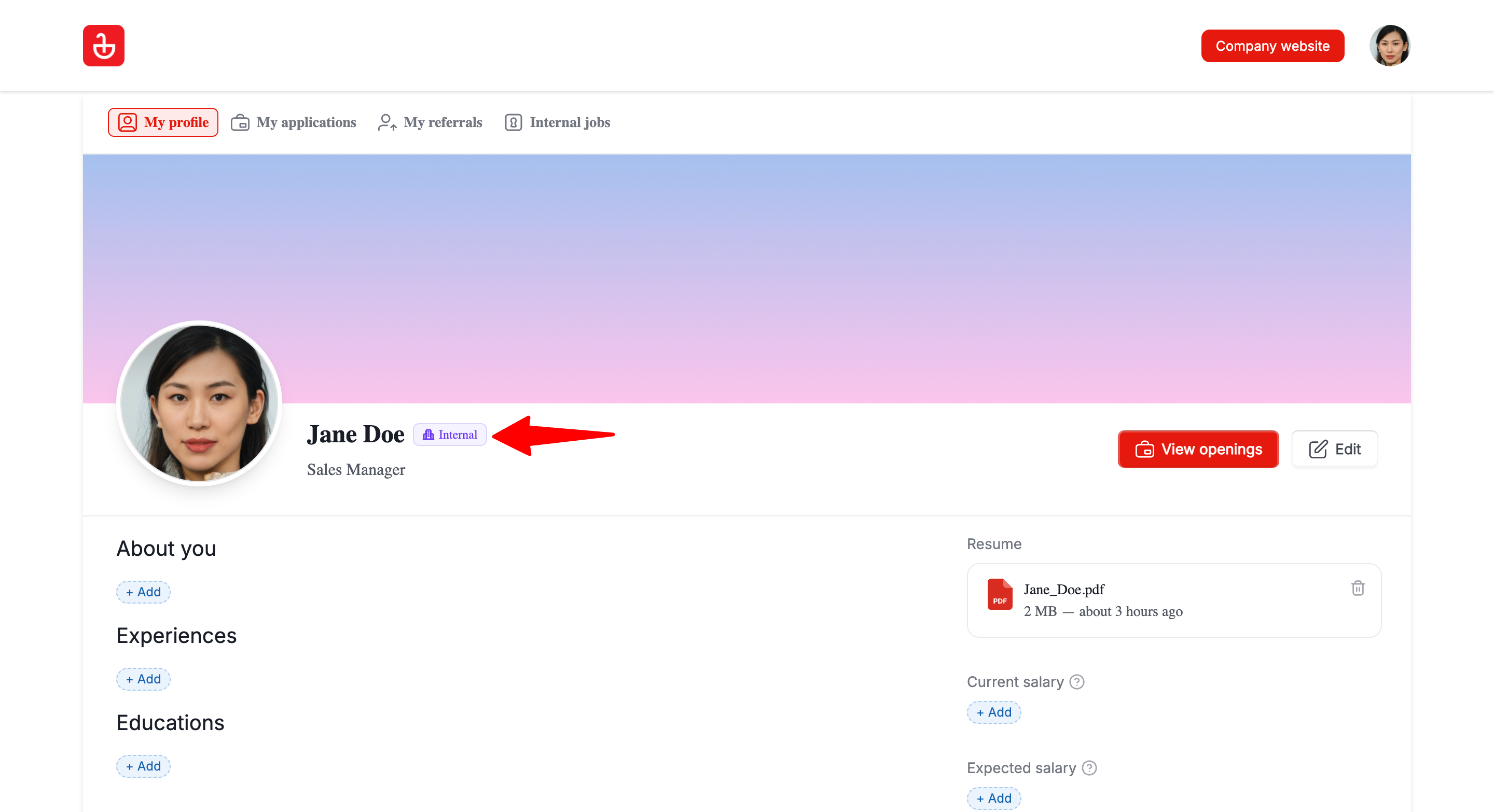
NoteFor Employees: In the "My Profile" tab, confirm you see the "Internal" indicator beside your name to verify you have access to employee-only features. If you don’t see it, your organization may not have your email domain configured for internal access. Please ask your admin to configure your email domain following this guide.
My Profile Tab
“My Profile” is where candidates/employees keep a reusable profile (experience, education, resume, and contact details). This profile is designed to speed up future applications by pre-filling forms.
Update your profile
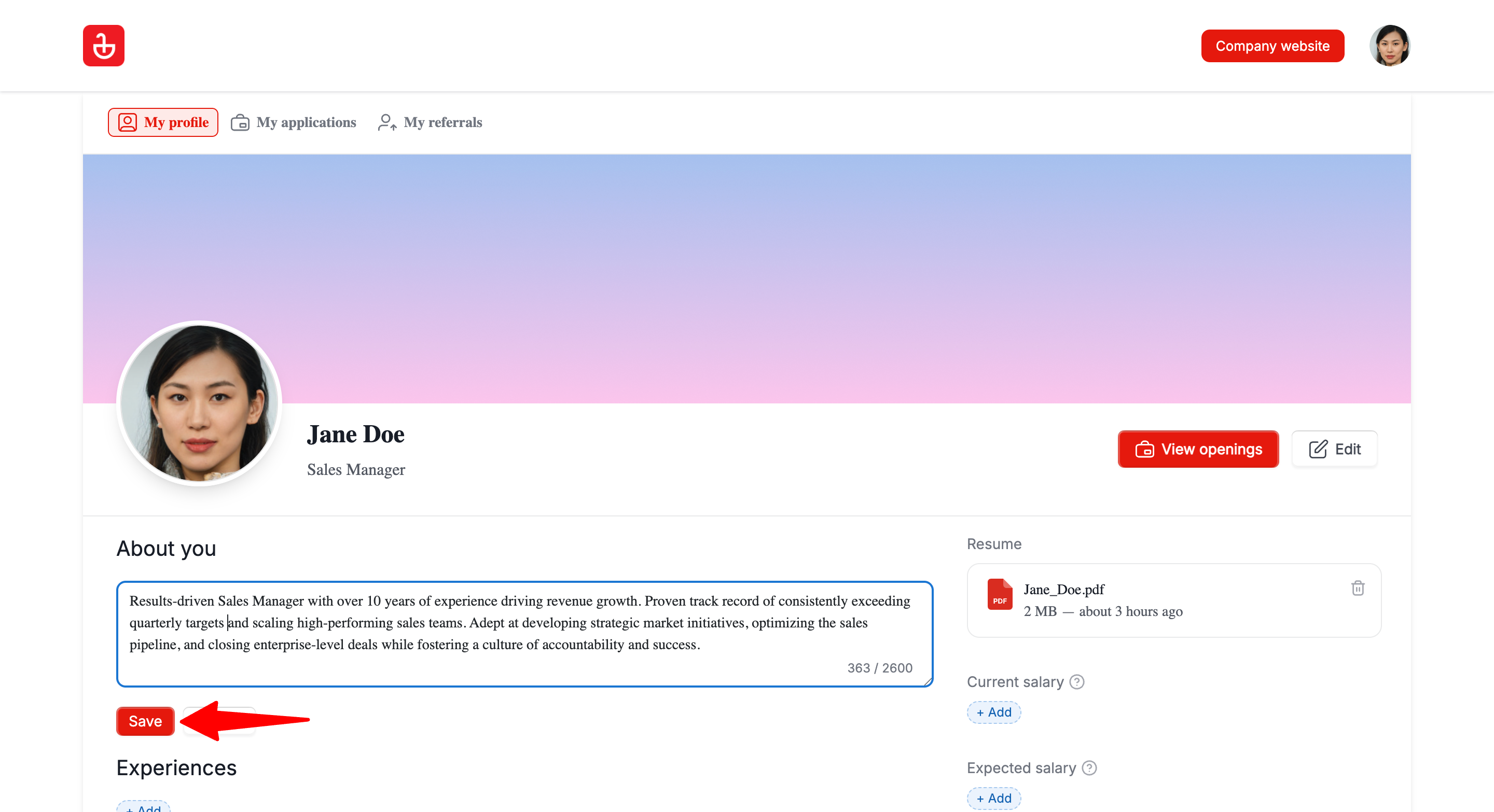
- On the "My Profile" tab, update your details (experience, education, resume, contact details).
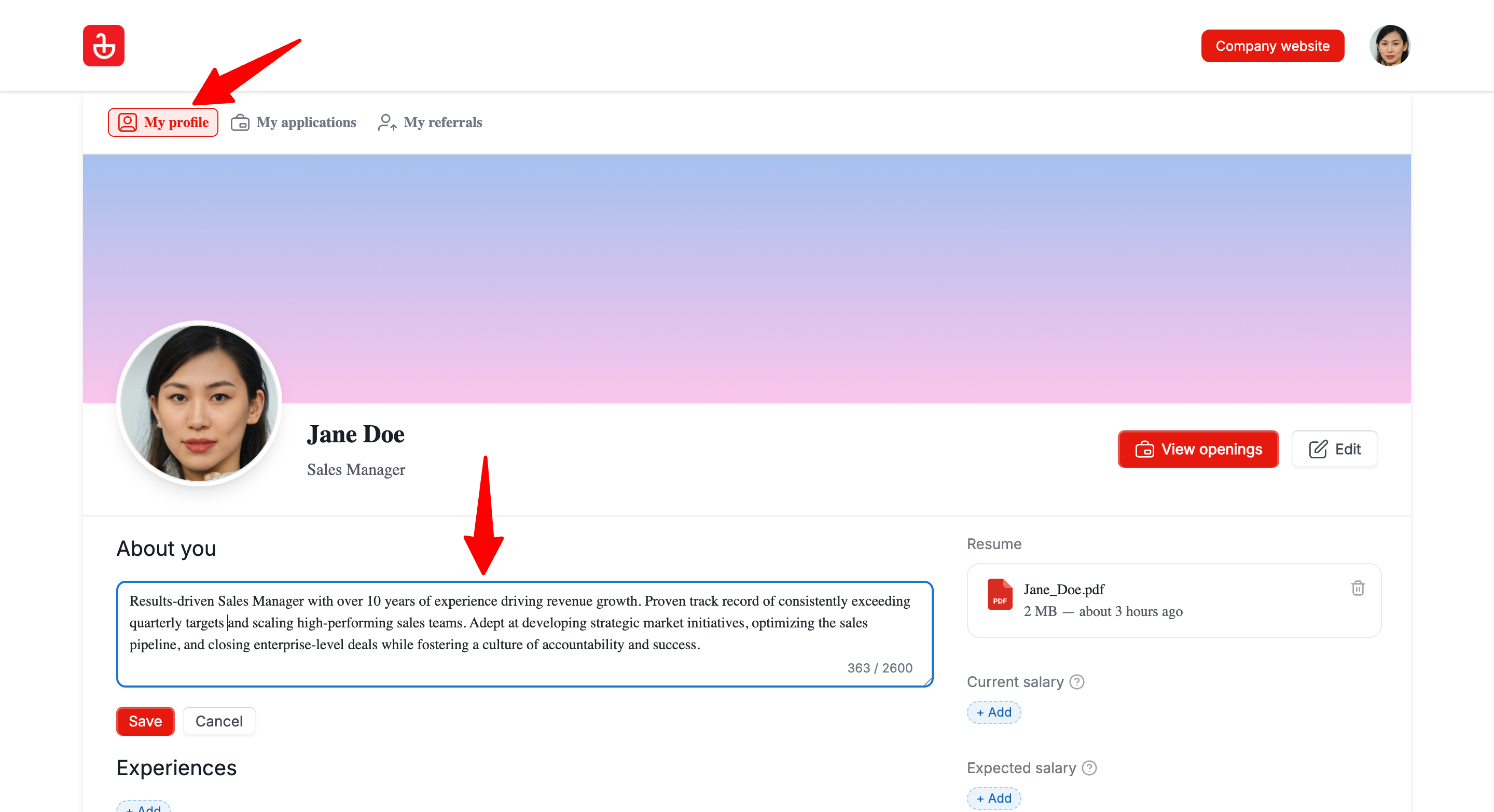
- Save the changes.
My Applications Tab
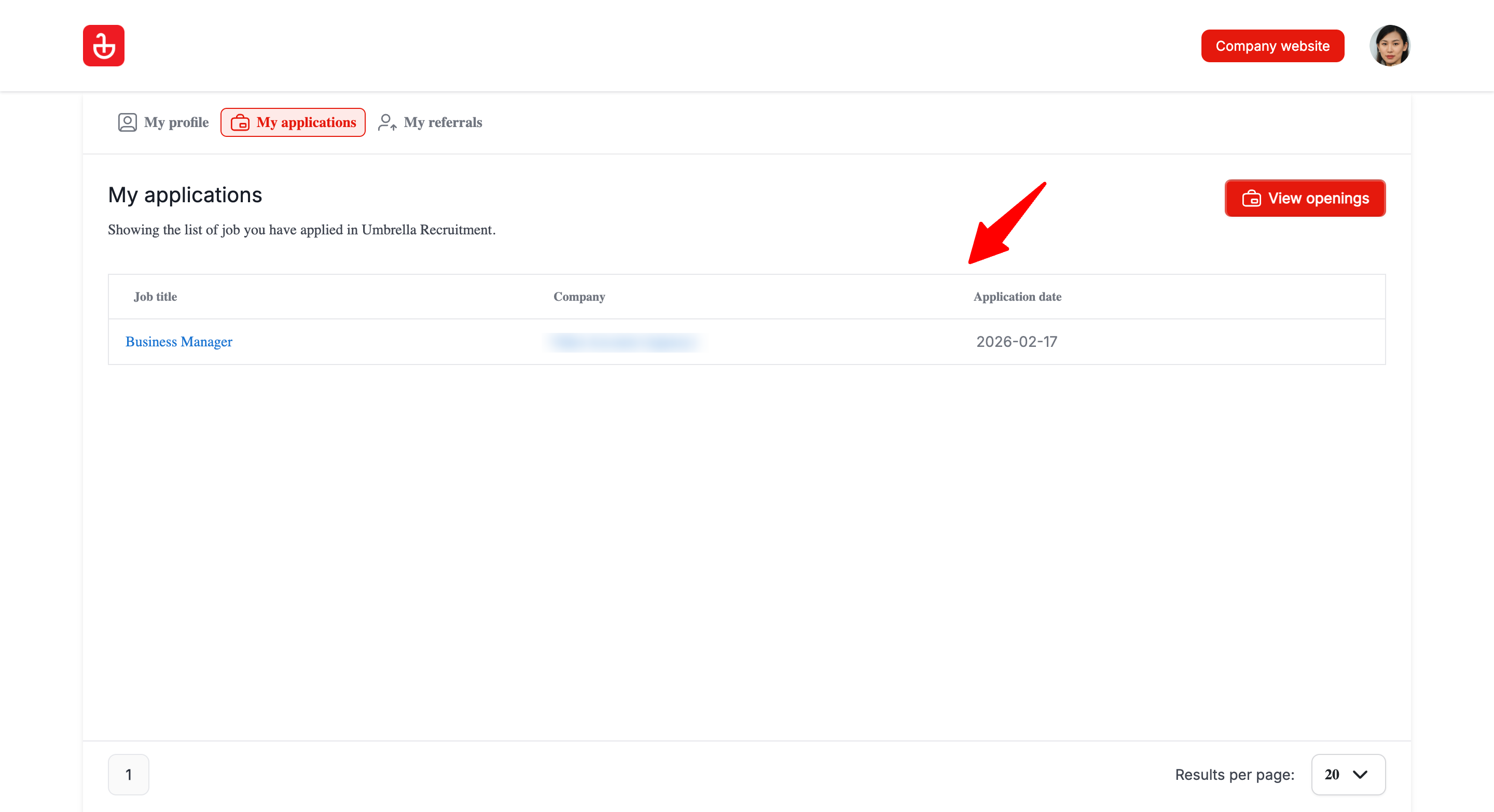
“My Applications” shows you a list of the job applications you have submitted to a specific company’s job openings.
View your applications
- Open "My Applications" tab.
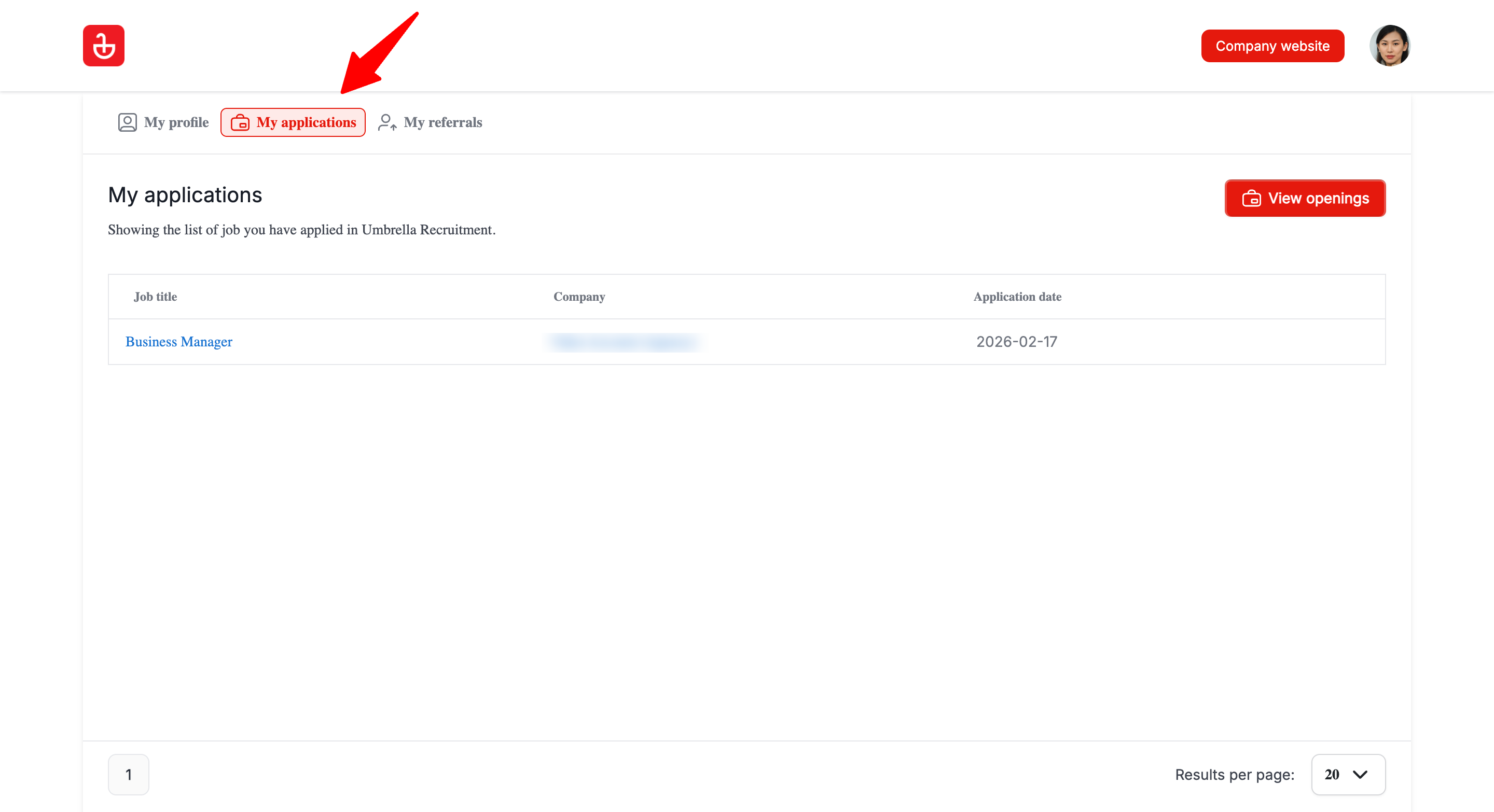
- Review your submitted applications list.
Internal Jobs Tab
Only verified employees can see the 'Internal Jobs' tab, which displays internal jobs.
View internal jobs
- Log in to the Candidate Portal with your company email address.
- Open the "Internal jobs" tab.
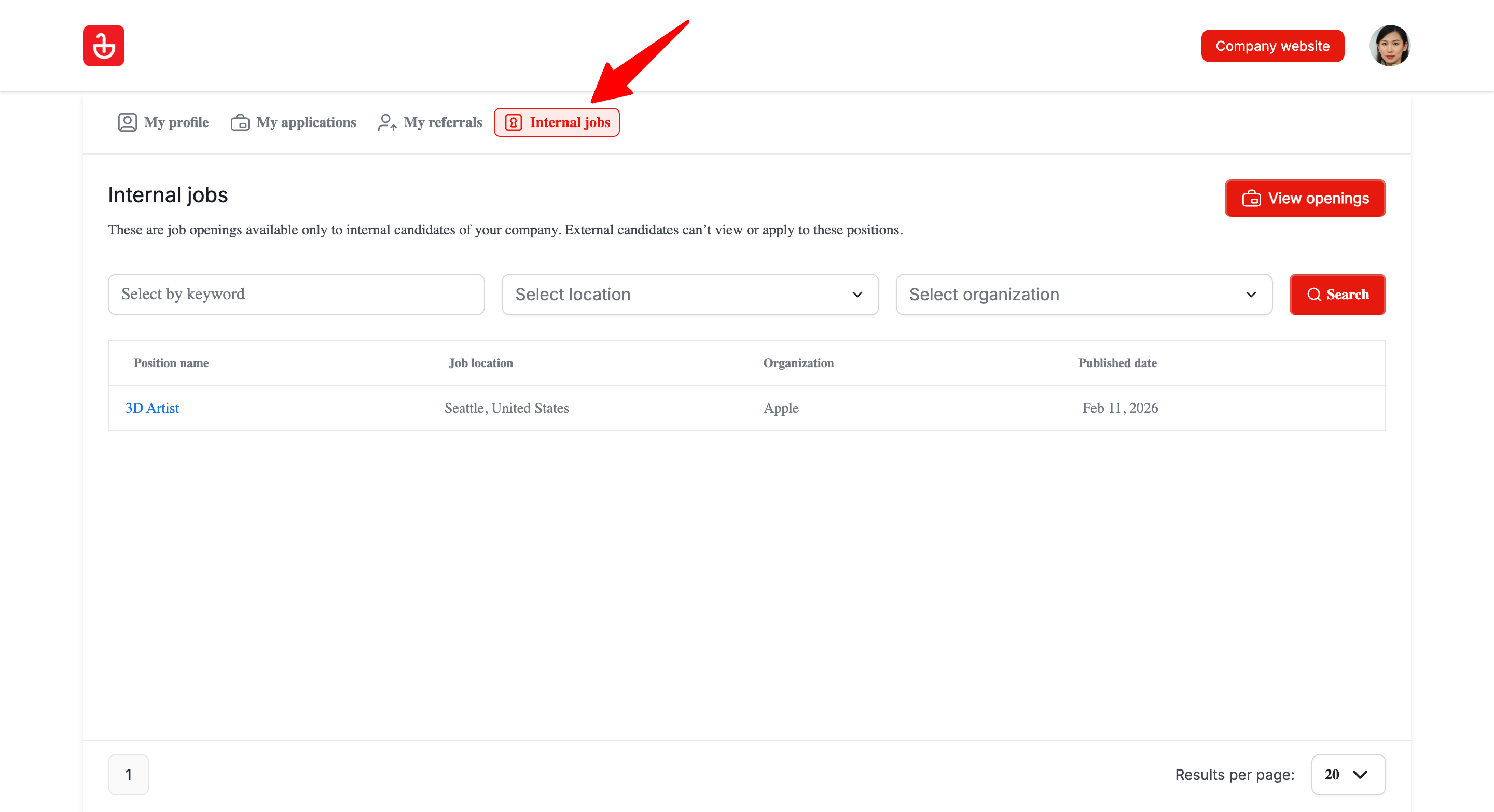
- Browse and apply to internal-only openings.
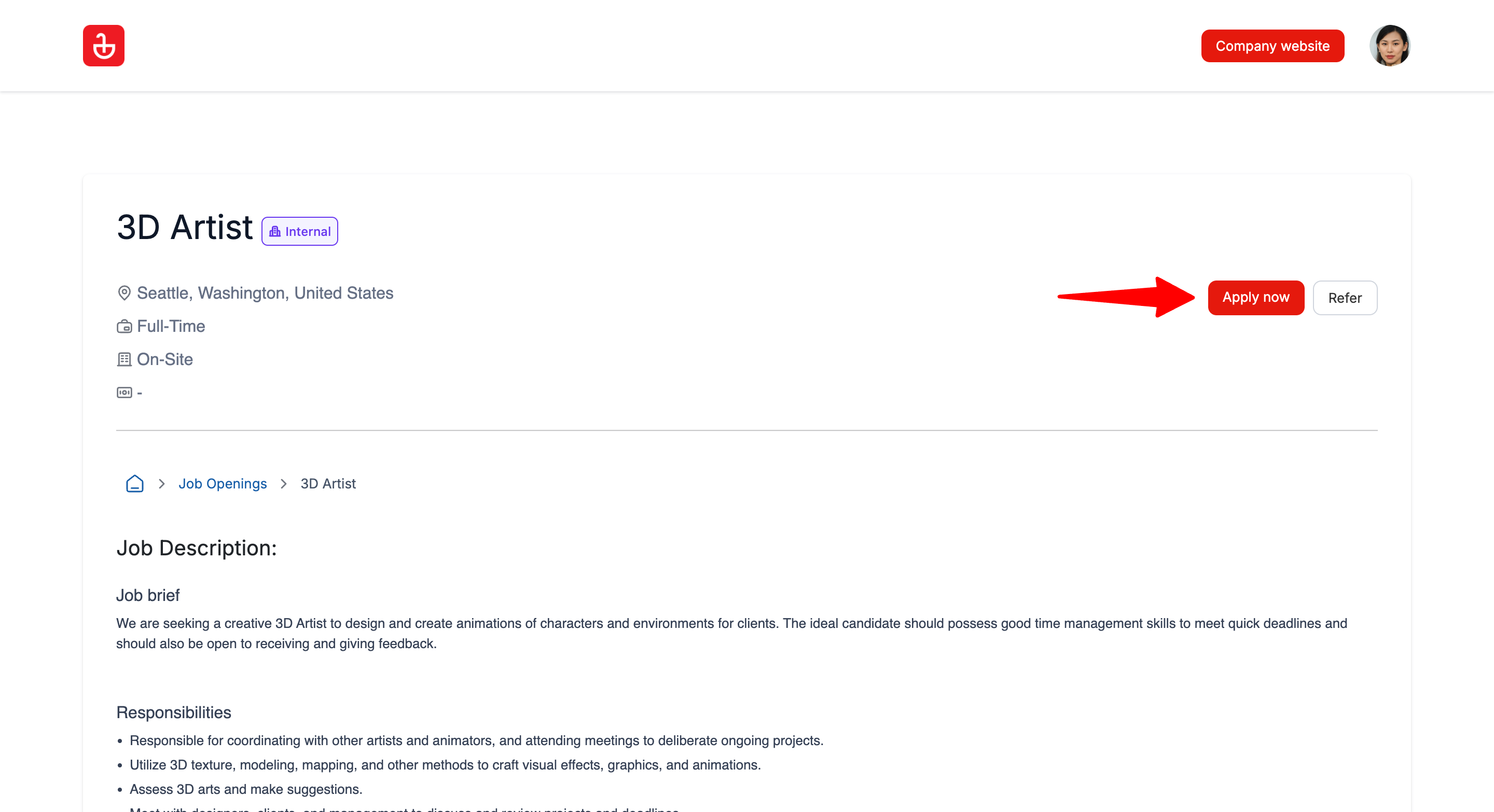
My Referrals Tab
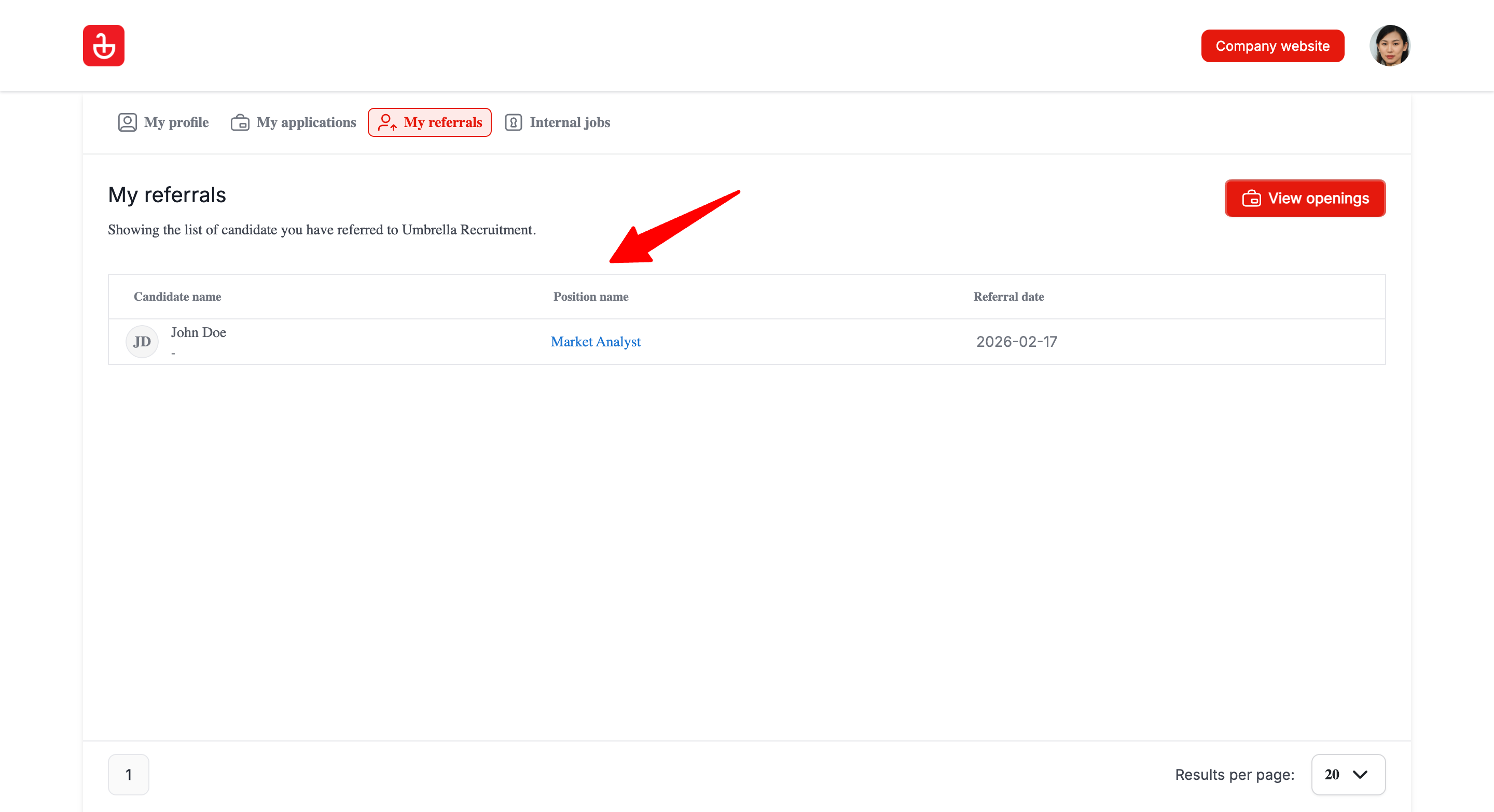
“My Referrals” shows you a simple history of referrals you submitted to a specific company’s job openings.
View your referrals
- Open "My Referrals" tab.
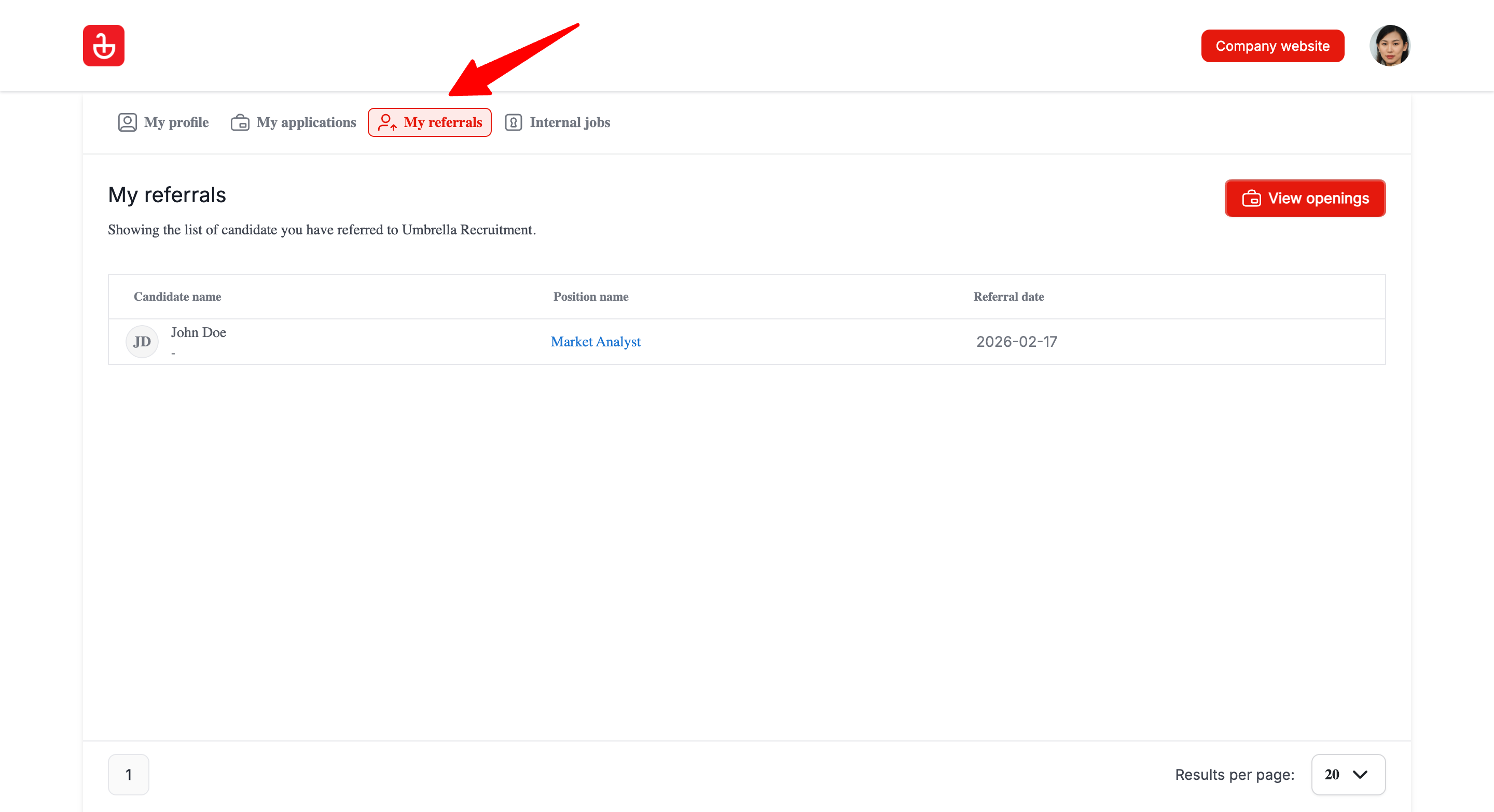
- Review your submitted referrals list.
Changing your email
Email changes require verification to protect account access. While verification is pending, the portal temporarily locks further email changes until the request completes.
Change your email
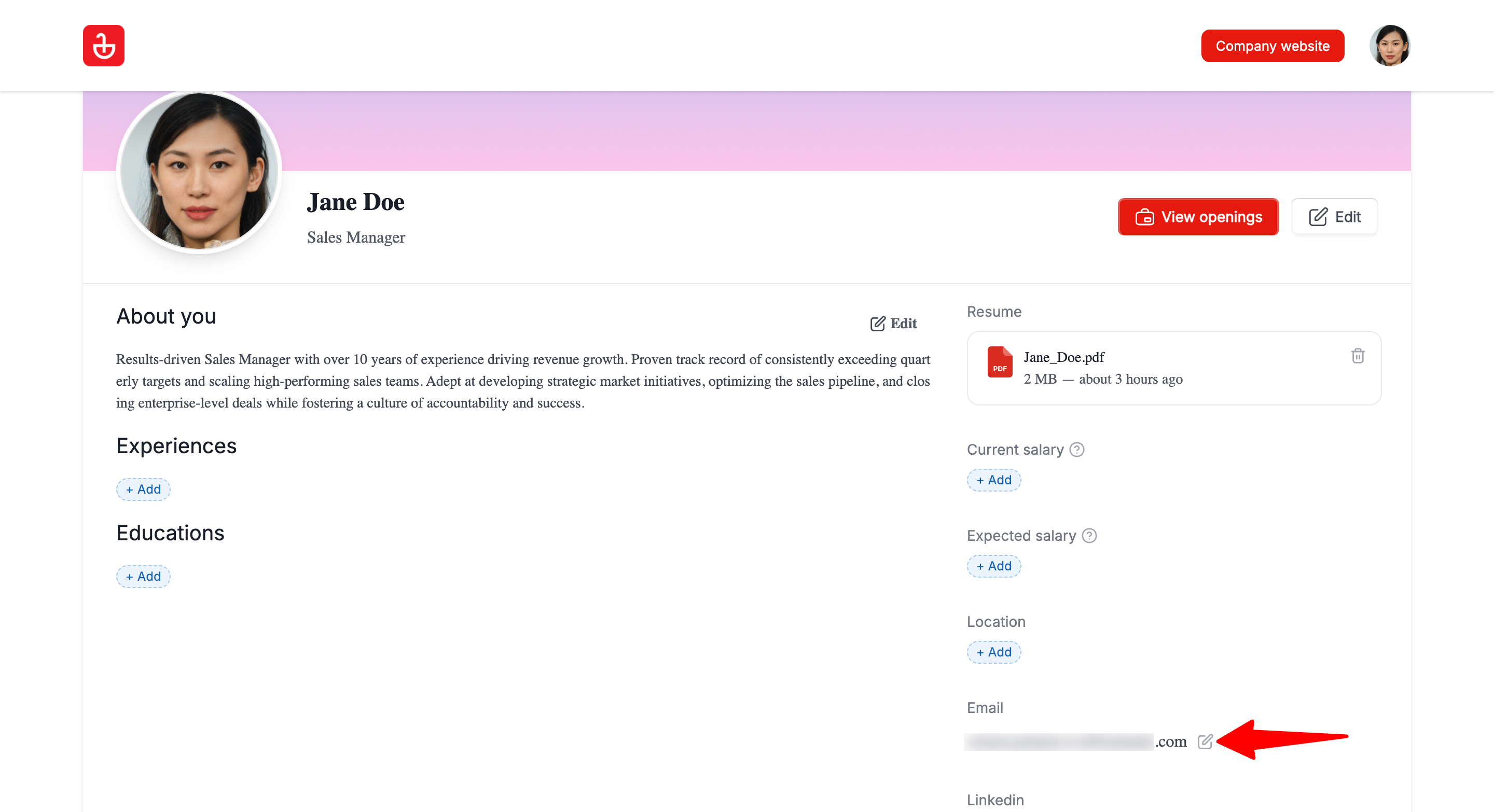
- Open "My Profile" tab.
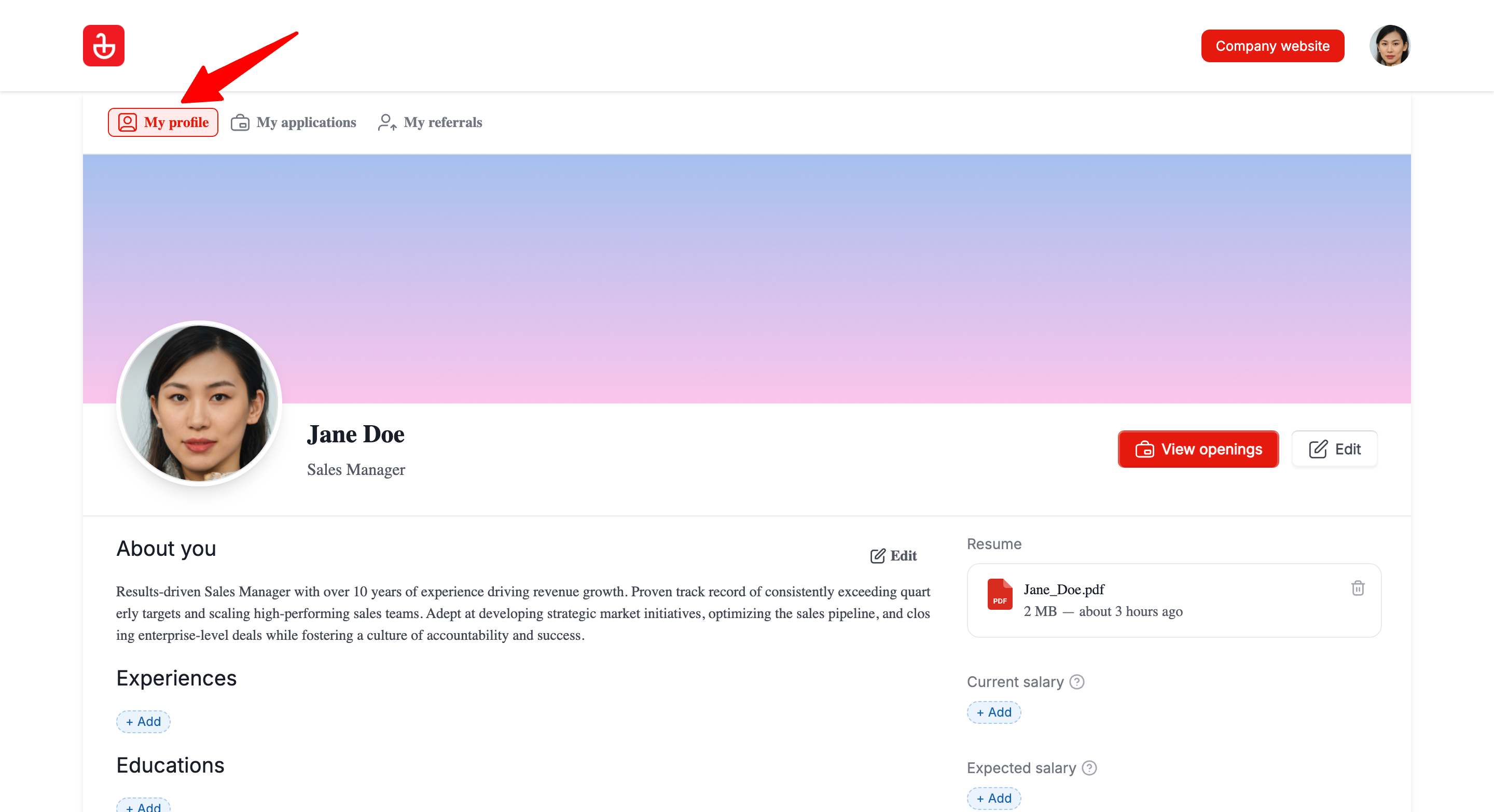
- Click the pencil icon next to your email address.
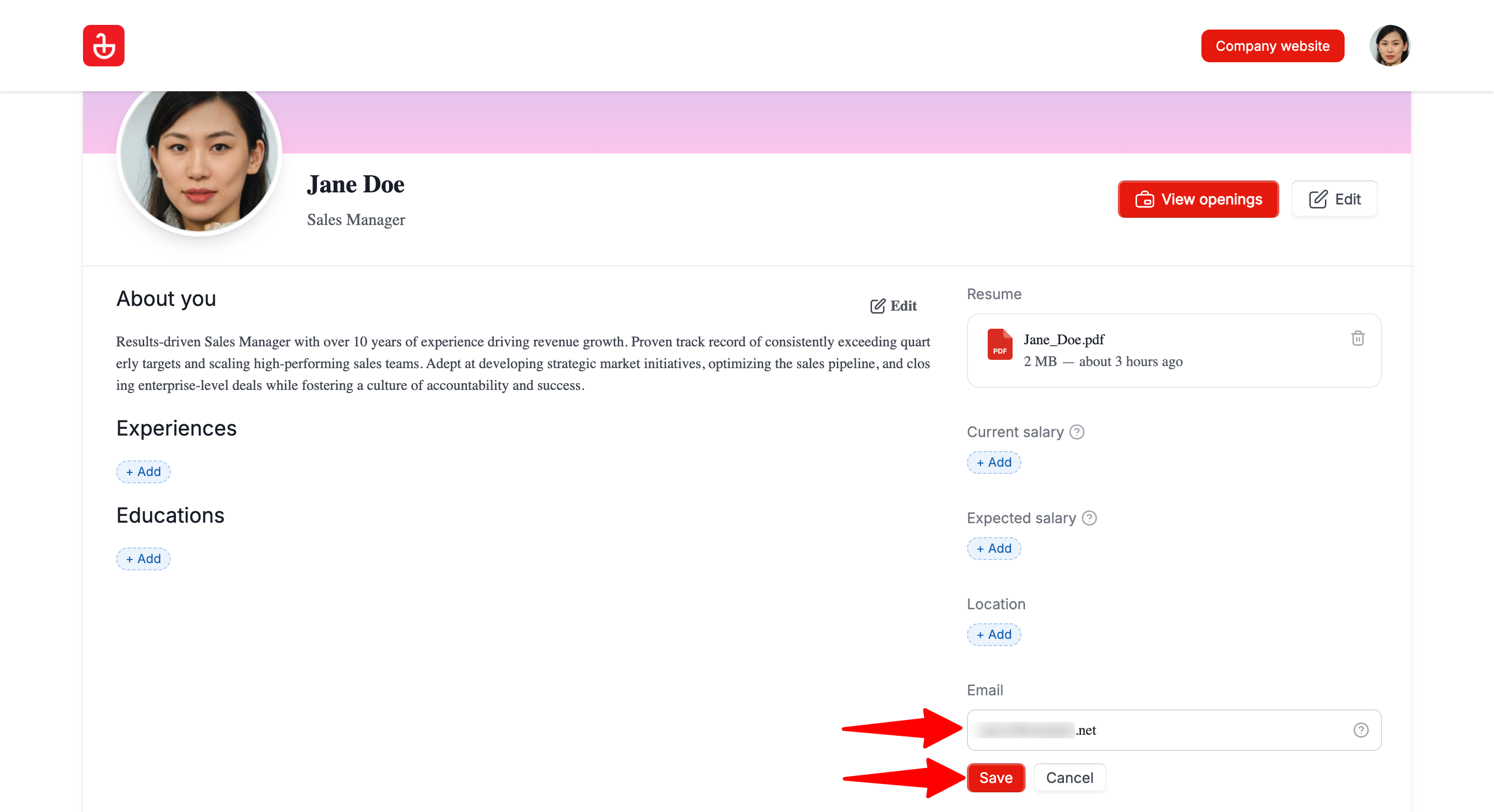
- Enter your new email and click "Save".
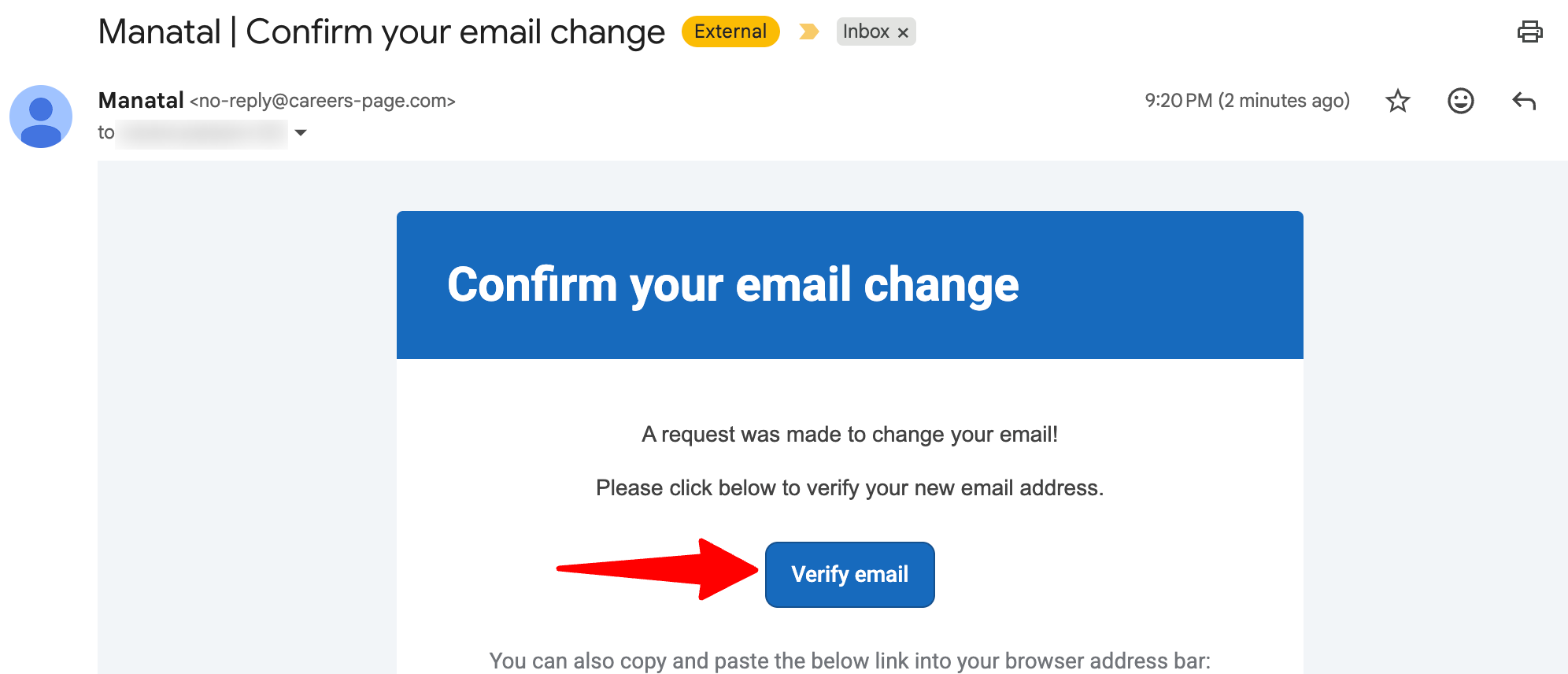
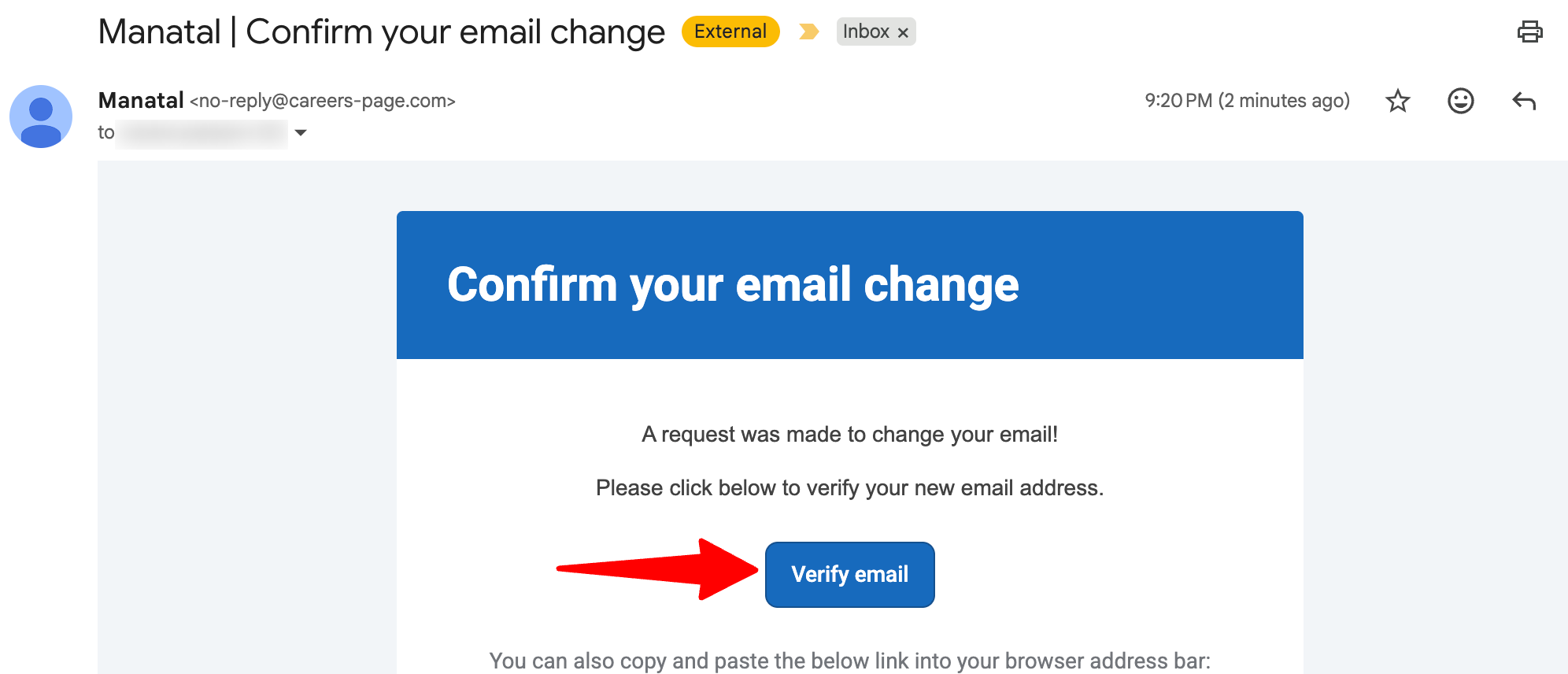
- Open the verification email sent to your new address and confirm the change.
While the verification is pending
- Your email will show Pending verification.
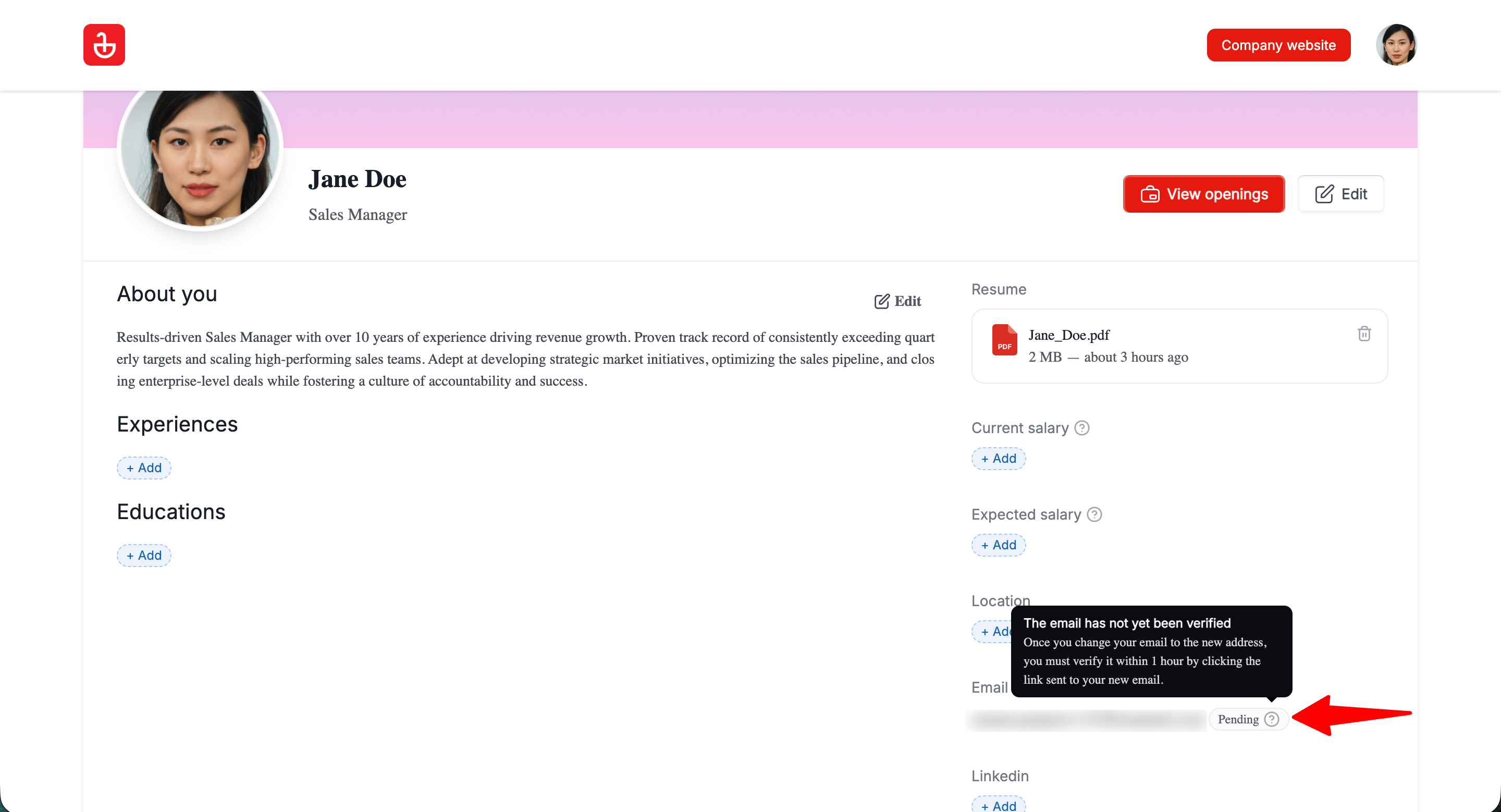
- The pending state lasts up to 1 hour.
- You cannot change your email again while it is pending.