You can use Secure File Transfer Protocol (SFTP) to securely transfer files to Manatal for your data migration. This guide explains how to request SFTP access, connect using FileZilla, and upload your migration files.
For complete details on migration methods, supported ATS systems, and eligibility, refer to this guide.
Request SFTP Access
SFTP access is available upon request for data migrations.
-
Contact your dedicated Customer Success point of contact and ask to transfer your migration files using SFTP.
-
Manatal will securely provide the connection details required to access your dedicated SFTP location, including:
- SFTP host
- Port number
- Username
- Private SSH key
ImportantKeep these details secure and do not share them with unauthorized users.
Before You Begin
Make sure you have:
- Received your SFTP connection details from Manatal
- Downloaded the private SSH key provided by Manatal
- Downloaded and installed the latest version of FileZilla Client
- Prepared the files required for your migration
Your SFTP credentials are valid for a limited period. Please complete your file upload before the deadline confirmed by your dedicated Customer Success point of contact.
Connect Using FileZilla
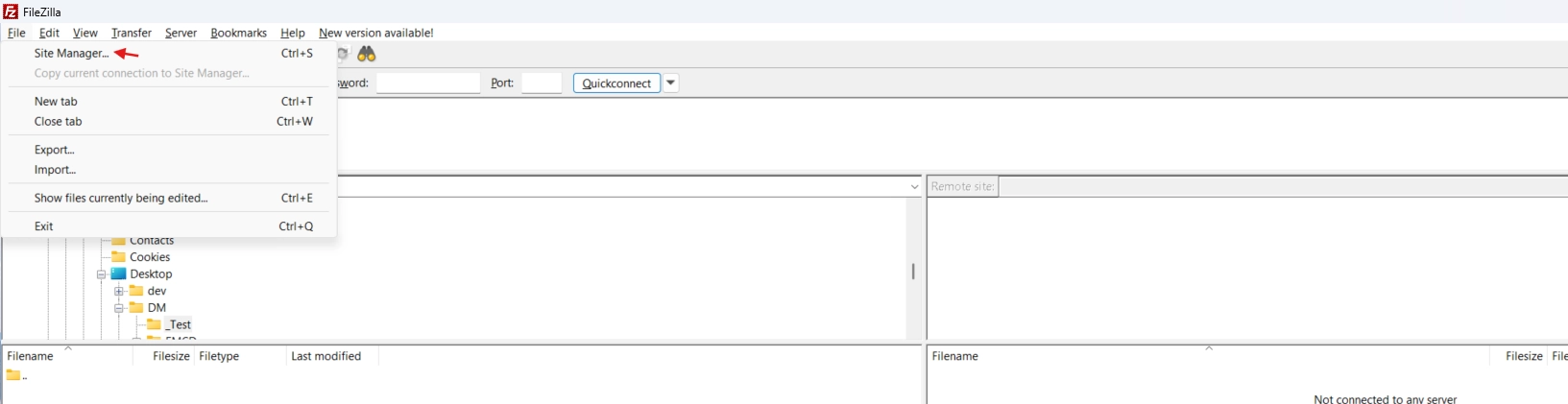
1. Open Site Manager
Open FileZilla, click on "File", and then select "Site Manager".
2. Create a New Site
Click on "New Site" and enter a descriptive name, such as 'Manatal SFTP'.
(2).png)
3. Enter Your Connection Details
Configure the connection using the information provided by Manatal:
| Setting | Value |
|---|---|
| Protocol | SFTP – SSH File Transfer Protocol |
| Host | Enter the SFTP host provided by Manatal |
| Port | Enter the port provided by Manatal |
| Logon Type | Key file |
| User | Enter the username provided by Manatal |
| Key file | Select the private SSH key provided by Manatal |
- Do not enter anything in the password field - this key replaces the password.
- If your private key is passphrase-protected, FileZilla will prompt you for the passphrase when connecting.
Logon Type:
(1).png)
Key File:
(1).png)
4. Connect to the SFTP Server
-
Click on "Connect".
NoteWhen connecting for the first time, FileZilla may ask you to verify the server’s host key. Confirm that the connection details match those provided by Manatal before accepting the prompt.
-
After connecting successfully:
- Your computer files will appear in the Local site panel.
- Your secure Manatal SFTP location will appear in the Remote site panel.
Upload Your Migration Files
Do not rename, reorganize, or remove uploaded files unless instructed by Manatal.
- In the Local site panel, locate the files you want to transfer.
- In the Remote site panel, open the destination folder provided by Manatal, if applicable.
- Drag the files from the local panel to the remote panel.
- Wait until FileZilla confirms that the transfers have completed successfully.
- Notify your Customer Success point of contact once all files have been uploaded.
Troubleshooting
FileZilla Cannot Connect
Confirm that:
- The host, port, and username match the details provided by Manatal.
- SFTP – SSH File Transfer Protocol is selected.
- Key file is selected as the logon type.
- The correct private SSH key has been selected.
- Your internet connection or company network is not blocking SFTP connections.
The Private Key Is Not Accepted
Make sure you selected the original key file provided by Manatal and that it has not been modified.
FileZilla may ask to convert the key into a supported format. Follow the instructions displayed by FileZilla if prompted.
You Cannot Upload Files
Check that:
- You are connected to the correct remote location.
- The files are not open or locked by another application.
- The transfer queue does not show an error.
For further assistance, contact your dedicated Customer Success point of contact and include the error message displayed by FileZilla.
Do not send your private SSH key by email unless Manatal has explicitly instructed you to use an approved secure method.
Security Recommendations
- Store your private SSH key in a secure location.
- Share the connection details only with authorized members of your organization.
- Do not include credentials or private keys in support screenshots.
- Remove locally stored connection details when the migration is complete if they are no longer required.