The Referral Application Form Customization feature allows you to design a tailored experience for anyone referring talent to your organization. By capturing the specific information you need right from the start, you reduce back-and-forth communication and accelerate your hiring process.
This can only be done by an Admin.
Manatal allows users to create and customize referral application forms for your Career Page.
To modify your Career Page, please first activate the Career Page feature by following these instructions.
Enabling the Referral Program
-
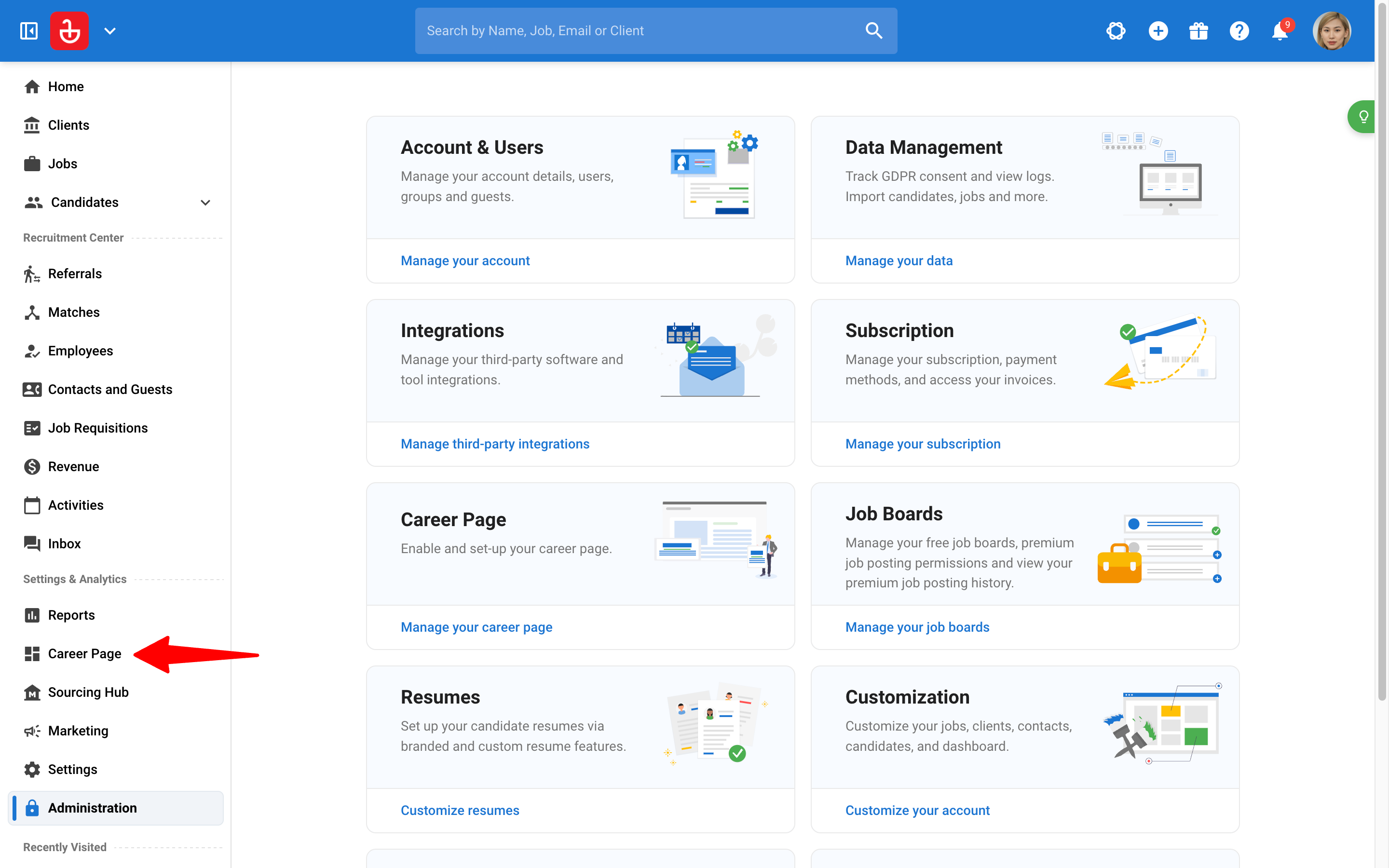
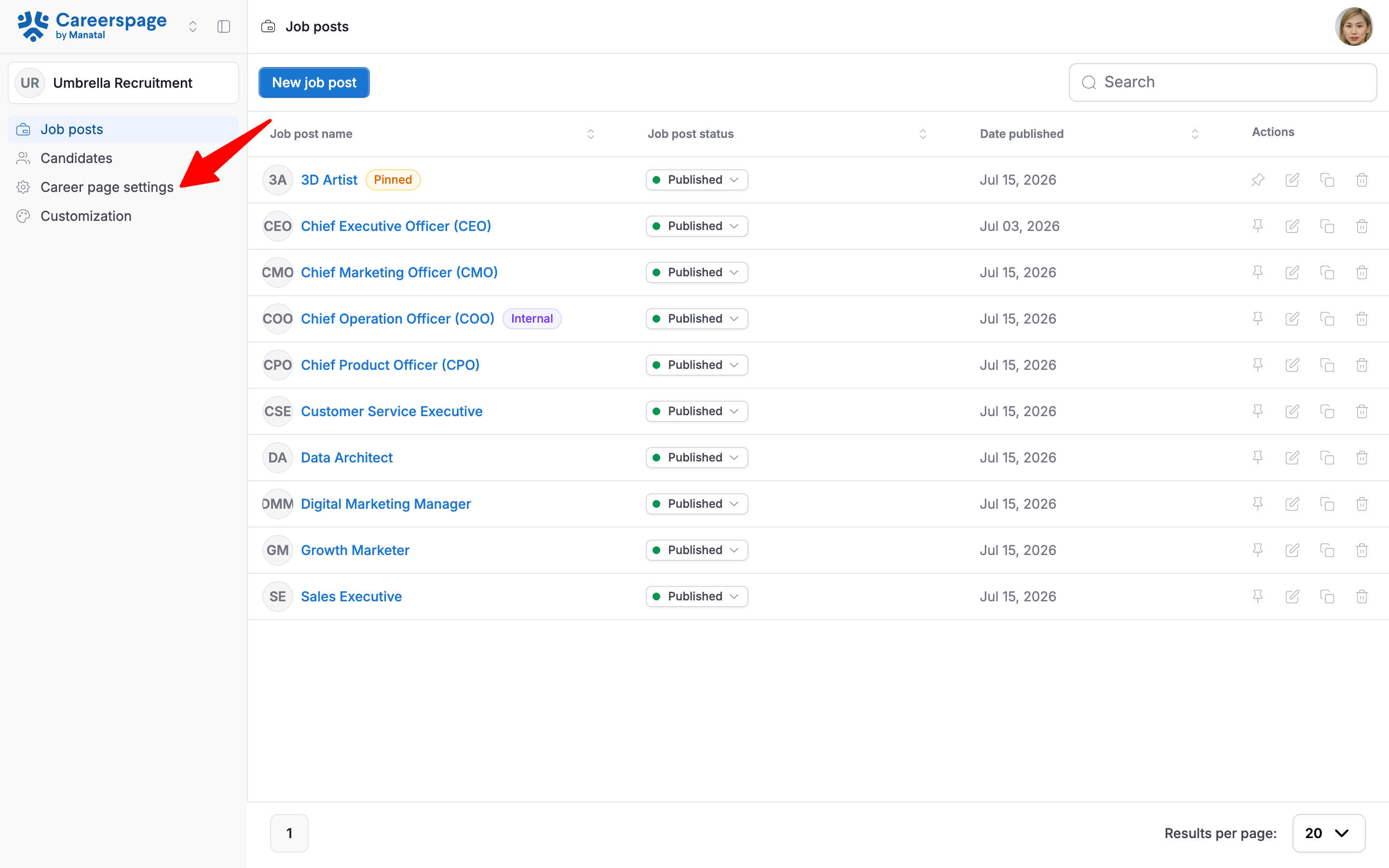
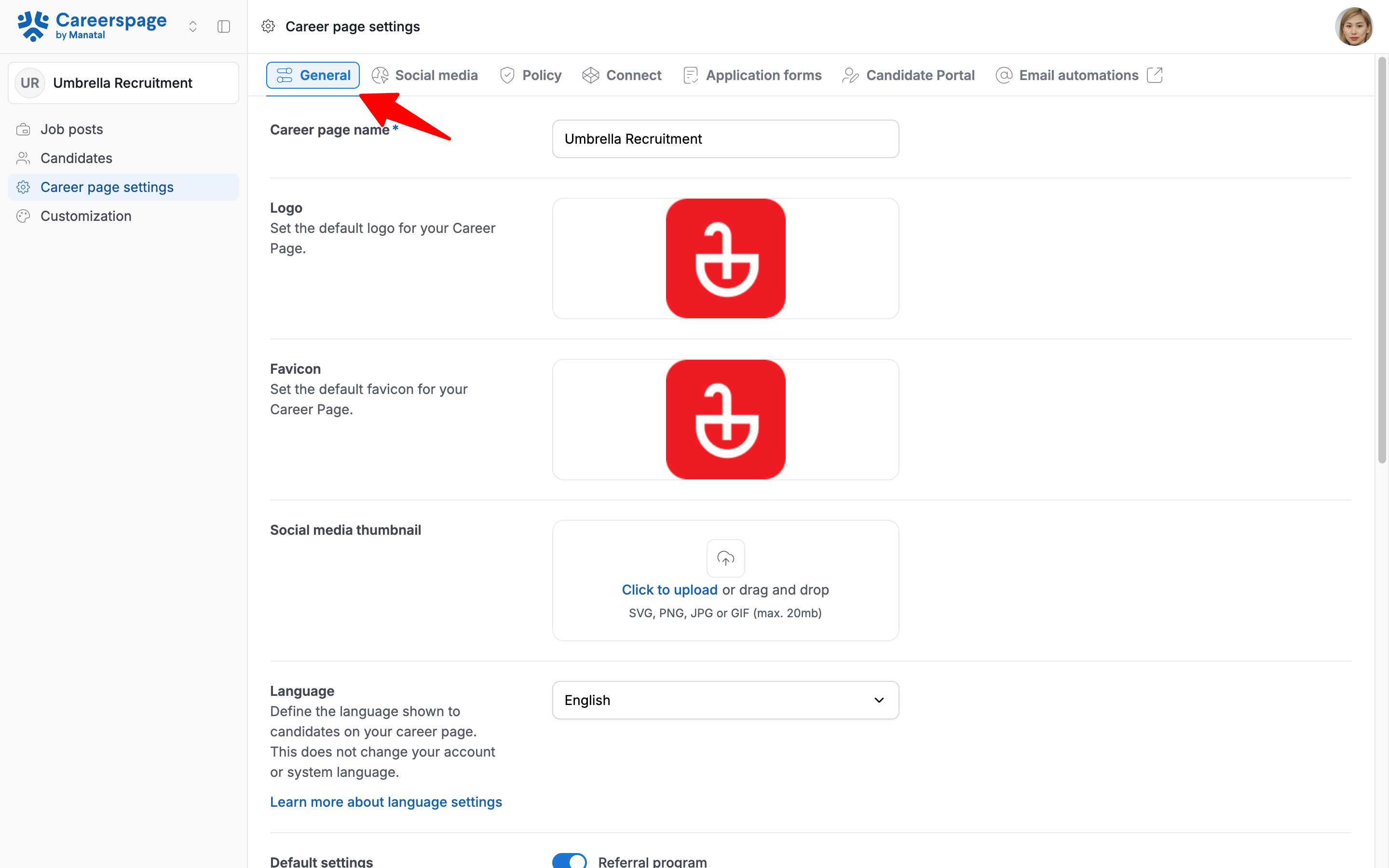
Head to the following page. Alternatively, click on "Career Page" from the side menu, then click on "Career Page settings", and open the "General" tab.
-
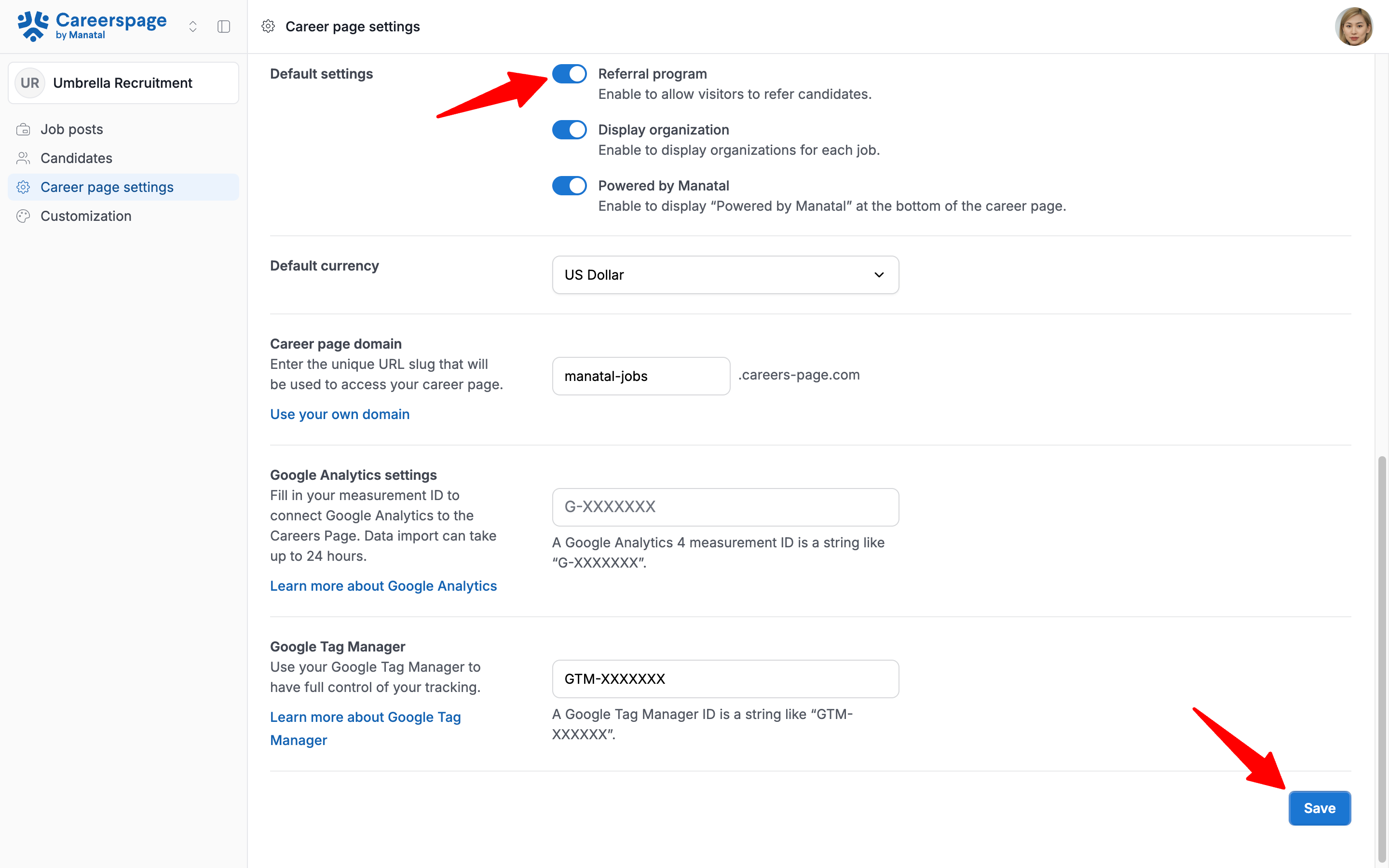
Locate the "Default settings" section. Toggle the "Referral program" option on and click “Save”.
NoteManatal will automatically generate a standard form titled 'Referral Application Form' to get you started.
How to Customize Your Referral Form
You can modify the default form to better suit your requirements by adding, removing, or reordering fields.
Locating the Editor
-
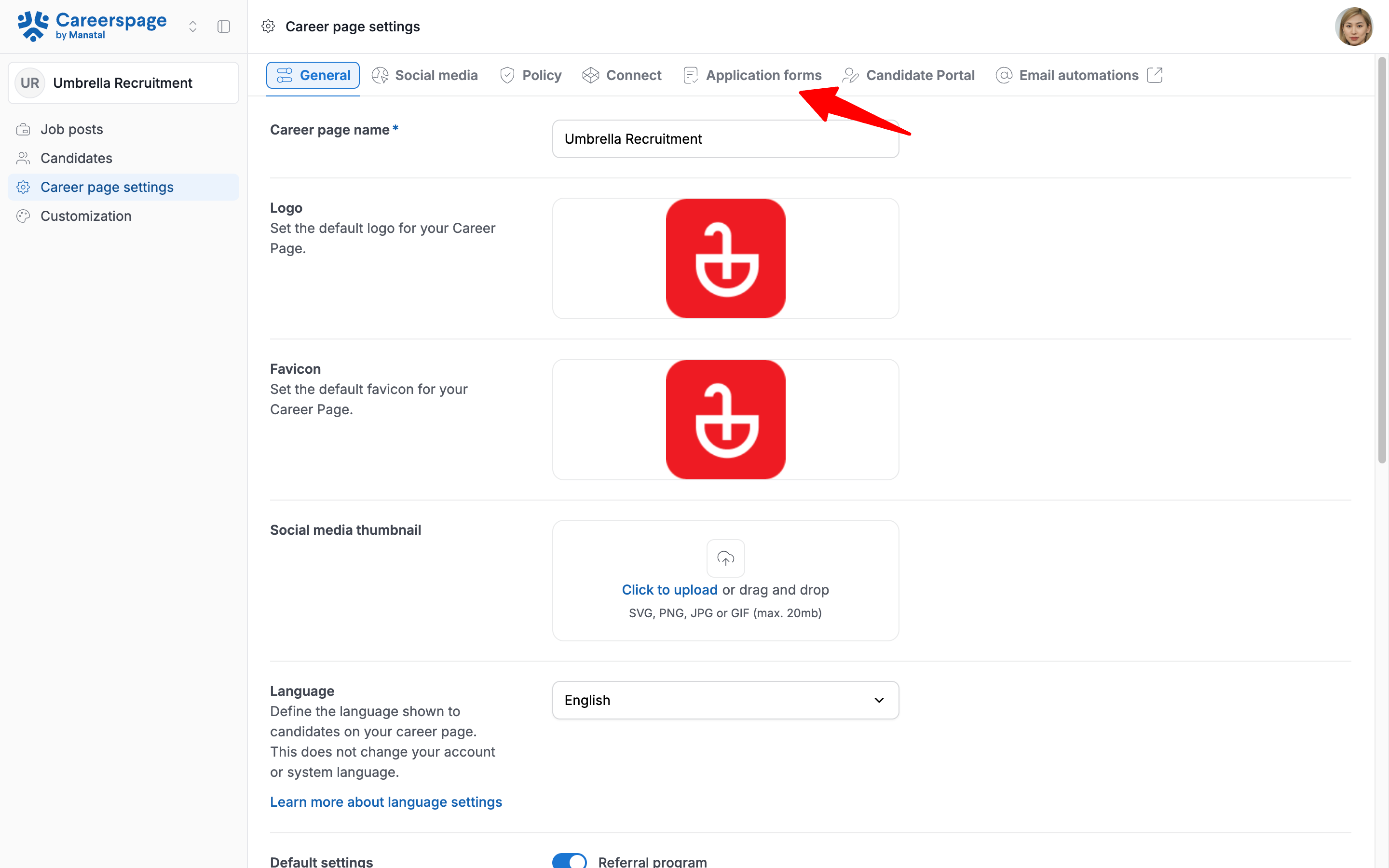
Head to the following page. Alternatively, click on "Career Page" from the side menu, then click on "Career Page settings", and open the "Application forms" tab.
-
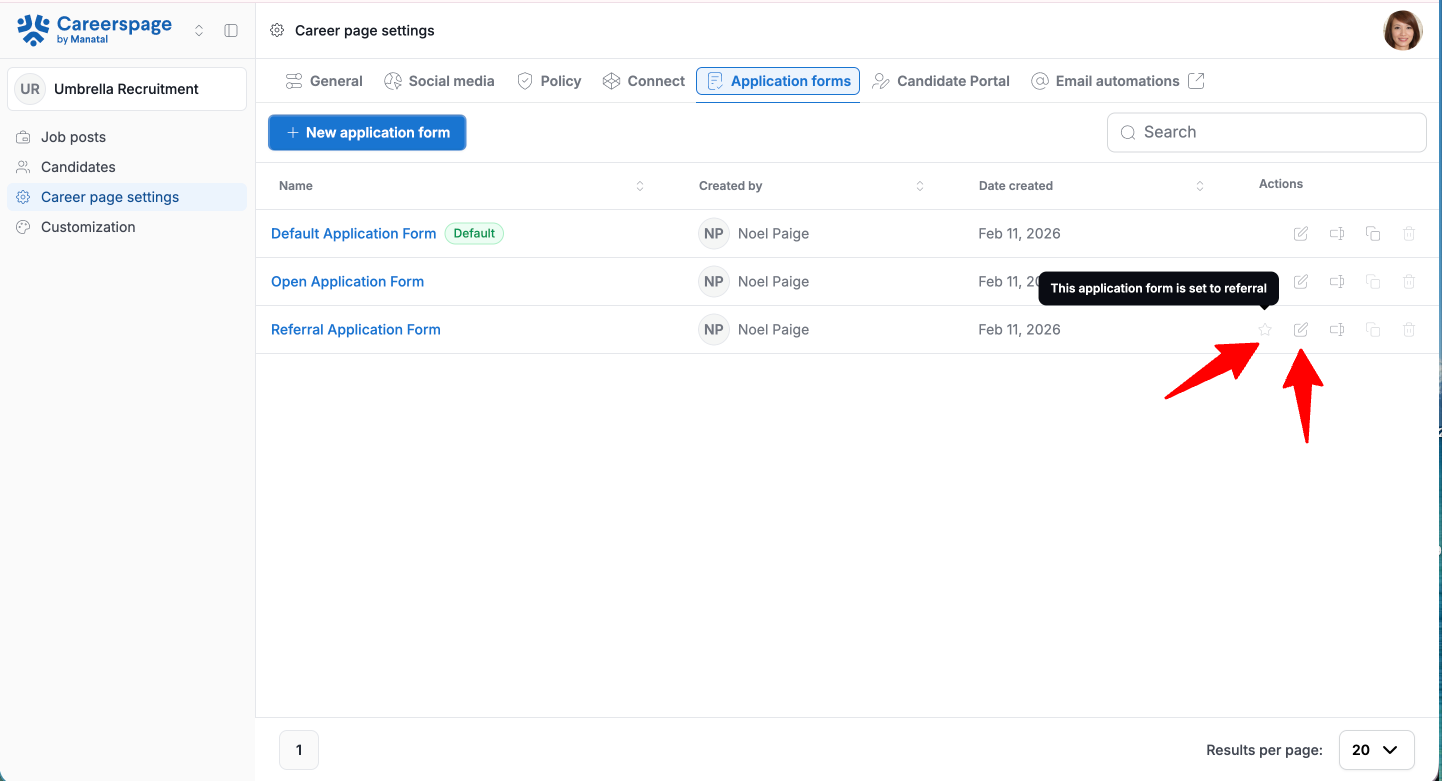
Locate the Referral Application Form. You can identify it by hovering over the star icon, which displays "This application form is set to referral." Click Edit on the right-hand side to enter the Form Editor.
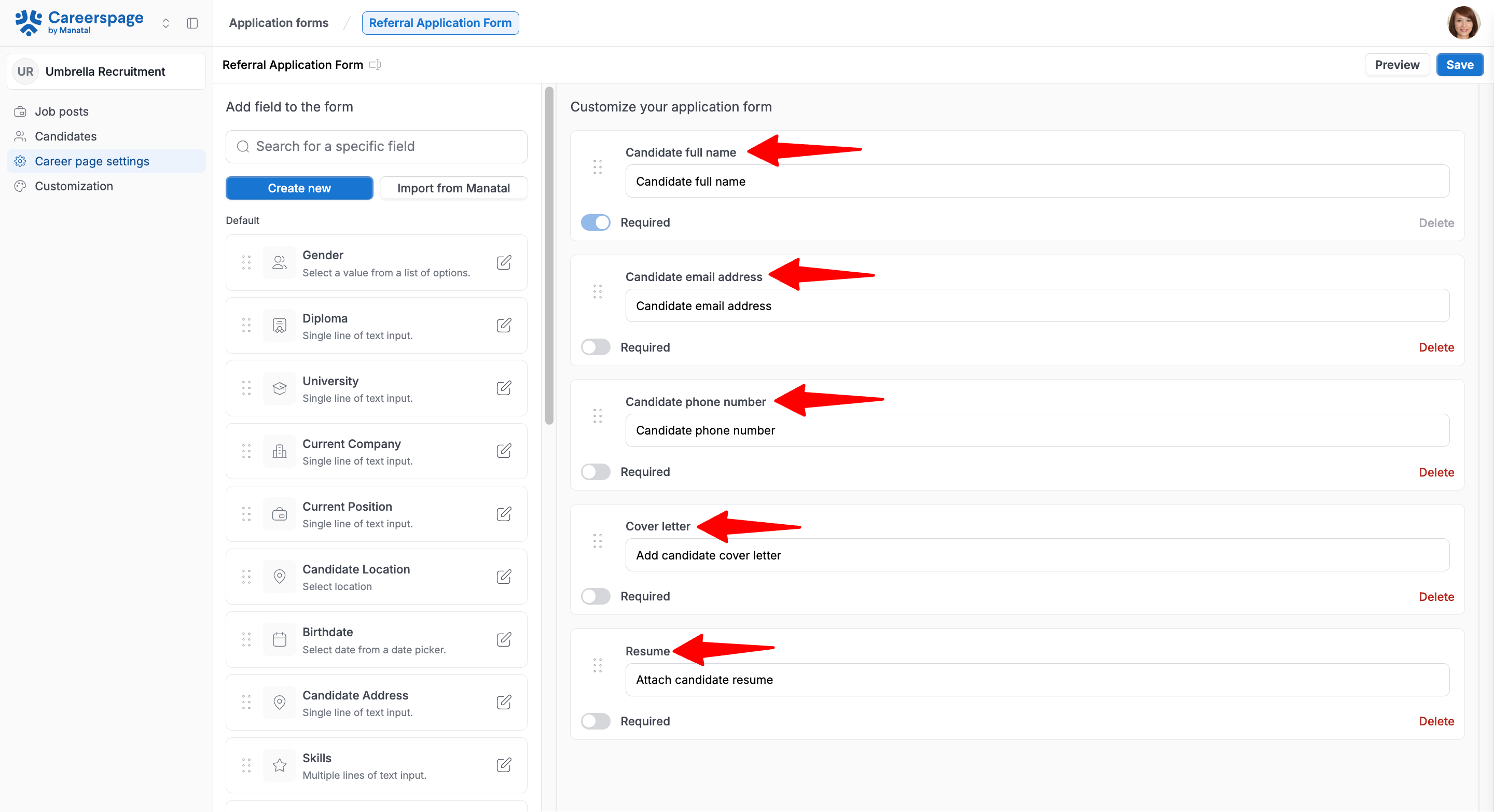
The pre-existing referral form includes the following default fields:- Candidate full name (Required)
- Candidate email address
- Candidate phone number
- Cover letter
- Resume
NoteThe Candidate full name is a required field for every candidate's application, so it can't be deleted from the referral forms.
Customizing the Referral Form
- To customize your form, simply drag fields from the left panel and drop them into the main form area.
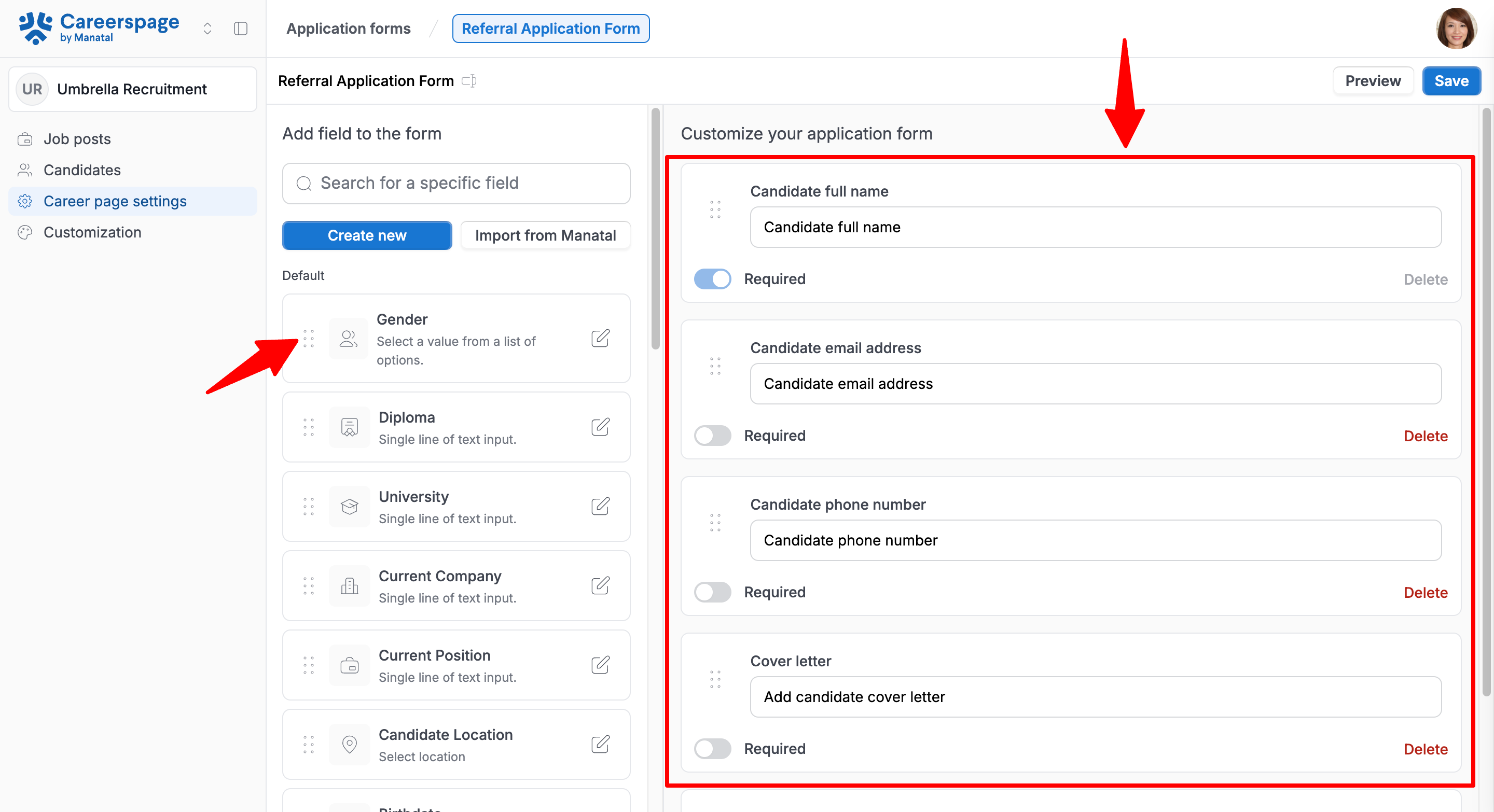
- To make fields required, toggle on the "Required" toggle.
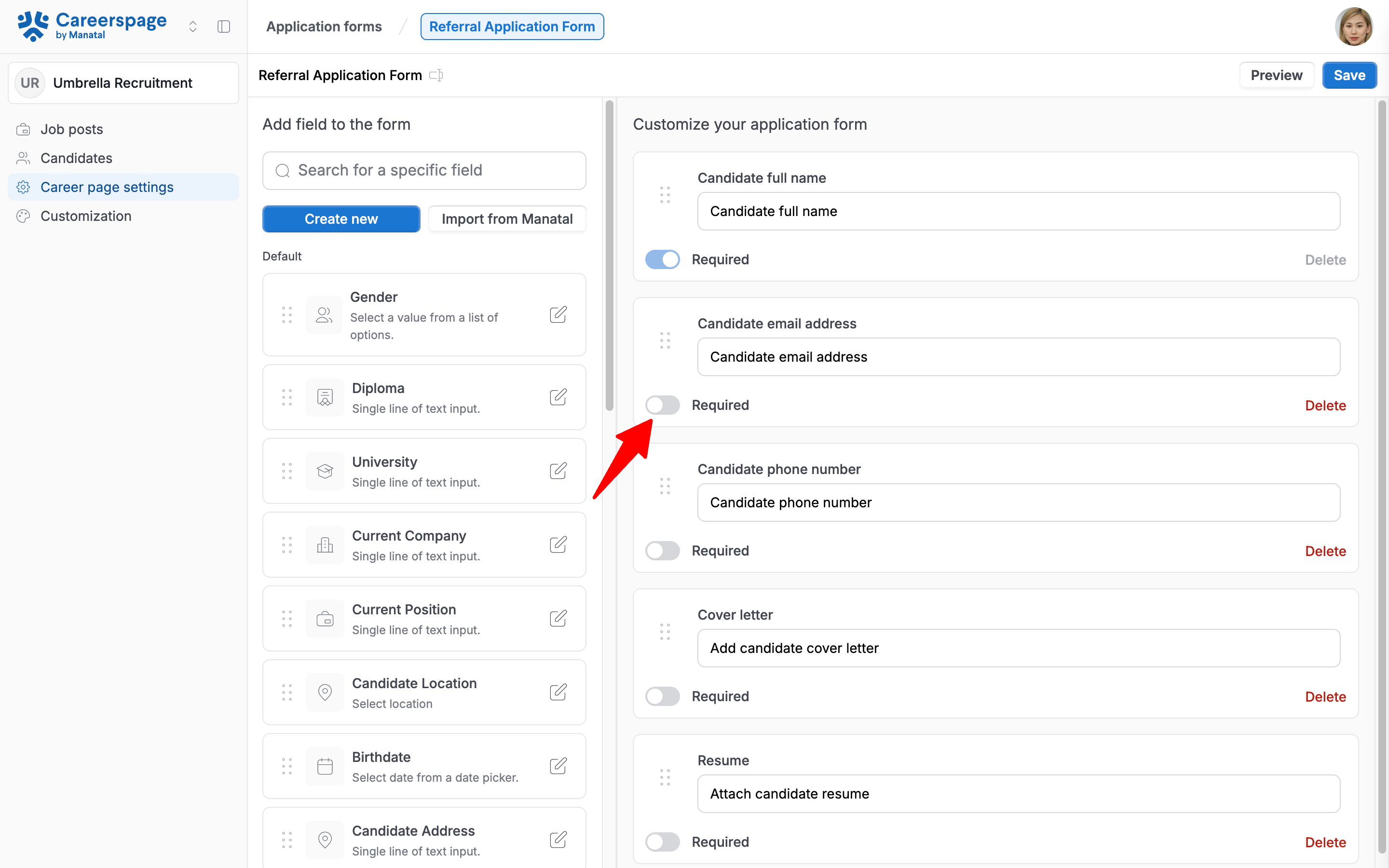
- To re-order a field, simply drag and drop it in its new position.
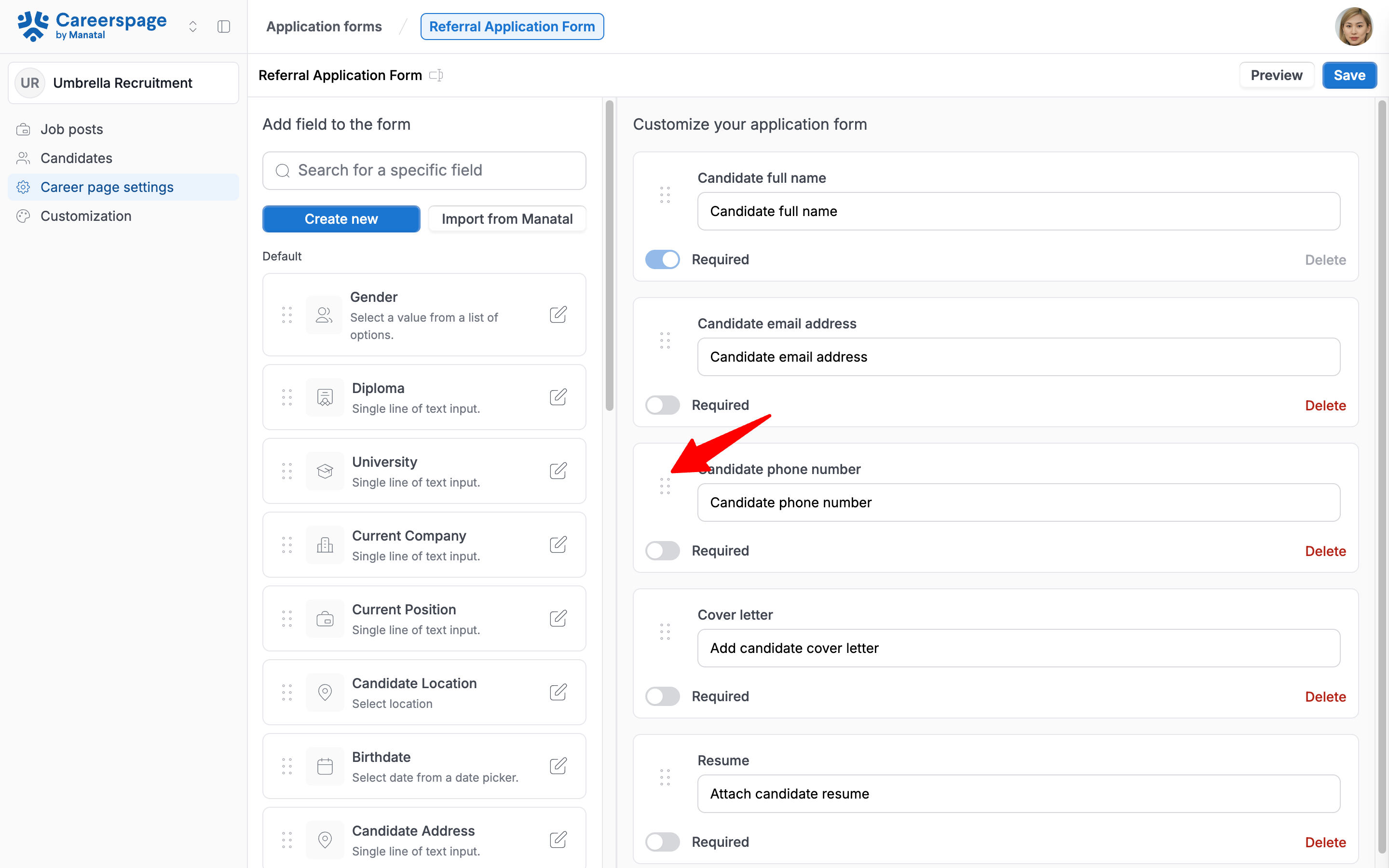
- To create a new field:
-
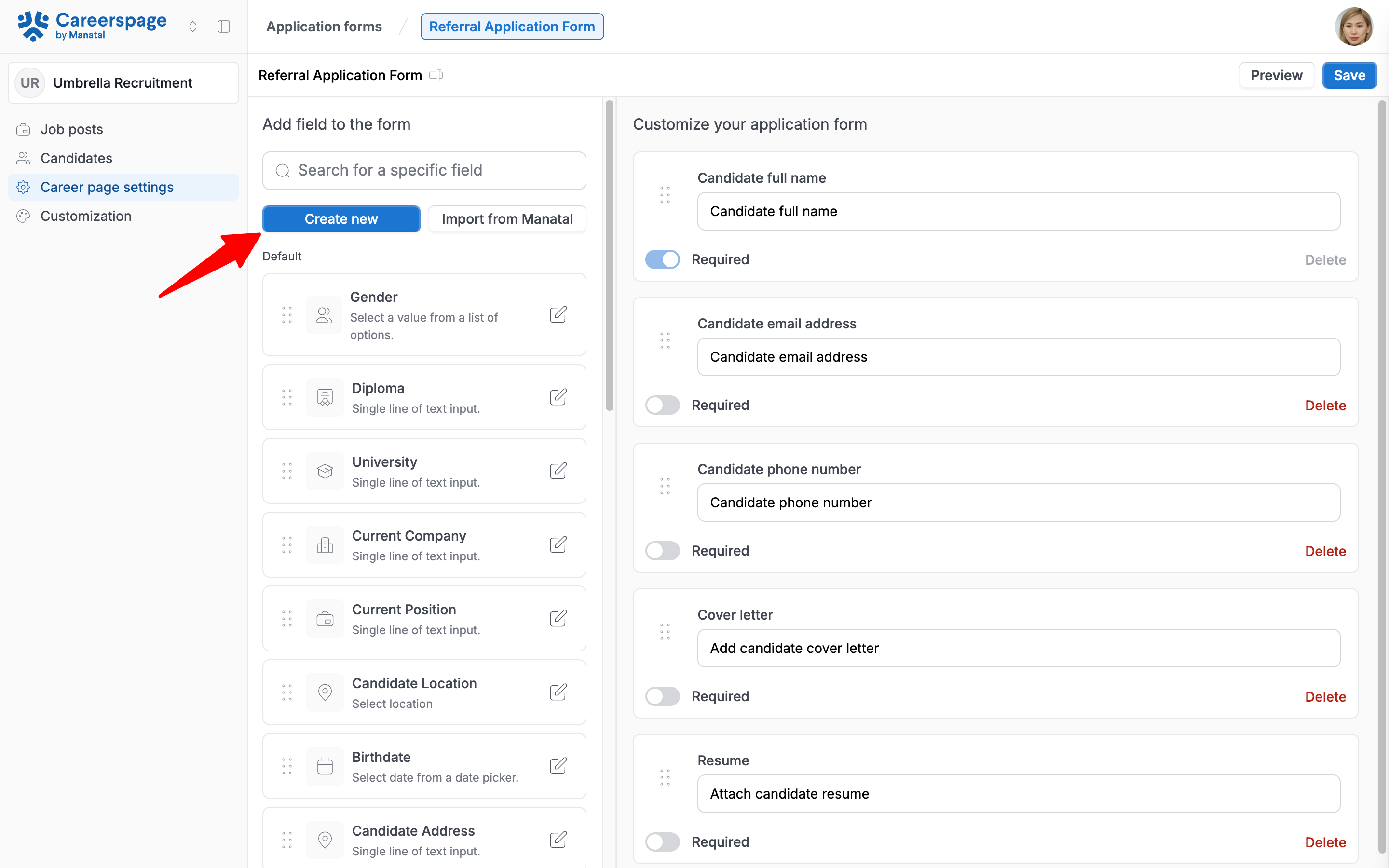
Click on "Create new".
ImportantNew fields you create on the Career Page will only appear on the Referral form in the Career Page, and not in the Candidate Summary within Manatal.
-
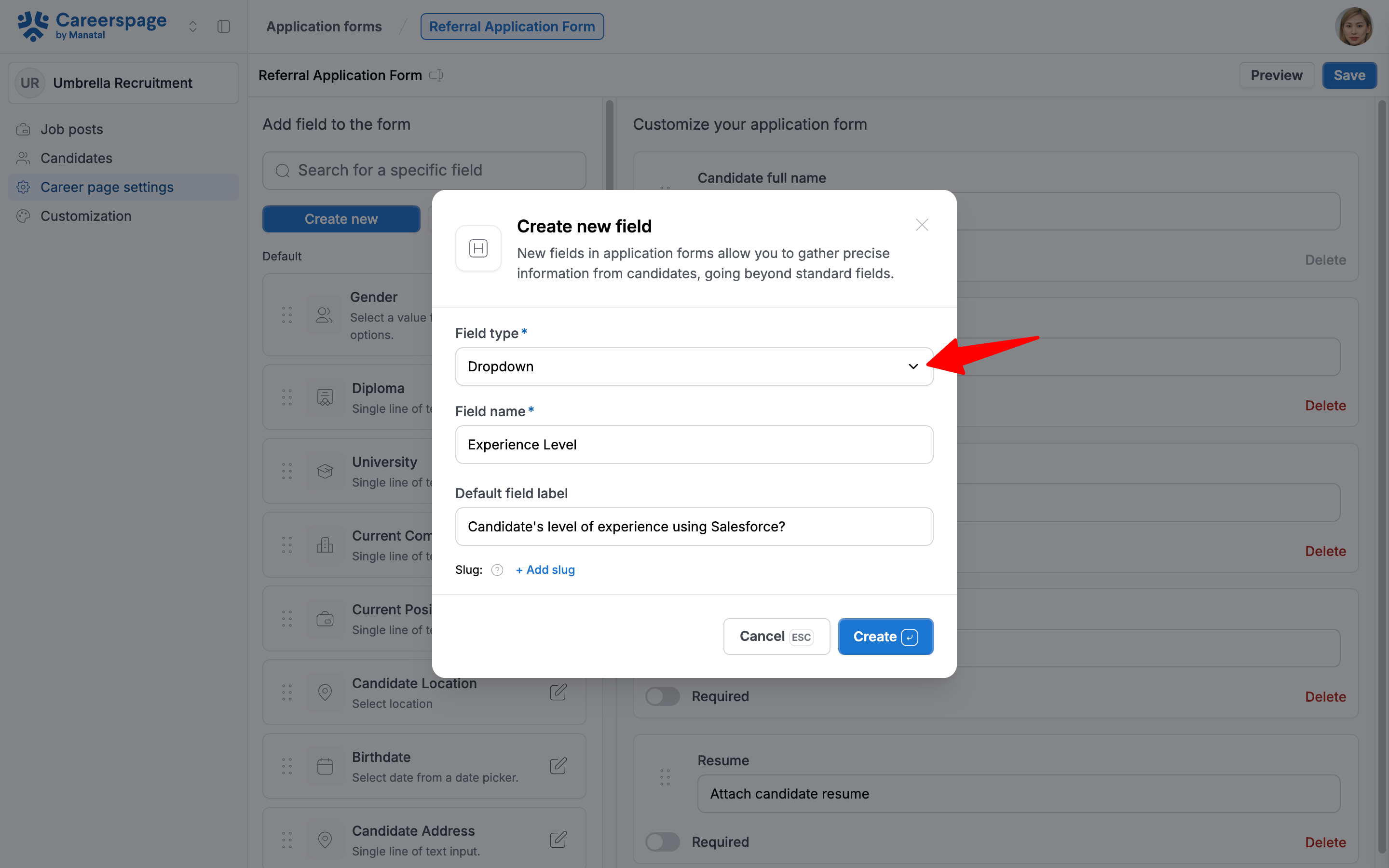
Select the Field type from the dropdown menu.
-
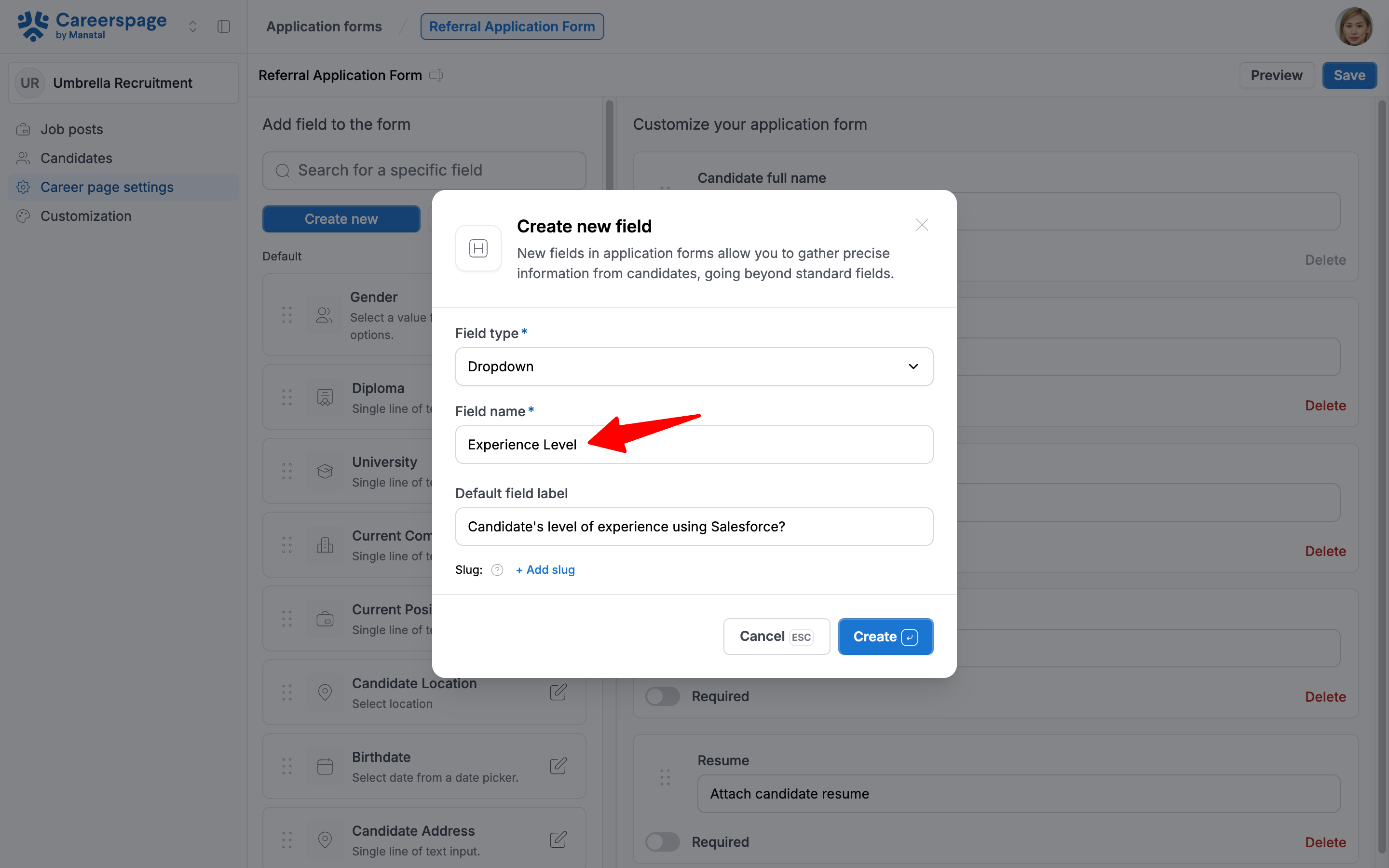
Fill in the Field name.
-
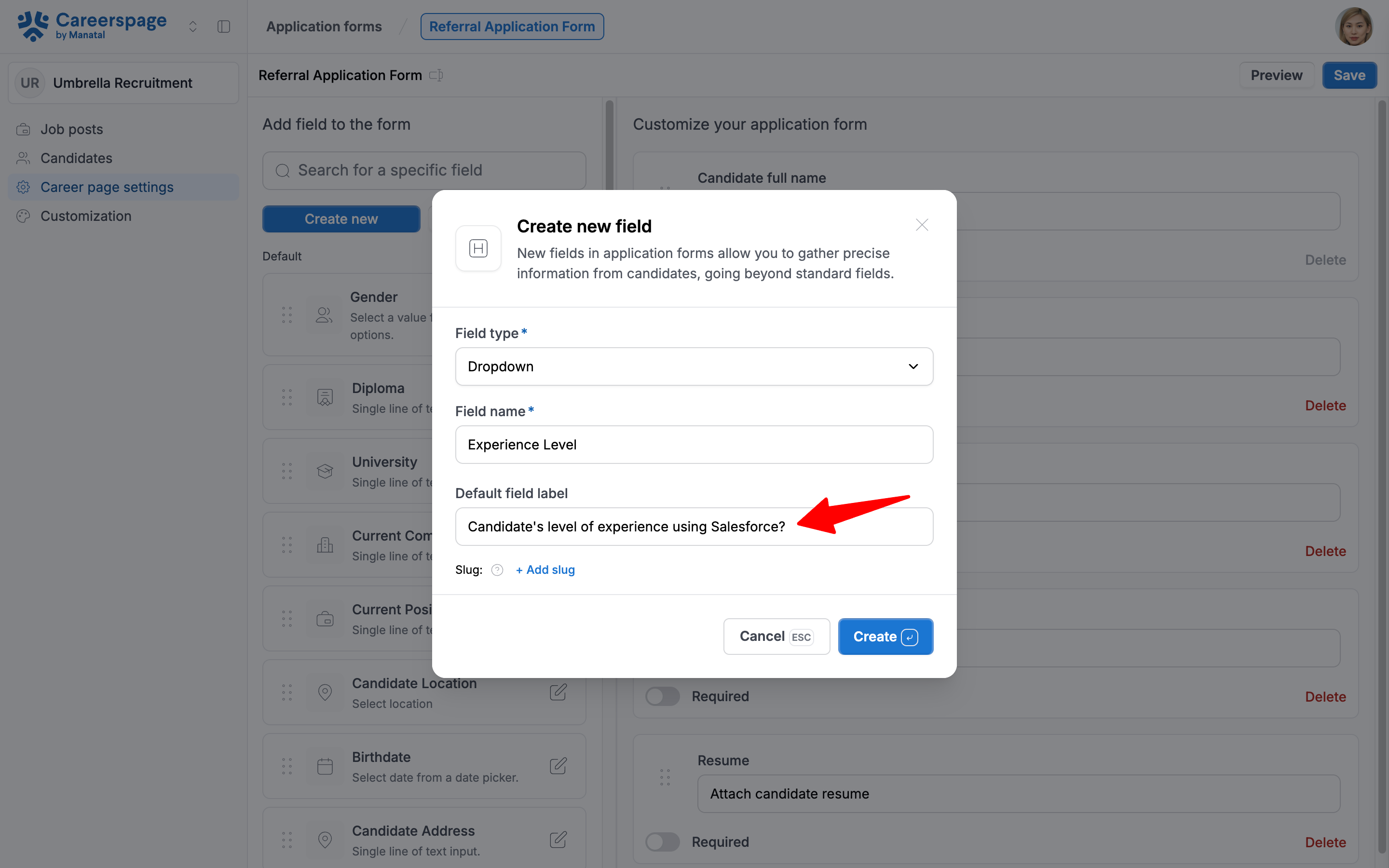
Fill in the Default field label field. To help referrers complete your referral application form faster, we recommend changing the default field labels into clear questions.
Example:- Change “Experience Level” to “Candidate’s level of experience using Salesforce?”
-
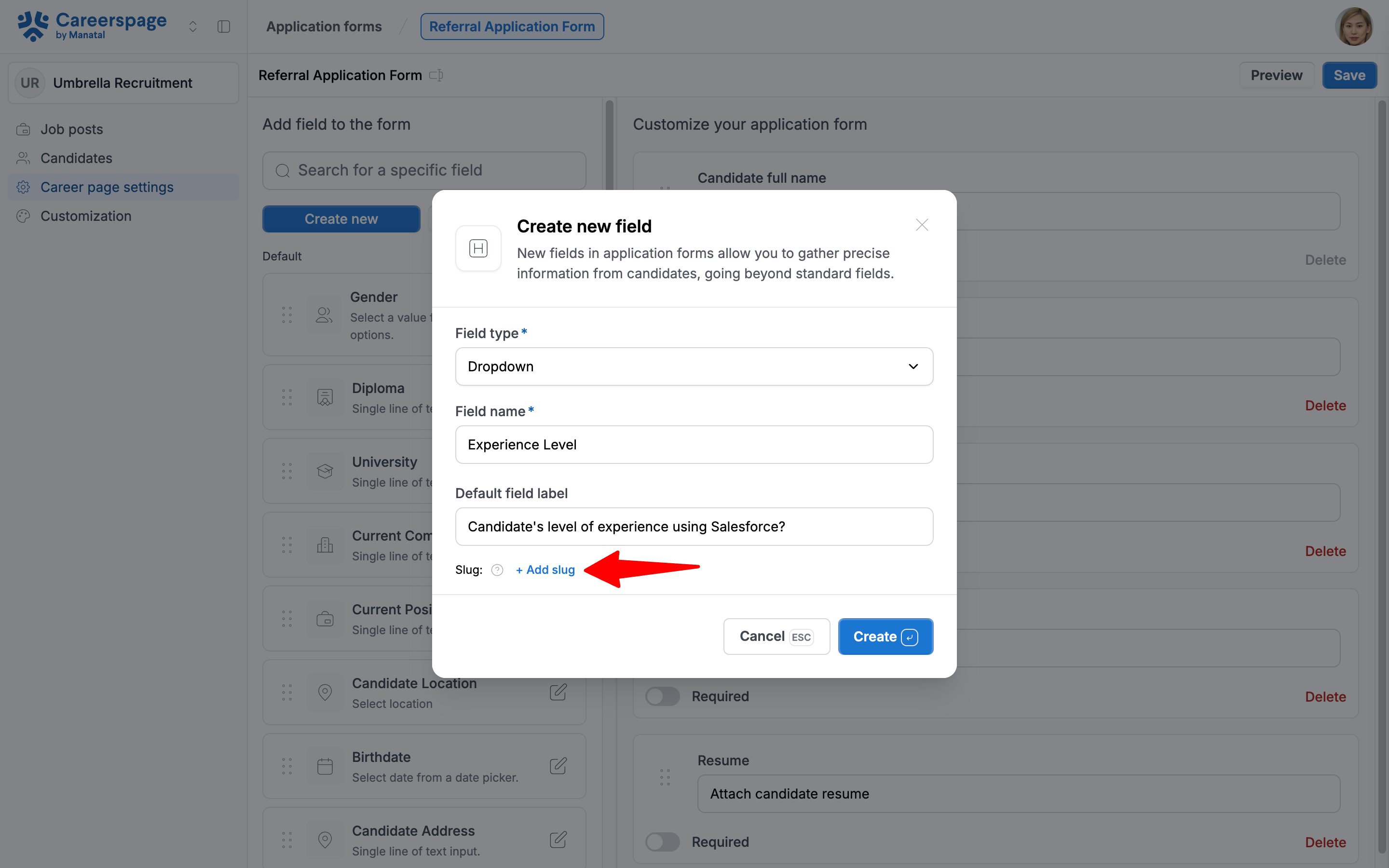
Optionally, to sync data with integration partners, you can map the application form fields to theirs using the slug.
Note- A slug is a unique identifier for your field and is used to integrate with Manatal or with another provider.
- When adding a new field to your application form, you can simply click “Add Slug” to automatically generate an identifier.
- If you already know the slug of the field you want to use, you can also manually edit it and set a specific value.
-
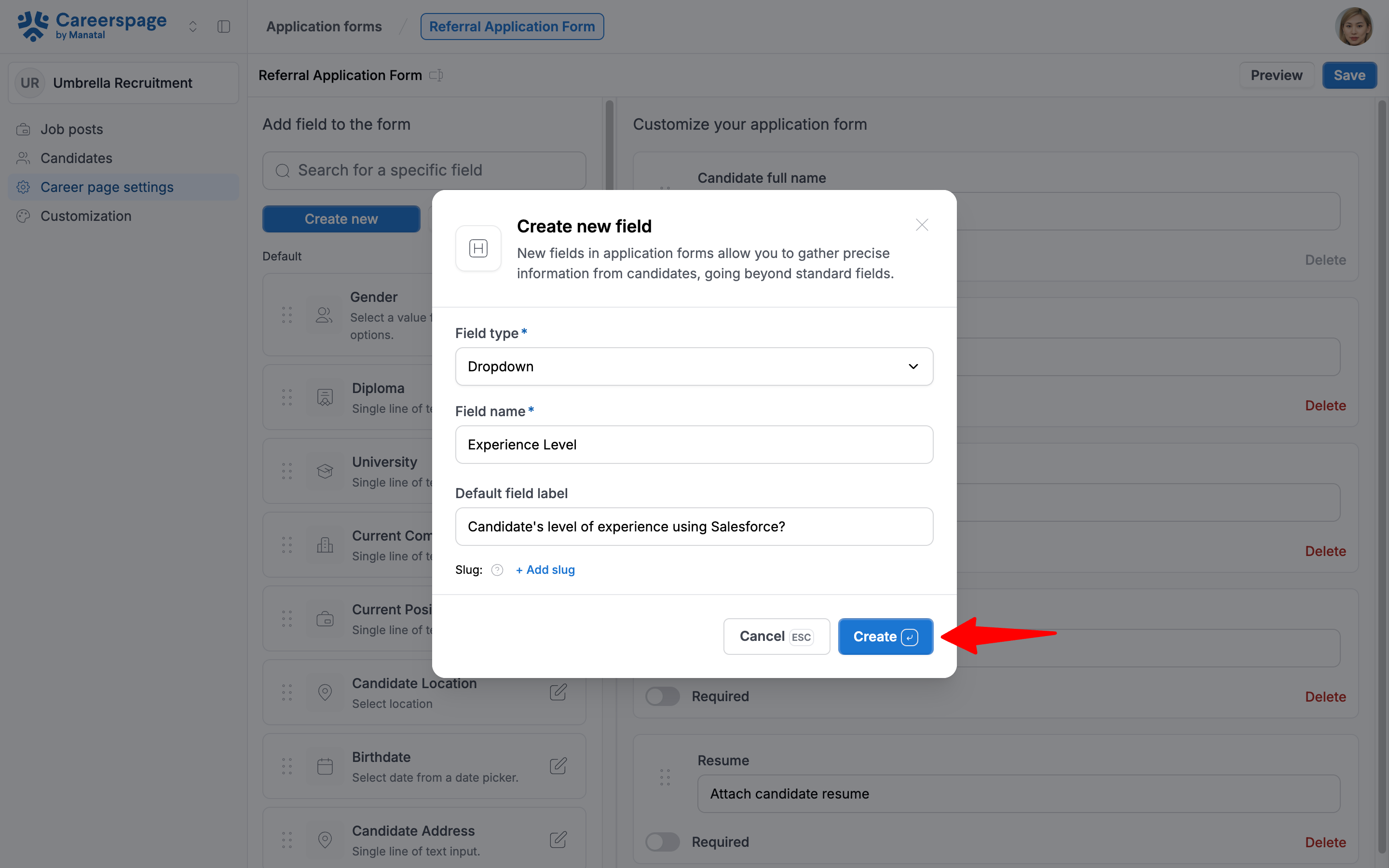
Click "Create" to save the changes.
-
- To import candidate custom fields to your referral form:
- Click "Import from Manatal". This will load all custom fields you have created in your account. Learn more about candidate custom fields in this article.
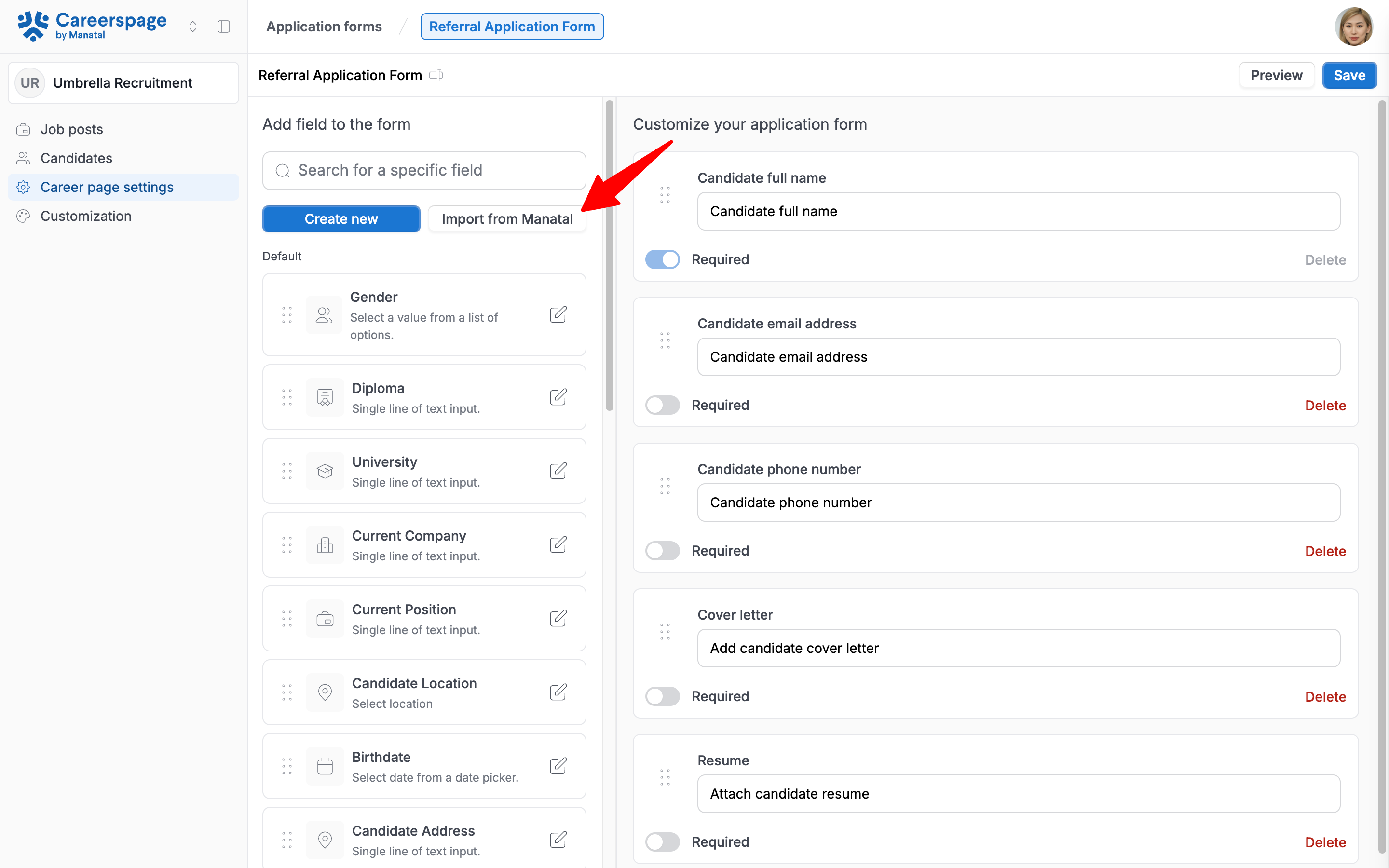
- Click on "Confirm". Once you confirm your selection, all of your candidate custom fields will appear in the "My fields" section.
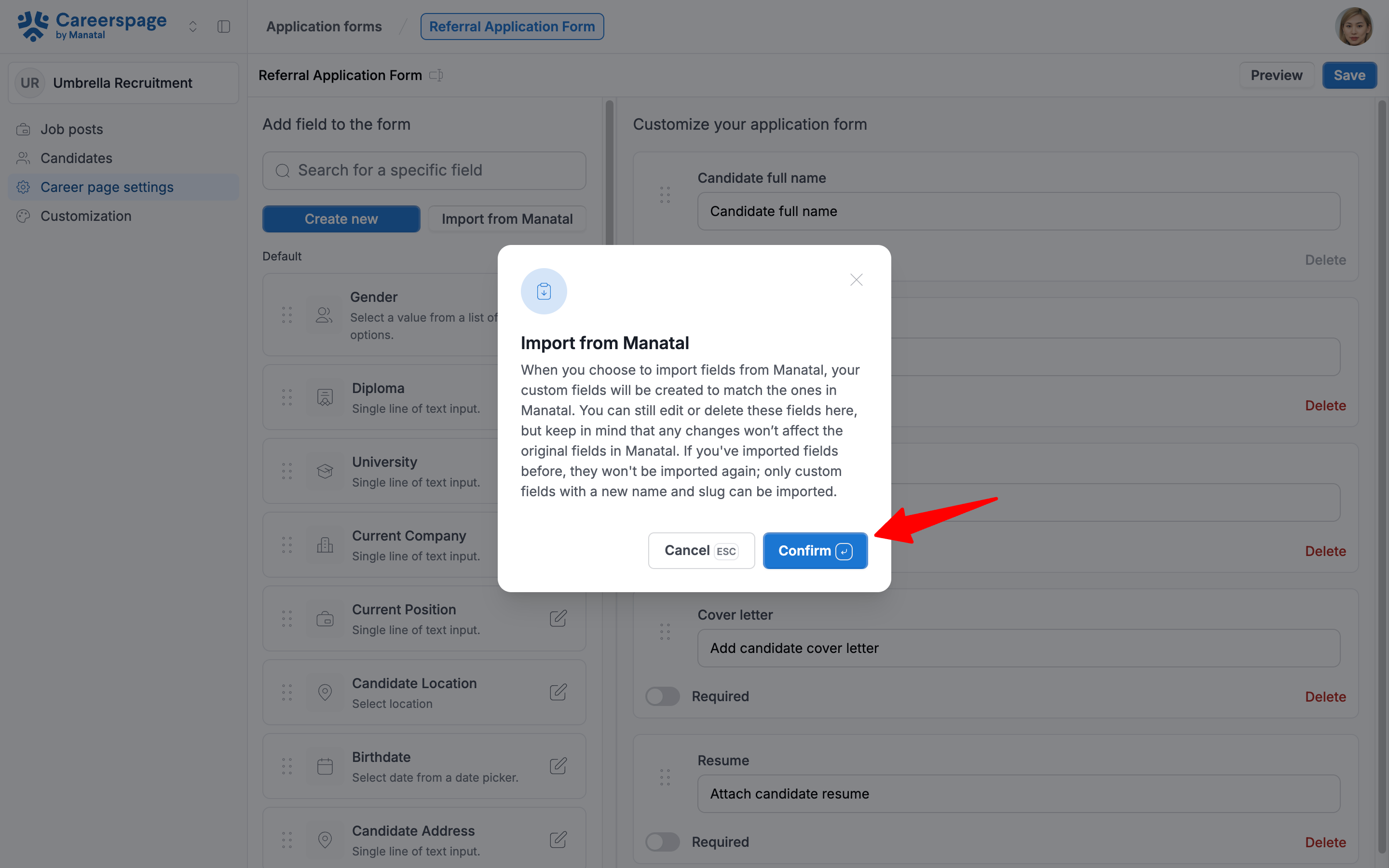
- Click "Import from Manatal". This will load all custom fields you have created in your account. Learn more about candidate custom fields in this article.
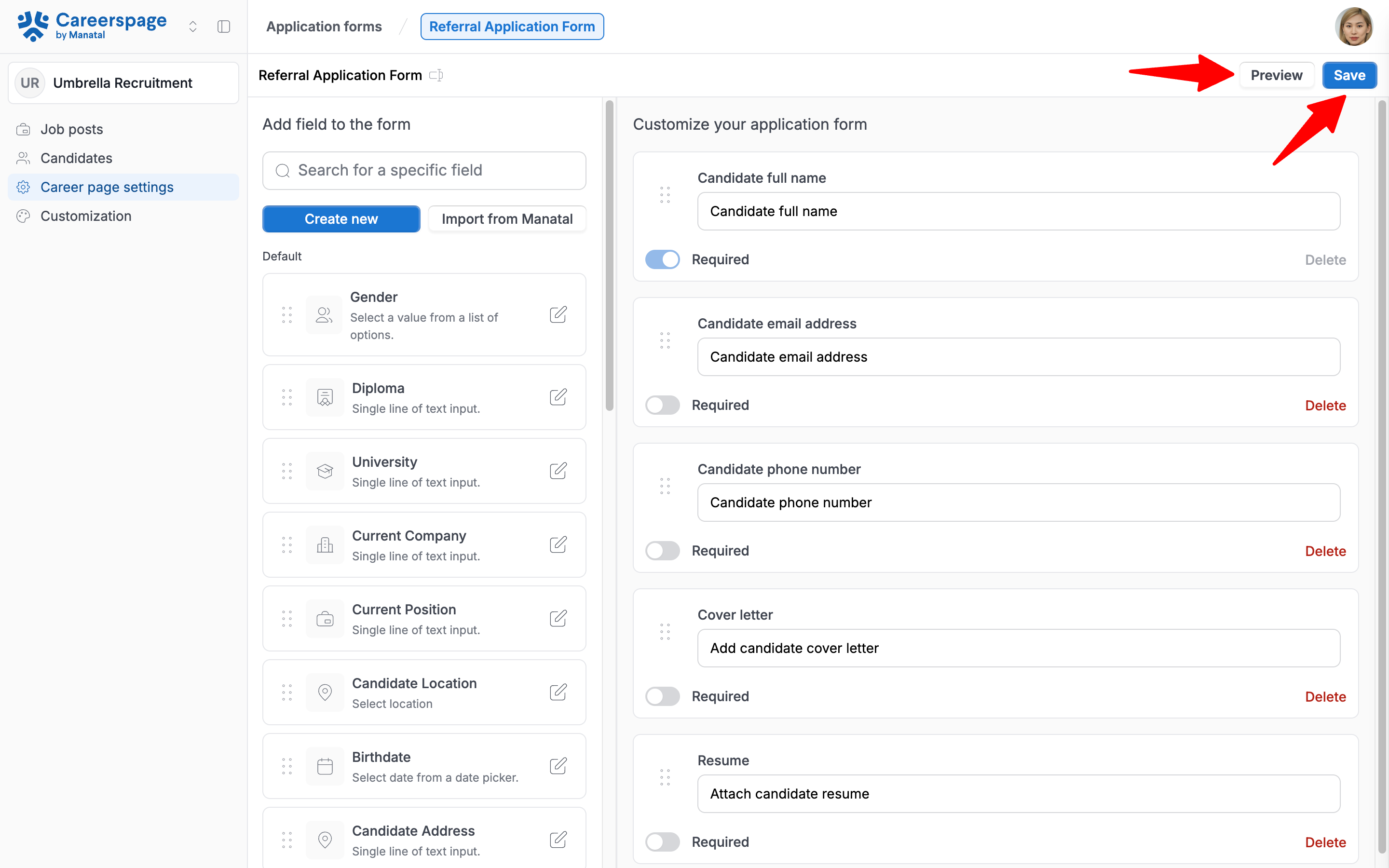
- After completing the form setup, you can preview your application. Then save your changes by clicking "Save".
FAQ
Q1. How many referral forms can I have?
Only one Referral form can be configured for your Career Page at a time.