The Candidate Portal feature is only available in the Enterprise Plus plan.
Overview
The Career Page offers an optional portal experience for candidates and employees. This allows people to log in, reuse their profile for future applications, and access a dedicated space to view their applications and referrals.
What’s Included
Candidate Portal
- A reusable profile that can prefill future applications
- A view of submitted applications
Internal Employee Portal
- Access to internal-only jobs for verified employees (based on email domain)
- A referral experience so employees can refer candidates and view referrals
Before You Start
- The portal is optional and can be enabled or disabled by an admin.
- Candidates can still apply without creating an account.
Setting Up the Candidate Portal
1) Candidate Portal
This section explains how to turn the portal experience on (or off). When enabled, candidates can log in and access their profile and submitted applications.
Enable
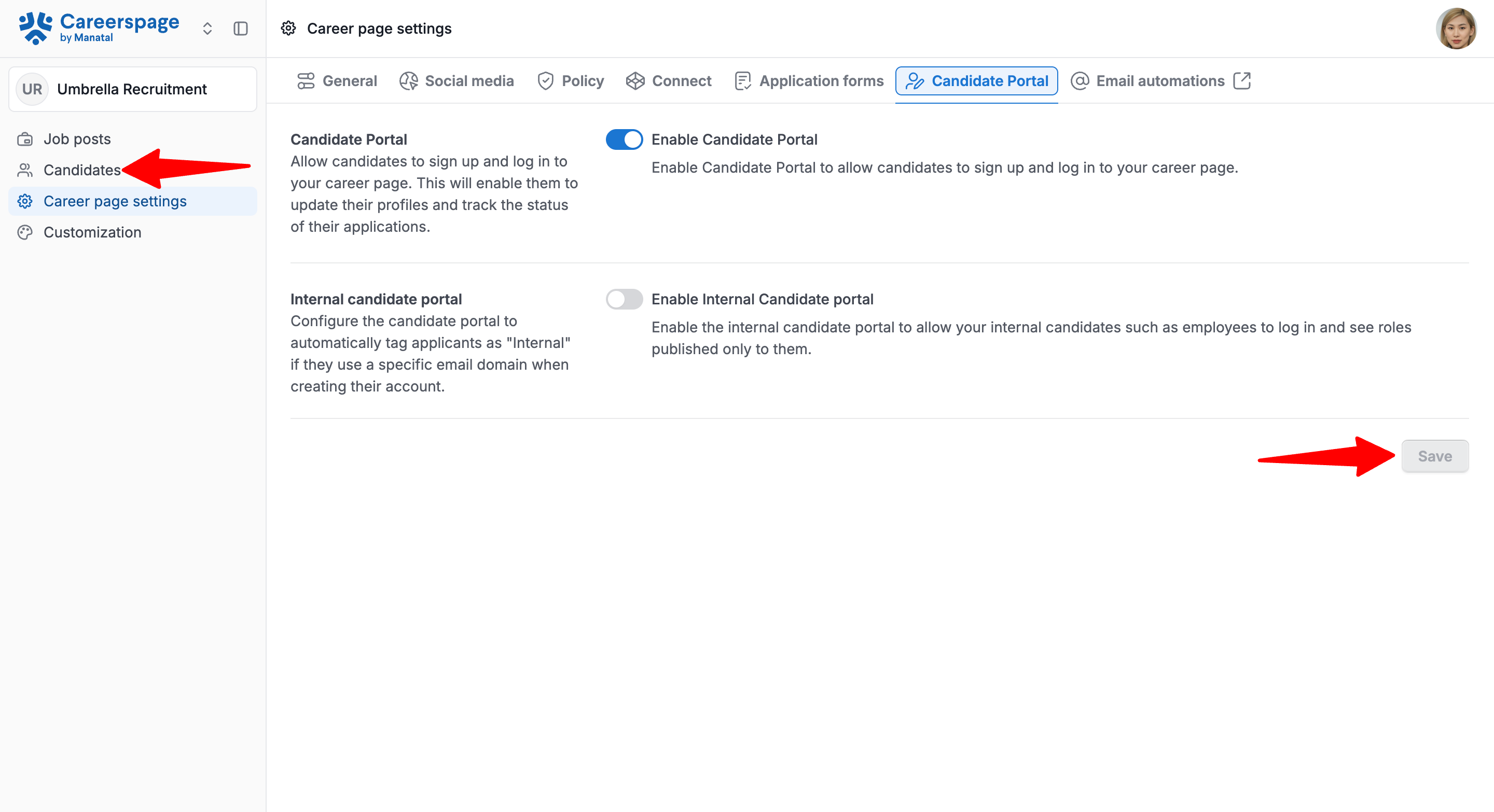
- Head to the following page. Alternatively, click on "Career Page" from the side menu, then click on "Career page settings".
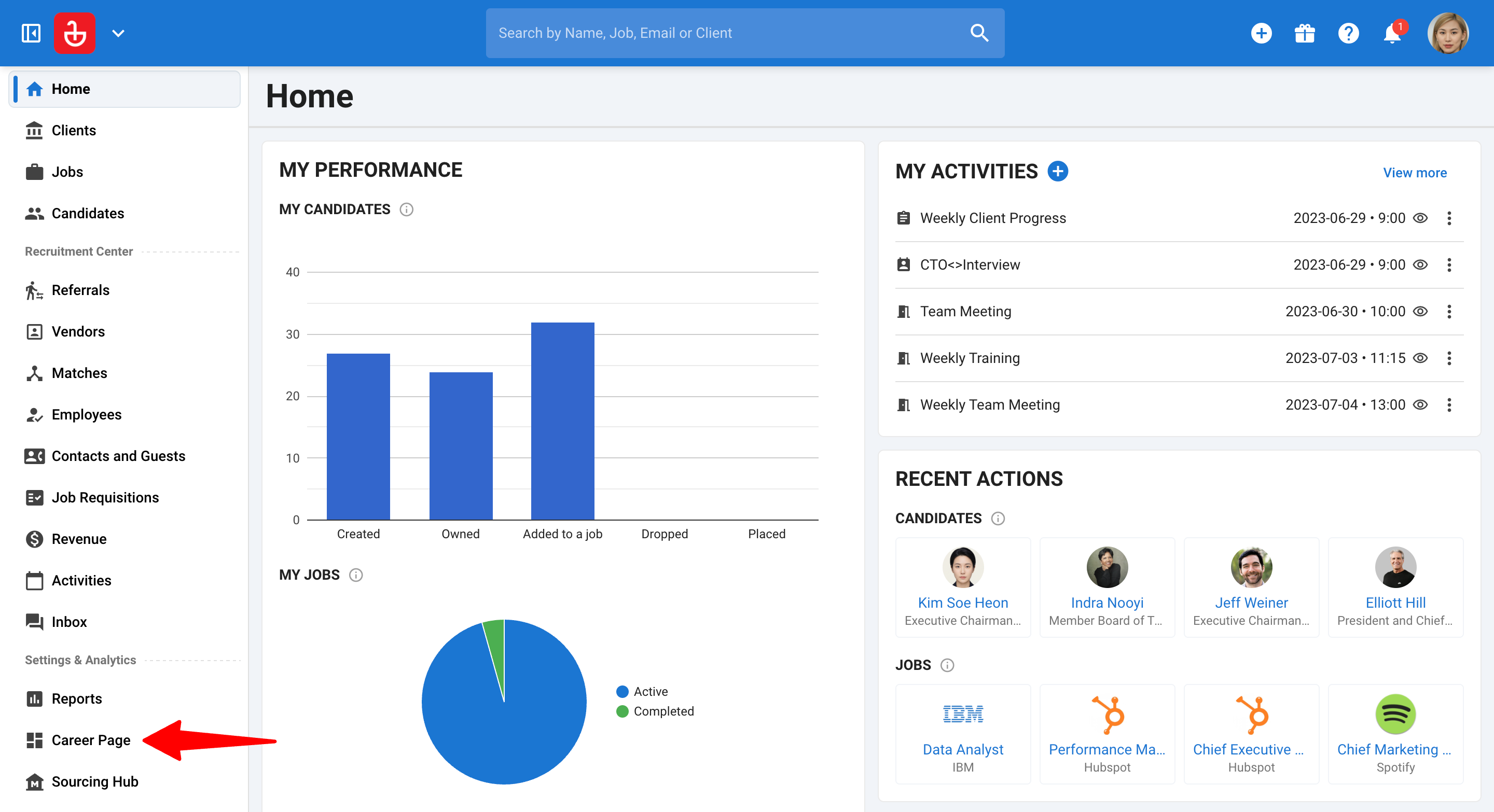
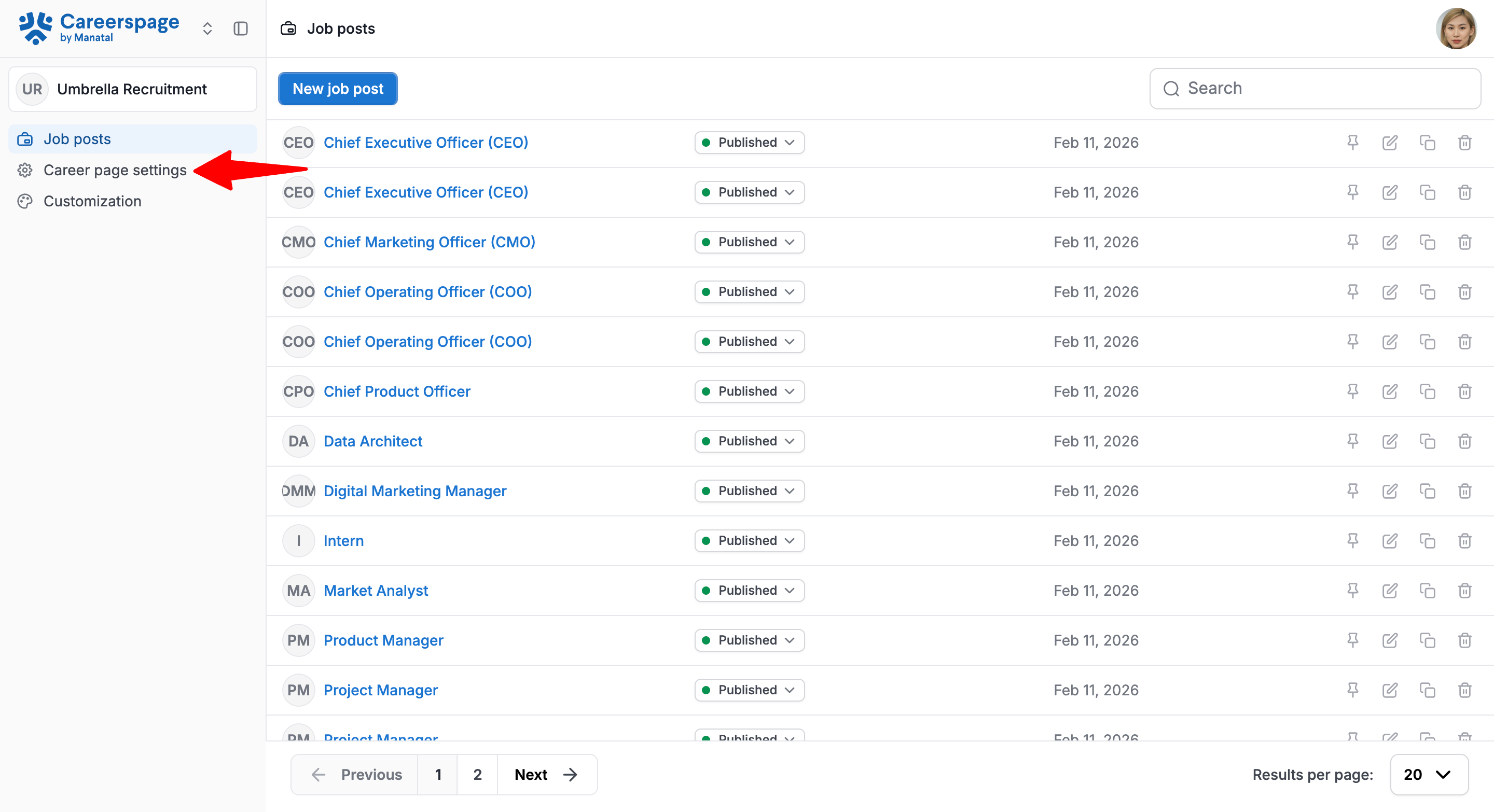
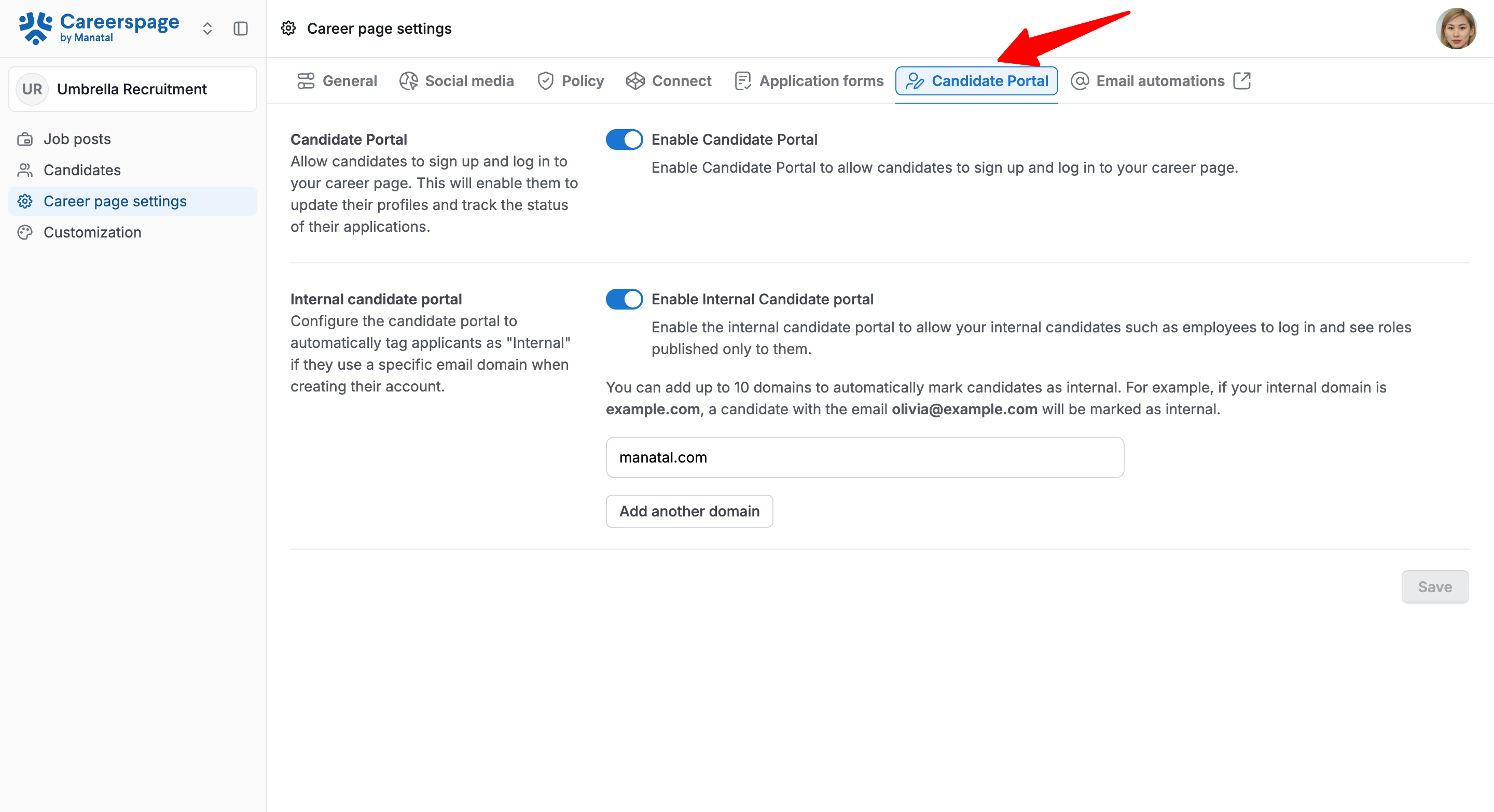
- Open the "Candidate Portal" tab.
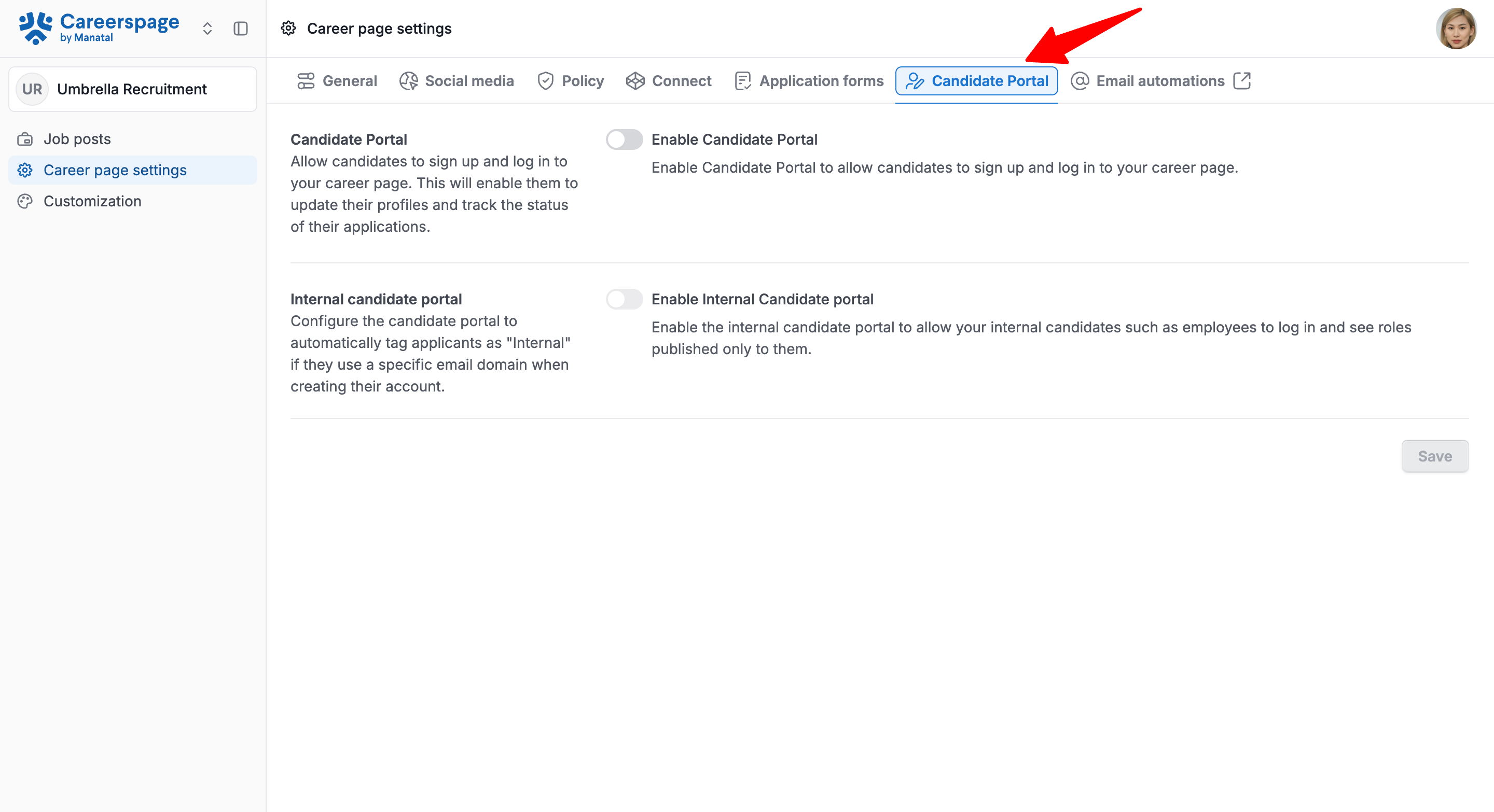
- Toggle on the "Enable Candidate Portal".
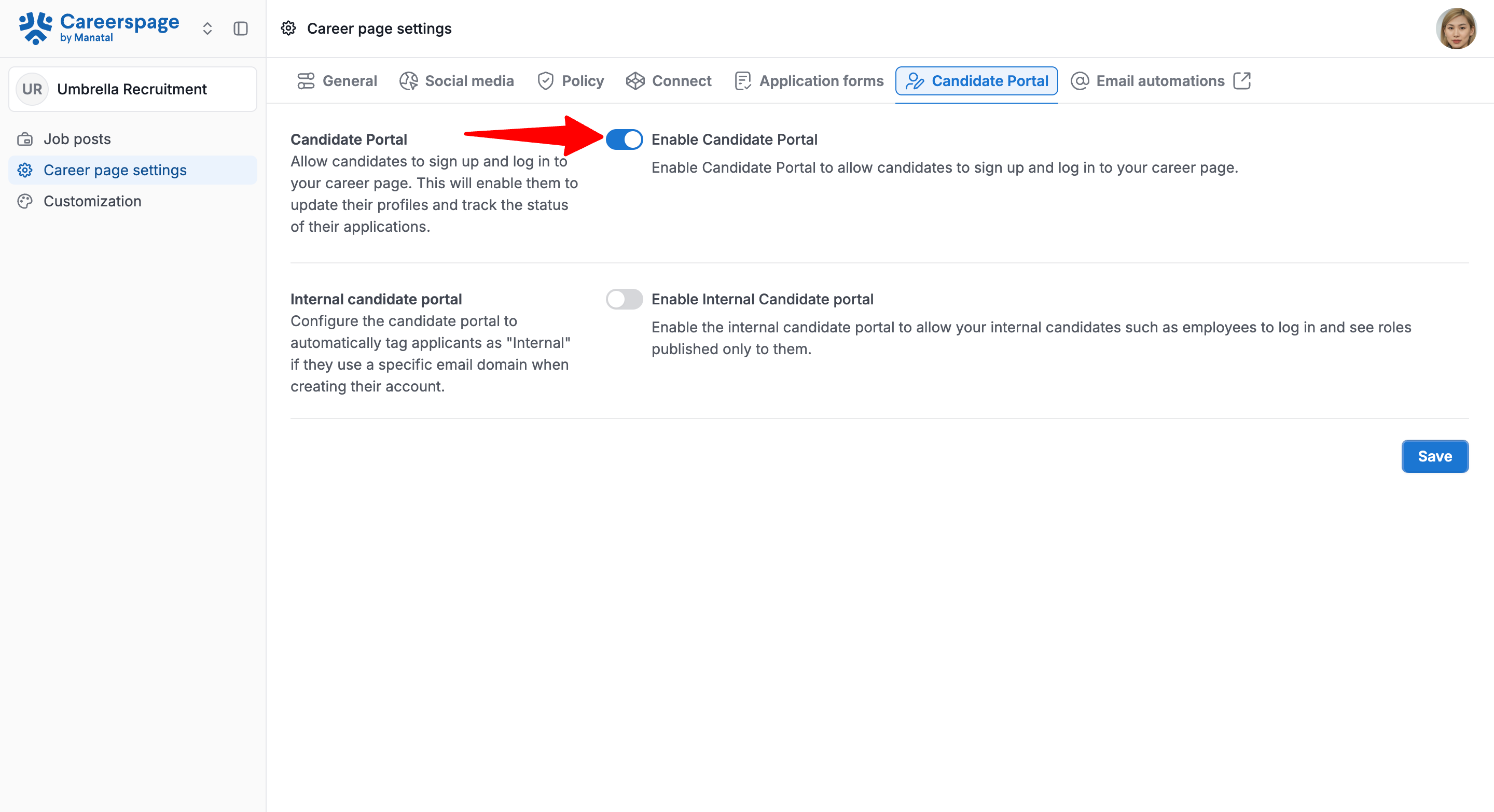
- Click "Save". The "Candidates" menu will appear in the left menu.
Disable
- Head to the following page. Alternatively, click on "Career Page" from the side menu, then click on "Career page settings".
- Open the "Candidate Portal" tab.
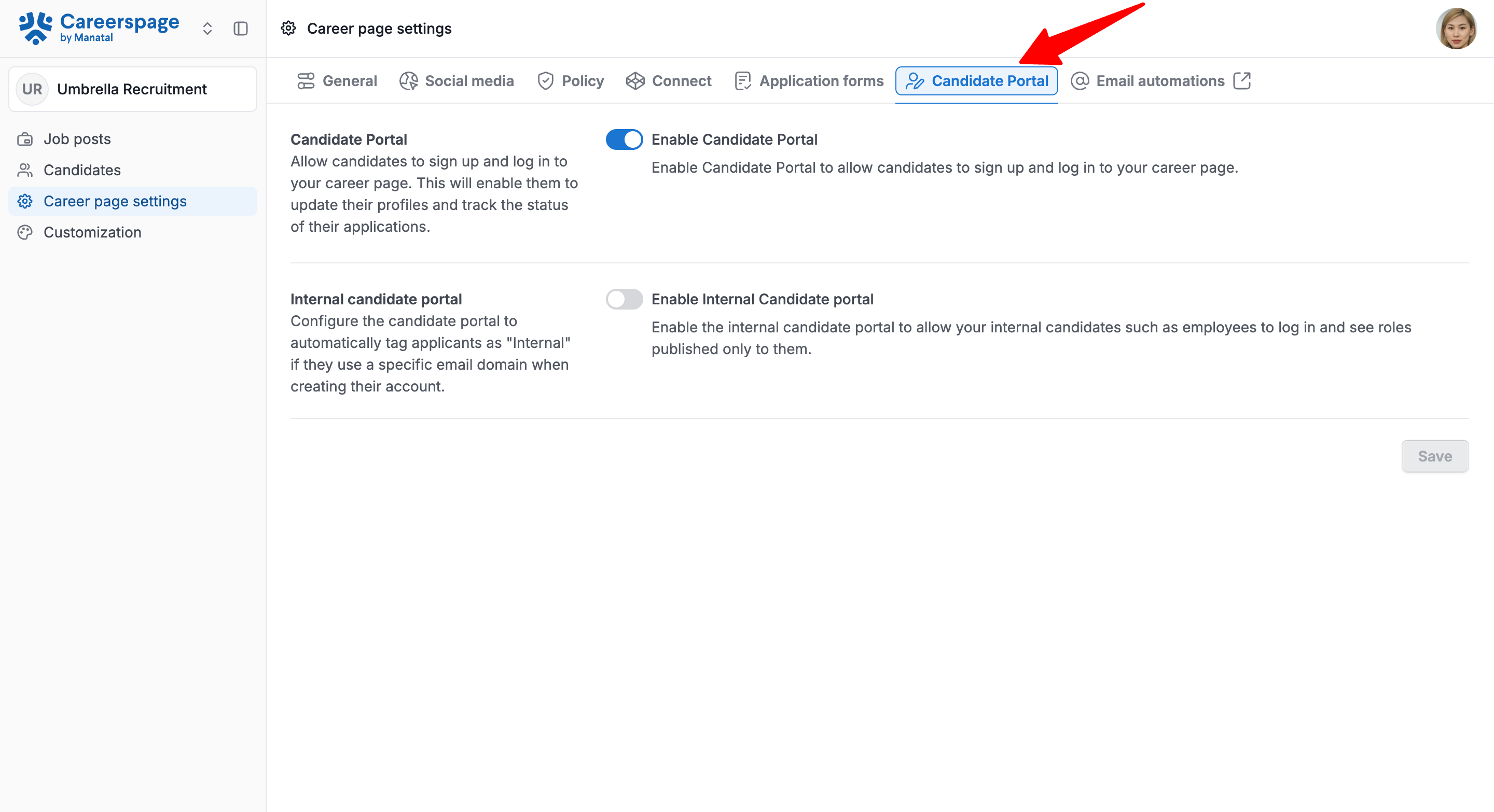
- Toggle off the "Enable Candidate Portal".
Note
When disabled, anyone trying to access the portal will be redirected to a “Portal disabled” page and guided back to the job listings.
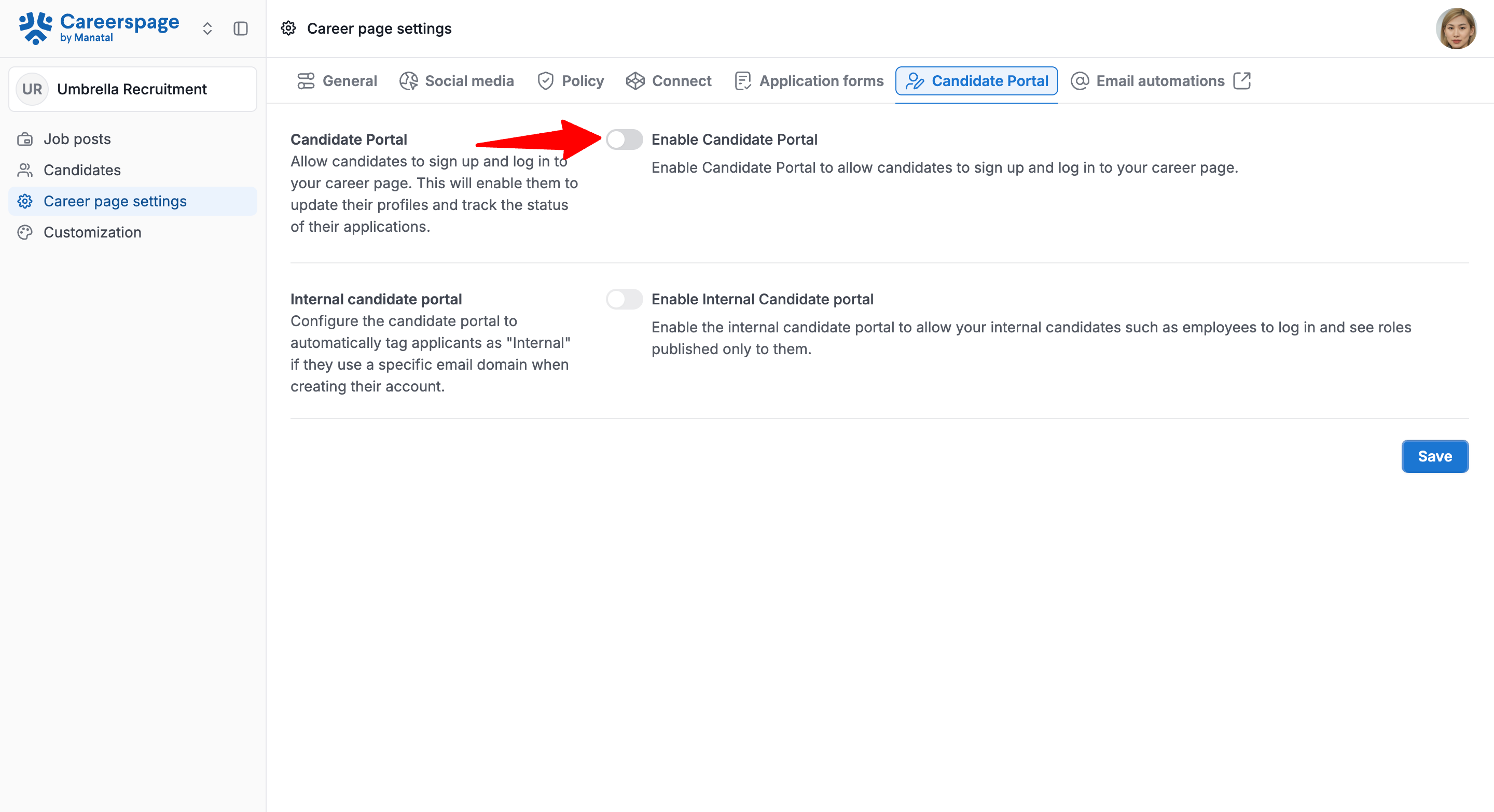
- Click "Save".
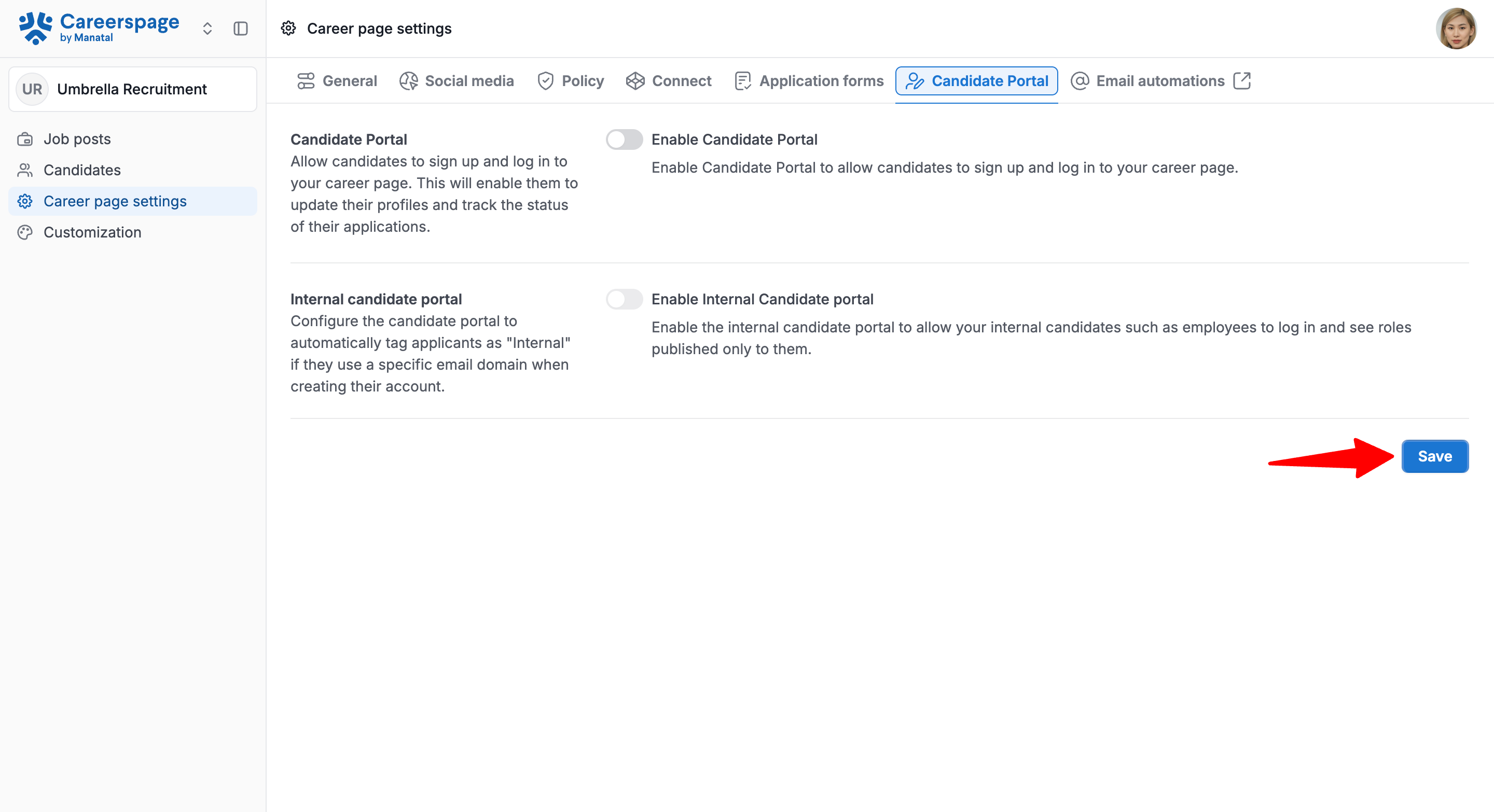
2) Internal Candidate Portal
This is an option you can toggle on to allow verified employees to view internal-only roles. Learn more about Internal jobs here.
Once enabled, the system will recognize employee email addresses based on approved email domains (e.g., yourcompany.com), granting them access to view internal roles in a dedicated 'Internal Jobs' tab within the Candidate Portal.
Employees can access internal roles on the career page exclusively through the dedicated 'Internal Jobs' tab.
Enable
The Candidate Portal toggle must be enabled for the Internal Candidate Portal to be enabled.
- Head to the following page. Alternatively, click on "Career Page" from the side menu, then click on "Career page settings".
- Open the "Candidate Portal" tab.
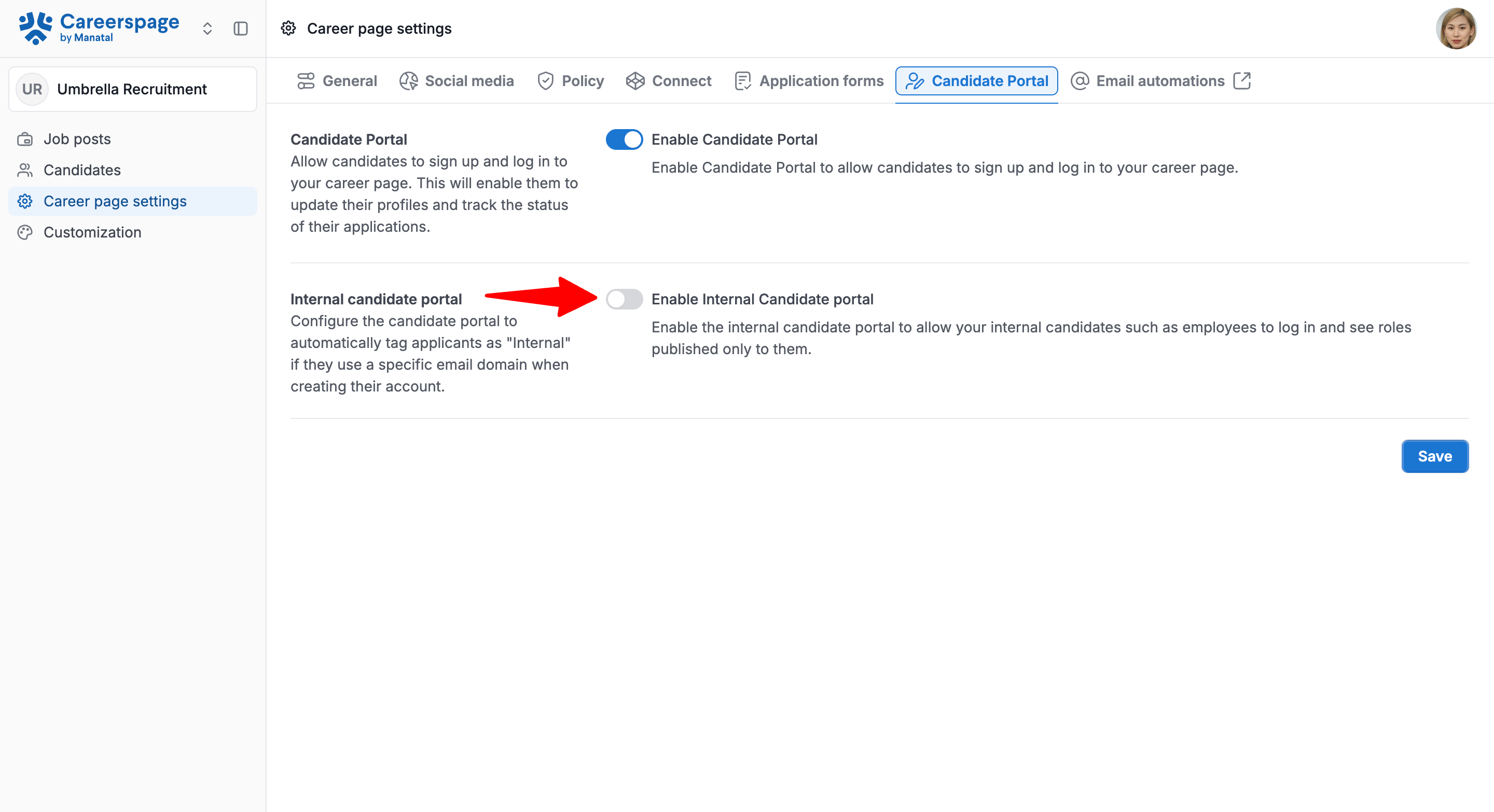
- Toggle on the "Enable Internal Candidate Portal".
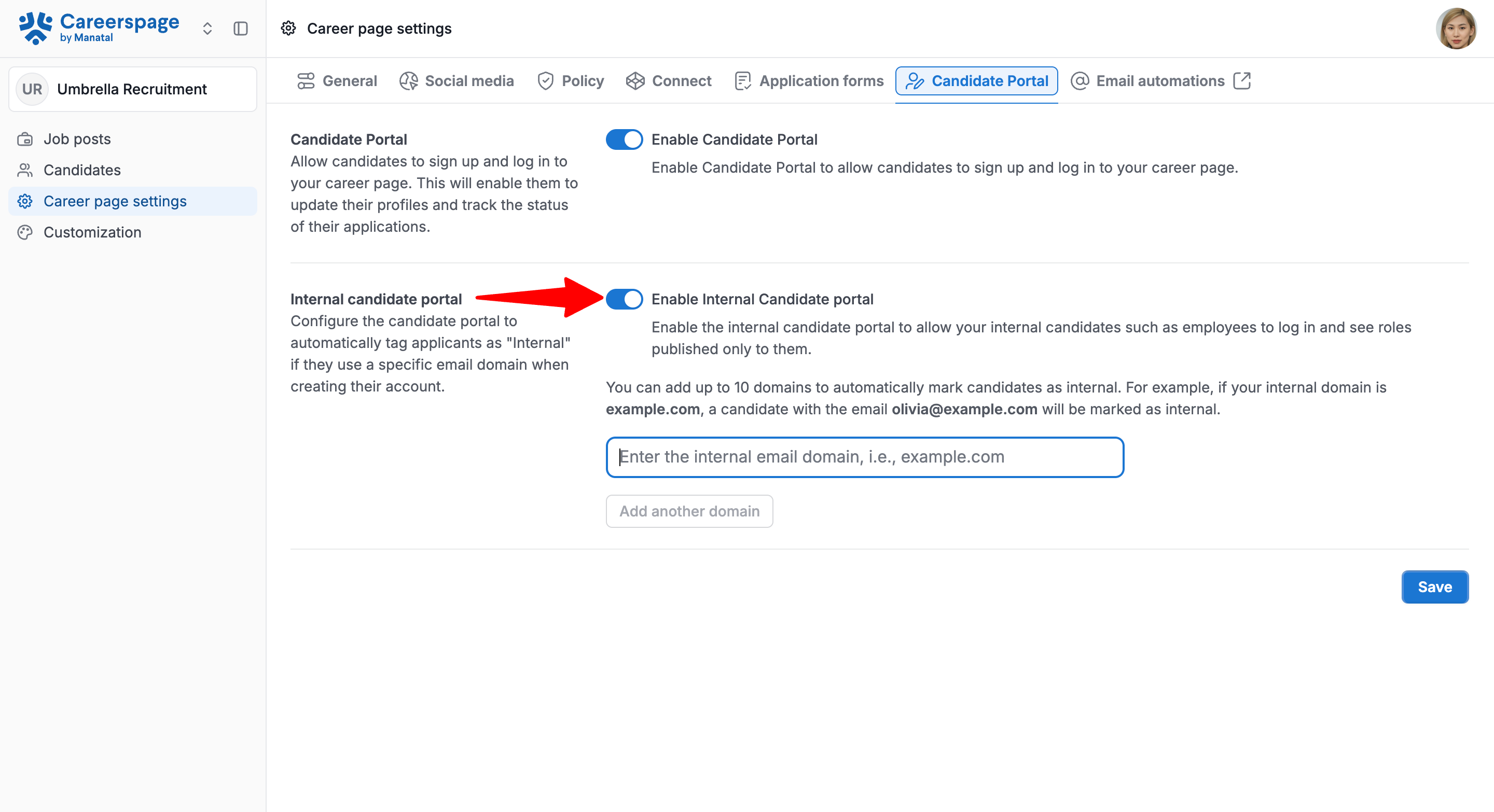
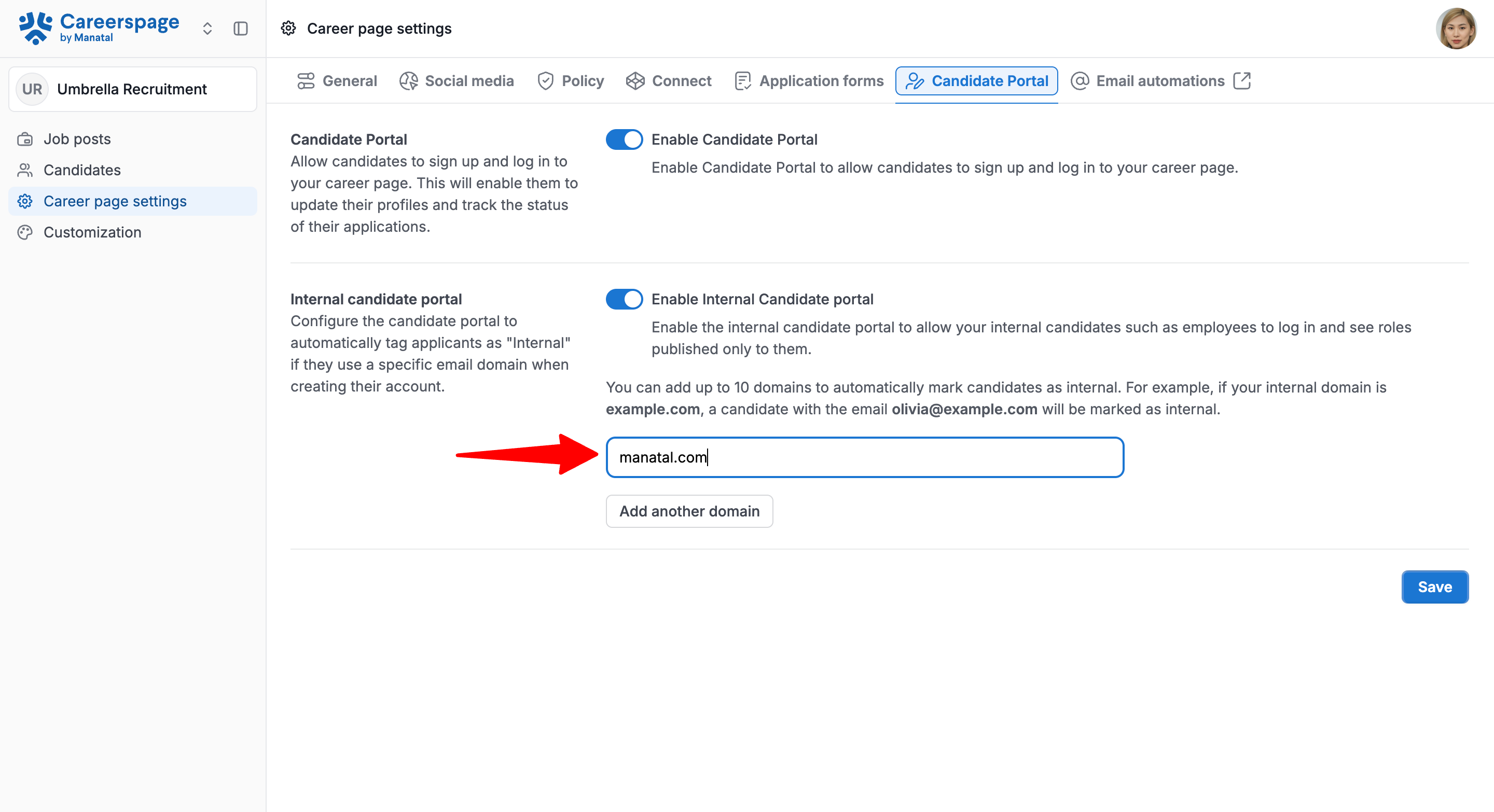
Add internal email domains
The Internal Candidate Portal must be enabled to proceed.
- In the Internal candidate portal section, add your company’s employee email domain(s) (example:
yourcompany.com).
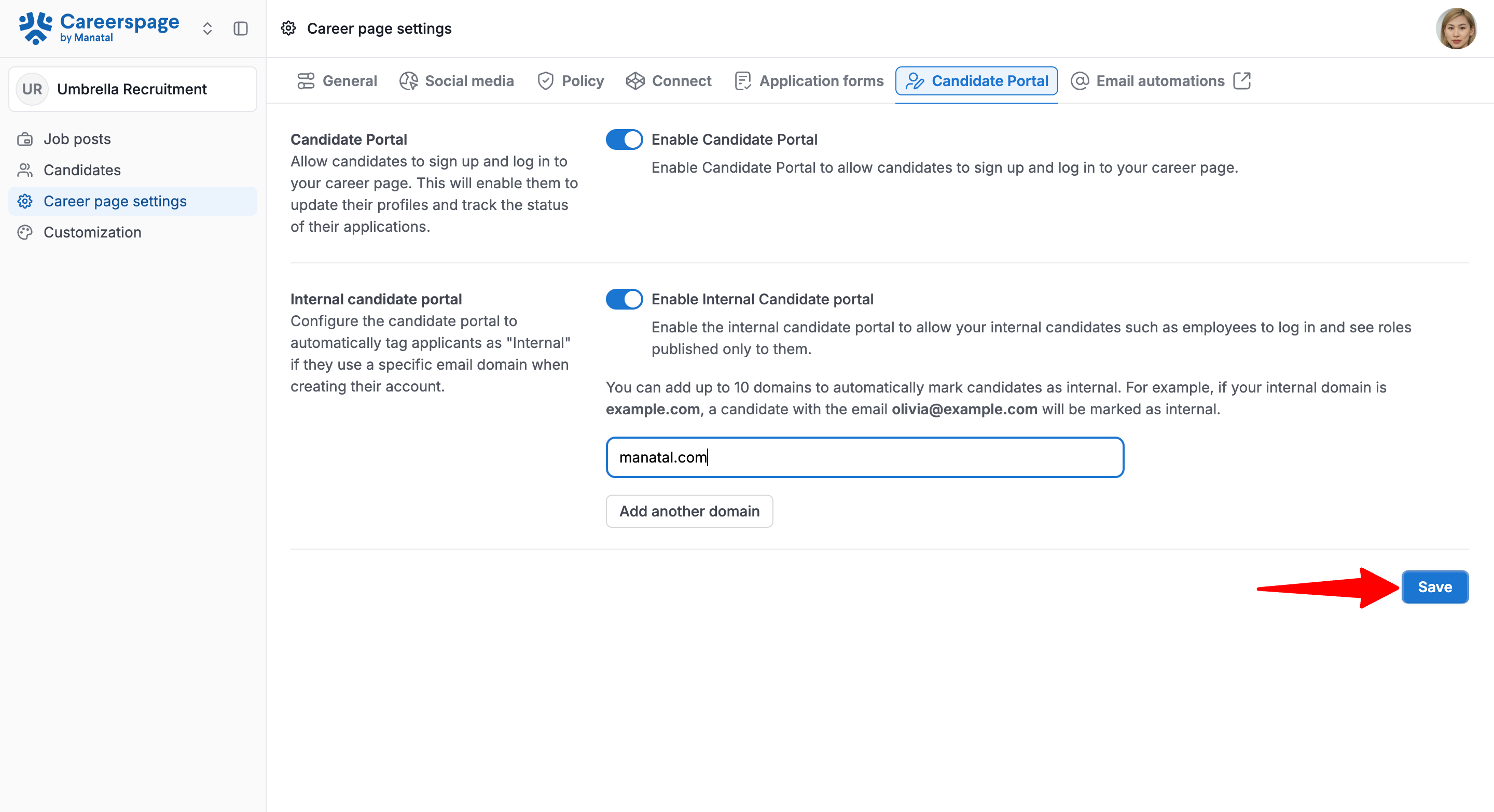
- Click "Save".
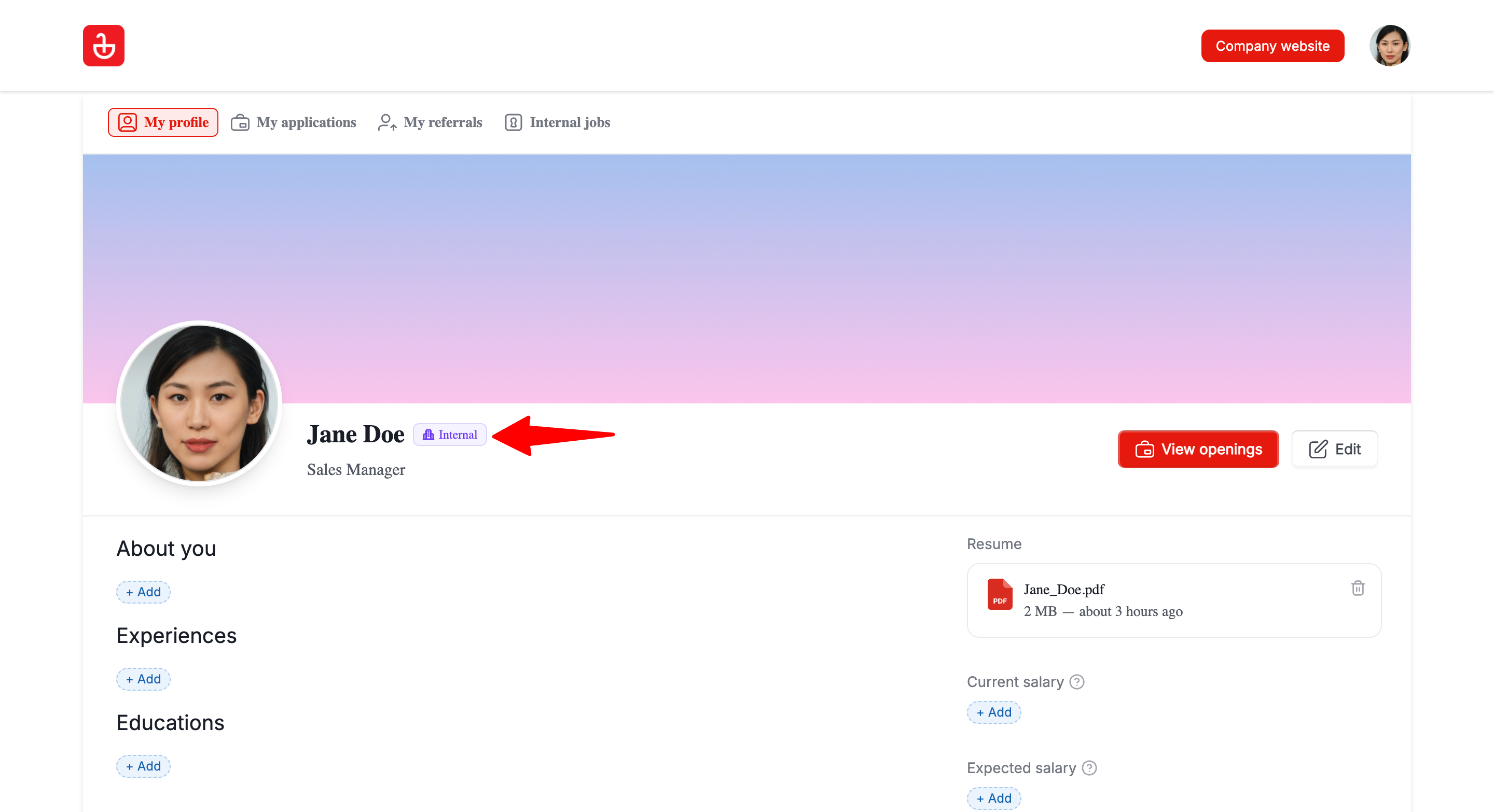
- Ask an employee to log in using their work email and confirm internal access is applied. When an employee is recognized via an email domain, they’ll see an "Internal" indicator next to their name. This helps employees and admins quickly confirm that employee-only access is active.
Limits
- You can configure up to 10 domains.
Disable
- If internal access is removed, candidates will not be able to access the 'Internal Jobs' tab, preventing candidates from seeing internal postings.
- Internal access may be removed if:
- an admin removes the employee’s email domain from the allowed list, or
- the employee changes their email to a non-employee domain (after verification).
- Head to the following page. Alternatively, click on "Career Page" from the side menu, then click on "Career page settings".
- Open the "Candidate Portal" tab.
- Toggle off the "Enable Internal Candidate Portal".
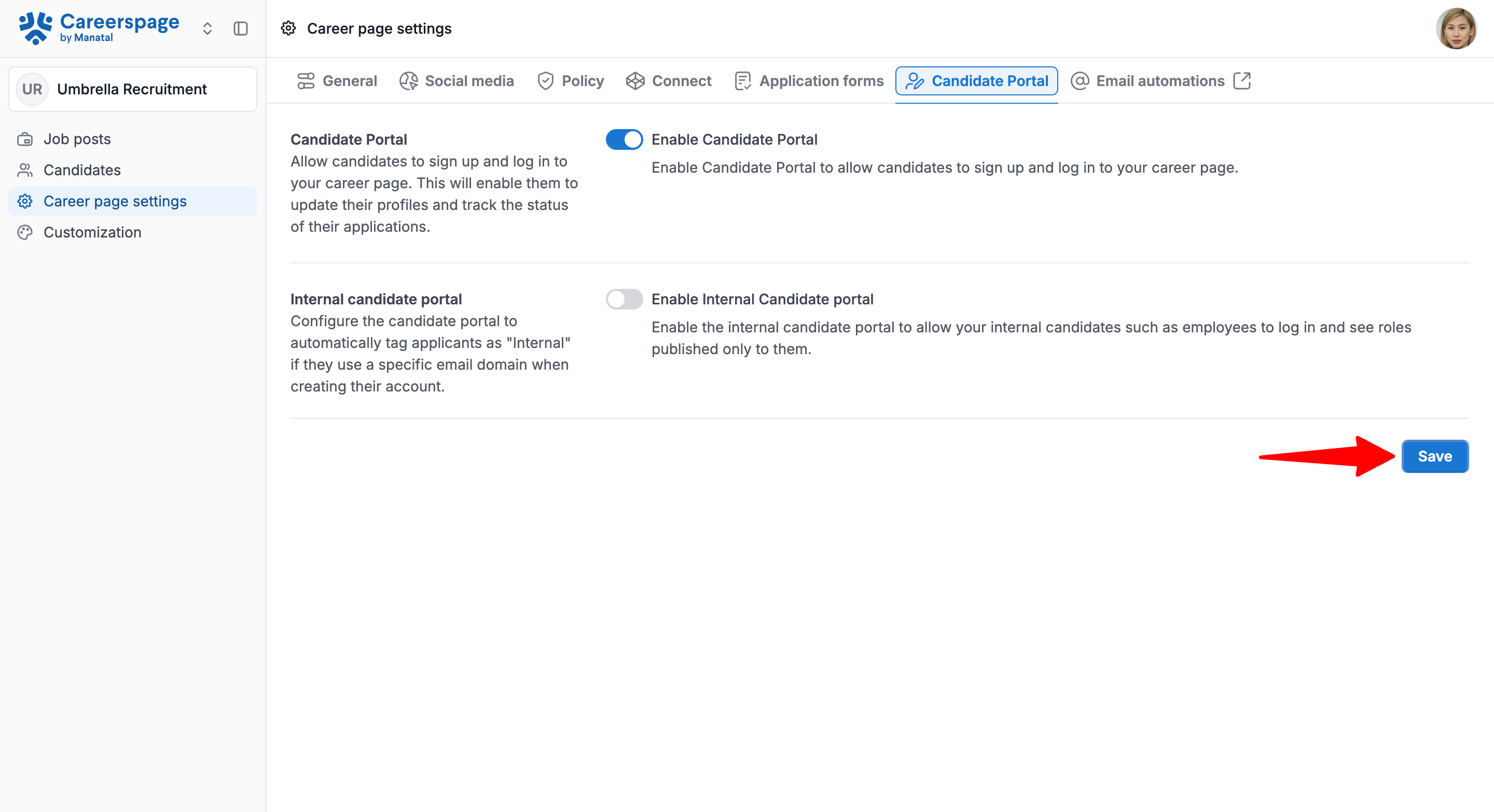
- Click "Save".
Viewing Candidates on Career Page (Administration)
You can view candidates in two places: from the Candidates menu, or within a specific job post in the Applicants tab.
1. View Candidates in the Candidates Menu
The Candidates menu lists anyone who has created an account or provided an email address during an application.
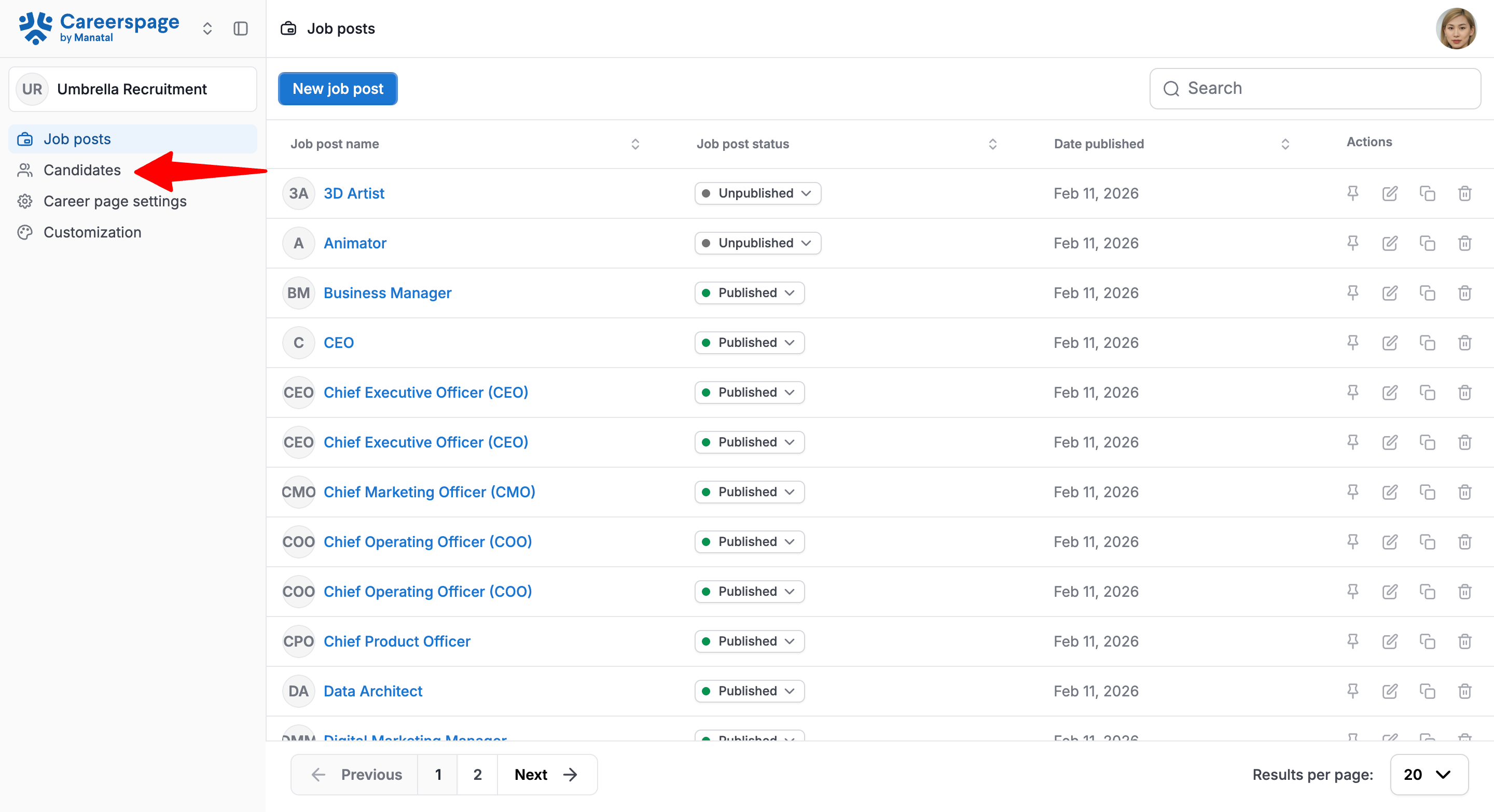
- Click on "Candidates" in the left menu.
- Look for the 'Candidate Portal status' column.
Interpret statuses:- Profile Created: candidate created an account through the portal
- Internal: internal employees created an account through the portal
- Anonymous: candidate applied without creating an account

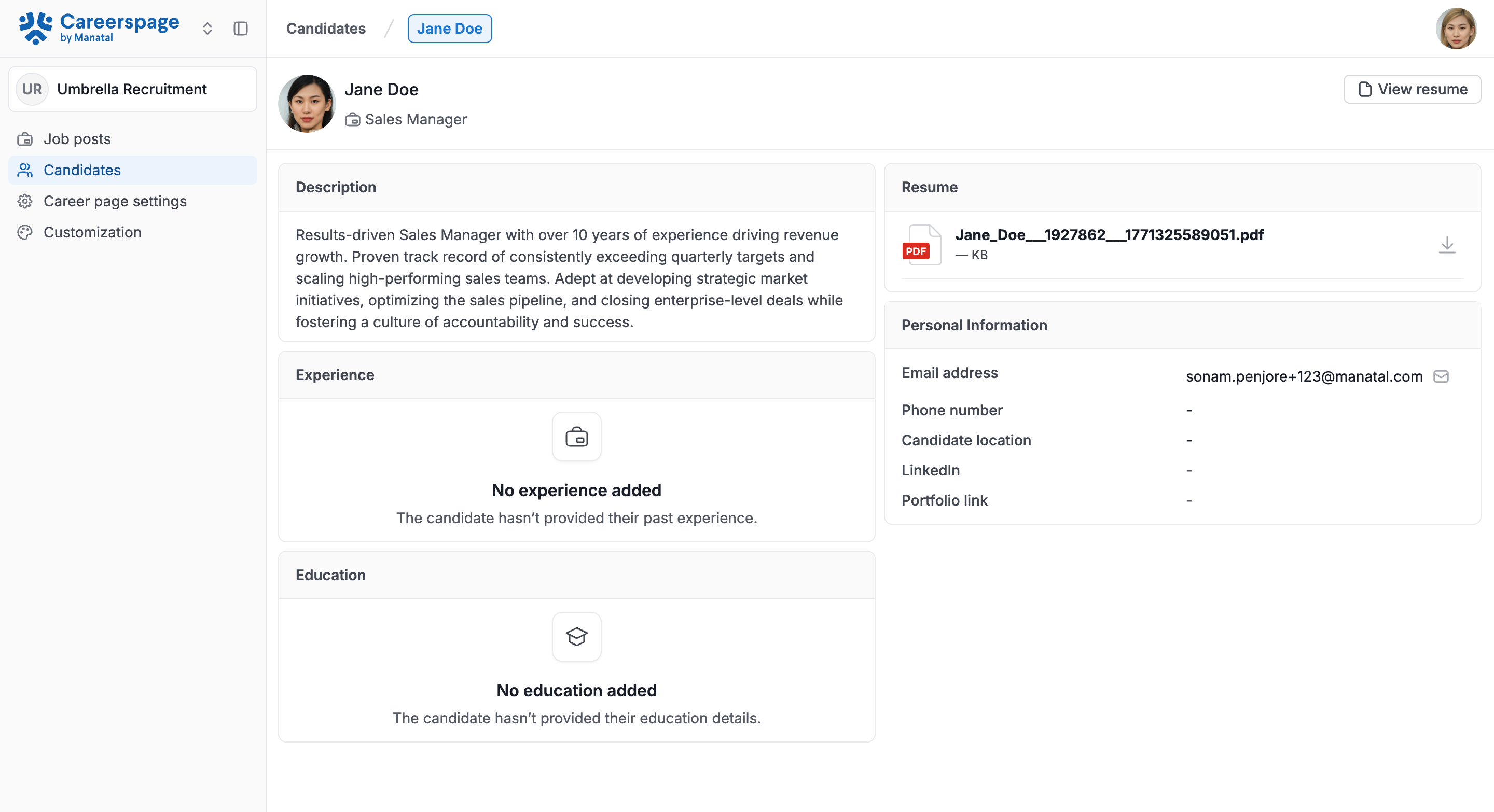
- Click the candidate’s name to open the profile detail page. Review their profile information.

2. View Candidates in the Applicants Tab
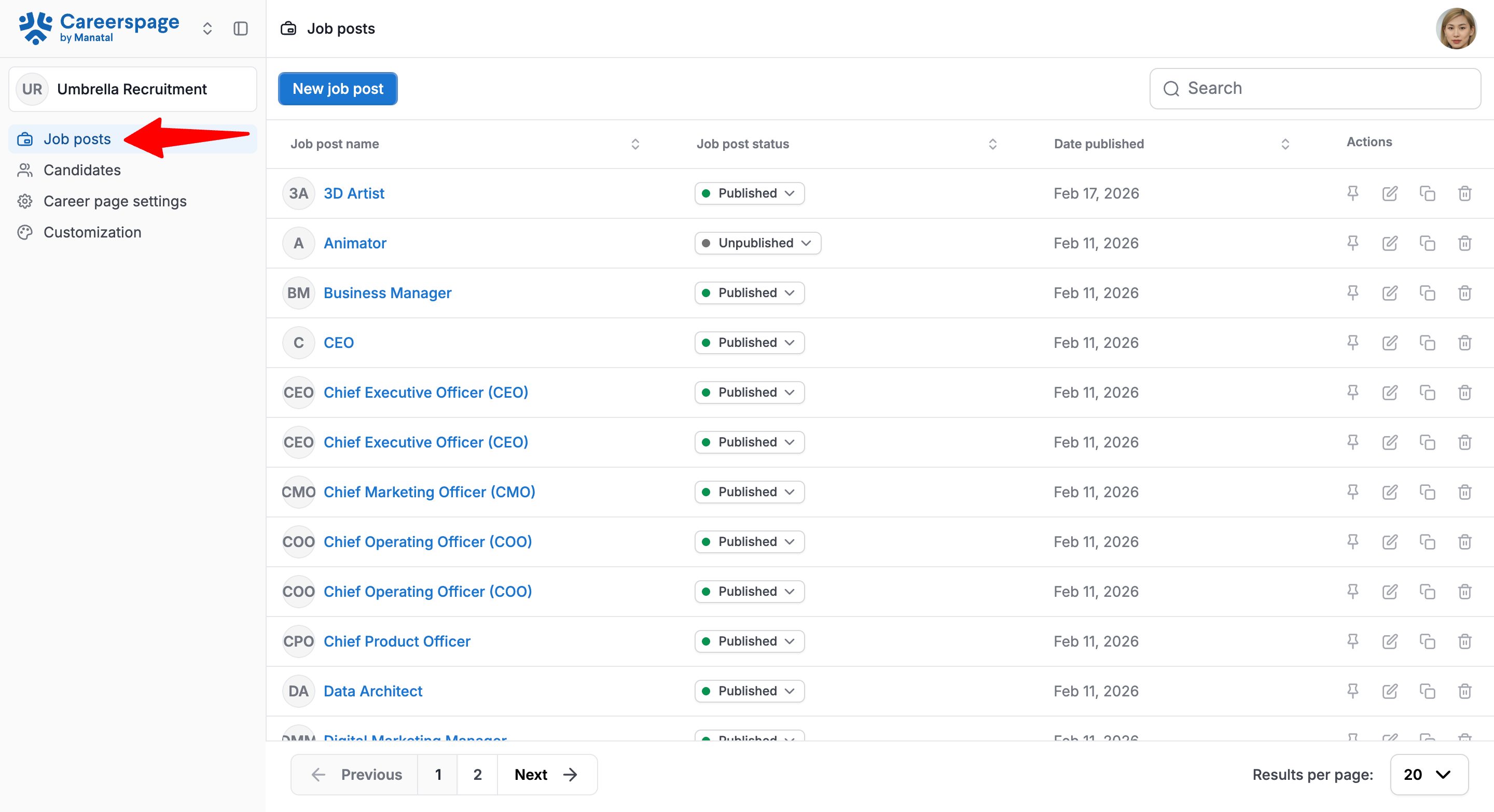
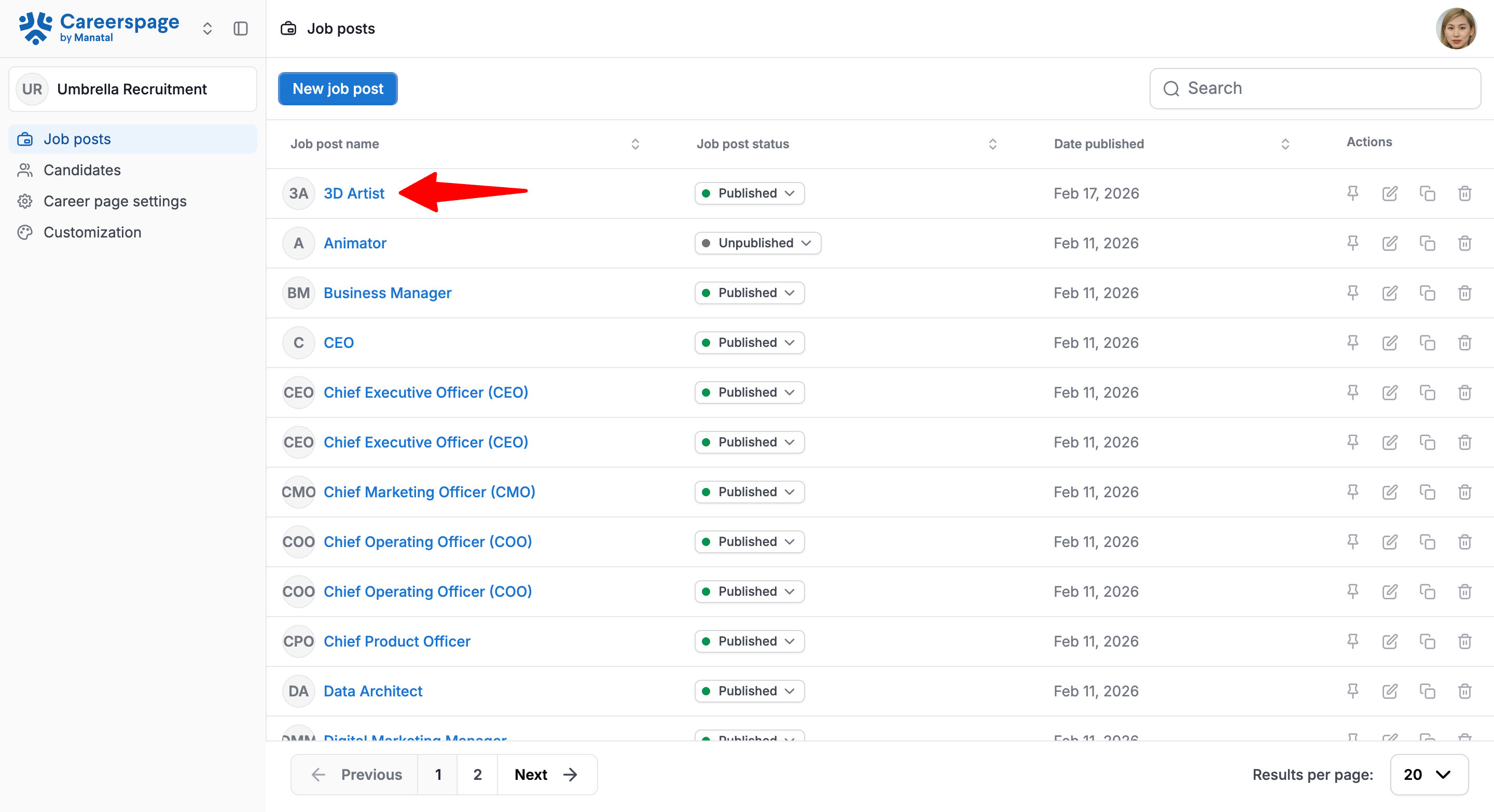
- Click on "Job posts" in the left menu and open a job post. Go to the Applications tab.
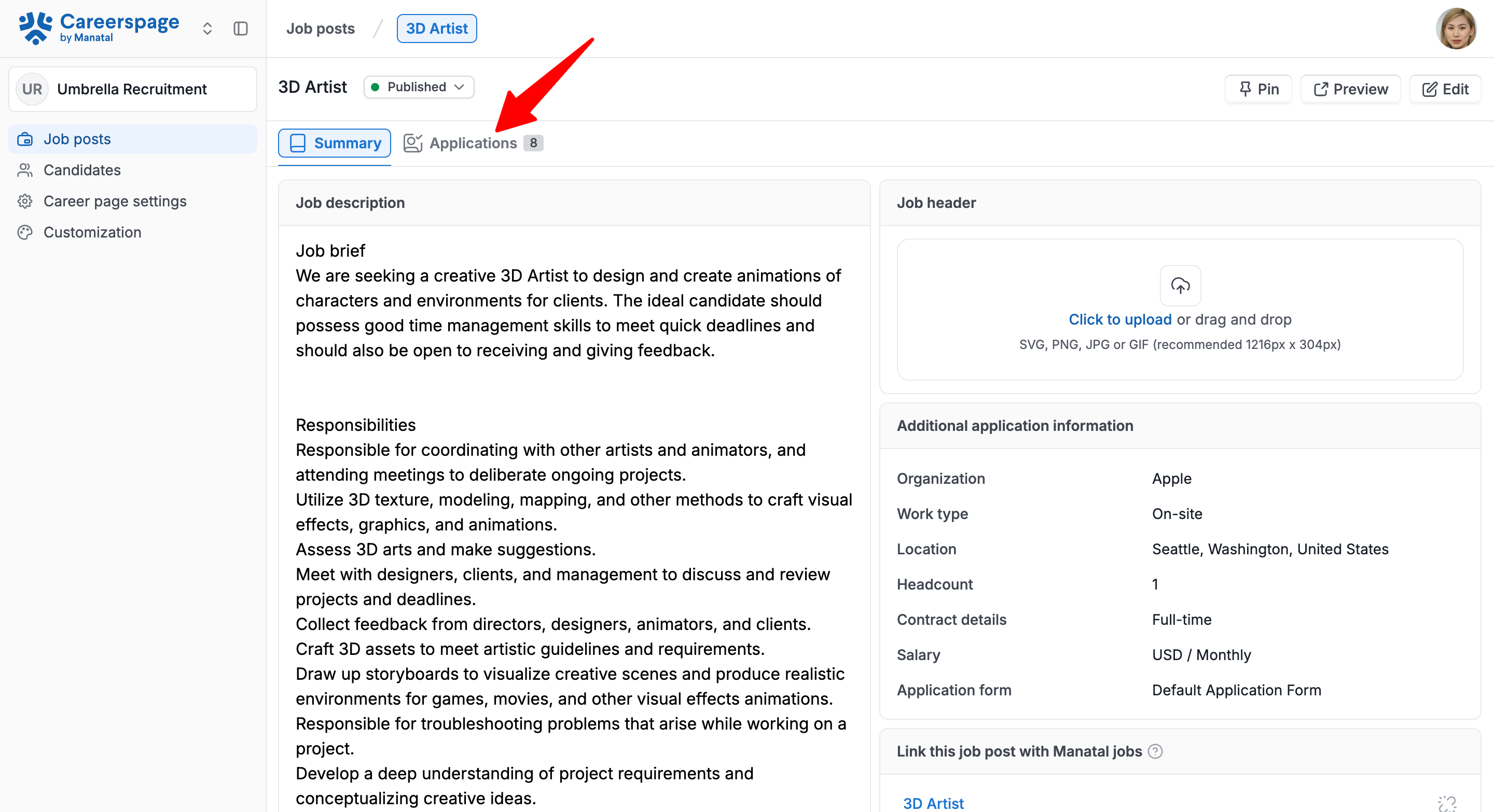
- Look for the 'Candidate Portal status' column.|
Interpret statuses:- Profile Created: candidate created an account through the portal
- Internal: internal employees created an account through the portal
- Anonymous: candidate applied without creating an account
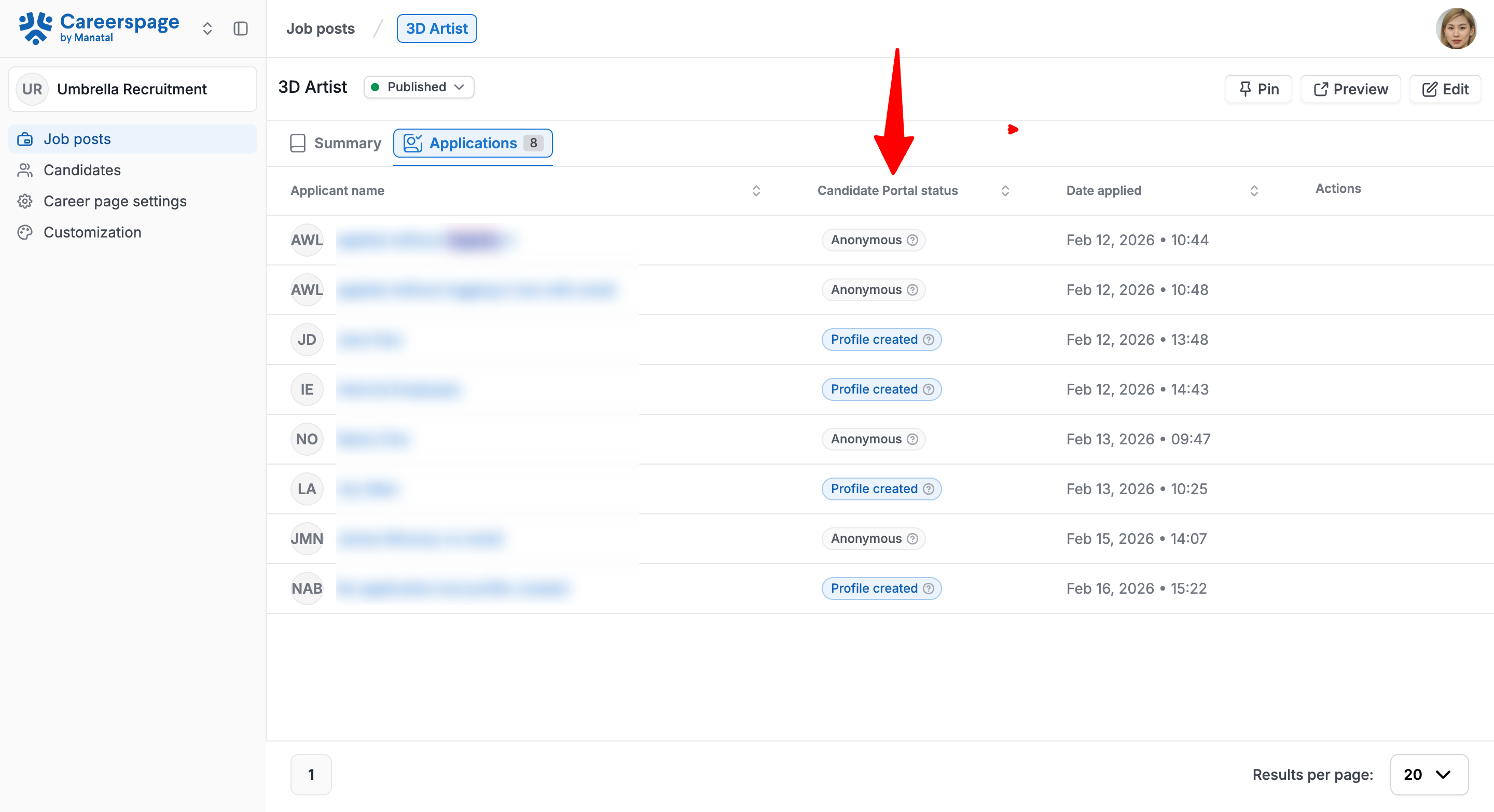
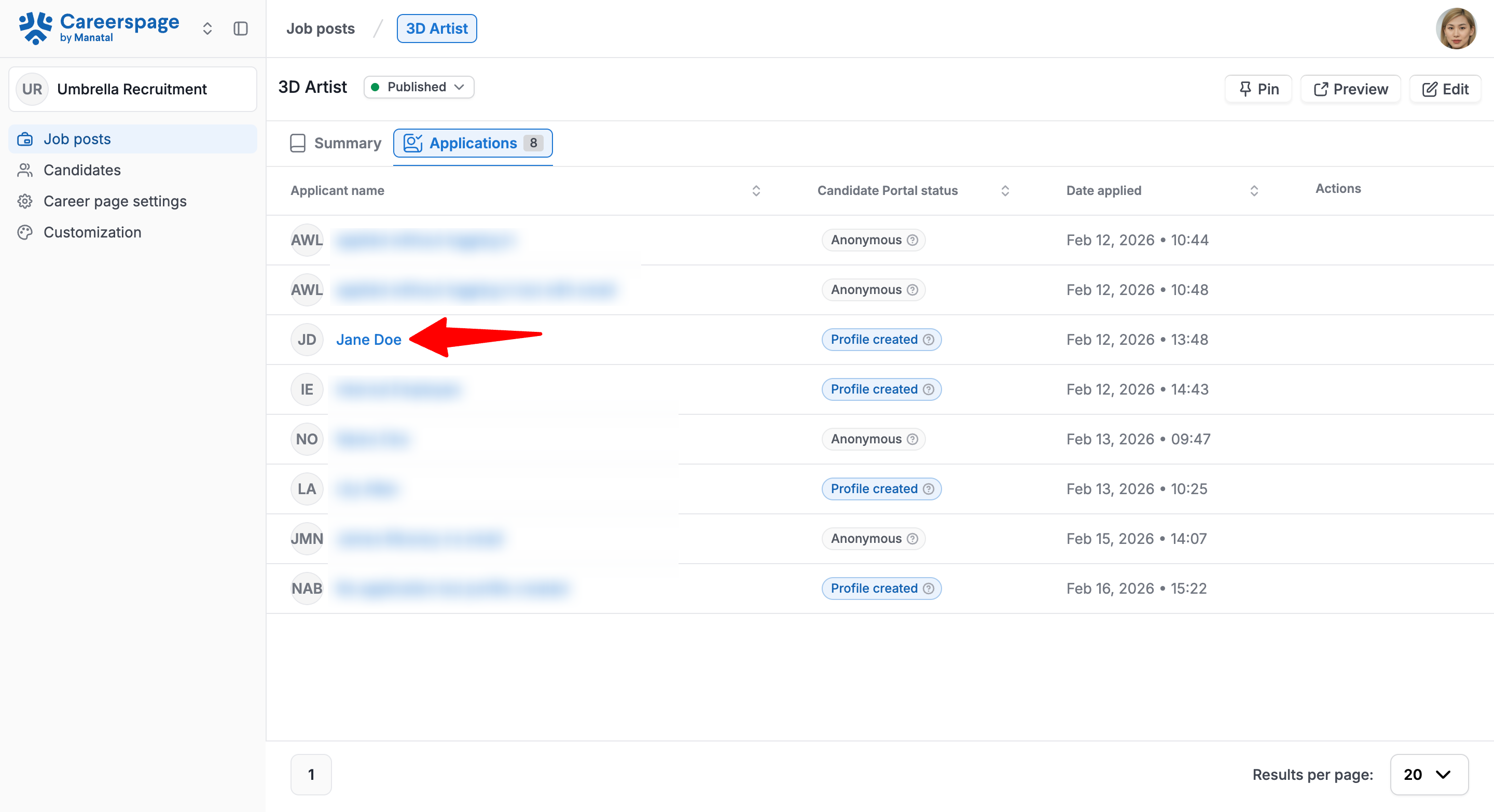
- Click the applicant's name to open the profile detail page. Review their profile information.
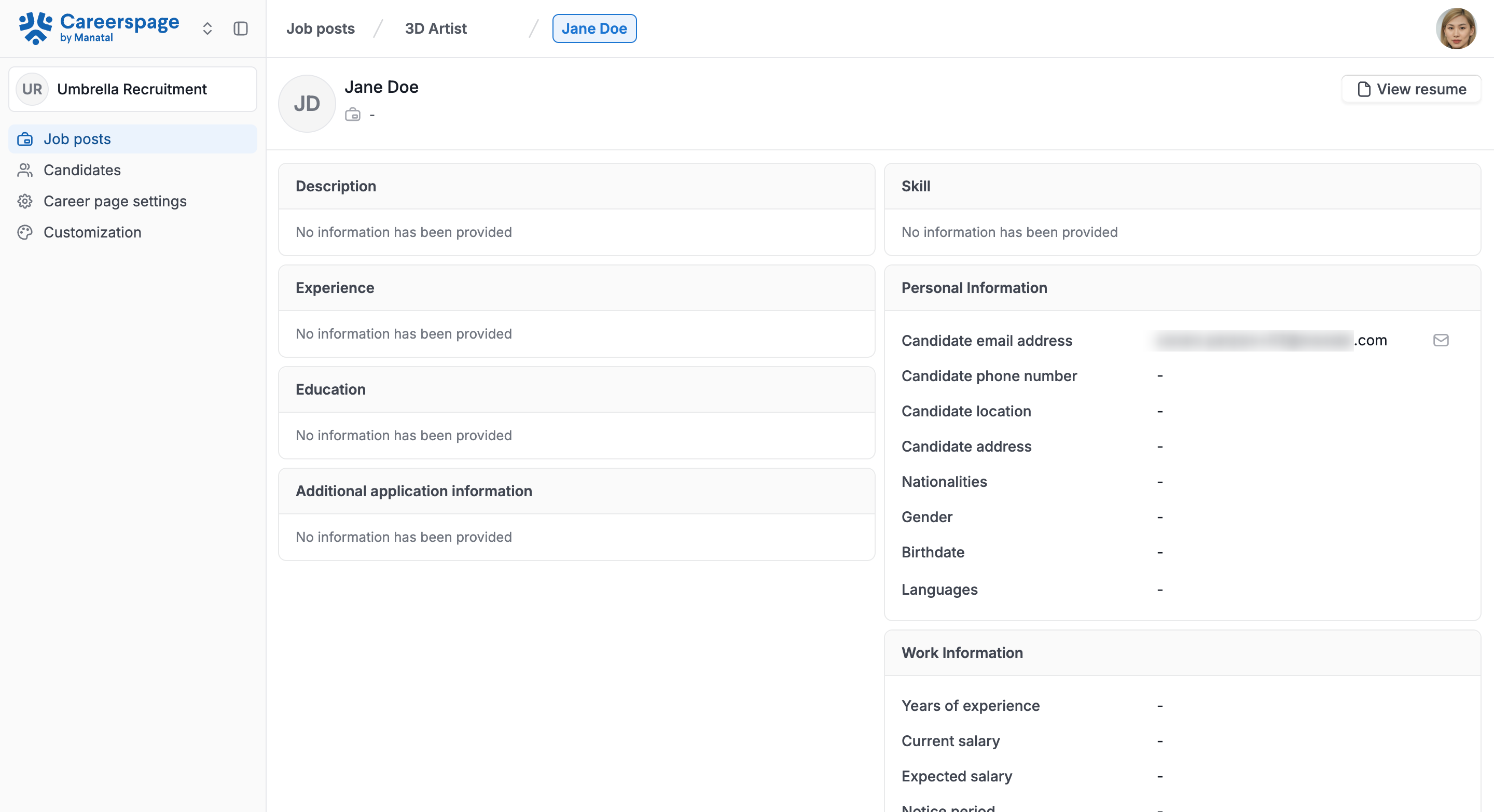
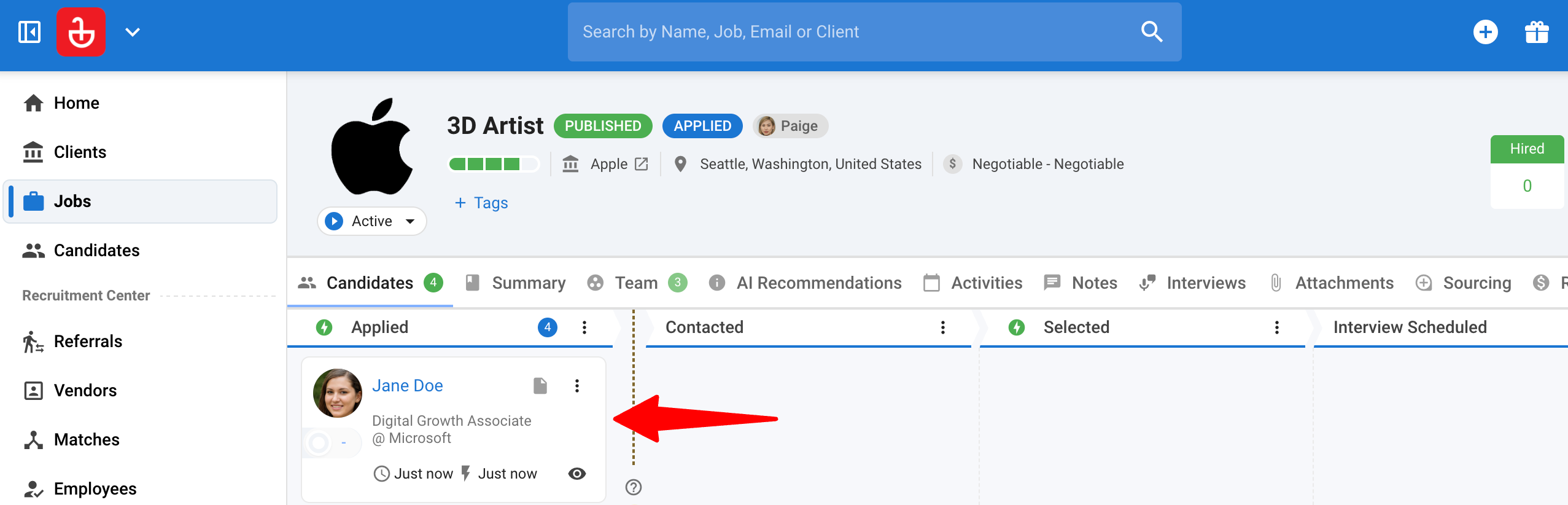
In the Applications tab, the exact details provided by the candidate upon application submission are displayed. If the job post was linked to a job in Manatal at the time they applied, the candidate's application would automatically be forwarded to the corresponding job in Manatal. Learn more in this guide.
FAQ
Q1. Is the portal mandatory?
No. The portal is optional and can be enabled/disabled by admins in Career Page settings.
Q2. How do candidates log in?
They log in using a passwordless “magic link” sent to their email. No passwords are created or stored.
Q3. Can candidates apply without creating an account?
Yes. Candidates can apply without logging in.
Q4. Can we force candidates to create an account before applying?
No. Account creation is optional and not enforced during application.
Q5. What can candidates edit in “My Profile”?
Candidates can manage their profile details such as experience, education, resume, and contact details after login.
Q6. Do candidates see application status updates (pipeline stages)?
Candidates can see a list of applications they submitted, but detailed pipeline stages are not shown.
Q7. What happens if the Candidate Portal is disabled while candidates are using it?
The portal URL becomes inaccessible and candidates are shown a disabled page with a button back to the public job listings.