What is Zapier?
Zapier is an online automation tool that connects your favorite apps, such as Manatal, Gmail, Slack, Mailchimp, and over 8,000 others. You can connect two or more apps to automate repetitive tasks without coding or relying on developers to build the integration.
The integration works through automated workflows called “Zaps”. Every Zap is made up of two components:
- The Trigger: An event that happens in one app (e.g., a New Candidate is created in Manatal).
- The Action: The automatic response in another app (e.g., Send a message to a slack channel).
What is the Manatal Zapier Integration?
This integration acts as a bridge between Manatal and 8,000+ apps, letting you automate your work and boost productivity.
- Explore all the ways you can connect your stack on our Zapier Landing Page.
- View the complete list of Manatal triggers and actions in this guide
Why use the Manatal Zapier Integration?
Integrating Manatal with Zapier allows your team to move faster and stay organized by automating repetitive manual tasks:
- Sync Data: Automatically sync candidate info to your CRM, payroll, or marketing tools.
- Enhance Communication: Instantly notify your team on Slack or Microsoft Teams when a candidate is hired or moves to a new stage.
- Standardize Compliance: Automatically send GDPR consent or background check requests via a third-party provider to every new applicant.
- Custom Workflows: You don't need to wait for our team to build a specific integration. You can get started instantly by building your own fully customizable workflows tailored to your unique hiring process.
Enable the Zapier Integration
Access to Manatal API is required in order to integrate Zapier with Manatal.
To ensure the best experience for all customers, Manatal applies a fair usage cap on certain tools and features. If you have reached these limits due to your specific needs, please contact our support team to discuss increasing your usage allowance.
Retrieve Your Manatal API key
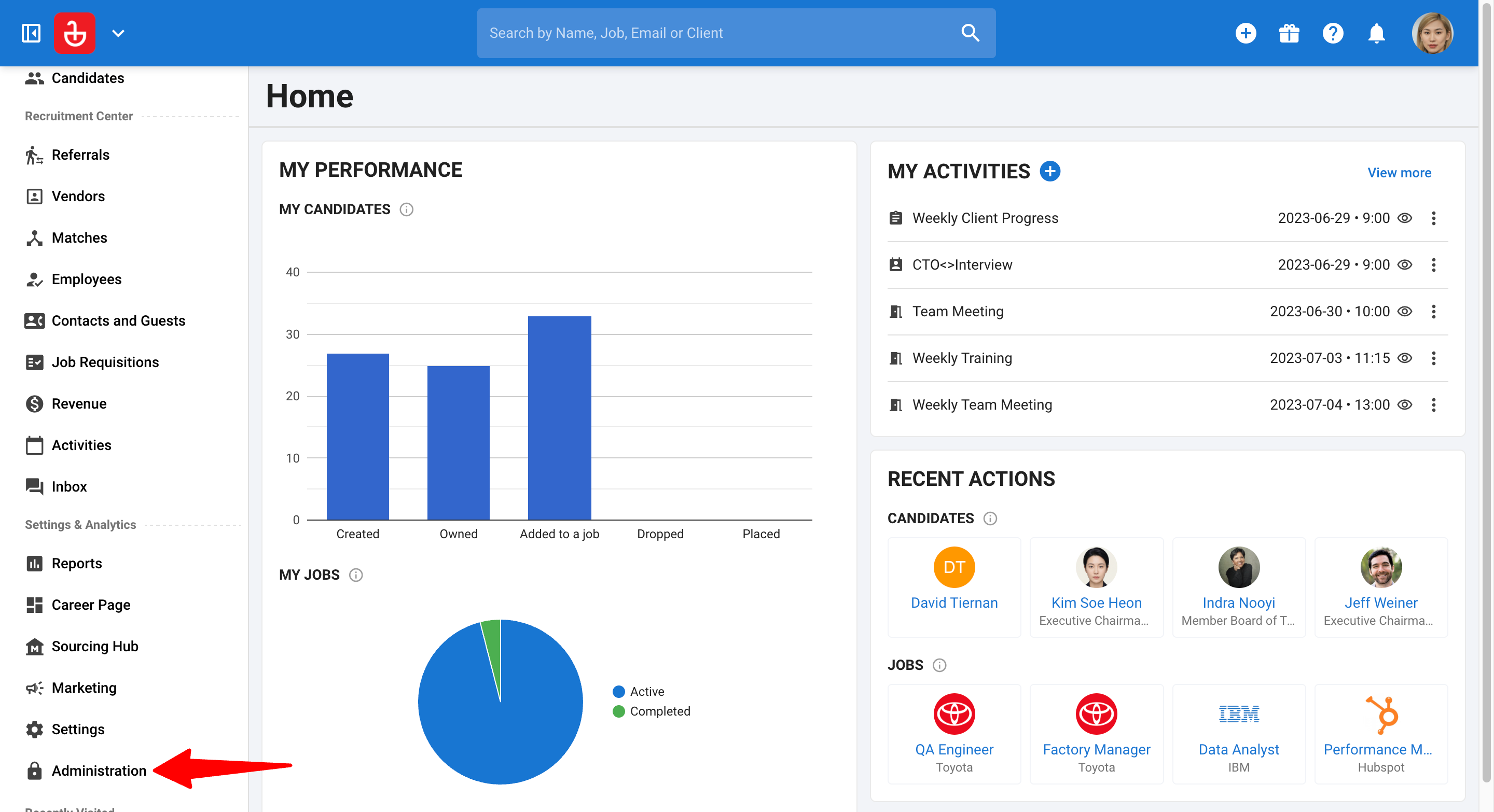
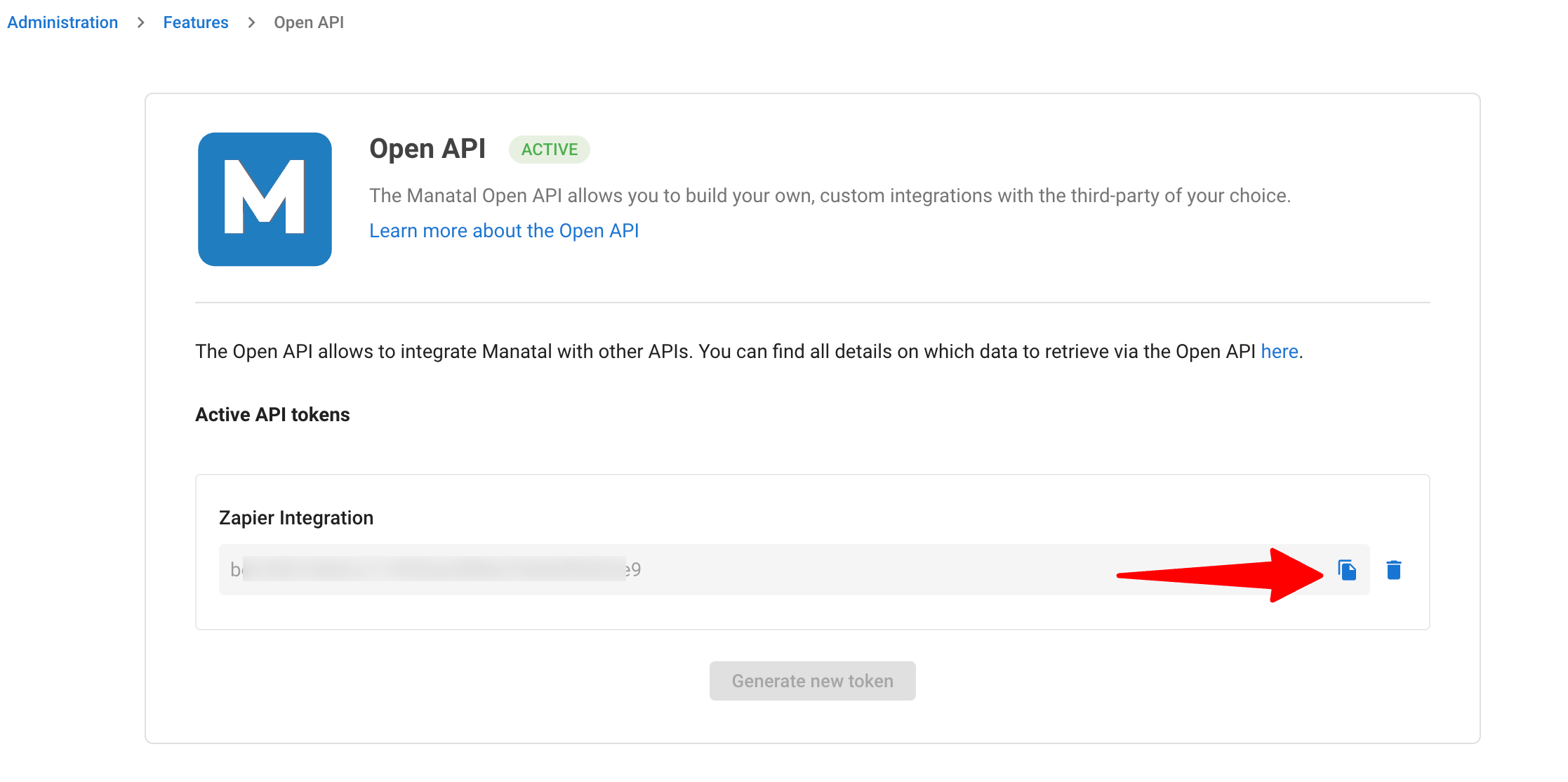
- Head to the following page. Alternatively, click on “Administration” from your side menu and open the “Features” category.
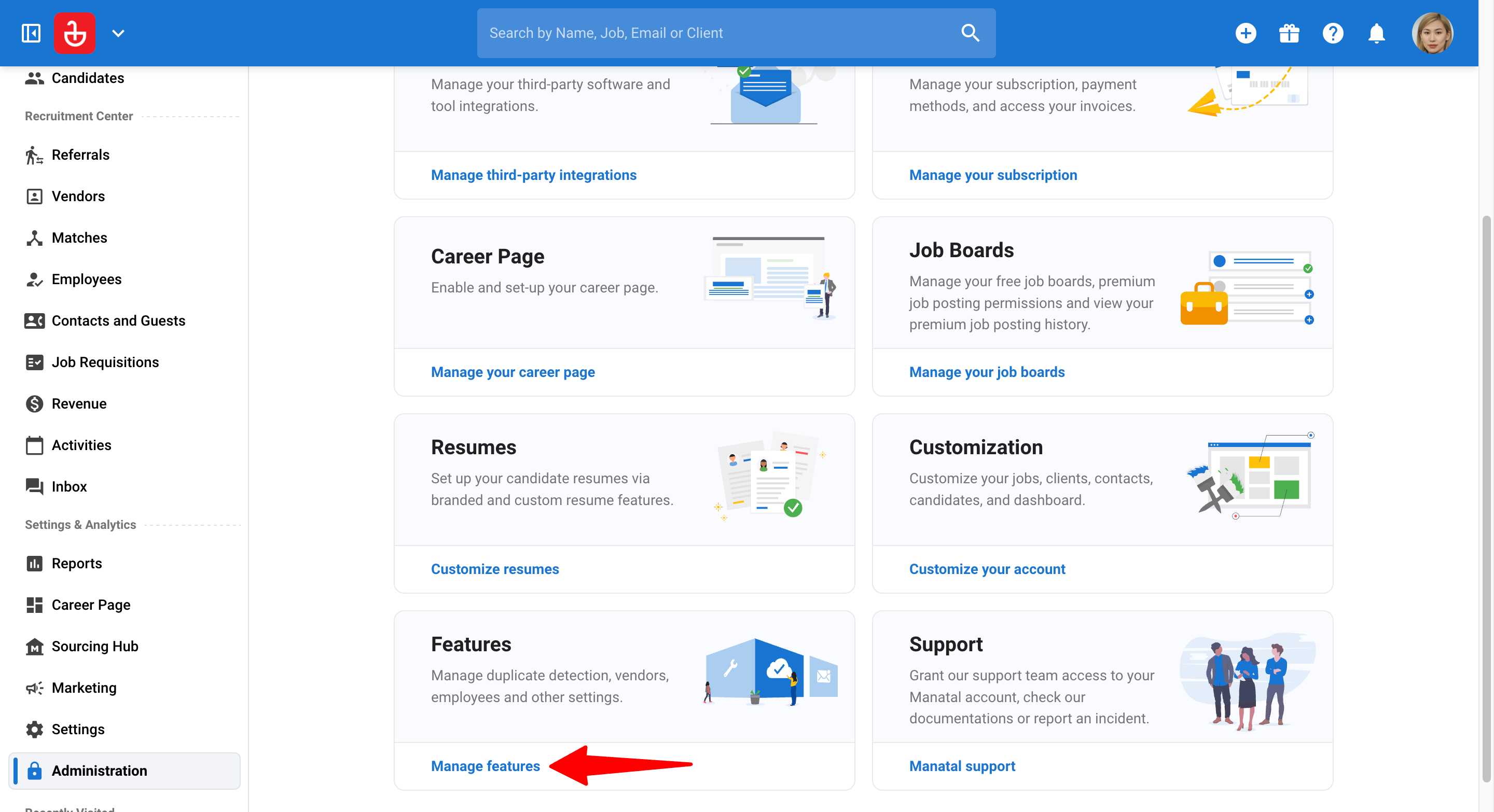
- Click on “Open API”.
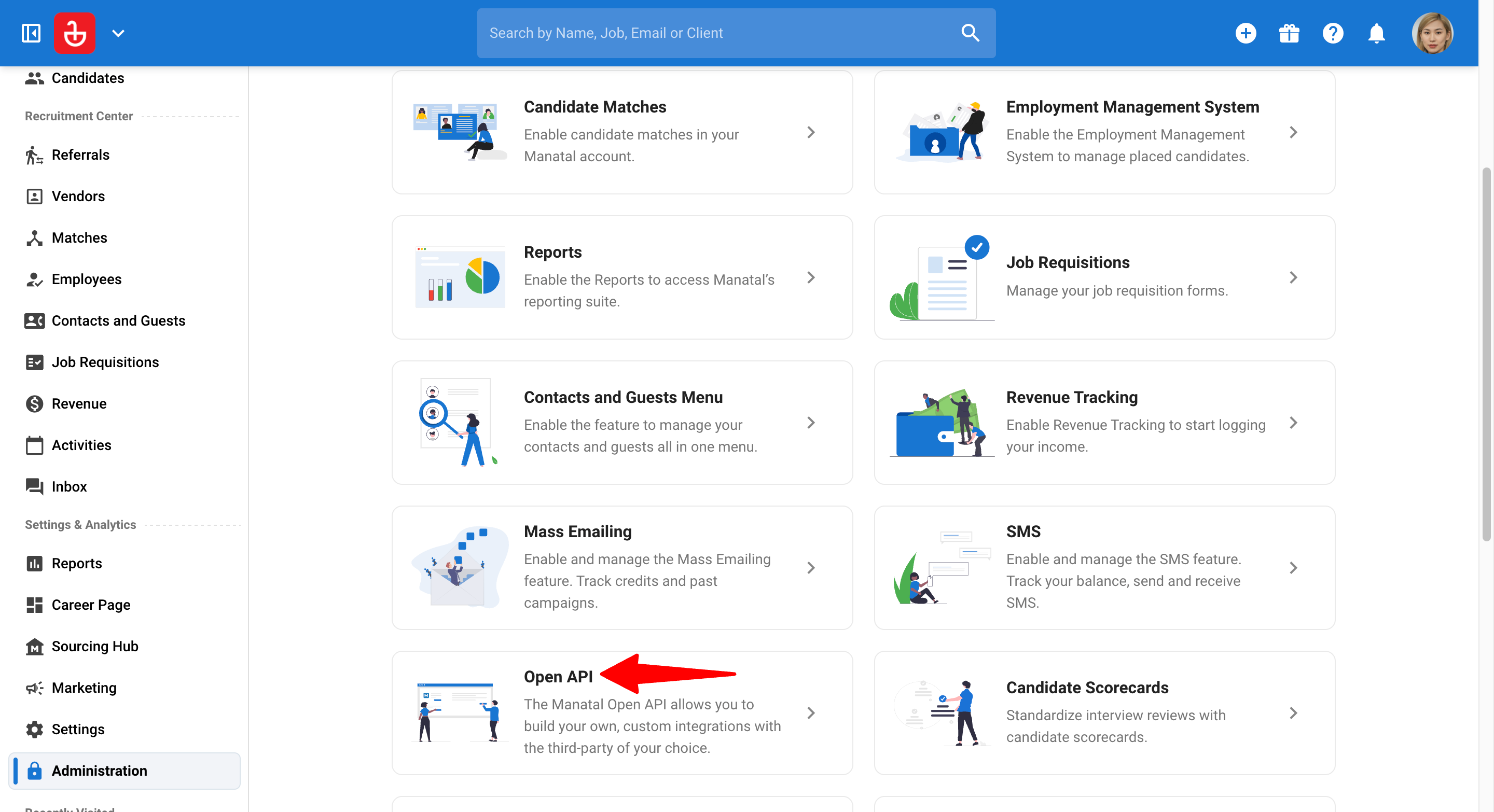
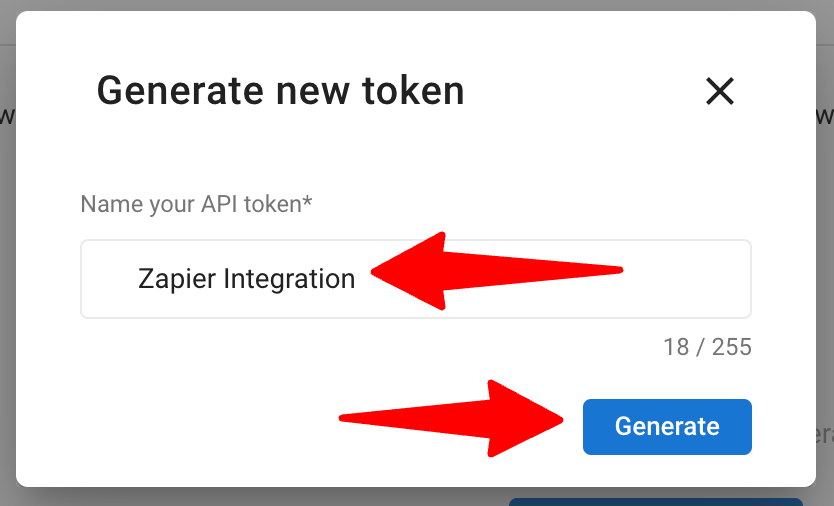
- Click on “Generate new token”.
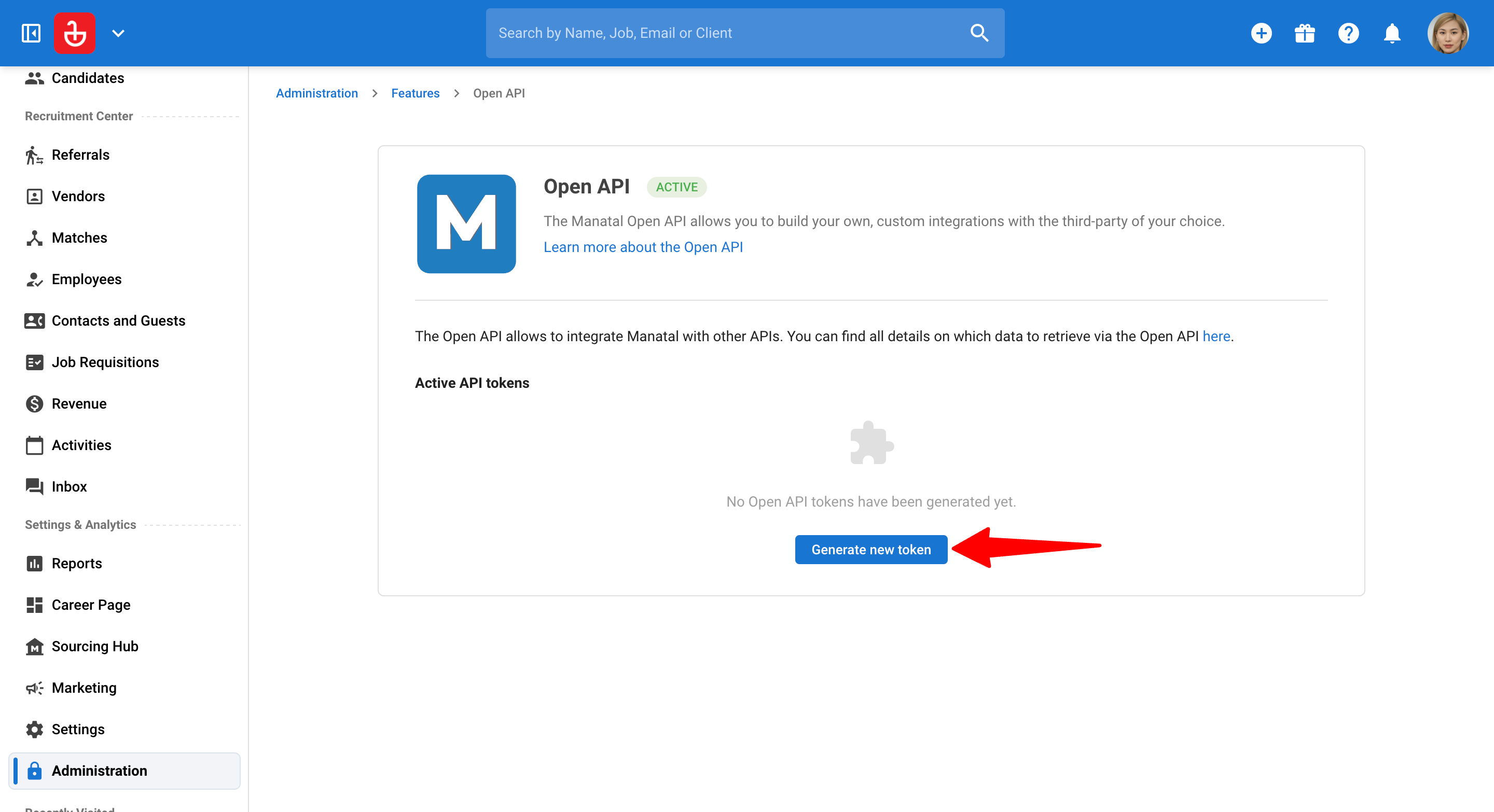
- Fill in the API token name (e.g., "Zapier Integration") and click on “Generate”.
- Copy the generated API key.
- Log in to your Zapier account and locate the Manatal app connection. Enter the Manatal API token to complete the integration. Learn more in this guide.
Common Use Cases
Explore these pre-built templates to streamline your recruiting operations. Use them as a foundation to build, customize, and scale even more powerful workflows that perfectly fit your team's unique recruitment process. You can explore more options here.
1. Electronic Signatures & Offers
Use Case: Automatically trigger legal documents and offer letters the moment a candidate is moved to the "Offered" stage. You can pre-fill these documents with data pulled directly from Manatal (such as name, salary, or job title), ensuring accuracy and saving your team from repetitive data entry.
- Docusign: Send offer letters for new matches moved to the Offered stage in Manatal
- Dropbox Sign: Send signature requests for new matches moved to the Offered stage in Manatal
- signNow: Send offer letters for new matches moved to the Offered stage in Manatal
2. Candidate Assessments & Video Interviews
Use Case: Screen candidates at scale. When a candidate reaches a specific pipeline stage, Zapier automatically sends an invitation for a skills assessment or video interview.
- TestGorilla: Send assessments to candidates when moved to “Send TestGorilla Assessment” stage in Manatal
- myInterview: Send invites for moved Manatal matches
- Spark Hire: Send One-Way Interviews for moved Manatal matches
3. HRIS & Onboarding
Use Case: Bridge the gap between recruitment and HR. Once a match is marked as "Hired," sync their data directly to your HRIS to kick off the onboarding process.
4. Data Collection
Use Case: Collect external information (like candidate surveys or hiring manager feedback) and automatically attach it to the candidate's profile in Manatal.
5. Team Communication
Use Case: Keep the whole team updated in real-time. Post a summary of job match updates directly to your team’s chat platform.
Best Practices for Creating Zaps
- Start Simple with 2-Step Zaps:
- Before building complex, multi-stage workflows, start with a simple "Trigger and Action" setup (e.g., Manatal to Slack). Once you are comfortable with the data flow, you can begin adding more steps.
- Use Descriptive Naming Conventions:
- As you create more automations, it can become difficult to manage them. Name your Zaps based on the flow, such as: "[Manatal → DocuSign] Send Offer Letter when Stage is Offered."
- Leverage "Filters":
- Use Zapier’s built-in "Filter" tool to ensure the Zap only runs if specific criteria are met (e.g., only trigger for "Full-Time" job types). This keeps your data clean and helps stay within your Zapier task limits.
- Test with "Dummy" Data:
- Create a test candidate in Manatal to trigger your Zap for the first time. This allows you to see exactly how the data appears in the destination app (like Google Sheets or Mailchimp) before applying it to real applicants.
FAQ
Q1. What Manatal Triggers and Actions are available on Zapier?
You can view the list of triggers and actions on our Triggers and Actions reference page or on the Manatal + Zapier integration page.
Q2. Do I need a paid Zapier account to use the Manatal integration?
You can start with Zapier's free plan; however, depending on the complexity of your workflow (e.g., using "Filters" or multi-step Zaps) or your monthly automation volume, you may eventually need a paid Zapier subscription.
Q3. Which Manatal plans include access to the Zapier integration?
The integration requires Open API access, which is included in our Enterprise Plus plan. If you are on a different plan, please contact our support team to discuss upgrading or enabling API access for your account.
Q4. Is the data transfer between Manatal and Zapier instant?
Yes! As soon as a trigger event occurs (like a new candidate creation), the data is sent to Zapier immediately.
Q5. I’m getting an "Authorization Error", how do I fix it?
This usually means the API Token has been deleted or deactivated within Manatal. To fix this, simply generate a new OpenAPI token in your Manatal Administration settings and update the connection in the “App Connections" section of your Zapier dashboard.