- This feature is currently in Beta.
- You may expect updates, and changes to accessibility or pricing as we refine and enhance it.
- Accounts without AI Search enabled will continue to see the existing Advanced Search experience. Learn more in this guide.
What is Advanced Search?
Advanced Search helps you find candidates in your Manatal database using keywords, filters, and semantic matching.
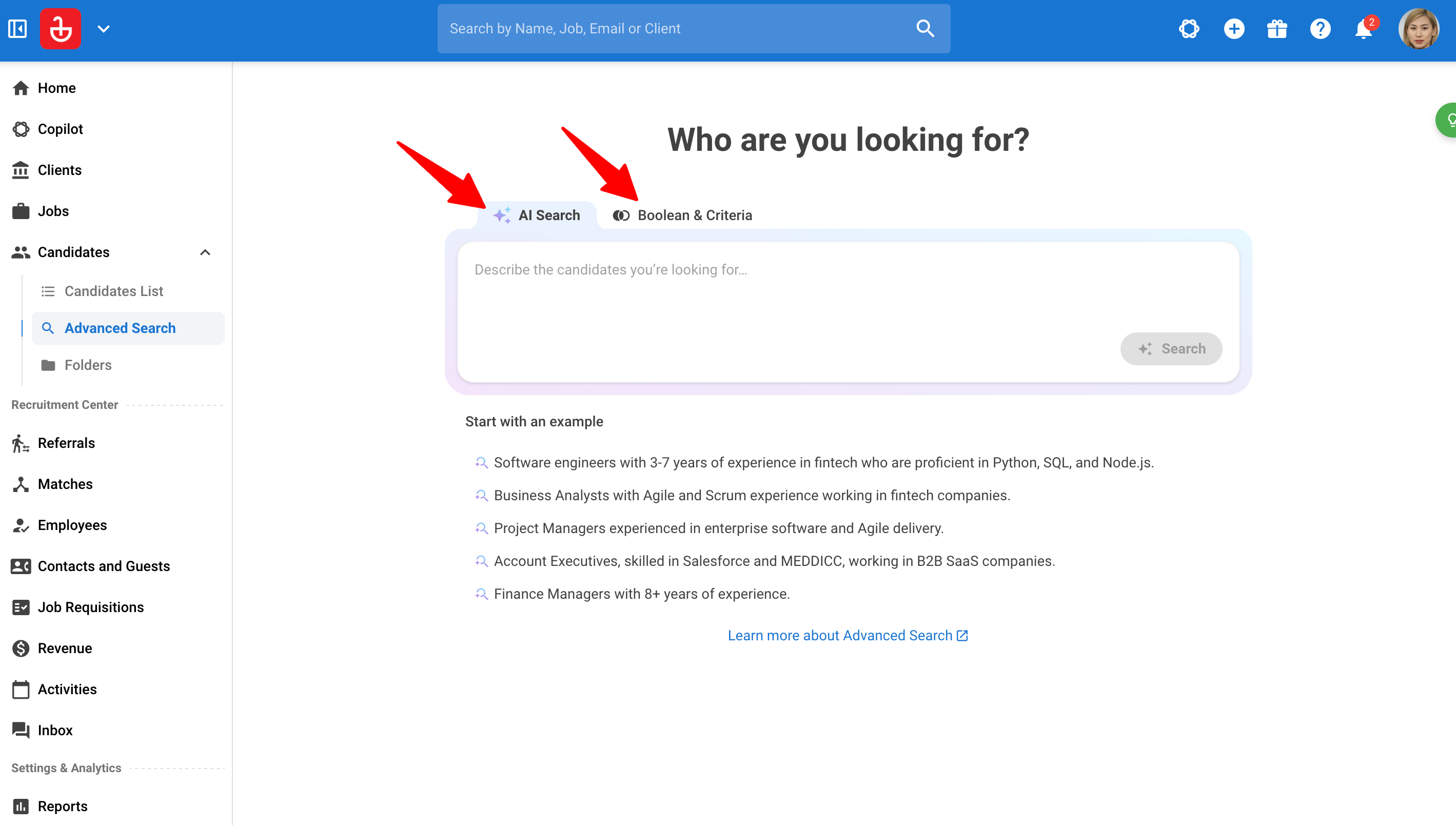
Choose how you want to build your search:
| Search method | How it works |
|---|---|
| AI Search | Describe your requirements and refine your search through conversation with AI Copilot. |
| Boolean & Criteria | Enter Boolean keywords and manually configure your search criteria. |
Both methods use the existing Advanced Search functionality to search your candidate database.
Getting Started with Advanced Search
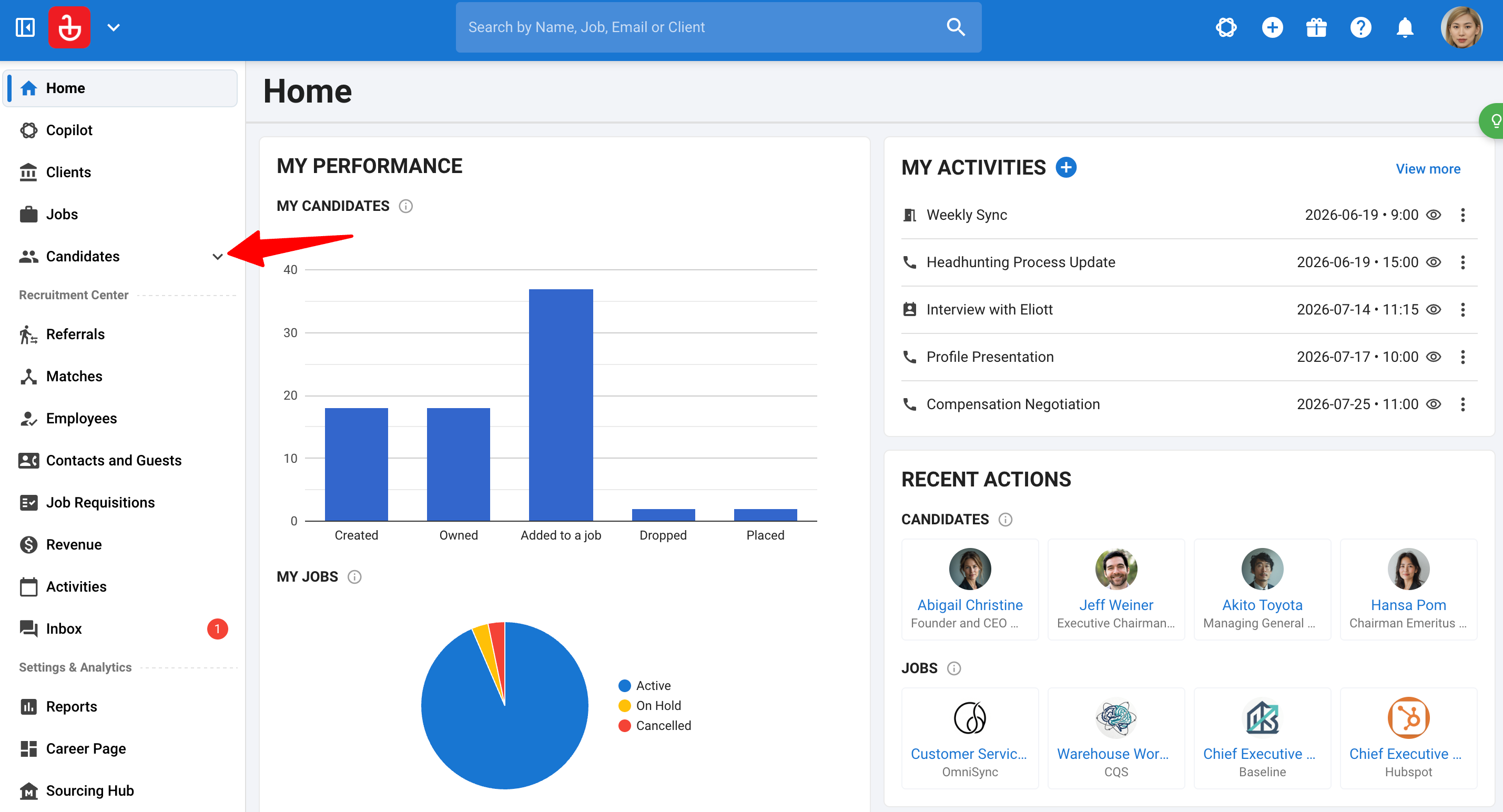
- Head to the following page. Alternatively, expand "Candidates" in the side menu and click "Advanced Search".
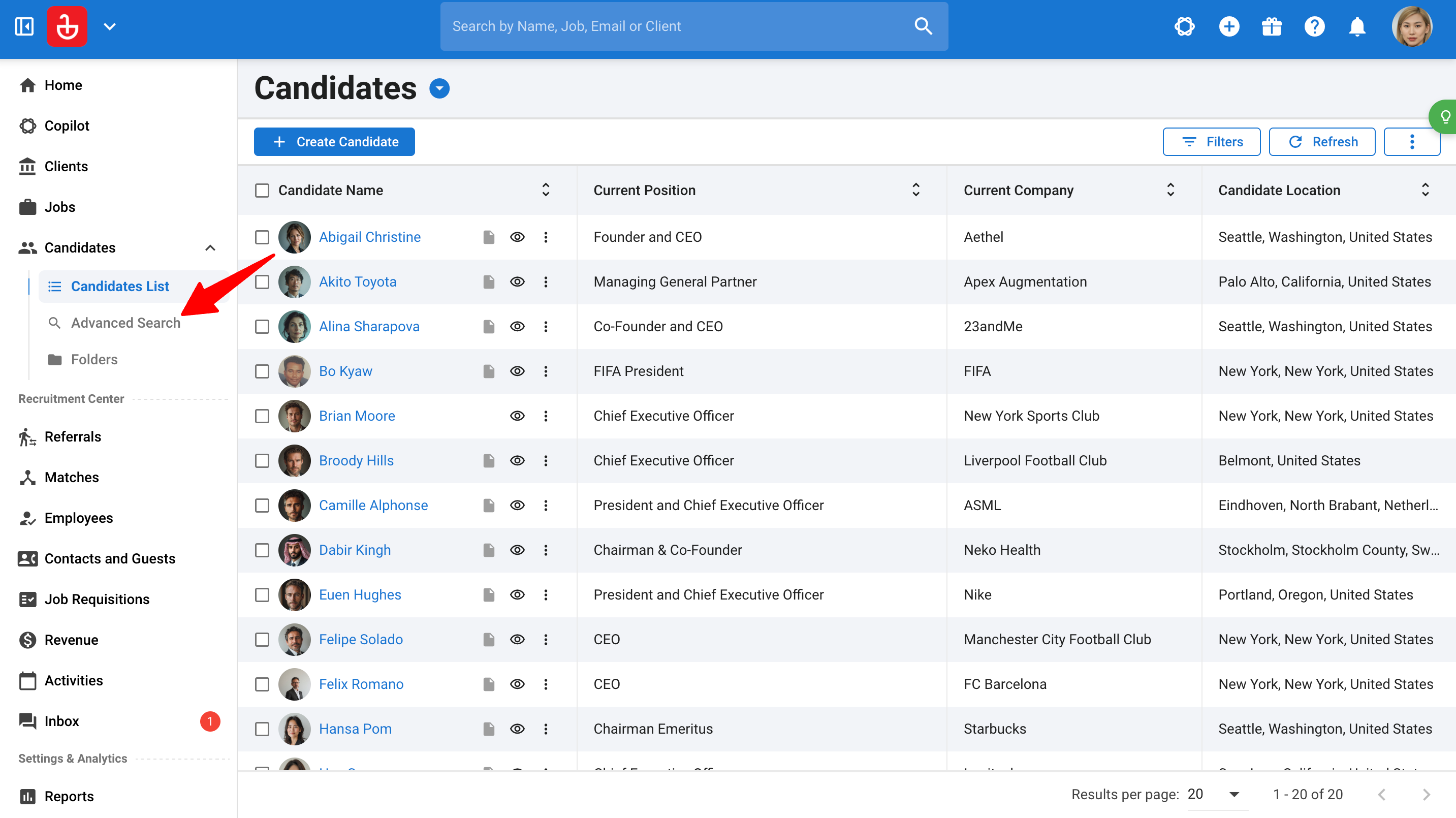
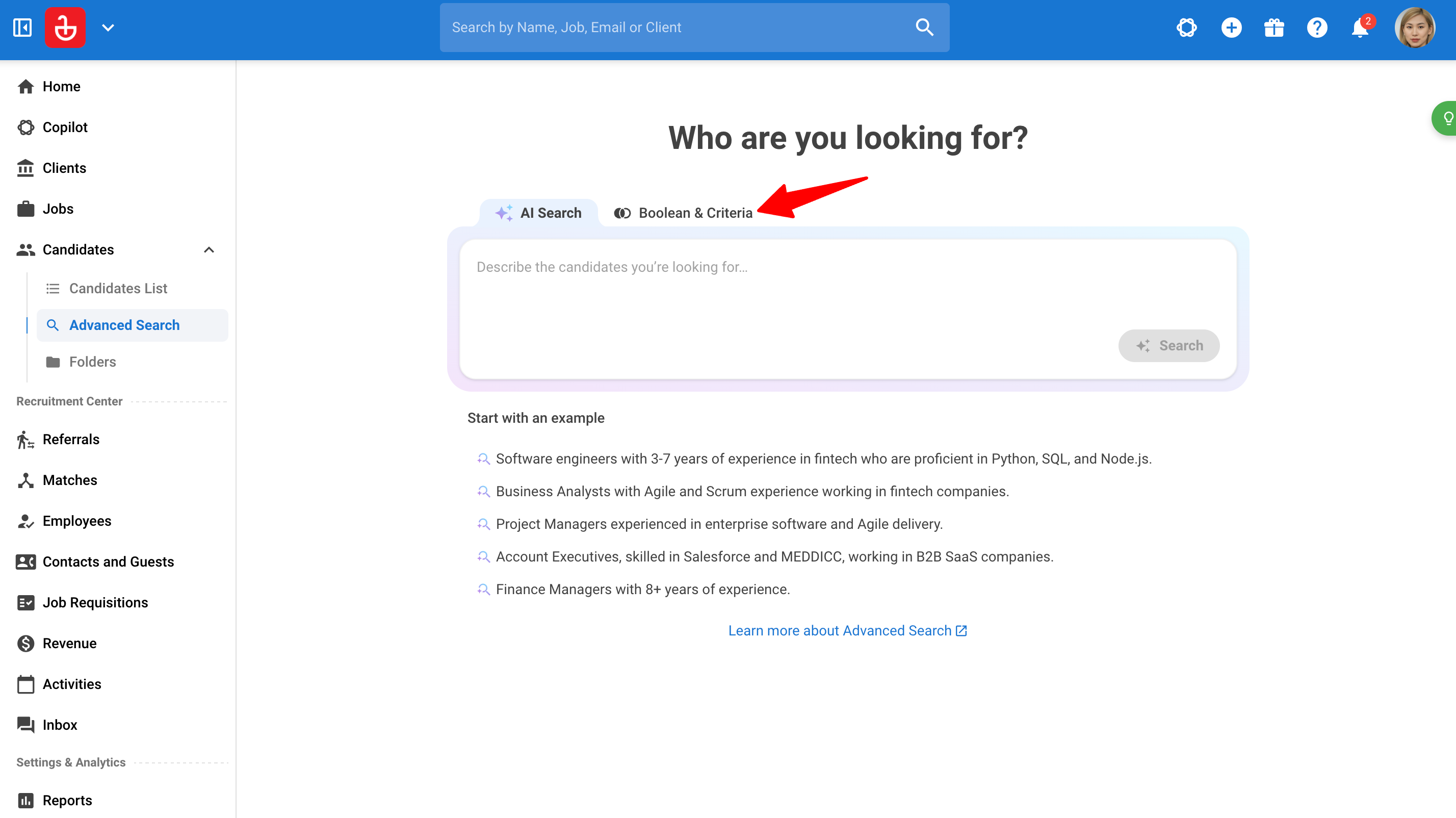
- Click on "AI Search" or "Boolean & Criteria".
How to Use AI Search
AI Search lets you describe the candidates you need without manually building each search criterion.
Step 1: Describe the candidates you are looking for
- Head to the following page. Alternatively, expand "Candidates" in the side menu and click "Advanced Search".
- Click on the AI Search tab.
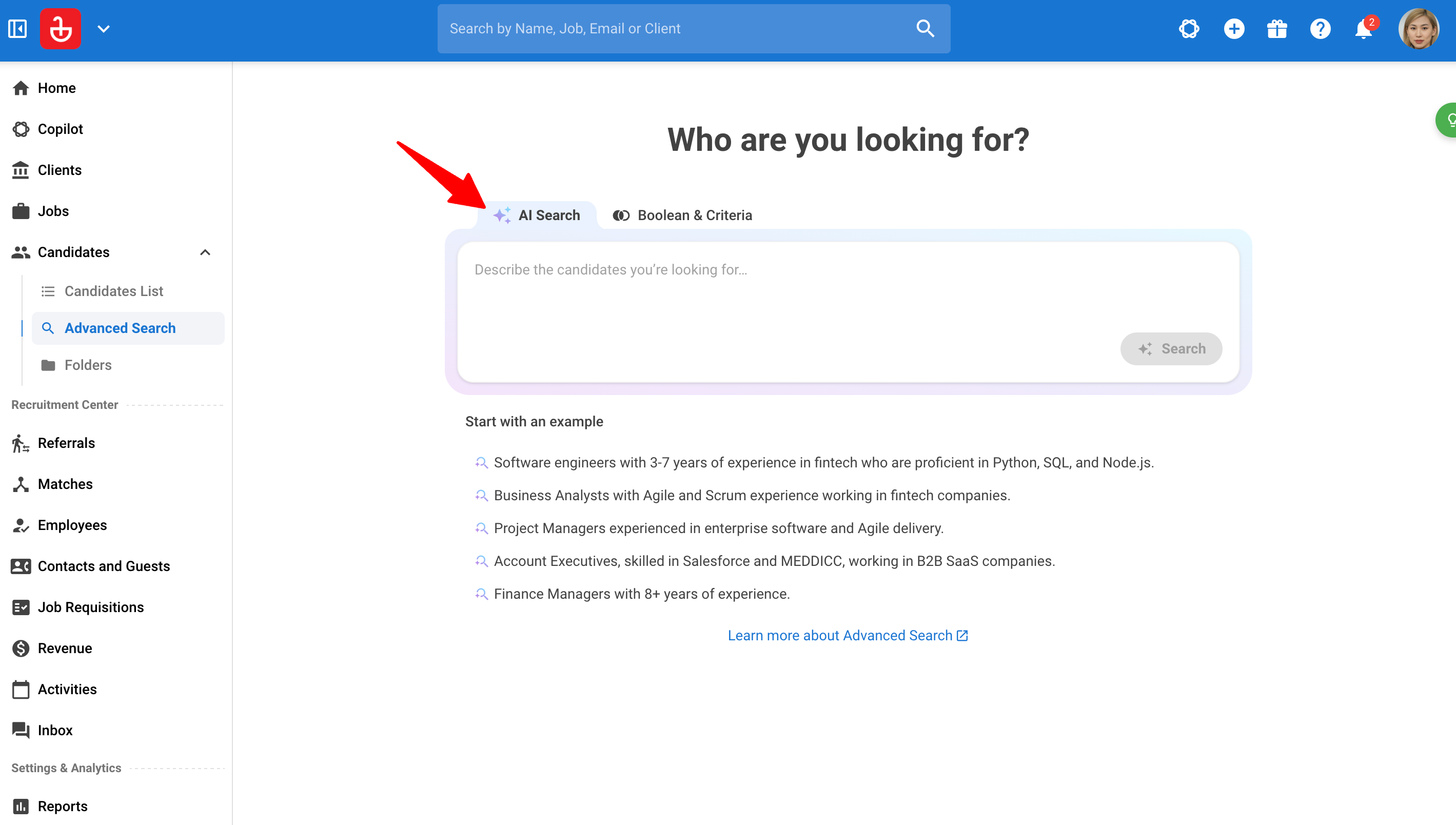
- Describe the candidates you are looking for in natural language.
Note
- Include relevant details such as the role, location, skills, previous companies, education, or experience.
- For example:
Find Finance Managers in London with at least 8 years of experience.
- Click "Search".
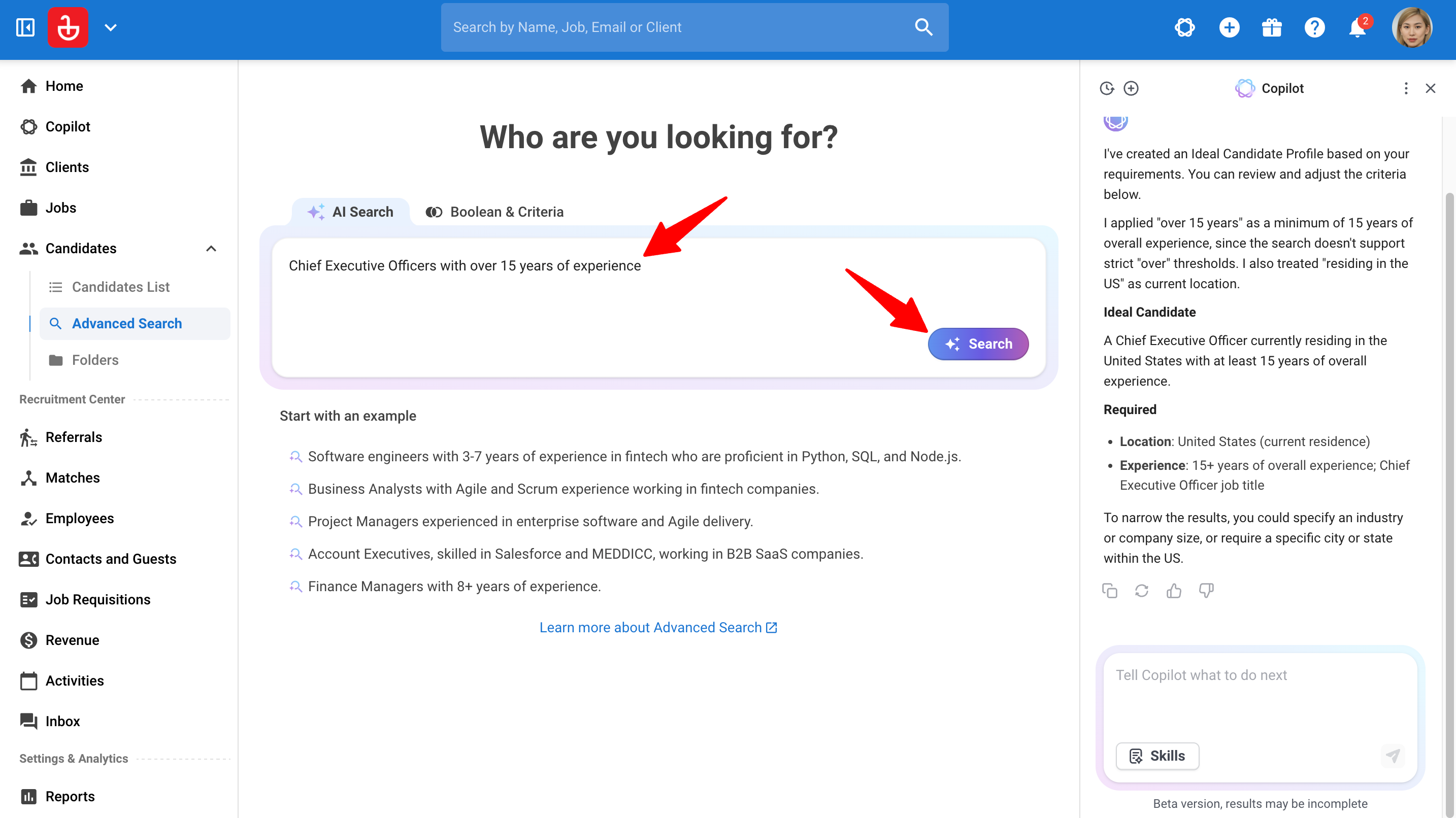
Start with an example
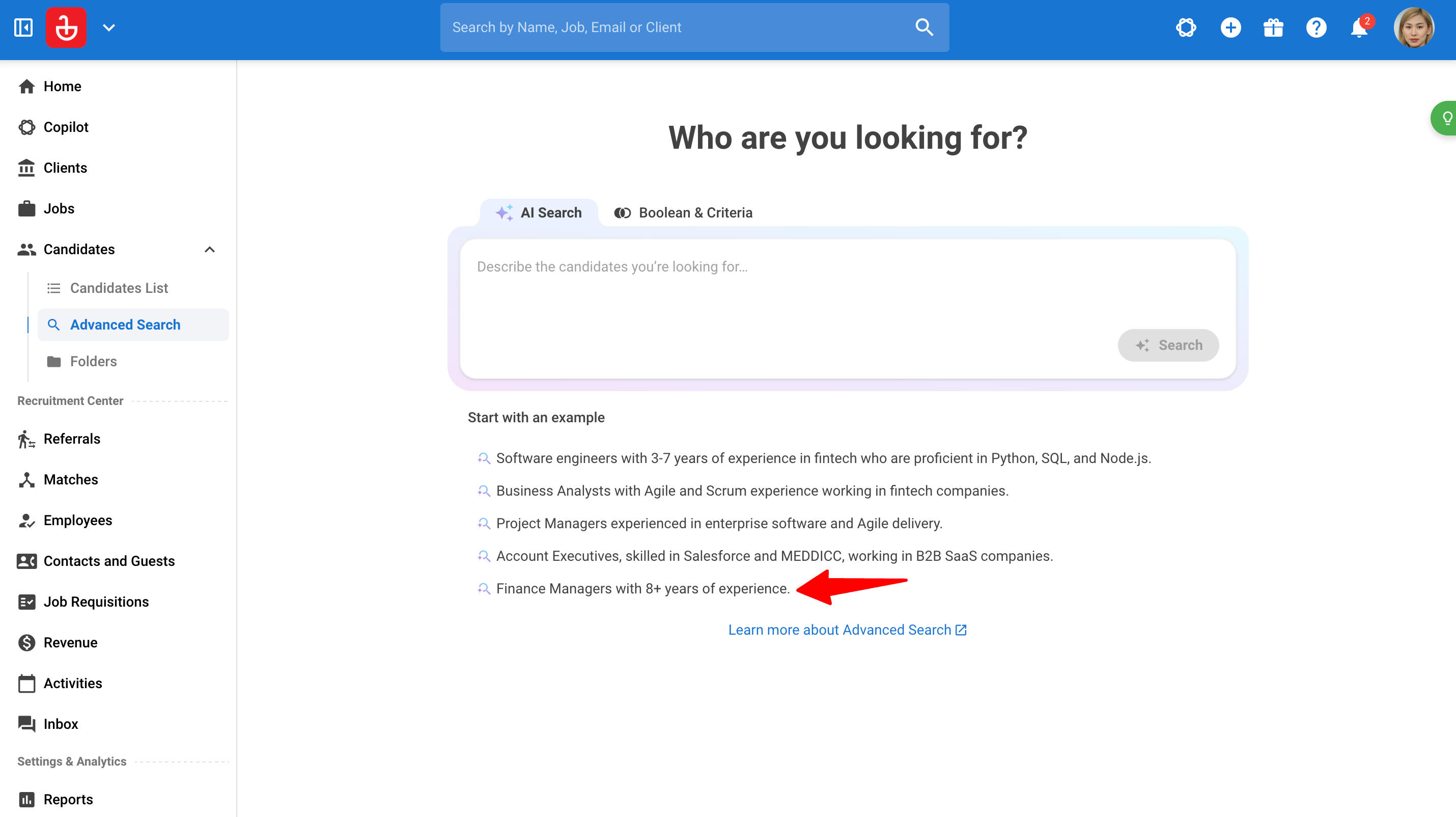
The "Start with an example" section provides suggested prompts.
- Select an example.
Note
Selecting an example fills the input; it does not immediately run the search.
- Edit the text to match your requirements. Then, click "Search".
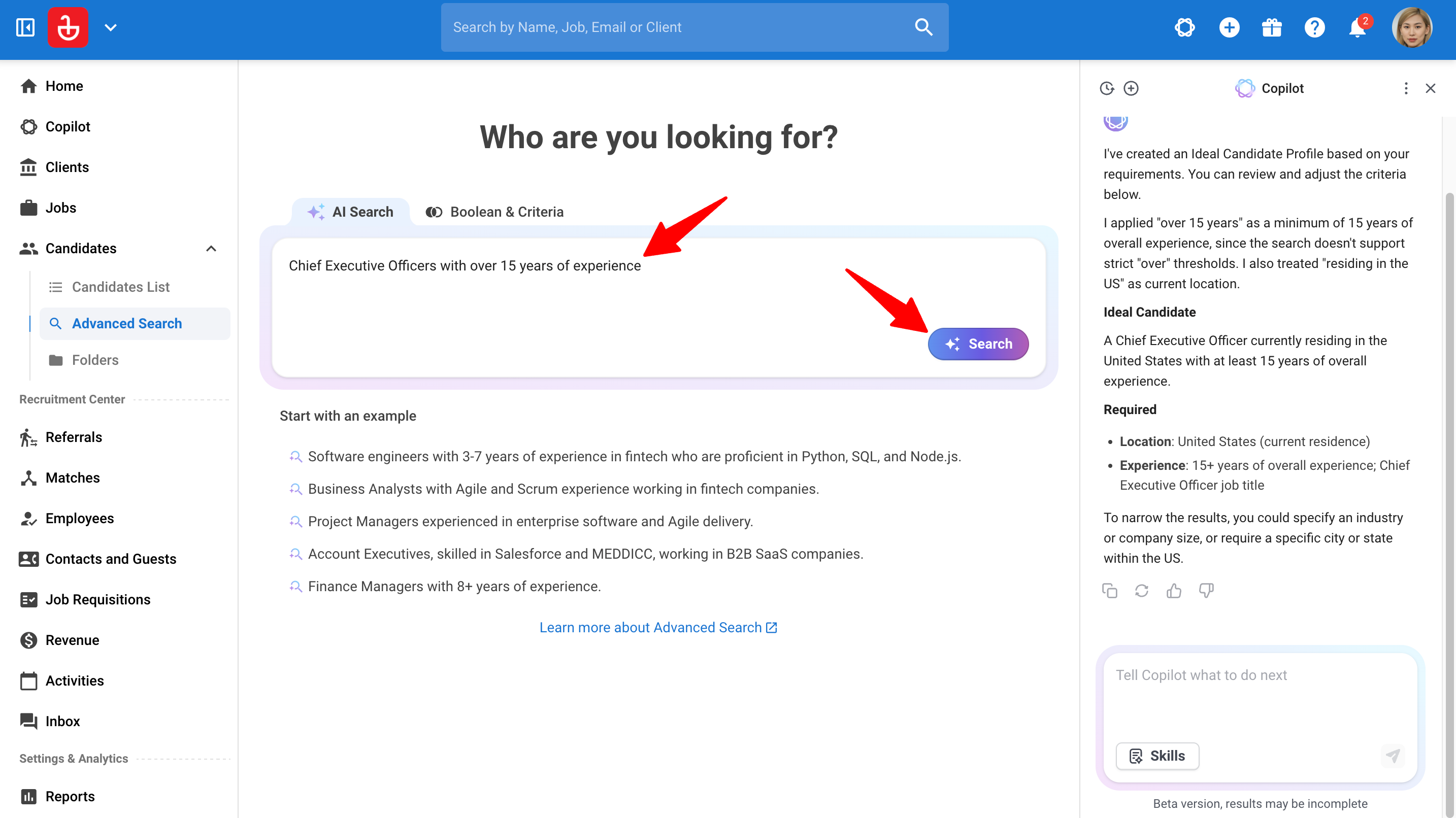
Step 2: Review the generated criteria and results
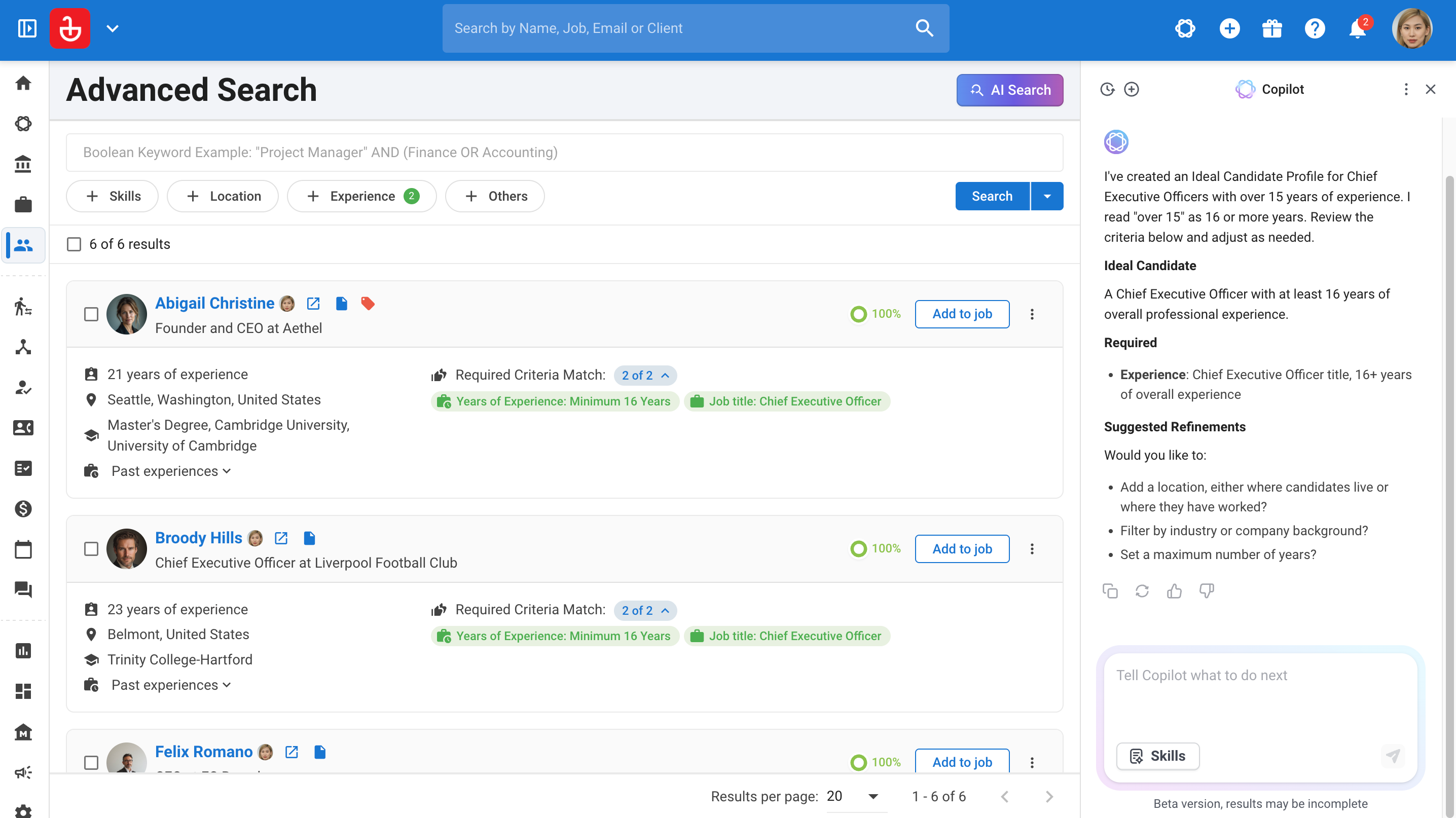
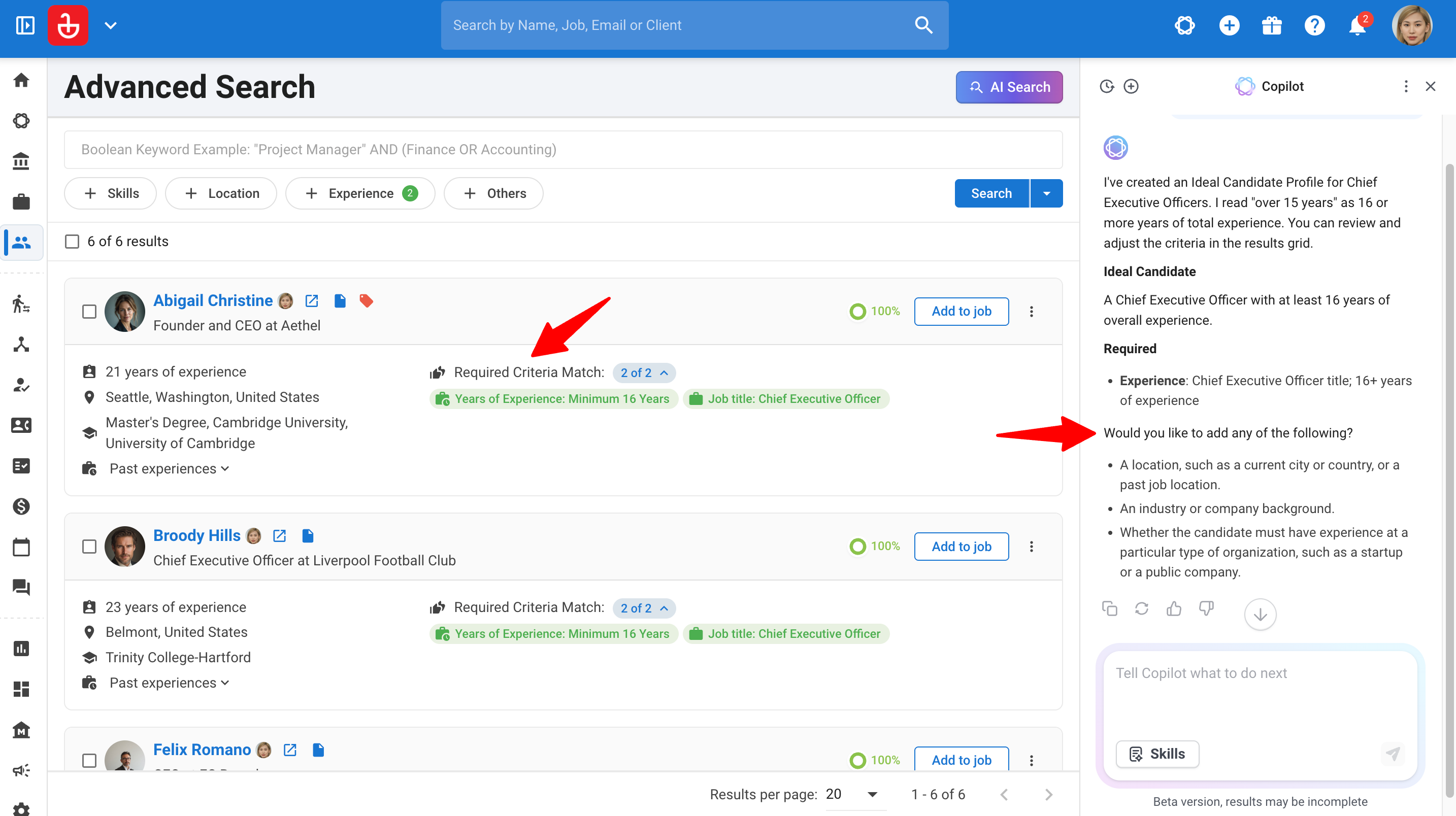
After you submit your request, the Copilot sidebar opens and interprets your requirements to generate an Ideal Candidate Profile describing your search. These newly generated criteria then appear directly in the Advanced Search interface, and the candidate search runs automatically.
The Ideal Candidate Profile is a description of your search requirements rather than a candidate record, so please review the applied criteria (particularly location, experience, skills, preferences, and exclusions) to confirm they match your request. If Copilot needs more information before proceeding, it may ask you to clarify.
Step 3: Refine your search through conversation
Continue in the same search conversation to add, remove, or change criteria.
Some examples:
| What you want to change | Example follow-up |
|---|---|
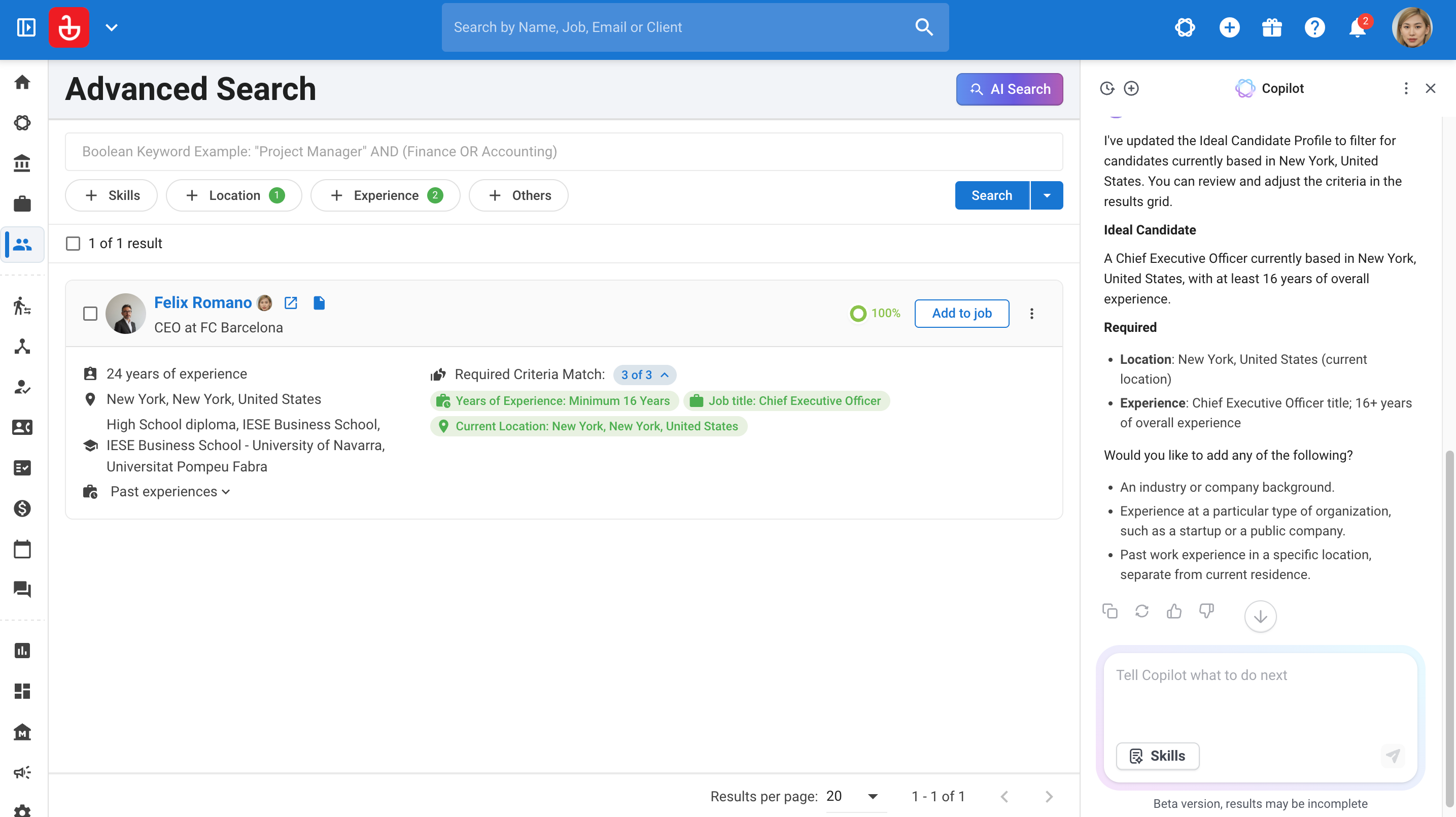
| Location | “Change the location to Manchester.” |
| Experience | “Increase the minimum experience to 10 years.” |
| A preference | “Make startup experience preferred.” |
| A requirement | “Require experience with Salesforce.” |
| An exclusion | “Exclude candidates who have worked at Example Company.” |
| Remove a condition | “Remove the company requirement.” |
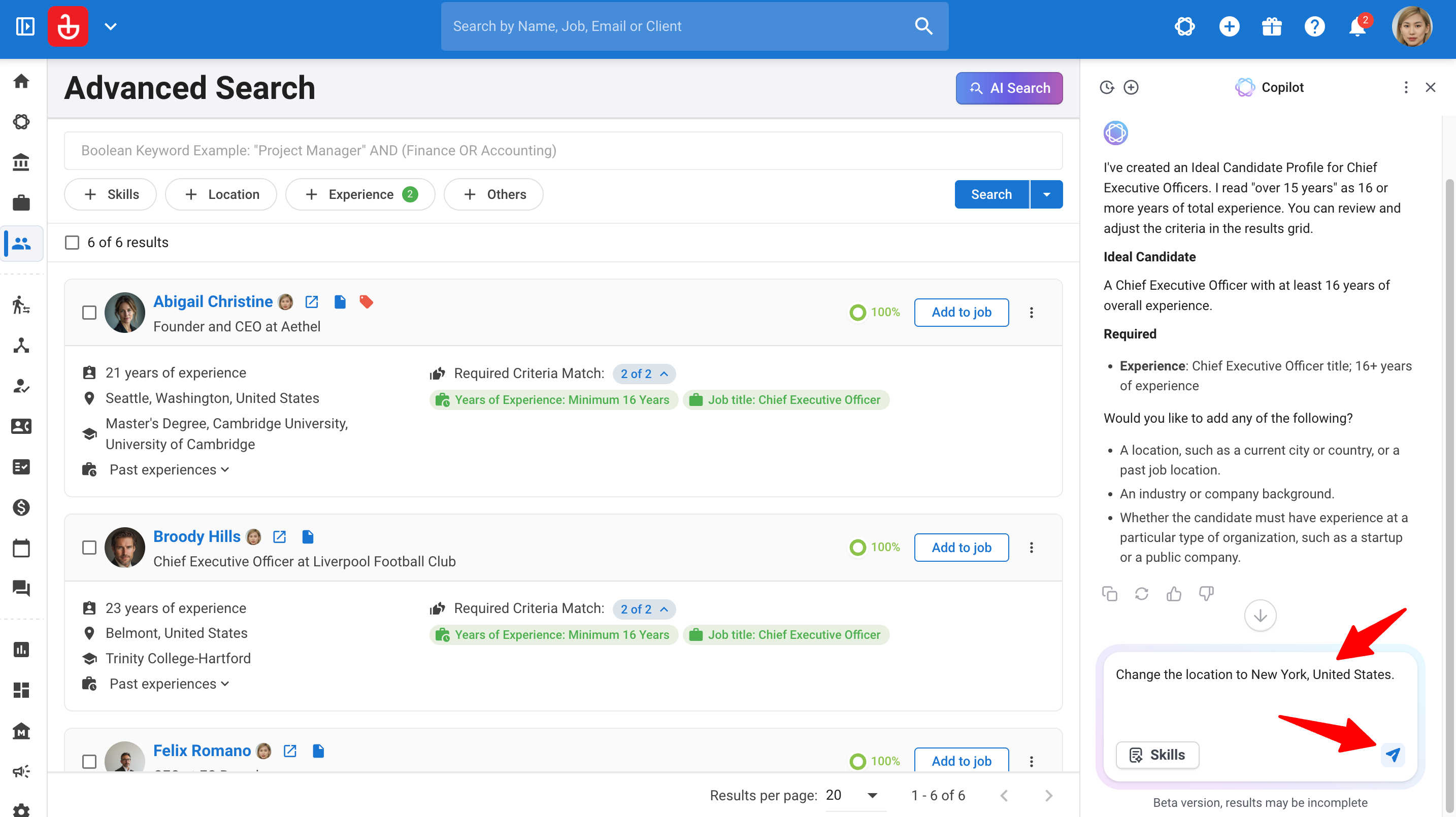
Copilot updates the criteria and automatically runs the revised search, but if a refinement is unclear or cannot be matched, it may ask a follow-up question that you must answer before continuing. You can also edit the criteria manually using the search controls, and any subsequent Copilot refinements will use this updated context.
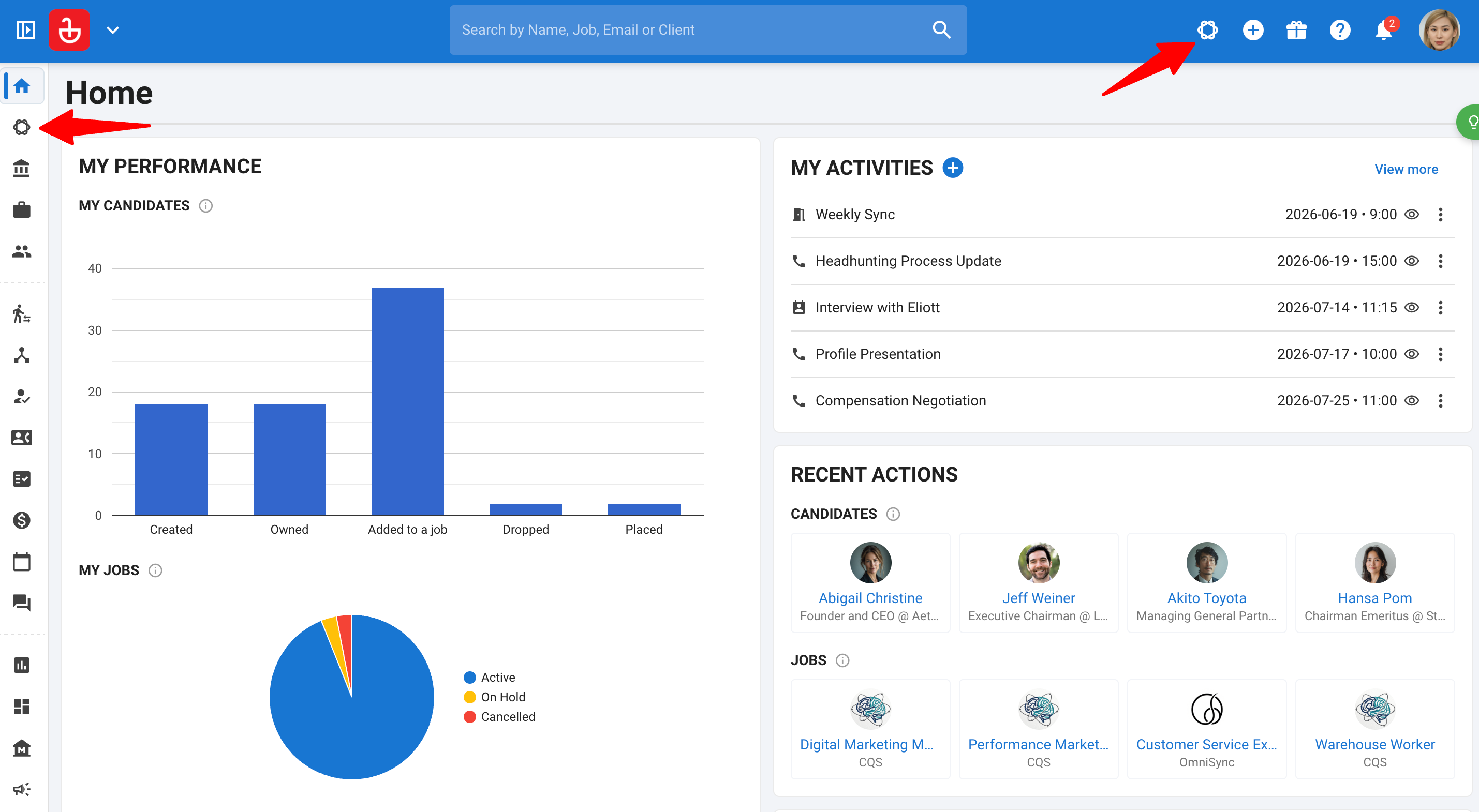
Start from the Copilot sidebar or full-screen view
You can initiate a search while working elsewhere in Manatal:
- Open "AI Copilot".
- Describe the candidates you want to find.
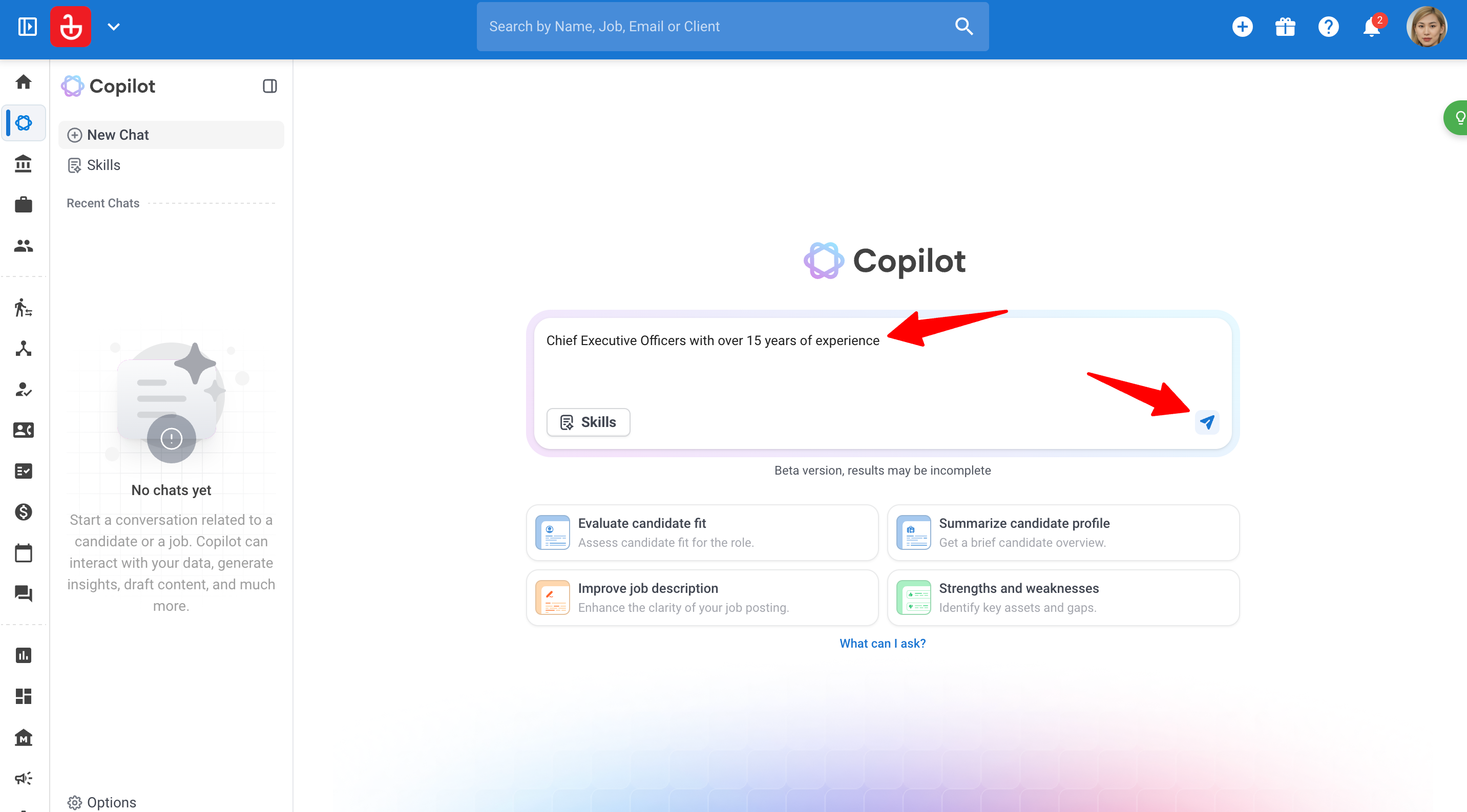
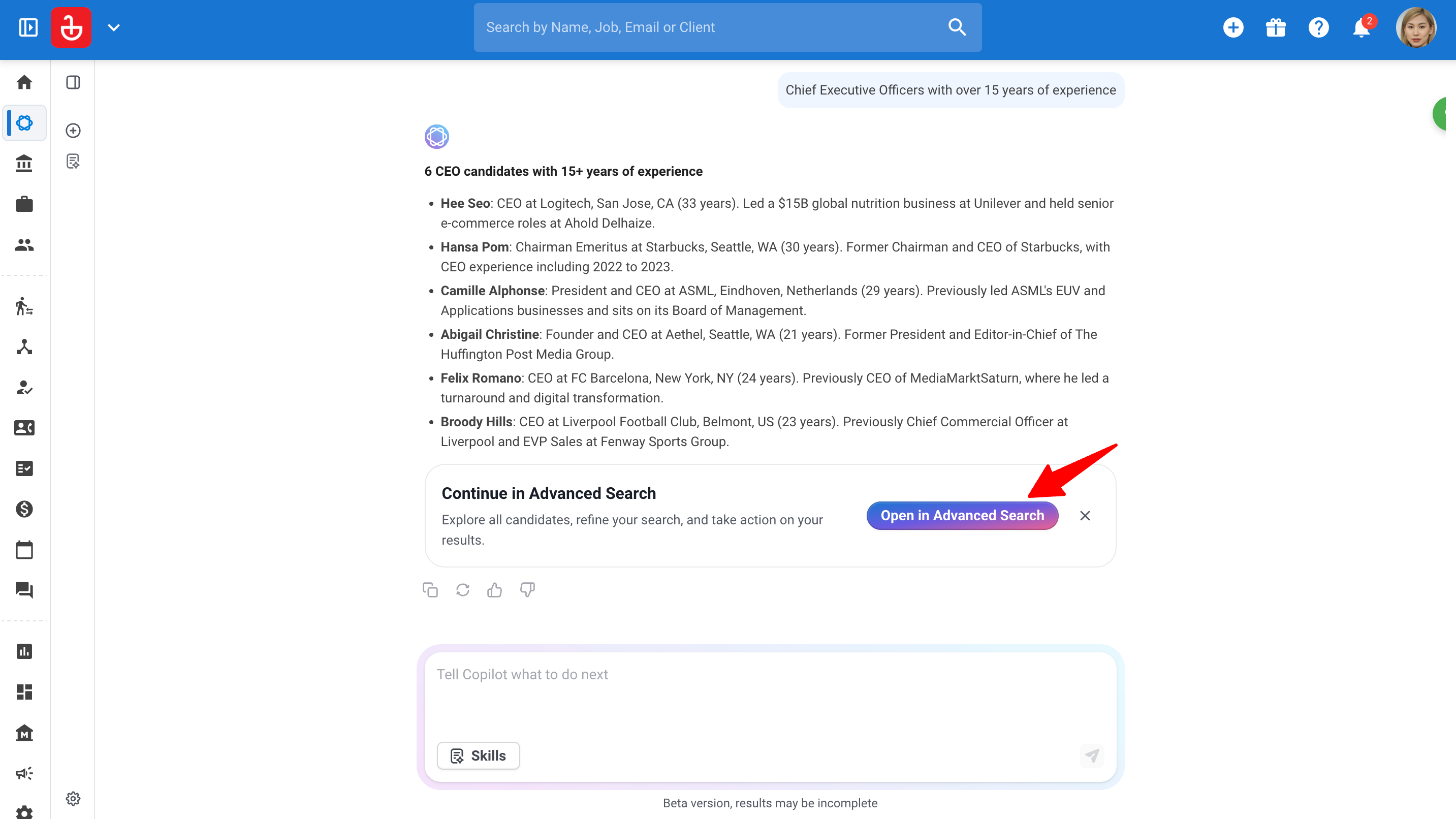
- Choose the option to continue in "Advanced Search" when it appears.
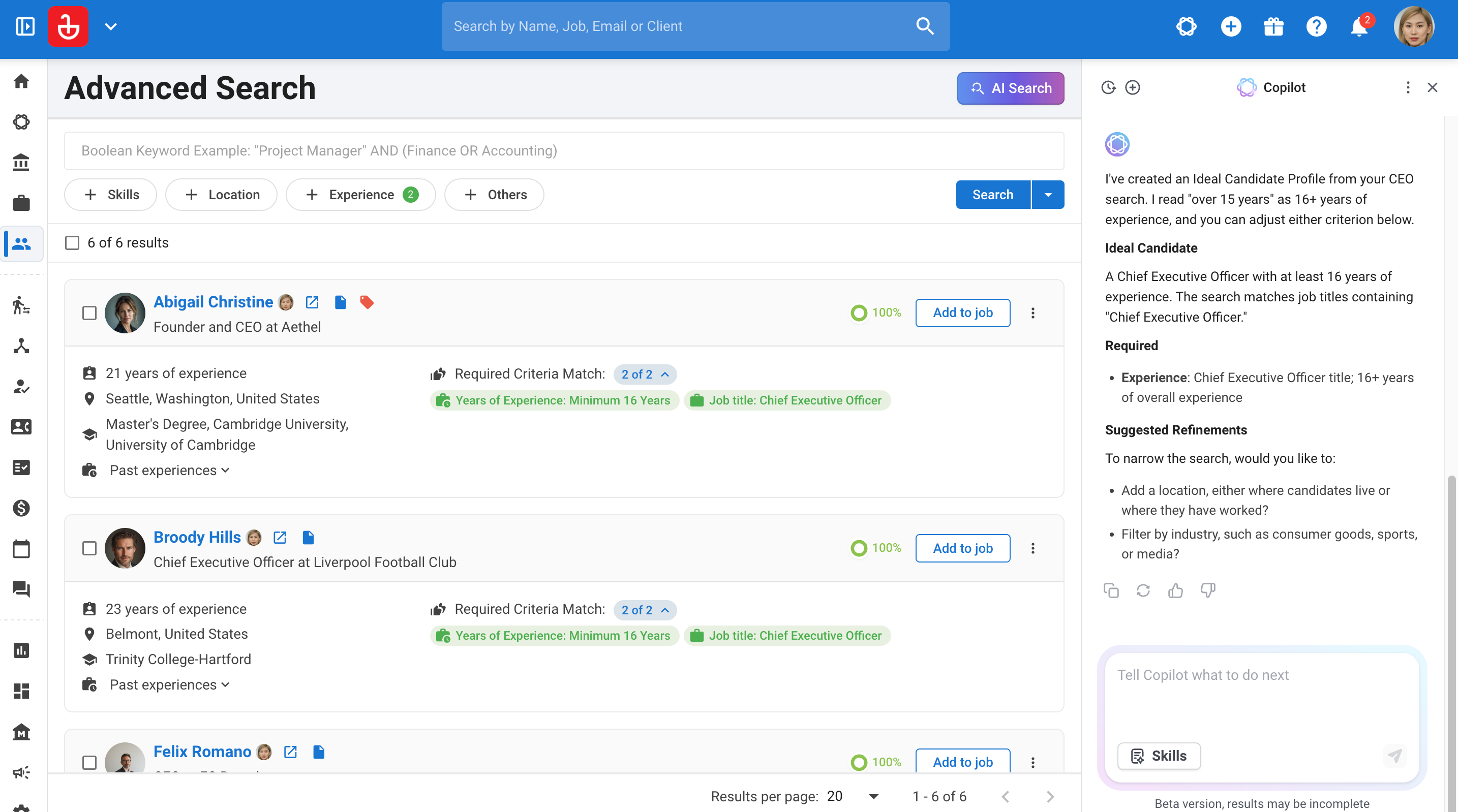
- Review the search and results in Advanced Search. Your request carries over, so you can continue refining it.
Use job or candidate context
You can ask Copilot to build search criteria using a job’s requirements or a candidate’s professional background.
For example:
Use this job’s requirements to help me find candidates in our database.
Or:
Find candidates with a similar professional background to this candidate.
Make the job or candidate you are referring to clear. Review the criteria Copilot generates before using the results.
How to Use Boolean & Criteria Search
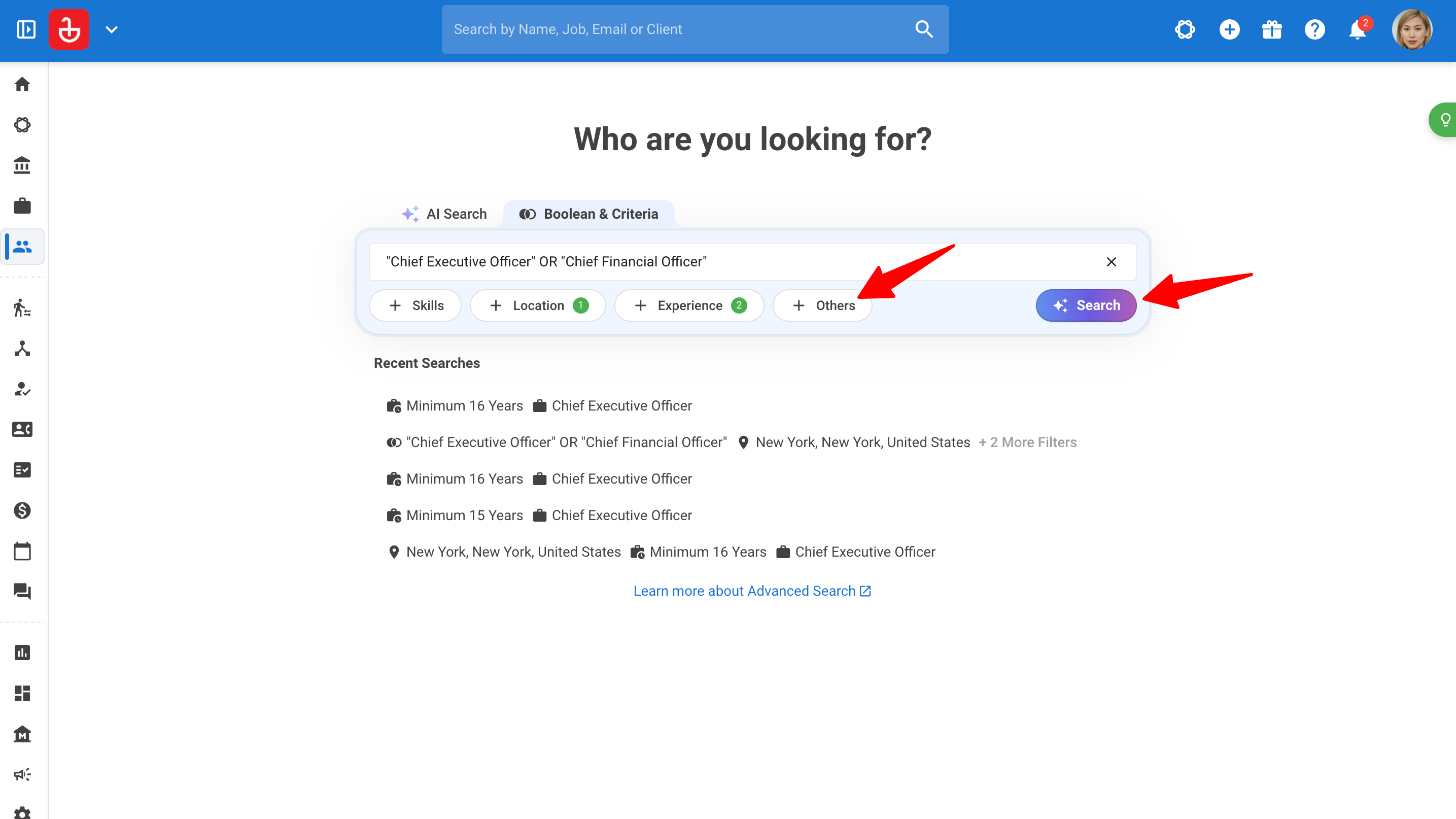
Use "Boolean & Criteria" to configure your search manually. You can combine keywords with criteria or build a criteria-based search.
Build a manual search
- Open "Advanced Search".
- Select "Boolean & Criteria", if the tabs are available.
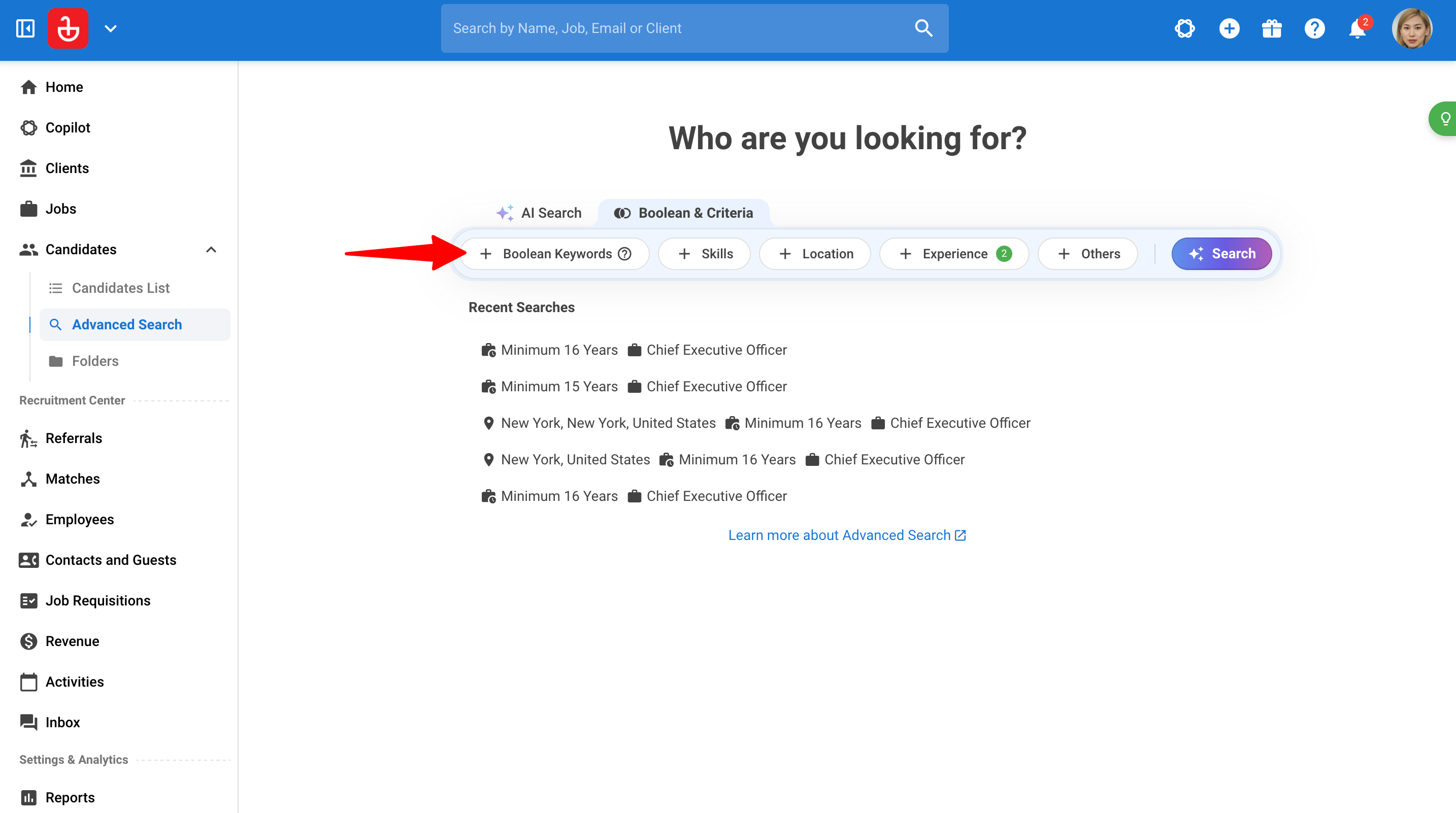
- Enter Boolean keywords where needed.
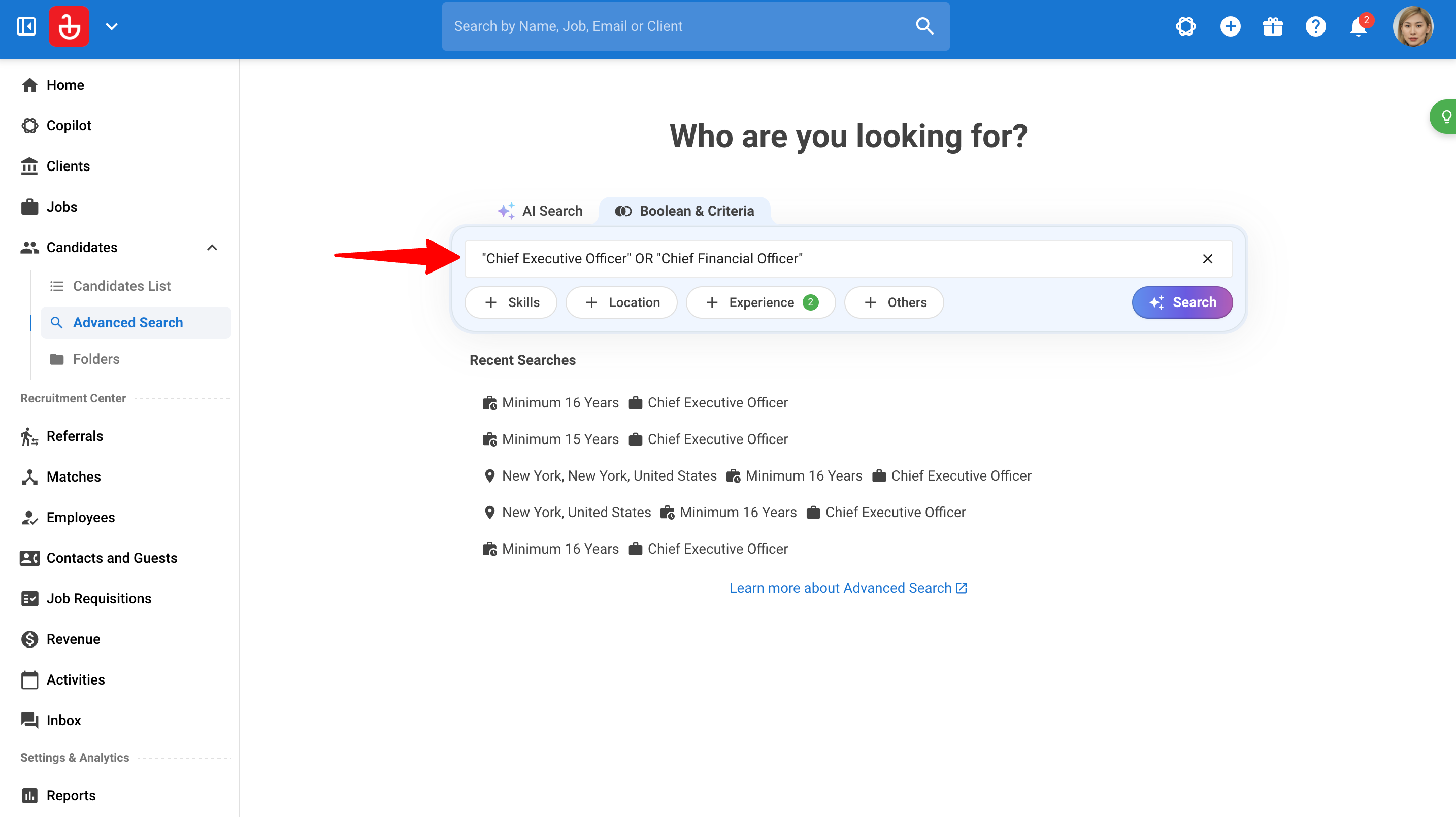
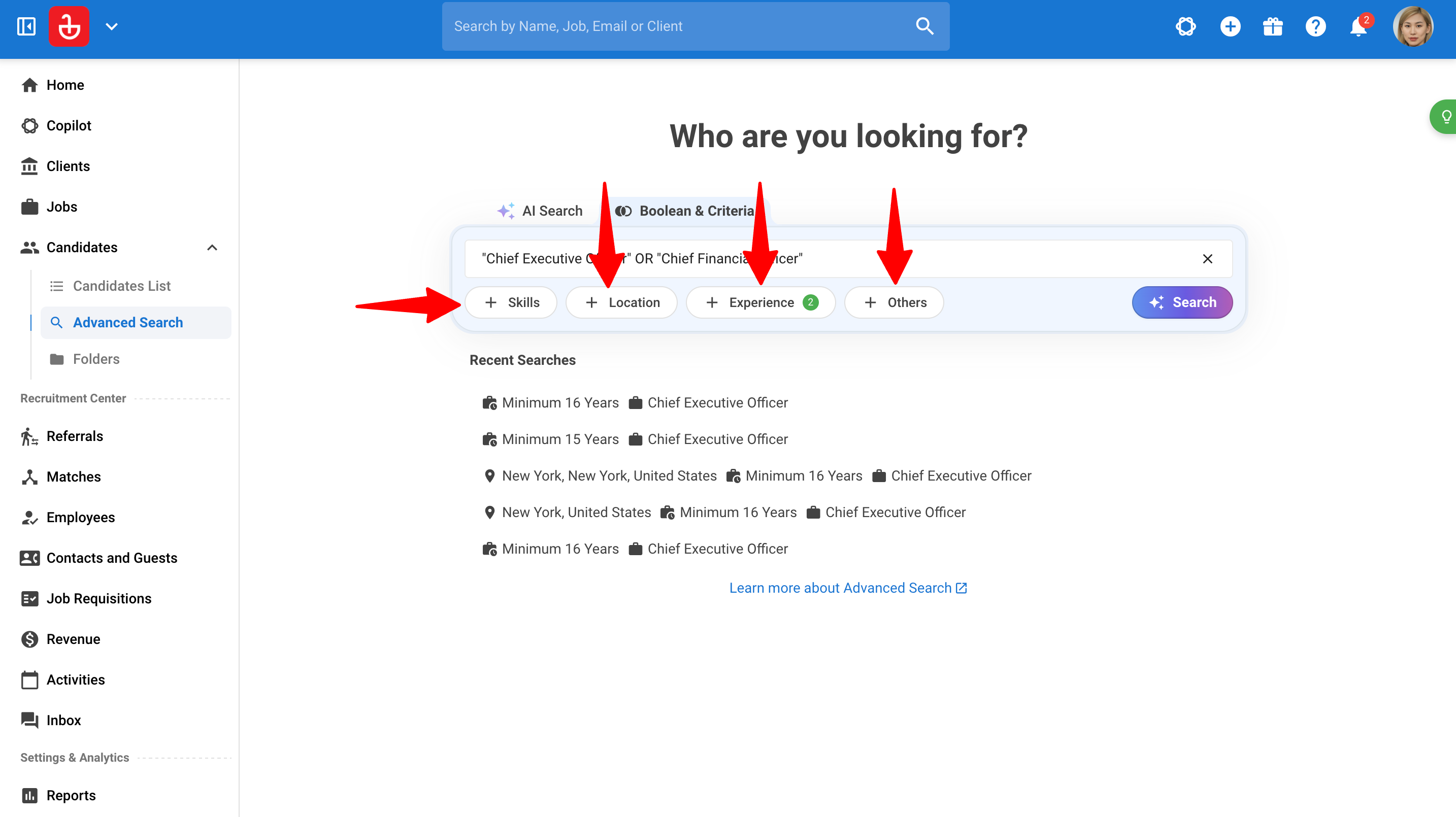
- Select a criterion.
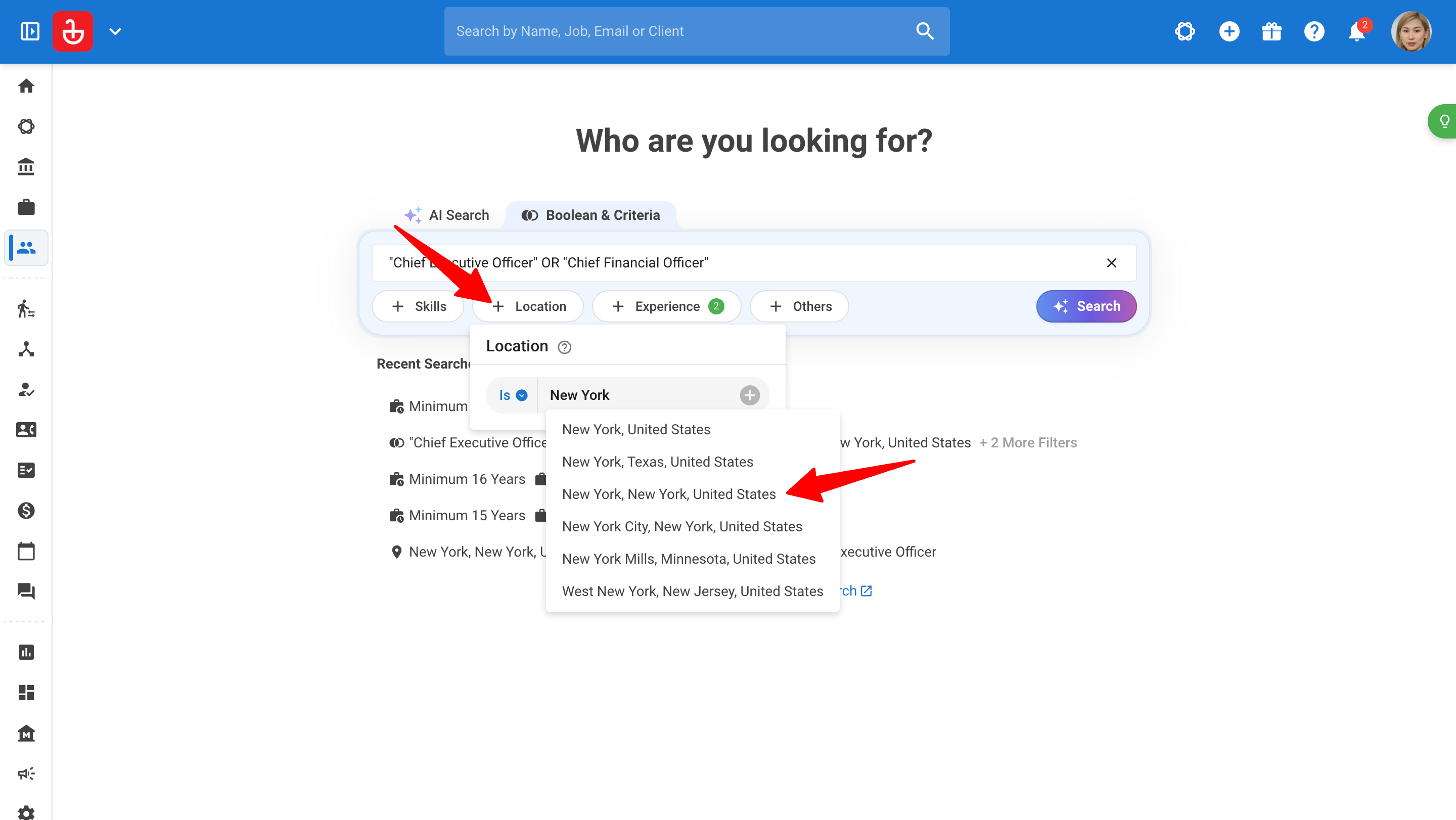
- Choose its qualifier and enter or select a value. Use the "+" control to add it.
- Add any further criteria. Then, click "Search".
Write Boolean keywords
Boolean expressions combine search terms to describe what should be included or excluded.
| Element | Purpose | Example |
|---|---|---|
AND |
Require both terms | Python AND SQL |
OR |
Allow either term | Python OR Java |
NOT |
Exclude a term | Developer NOT Intern |
Parentheses () |
Group parts of an expression | (Python OR Java) AND SQL |
Quotation marks "" |
Search for a phrase | "Project Manager" |
Write AND, OR, and NOT in uppercase.
For example:
("Project Manager" OR "Program Manager") AND Agile NOT Intern
This expression combines alternative titles, a required keyword, and an exclusion. Check the returned profiles to confirm that the expression reflects your intended search.
Combine keywords and criteria
Use Boolean keywords for your keyword expression and the available criteria controls for additional conditions.
For example:
- Boolean keywords:
Python AND SQL - Location criterion: London
- Experience criterion: At least 5 years
Avoid adding unnecessary restrictions that could exclude relevant candidates.
How to Use Advanced Search Criteria
Filters and semantic criteria
Advanced Search provides two types of criteria:
- Filters: Apply specific conditions, such as location, salary, or experience ranges.
- Semantic criteria: Use contextual matching to identify related skills, roles, or backgrounds, even when the wording differs.
For example, use a location filter to specify Paris and a semantic job-title criterion to find relevant developer profiles.
Available Search Fields
Available conditions depend on the field you select.
ATS Details
| Field | What it means |
|---|---|
| Tags | Tags assigned to the candidate, such as “High Potential.” |
| Candidate Owner | The Manatal user responsible for the candidate. |
| Resume | Whether the candidate has a resume attached. |
Candidate Details
| Field | What it means |
|---|---|
| Current Location | Where the candidate is currently based. |
| Nationality | The candidate’s recorded nationality. |
| Languages | Languages recorded on the candidate’s profile. |
| Gender | The candidate’s recorded gender. |
| Age | The candidate’s age. You can specify a minimum, maximum, or range. |
Education
| Field | What it means |
|---|---|
| Degree | The candidate’s education level. Supported values are High School Diploma, Associate’s Degree, Bachelor’s Degree, Master’s Degree, and Doctorate. |
| School Country | The country where the candidate’s school or university is located. |
| School Name | The school or university the candidate attended. |
| Specialization | The candidate’s field of study, such as Computer Science. |
Experience
| Field | What it means |
|---|---|
| Job Location | Where the candidate has worked. |
| Job Title | Job titles in the candidate’s work history. |
| Employer | Companies in the candidate’s work history. |
| Industry | Industries associated with the candidate’s work experience. |
| Work Experience Types | The type of work background, such as startup, corporate, or freelance experience. |
| Years of Experience | Overall work experience. You can specify a minimum, maximum, or range. |
| Job Hopper | Whether the candidate is identified as a job hopper. |
Current Location vs. Job Location
Use Current Location for “candidates based in London.” Use Job Location for “candidates who have worked in London.”
Salary
| Field | What it means |
|---|---|
| Expected Salary | The candidate’s expected pay. You can specify a minimum, maximum, or range. |
| Currency | The currency used for the salary amount, such as USD. |
| Frequency | Whether the amount is hourly, daily, weekly, monthly, or yearly. |
For example, “up to USD 60,000 per year” combines a maximum salary of 60,000, the currency USD, and a yearly frequency.
Skills
| Field | What it means |
|---|---|
| Skills | Skills associated with the candidate, such as Python or Project Management. |
Search Conditions
Conditions describe how a field should affect your search. Only applicable conditions are available for each field.
Requirements and preferences
| Condition | What it means | Example |
|---|---|---|
| Required | Candidates must meet the criterion. | Require Python skills. |
| Preferred | The criterion is desirable but not essential. | Prefer startup experience. |
| Must Not | Exclude candidates who match the criterion. | Exclude experience at a specified employer. |
| Preferred Not | Prefer to avoid an attribute without making it a strict exclusion. | Prefer candidates who are not identified as job hoppers. |
Preferred Not is supported for the job-hopper criterion.
In AI Search, describe your priorities using phrases such as “must have,” “preferably,” and “exclude.” Review how Copilot applies them.
In Boolean & Criteria, configure the conditions directly where available.
Location and country conditions
| Condition | What it means | Example |
|---|---|---|
| Is | Match the selected value. | School Country is United States. |
| Is Not | Exclude the selected value. | School Country is not United States. |
| Contains | Match a location that includes the specified place. | Current Location contains Paris. |
| Does Not Contain | Exclude locations containing the specified place. | Current Location does not contain Paris. |
Current Location and Job Location support these location conditions. School Country supports Is and Is Not.
Minimum and maximum values
Use these conditions for Age, Years of Experience, and Expected Salary.
| Condition | What it means | Example |
|---|---|---|
| Minimum | Set a lower limit. | At least 3 years of experience. |
| Maximum | Set an upper limit. | At most 7 years of experience. |
| Range | Combine a minimum and maximum. | Between 3 and 7 years of experience. |
For a range, set both limits. For salary, also specify the currency and frequency.
Years of Experience describes overall experience. If you need experience in a particular role or skill, make that distinction clear in your AI Search request.
Semantic-criteria limits
| Criterion | Maximum values |
|---|---|
| Skills | 20 |
| Specializations | 3 |
| Industries | 5 |
| Work-experience types | 5 |
| Job titles | 5 |
| School names | 5 |
These limits apply to semantic criteria. Filters do not have the same numerical limits.
How to Interpret Search Results
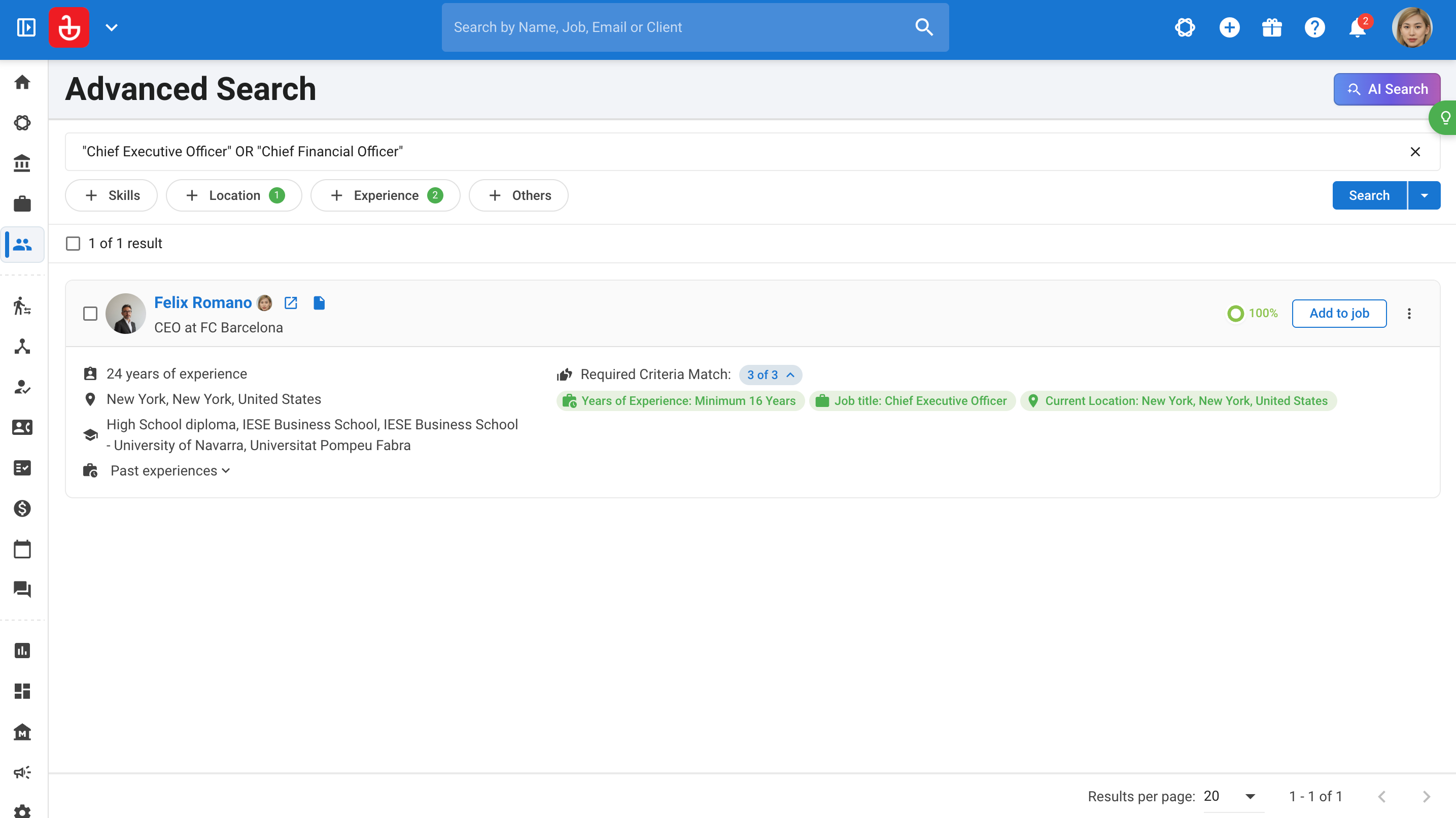
Review candidate matches
Results highlight matching criteria and show a relevance percentage. The score combines criteria such as skills and job titles; candidates below the relevance threshold are omitted.
Use the score to guide profile review. It does not establish suitability for hiring.
Select a candidate’s name to preview their profile.
Adjust your search
If the results do not match your expectations:
- Review the complete set of applied criteria.
- Check that required conditions are genuinely essential.
- Remove or broaden restrictive conditions.
- Try a related title or a simpler skill description.
- Run the revised search and compare the results.
For example, you might broaden a search by removing an employer requirement or making an optional skill preferred.
Use Copilot for conversational refinements or adjust the criteria manually. Manual searches are submitted using "Search".
Switch between search methods
Use "AI Search" to describe or refine requirements conversationally. Use "Boolean & Criteria" to work directly with keywords and search controls.
Both methods remain available to eligible users. Boolean & Criteria also remains available when AI Copilot credits are exhausted.
Best Practices
Write clear AI Search prompts
- Name the role. Start with the position or type of work.
- Include relevant constraints. Add location, skills, experience, education, or company background.
- Separate requirements from preferences. Use wording such as “must have,” “preferably,” and “exclude.”
- Be clear about experience. Distinguish overall career experience from experience in a particular role or skill.
- Refine gradually. Start with the essential criteria, then add detail after reviewing the results.
AI Search uses the criteria supported by Advanced Search. Copilot may explain when a request cannot be applied or ask for clarification.
Combine filters and semantic criteria
Use filters for specific conditions, such as location and experience, and semantic criteria to find related skills or roles. For example, combine a Frontend Developer job-title criterion with a location filter for Paris and a minimum experience of five years.
Start with the essential criteria, review the results, and refine gradually. Try related titles or simpler skill descriptions if the search is too restrictive.
Review the candidate information
Results depend on the information available to Advanced Search. Relevant experience or skills may not match if that information is missing from the candidate data.
Frequently Asked Questions (FAQ)
1. How are AI Copilot credits used?
Natural-language searches and refinements use your organization’s AI Copilot credits. Boolean & Criteria search does not require AI Copilot credits.
2. What happens when credits run out?
Additional AI Search requests are blocked until more credits are available. You can continue searching with Boolean & Criteria.
- Admins: Contact Manatal Support about purchasing the AI Copilot add-on.
- Non-admins: Ask your admin to arrange additional credits.
If an AI Search is already processing when credits run out, it can complete. Subsequent AI Search requests are blocked.
3. The Search button is disabled
Make sure you have entered a request rather than an empty input or spaces.
The AI Search input supports up to 20,000 characters. If your request exceeds the limit, shorten it before submitting.
4. Copilot asks me to clarify
Explain the missing detail or select a suitable alternative. For example, specify the intended location or clarify whether a skill is essential or preferred.
5. My search returns no candidates
Check the applied criteria before assuming there are no suitable profiles:
- Confirm the location and experience requirements.
- Remove unnecessary required conditions.
- Review exclusions.
- Broaden one condition at a time.
Search results depend on the candidate information available in your account. A criterion may not match if the relevant information is missing from the candidate data.
6. Copilot could not apply part of my request
Review its explanation. Clarify the requirement or continue using supported criteria.
Do not assume a requested condition has been applied unless it appears in the resulting search.
7. The search is still processing
Wait for processing to finish before submitting another request. Review the resulting criteria and candidates once the search completes.
8. I see “Analysis interrupted”
A search may fail after its criteria have been generated. Review the criteria that remain visible and try again.
If the problem continues, contact Manatal Support with:
- A description of what happened.
- The search prompt or criteria used.
- A screenshot of the error.
- The approximate time of the issue.
9. Credits were added, but I previously saw a credit-limit message
Try submitting your AI Search request again. Restored credits should allow a new request without requiring a page reload.
10. Does AI Search replace the existing search?
No. AI Search adds a conversational way to build and refine searches. Boolean & Criteria remains available.
11. Does AI Search look outside Manatal??
No. It searches the candidates in your organization’s Manatal database. It does not source new profiles from external websites.
12. Does AI Search search resume information?
It uses the information indexed and supported by Advanced Search, including relevant resume-derived information.
13. Can I change AI-generated criteria?
Yes. Use follow-up messages or edit the criteria manually.
14. Can I search using a job description?
Yes. Provide the job requirements or clearly identify the job, then ask Copilot to build a candidate search. Review the resulting criteria.
15. What is the difference between AI Search and AI Recommendation?
AI Search helps you find candidates using search criteria. AI Recommendation evaluates candidates against job requirements and provides match scores.
Advanced Search’s existing relevance score describes how candidates match the search criteria.
16. What is semantic search?
Semantic search uses contextual matching to find related skills, roles, and backgrounds, rather than relying only on exact wording.
17. Can I search across languages?
Semantic matching supports cross-language searches. Check the returned profiles, particularly when using specialist terminology.
This feature uses AI to support your recruitment workflow. AI outputs are meant to guide, not replace, your judgment. Outputs may not always be fully accurate or complete, we recommend reviewing them as part of your process. All final recruitment decisions remain your sole responsibility.