Cette fonctionnalité est actuellement en version Bêta. Vous pouvez vous attendre à des mises à jour et à des modifications concernant l'accessibilité ou la tarification à mesure que nous l'affinons et l'améliorons. Nous apprécions votre patience et accueillons volontiers vos commentaires. Merci d'être un utilisateur de la première heure !
Que sont les Compétences AI Copilot ?
Les Compétences sont des instructions réutilisables qui apprennent à AI Copilot comment accomplir une tâche de recrutement spécifique de la manière dont vous le souhaitez.
Une Compétence définit :
- Ce qu'AI Copilot doit faire
- Quand la Compétence doit être utilisée
- Les étapes et les règles qu'elle doit suivre
- Quelles actions disponibles dans Manatal elle peut utiliser
- À quoi doit ressembler le résultat final
Au lieu d'expliquer le même processus à chaque fois, enregistrez-le une fois en tant que Compétence et réutilisez-le chaque fois que vous en avez besoin. Par exemple, une Compétence peut définir comment évaluer un candidat pour un poste, préparer un résumé de candidat prêt pour le client, ou suivre le format préféré de votre équipe pour les questions d'entretien.
Pourquoi utiliser les Compétences ?
- Arrêtez de retaper les prompts. Exécutez une Compétence enregistrée en une seule étape au lieu de coller les mêmes instructions pour chaque candidat.
- Obtenez des résultats cohérents. Chaque candidat est évalué avec les mêmes critères et le même format de sortie.
- Aucune rédaction de prompt nécessaire. Vous décrivez ce que vous voulez en langage clair, et AI Copilot crée la Compétence pour vous.
Compétences et actions / interactions Manatal
Les Compétences n'ajoutent pas de nouvelles fonctionnalités, de nouveaux accès aux données ou de nouvelles permissions Manatal.
Les Actions & interactions Manatal décident de ce à quoi AI Copilot peut accéder ou faire, comme récupérer les informations d'un candidat ou effectuer une action disponible. Les Compétences décident de la manière dont AI Copilot utilise ces capacités pour accomplir une tâche : les étapes à suivre, le contexte à prendre en compte, et le format ou le style du résultat.
Toutes les actions effectuées via une Compétence restent soumises à vos permissions Manatal existantes et aux capacités disponibles dans votre compte. Si vous ne pouvez pas voir certaines données dans Manatal, une Compétence ne pourra pas les voir non plus.
| Actions & interactions | Compétences | |
|---|---|---|
| Ce que cela contrôle | Ce qu'AI Copilot peut faire dans Manatal | Comment AI Copilot accomplit une tâche |
| Exemples | Lire le profil d'un candidat, lire une offre d'emploi, lire des notes et des e-mails | Évaluer un candidat sous forme de feux tricolores, rédiger un e-mail de présentation |
| Qui le définit | Manatal, en fonction de votre forfait et de vos permissions | Vous |
Exemples de Compétences : prompts de départ
Vous ne savez pas par où commencer ? Copiez l'un de ces prompts de départ dans une nouvelle discussion de Compétence (cliquez sur + Créer une nouvelle compétence, ou tapez / et sélectionnez Nouvelle compétence). AI Copilot l'utilise pour rédiger la Compétence, et vous pouvez ajuster les détails avant de confirmer.
| Compétence | Idéal pour | Résultat |
|---|---|---|
| Évaluation de Candidat en Feux Tricolores | Une première évaluation rapide | Évaluation Rouge / Jaune / Vert + jusqu'à 6 points-clés |
| E-mail de Présentation de Candidat | Envoyer les meilleurs candidats à un responsable du recrutement ou à un client | E-mail prêt à être envoyé |
| Questions d'Entretien Techniques & d'Adéquation au Poste | Préparation aux entretiens | Questions d'entretien sur mesure |
| Résumé du Candidat pour Présentation Client | Soumettre un candidat à un client | Résumé concis et basé sur des preuves |
Astuce : Modifiez les critères, le nombre de points-clés ou le format dans chaque prompt pour correspondre à la façon dont votre équipe travaille.
1. Évaluation de Candidat en Feux Tricolores
Utilisez-le quand : Vous avez besoin d'une décision d'évaluation rapide sur un candidat. Ne convient pas aux profils de candidats détaillés.
Prompt de départ :
Create a Skill that screens one candidate against one job and gives a traffic light rating.

- Compare the candidate profile with the job on: direct experience in the role, required skills, years of experience or seniority, industry experience, and key achievements.
- Rate the candidate Green (strong fit, ready to move forward), Yellow (partial fit, gaps in 1 or 2 key areas), or Red (poor fit, missing several critical requirements).
- Show the rating first, then up to 6 one-sentence bullet points explaining it, each based on facts from the profile.
- Do not include contact details or profile links.
Une fois créée, essayez: "Screen Daniel Wellington for the Principal Product Manager role"
2. E-mail de Présentation du Candidat
Utilisez-le quand: Vous êtes prêt à présenter un ou plusieurs candidats pour un poste ouvert. Ne convient pas aux e-mails généraux.
Prompt de départ:
Create a Skill that writes an email pitching candidates to a hiring manager or client for a specific job.

- Use the candidate profiles and the job details.
- Start with a short greeting and one line about the role.
- For each candidate, include: name, current role and company, 2 to 3 lines on why they fit, key experience, and availability or notice period if known.
- Use the same format for every candidate. Keep the email short and professional.
- If information is missing, leave it out instead of guessing.
- Use this only for pitching candidates, not for general emails.
Une fois créée, essayez: "Pitch Daniel Wellington to the hiring manager for the Principal Product Manager role"
3. Questions d'Entretien Technique & d'Adéquation au Poste
Utilisez-le quand: Vous préparez un entretien avec un candidat pour un poste précis.
Prompt de départ:
Create a Skill that prepares interview questions for one candidate for one job.

- Use the candidate's current role, experience, and skills, and the job's title and requirements.
- Write 5 technical questions tied to skills the job requires.
- Write 5 role-fit questions that focus on gaps or areas to confirm in the candidate's profile.
- Group the questions under "Technical" and "Role fit".
- Under each question, add one short line on what it checks.
- Do not assume anything that is not in the candidate's profile.
Une fois créée, essayez: "Prepare interview questions for Daniel Wellington for the Principal Product Manager role"
4. Résumé du Candidat pour la Présentation au Client
Utilisez-le quand: Vous soumettez un candidat à un client. Ne convient pas aux décisions de recrutement internes.
Prompt de départ:
Create a Skill that writes a client-ready summary of one candidate for one job.

- Open with the candidate's current role, company, and main responsibilities.
- Add 3 to 6 bullet points on the experience and achievements most relevant to the job. Lead with results, not daily tasks.
- If available, end with notice period and expected salary as separate bullet points. Leave them out if empty.
- Use only facts from the candidate's profile. Do not invent or exaggerate.
- Do not include internal notes or contact details.
- Use this only for client submissions, not for internal hiring decisions.
Une fois créée, essayez : "Summarize Daniel Wellington for the client for the Principal Product Manager role"
Comment créer et utiliser une Compétence
Créer une Compétence
Vous n'avez pas besoin d'écrire un prompt. AI Copilot crée la Compétence avec vous via une courte conversation.
- Démarrez une nouvelle Compétence de l'une des deux manières suivantes :
- Cliquez sur "Compétences" dans le menu latéral du Copilot, puis cliquez sur "+ Créer une nouvelle compétence".
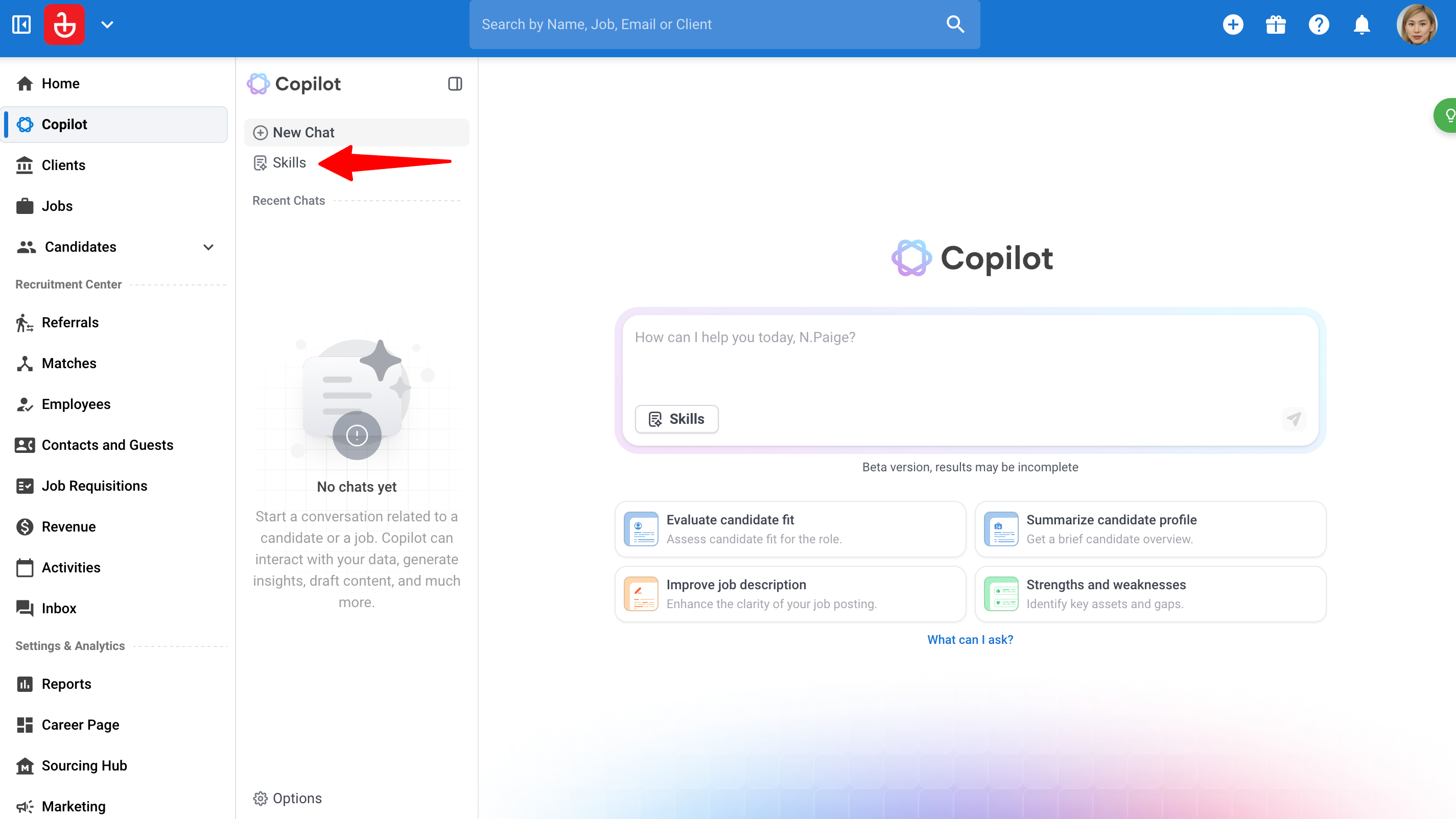
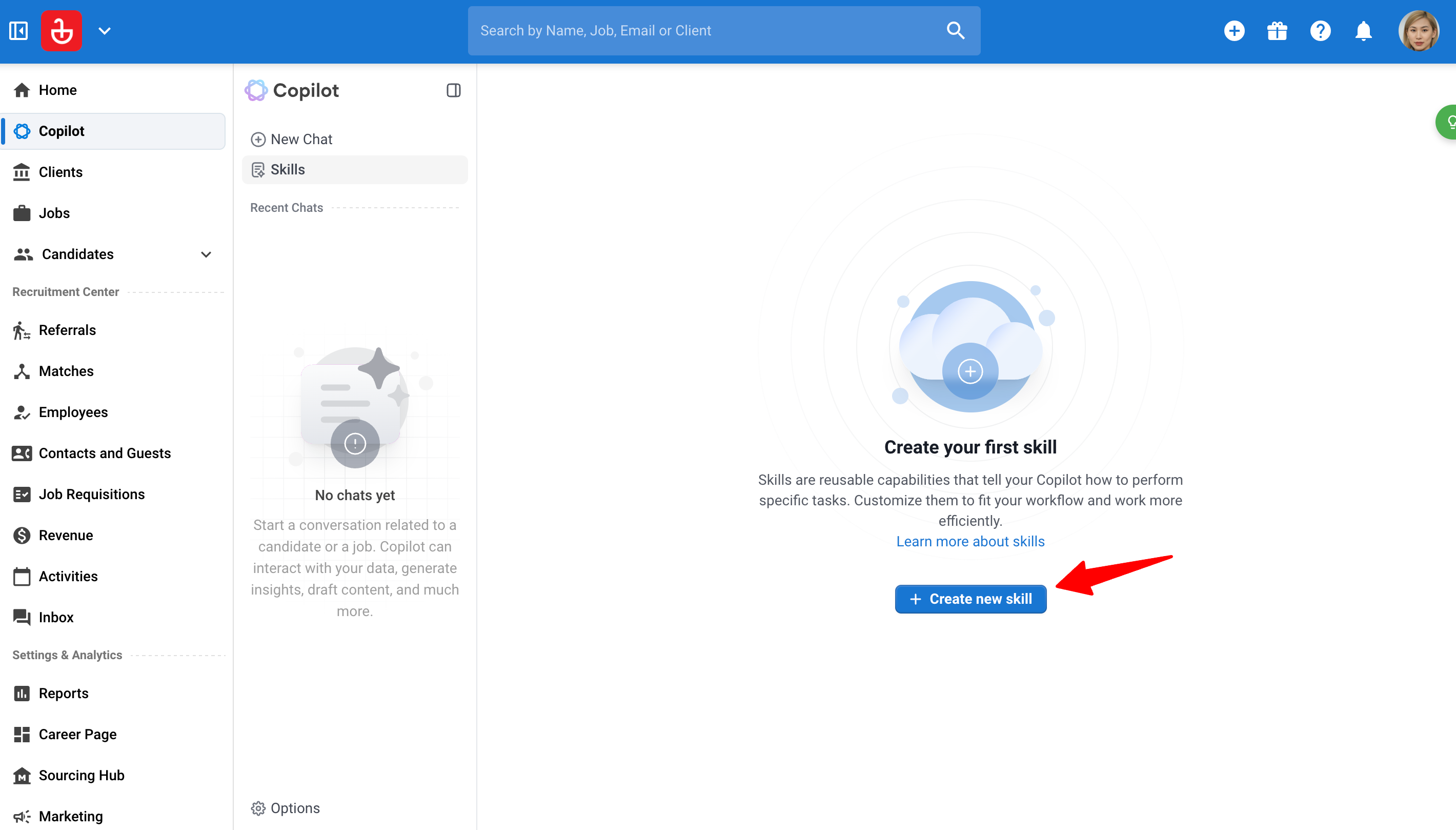
- Dans la boîte de discussion, tapez / et sélectionnez "Nouvelle compétence".
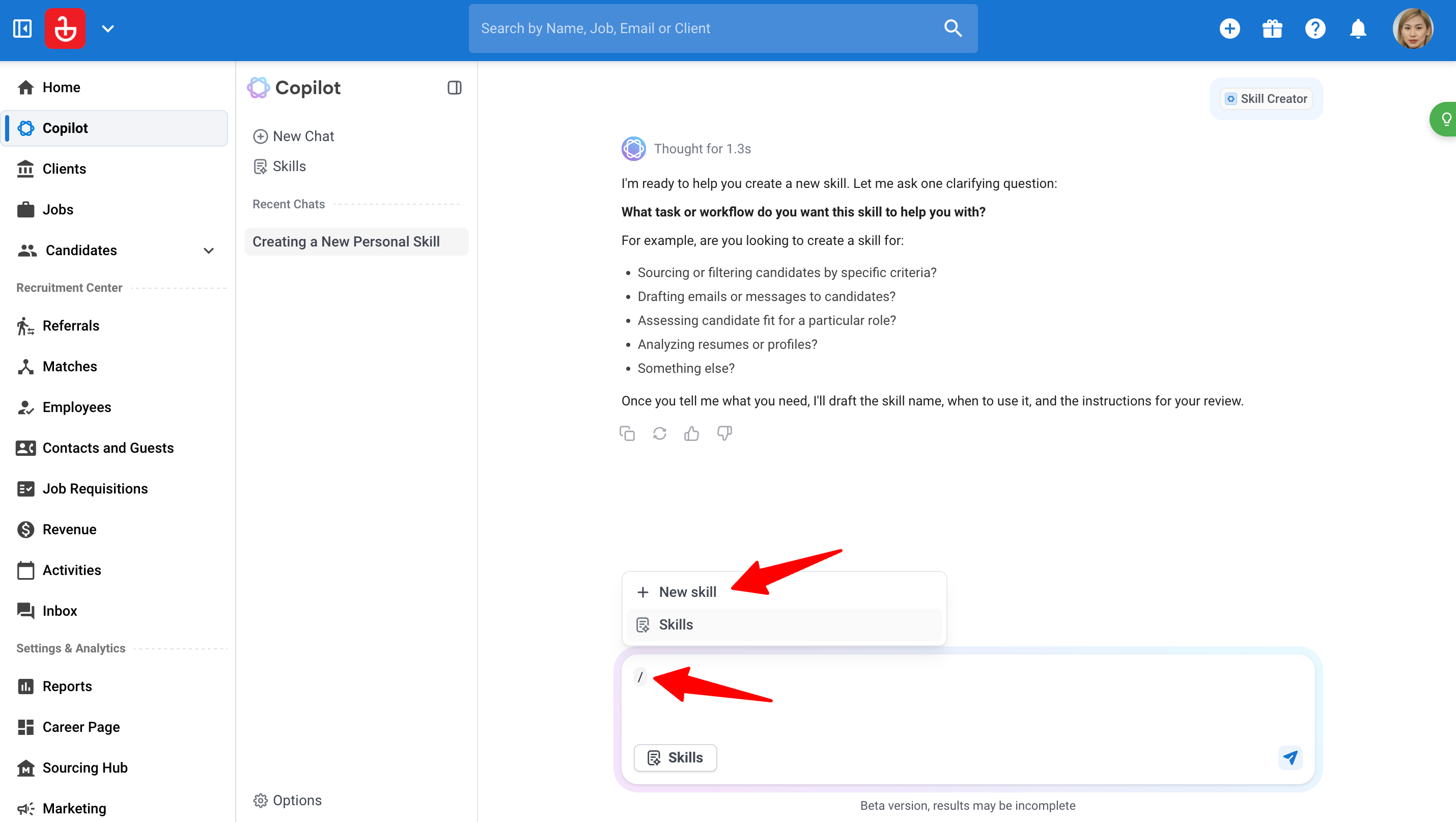
- Cliquez sur "Compétences" dans le menu latéral du Copilot, puis cliquez sur "+ Créer une nouvelle compétence".
- AI Copilot ouvre une nouvelle discussion intitulée "Créer une nouvelle compétence" et vous demande :
- Pour quelle tâche la Compétence doit-elle vous aider
- À quoi doit ressembler le résultat
- Si vous avez déjà un prompt pour commencer
Décrivez ce que vous voulez en langage clair, ou collez un prompt que vous utilisez déjà.
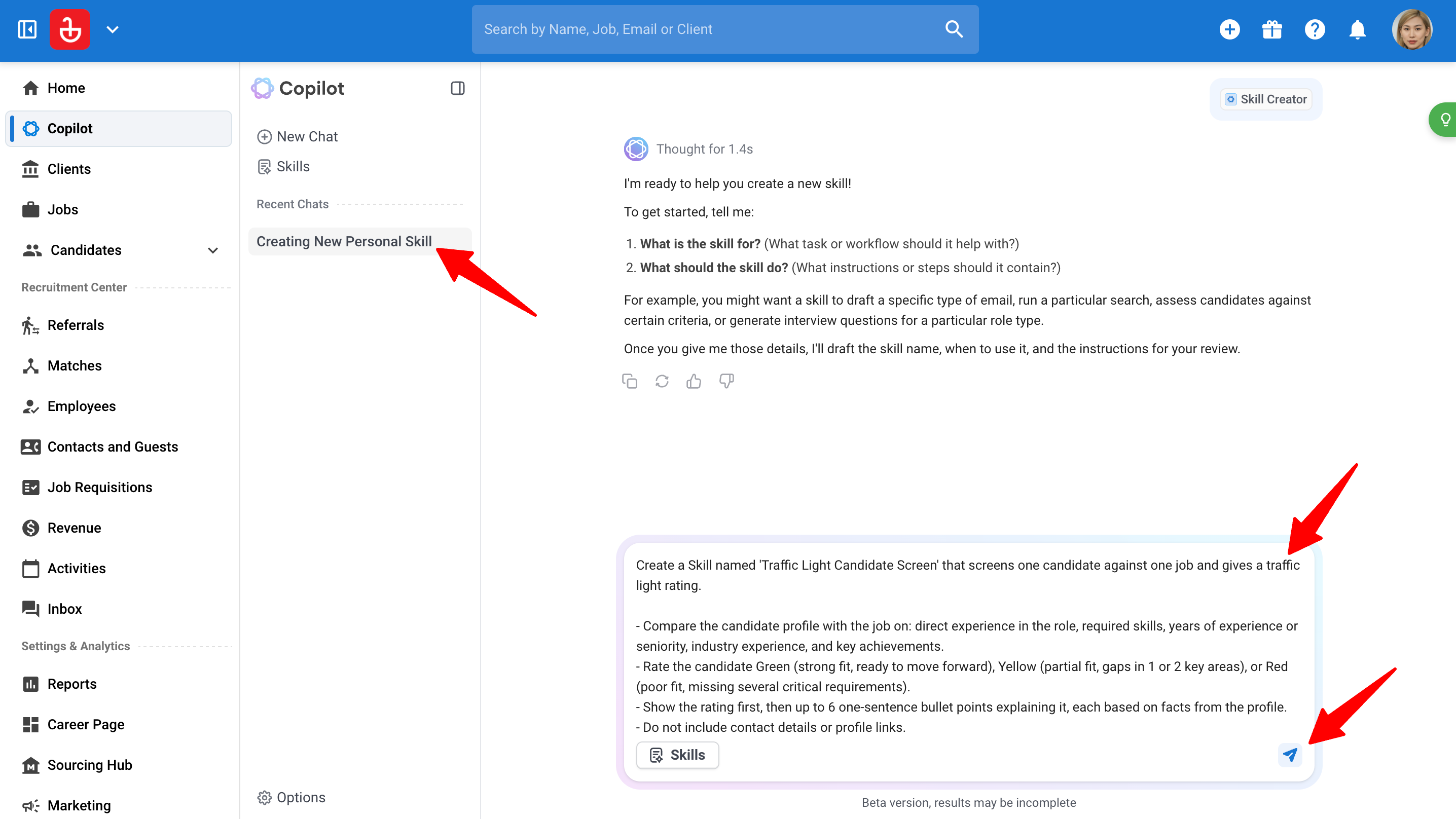
- AI Copilot propose un brouillon de Compétence et vous demande de confirmer tous les choix qu'il requiert de votre part.
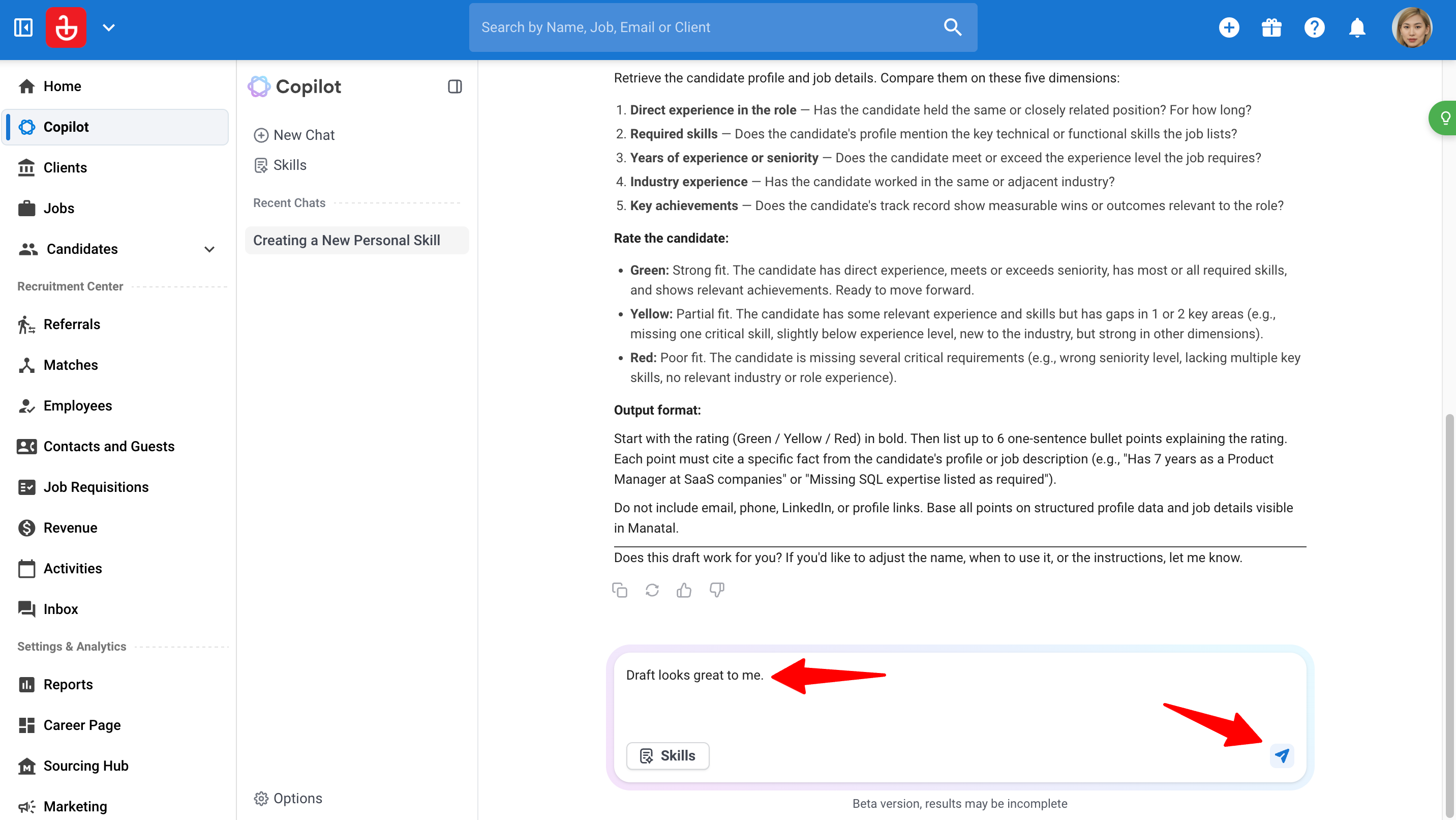
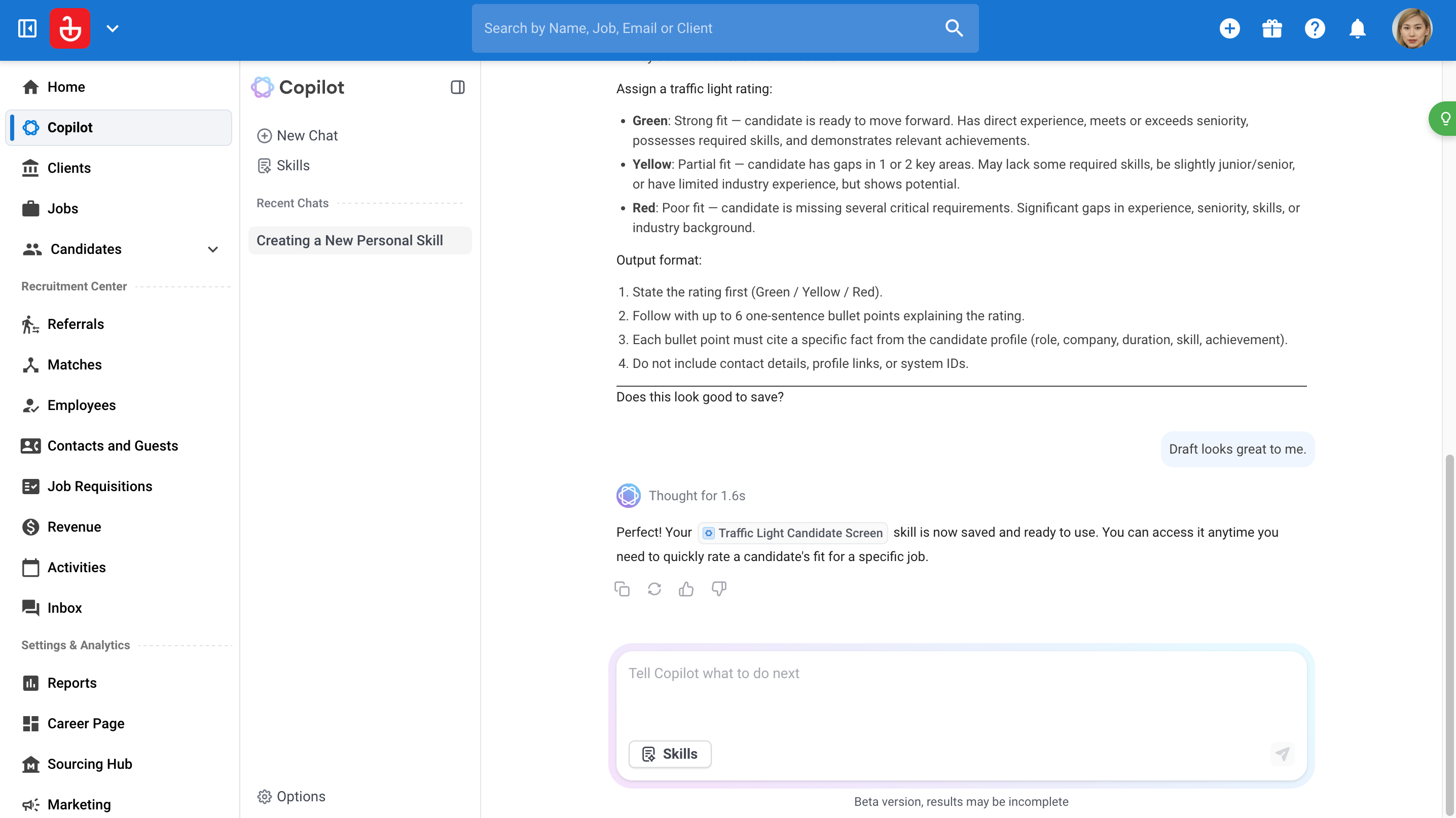
- Confirmez le brouillon. AI Copilot crée la Compétence, lui donne un nom et une description, et vous propose d'exécuter un test. Votre nouvelle Compétence est prête à être utilisée immédiatement.
Utiliser une Compétence
Il existe deux façons d'utiliser une Compétence.
Automatiquement : Tapez votre demande comme d'habitude. Si AI Copilot trouve une Compétence qui correspond à ce que vous avez demandé, il utilise cette Compétence pour vous.
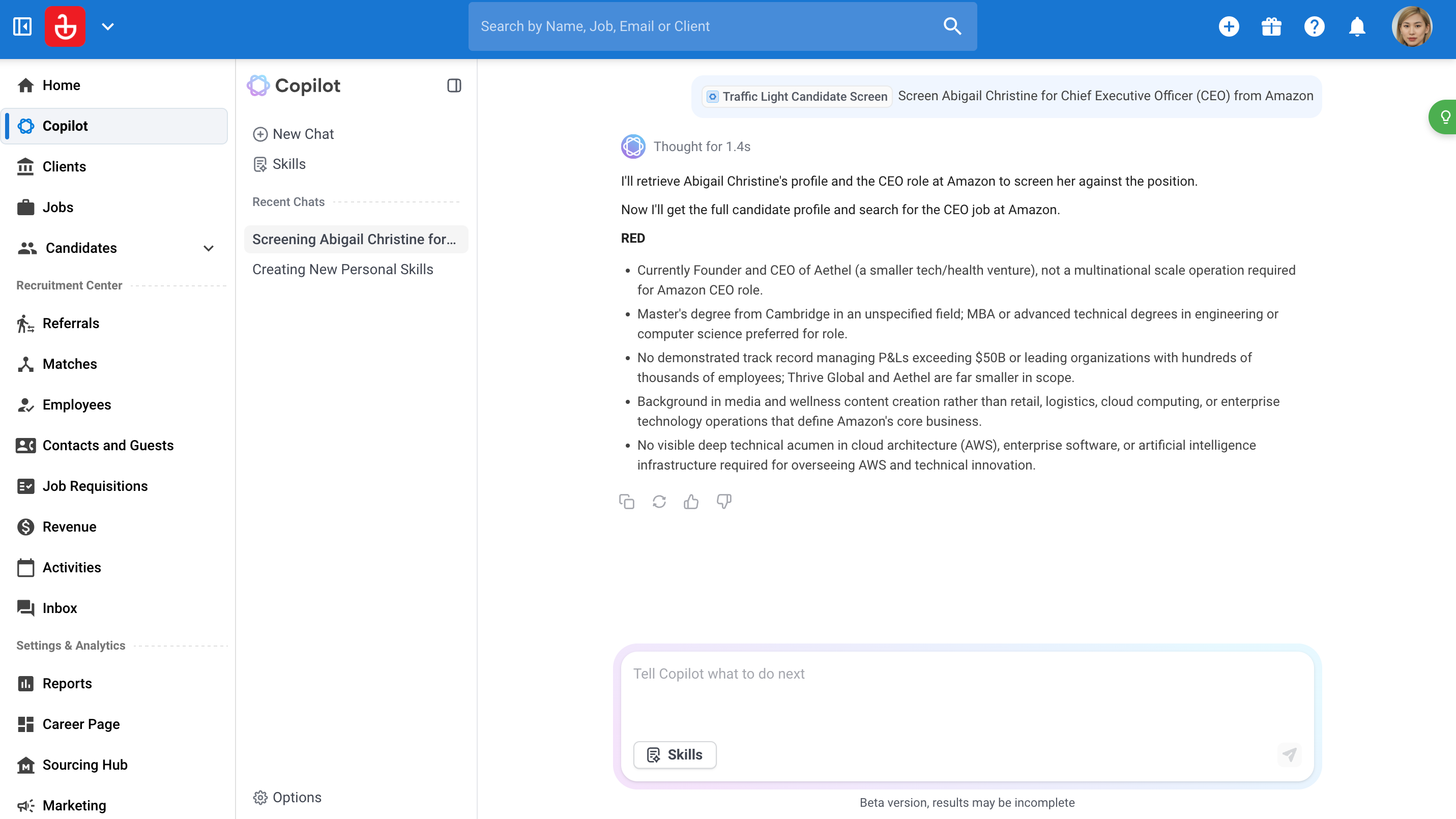
Par exemple, si vous avez une Compétence d'Évaluation de Candidat en Feux Tricolores et que vous tapez "Évalue Daniel Wellington pour le rôle de Principal Product Manager", AI Copilot l'applique sans que vous n'ayez à la sélectionner.
Manuellement : Sélectionnez la Compétence vous-même lorsque vous voulez être sûr qu'une Compétence spécifique est utilisée :
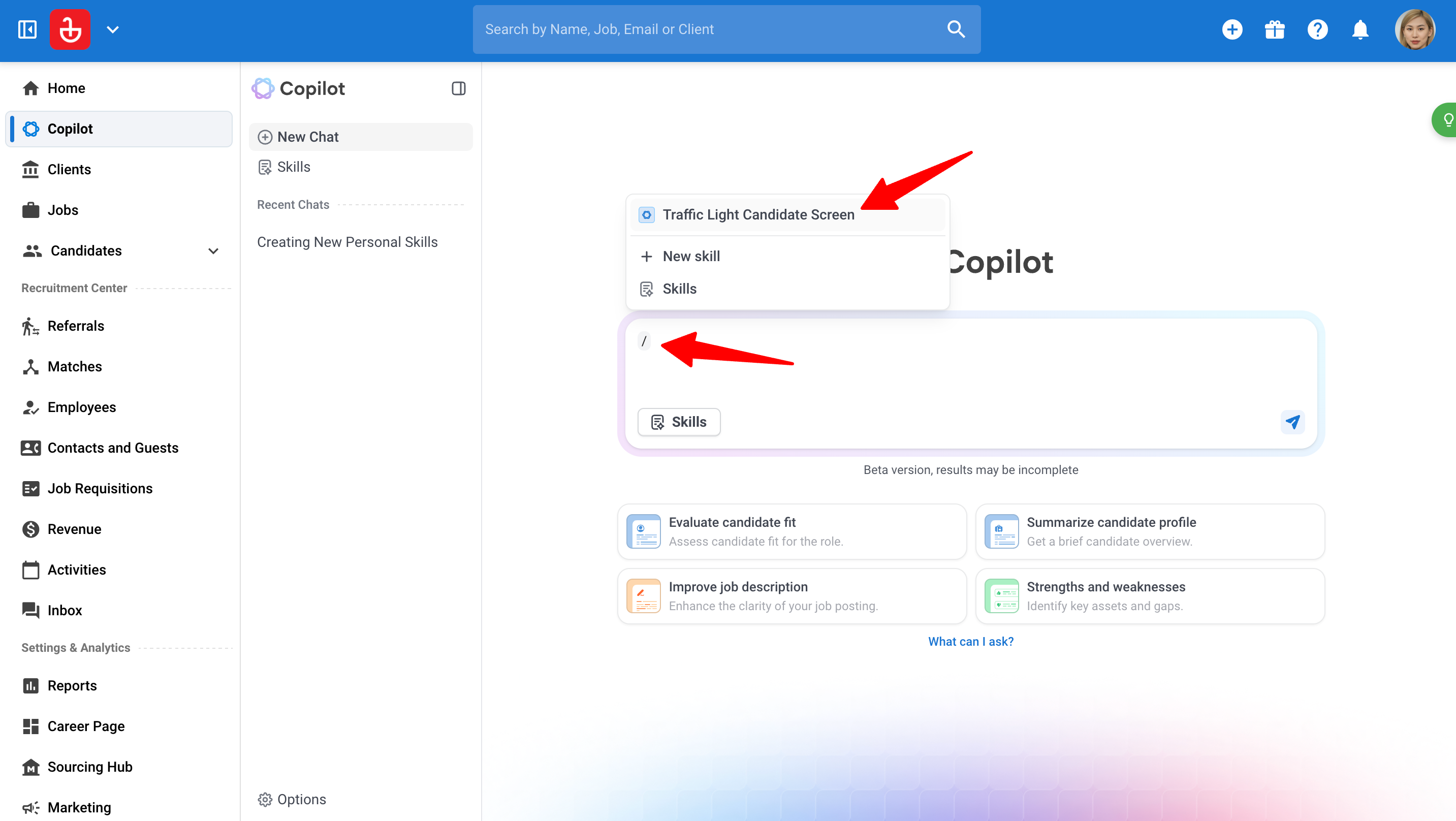
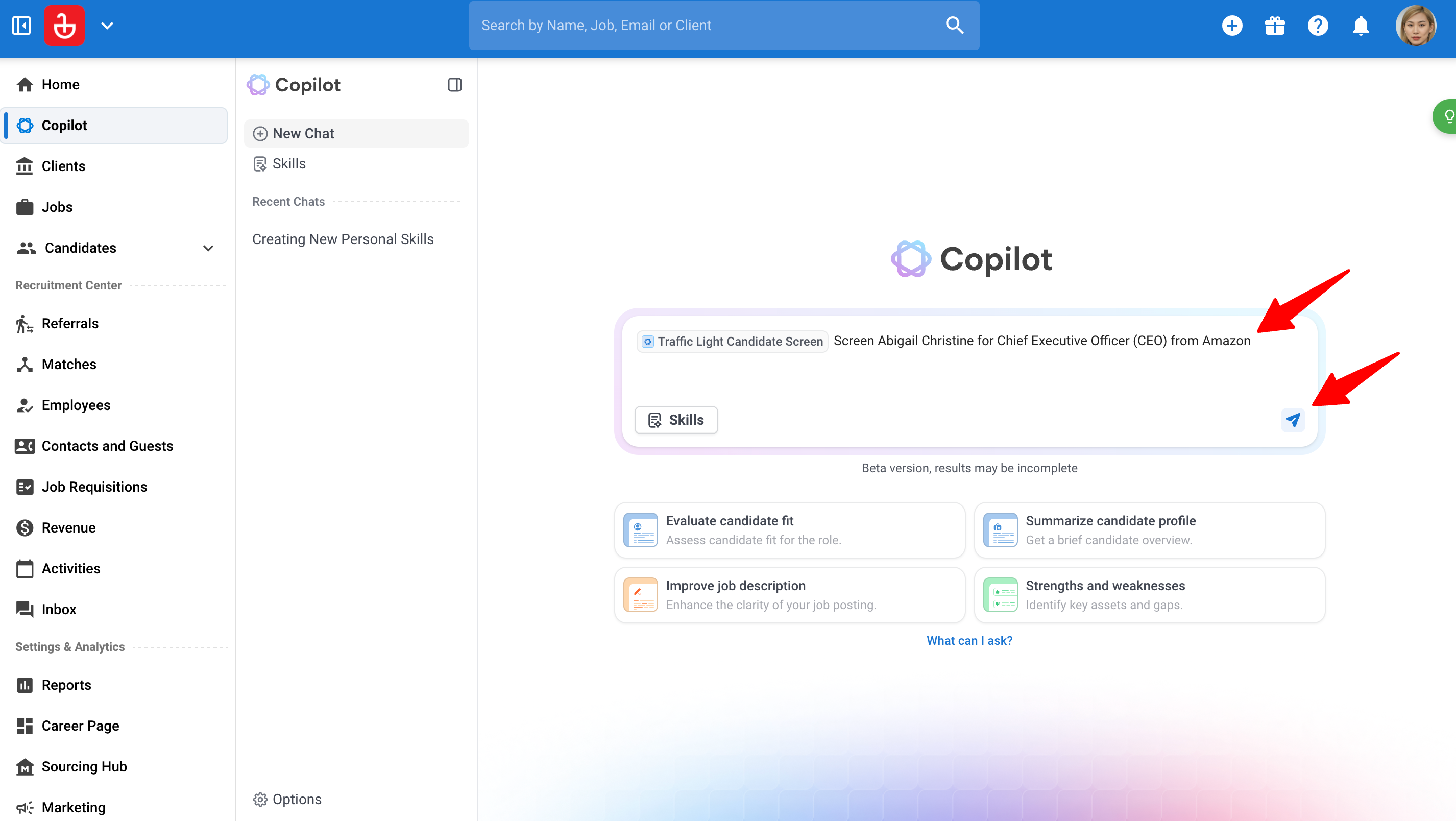
- Dans la boîte de discussion, tapez / pour ouvrir le sélecteur de Compétences. Vous pouvez également cliquer sur le bouton Compétences sous la boîte de discussion. Ensuite, sélectionnez une Compétence, ou continuez à taper pour filtrer par nom (par exemple, /Traffic).
- La Compétence est ajoutée sous forme de pastille au début de votre message.
Note
Vous pouvez ajouter jusqu'à 3 Compétences à un seul message.
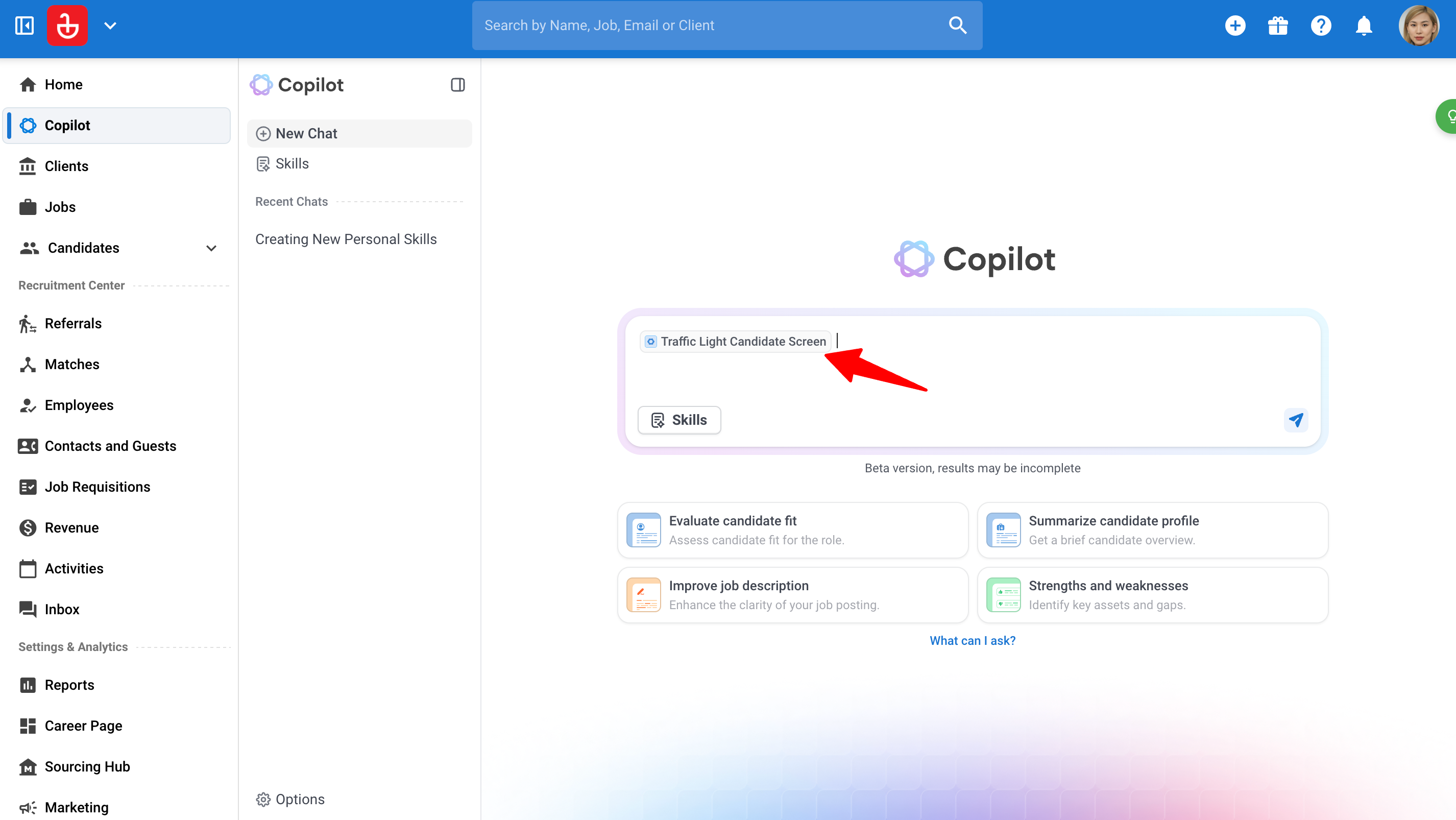
- Ajoutez tous les détails supplémentaires après la pastille, tels que les noms du candidat et du poste, puis envoyez.
- Vous obtiendrez alors votre résultat.
-
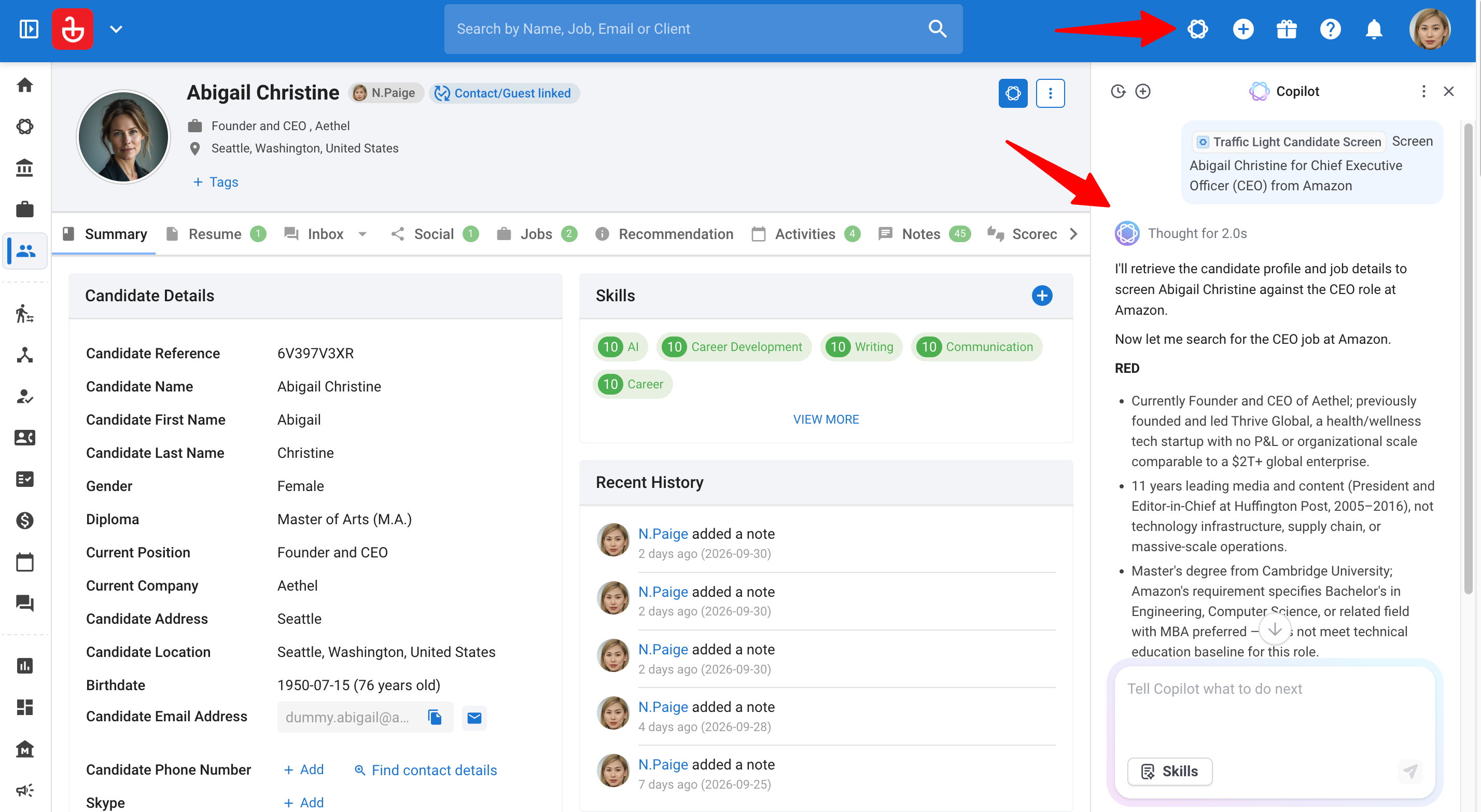
Les Compétences fonctionnent dans le panneau latéral et dans la vue en pleine page. Si vous ouvrez AI Copilot depuis le profil d'un candidat, ce candidat est utilisé comme contexte automatiquement.
-
Astuce : Pour essayer une Compétence directement depuis la bibliothèque, ouvrez-la et sélectionnez Essayer dans la discussion dans le menu à trois points.
Prévisualiser une Compétence
-
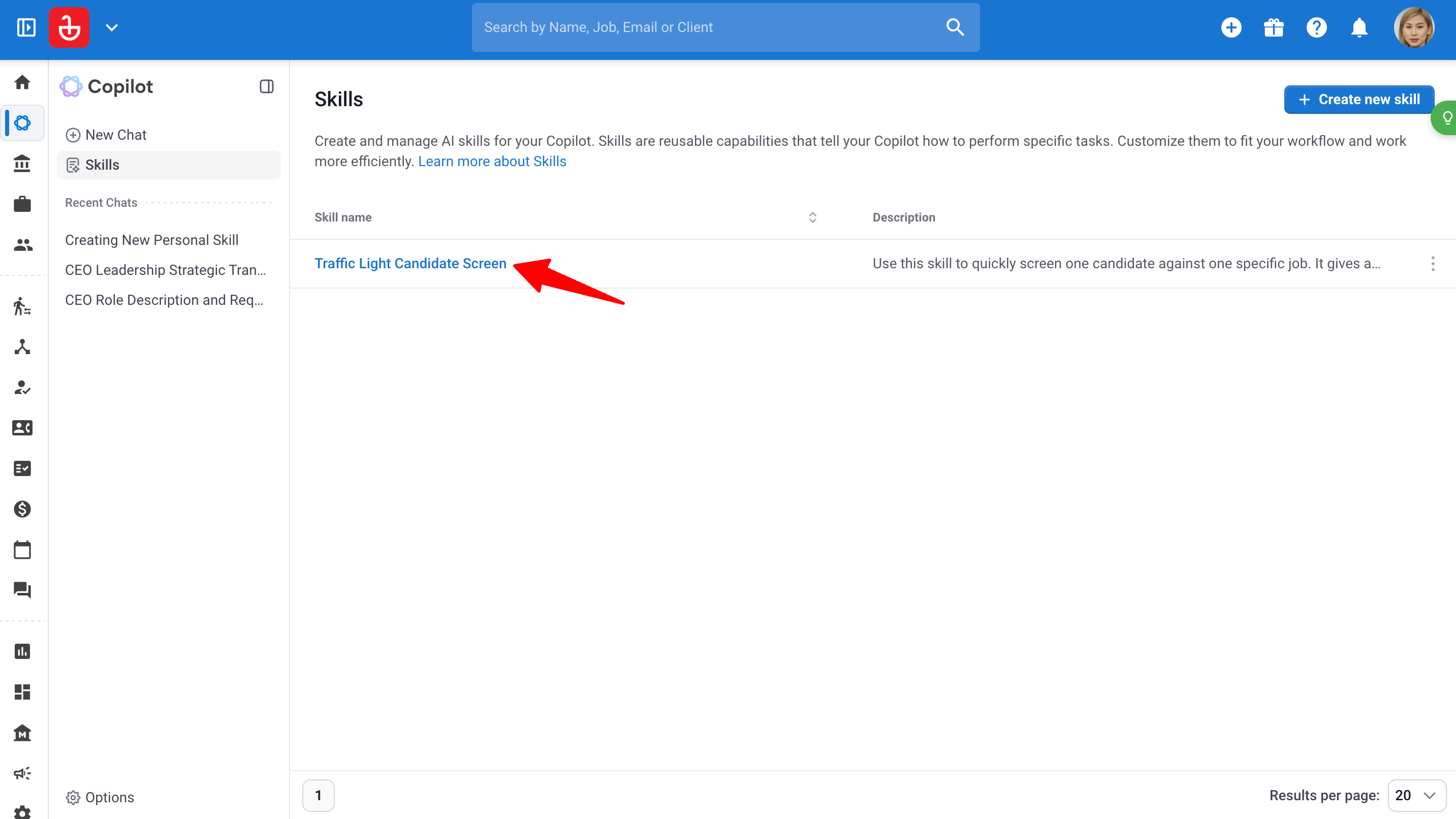
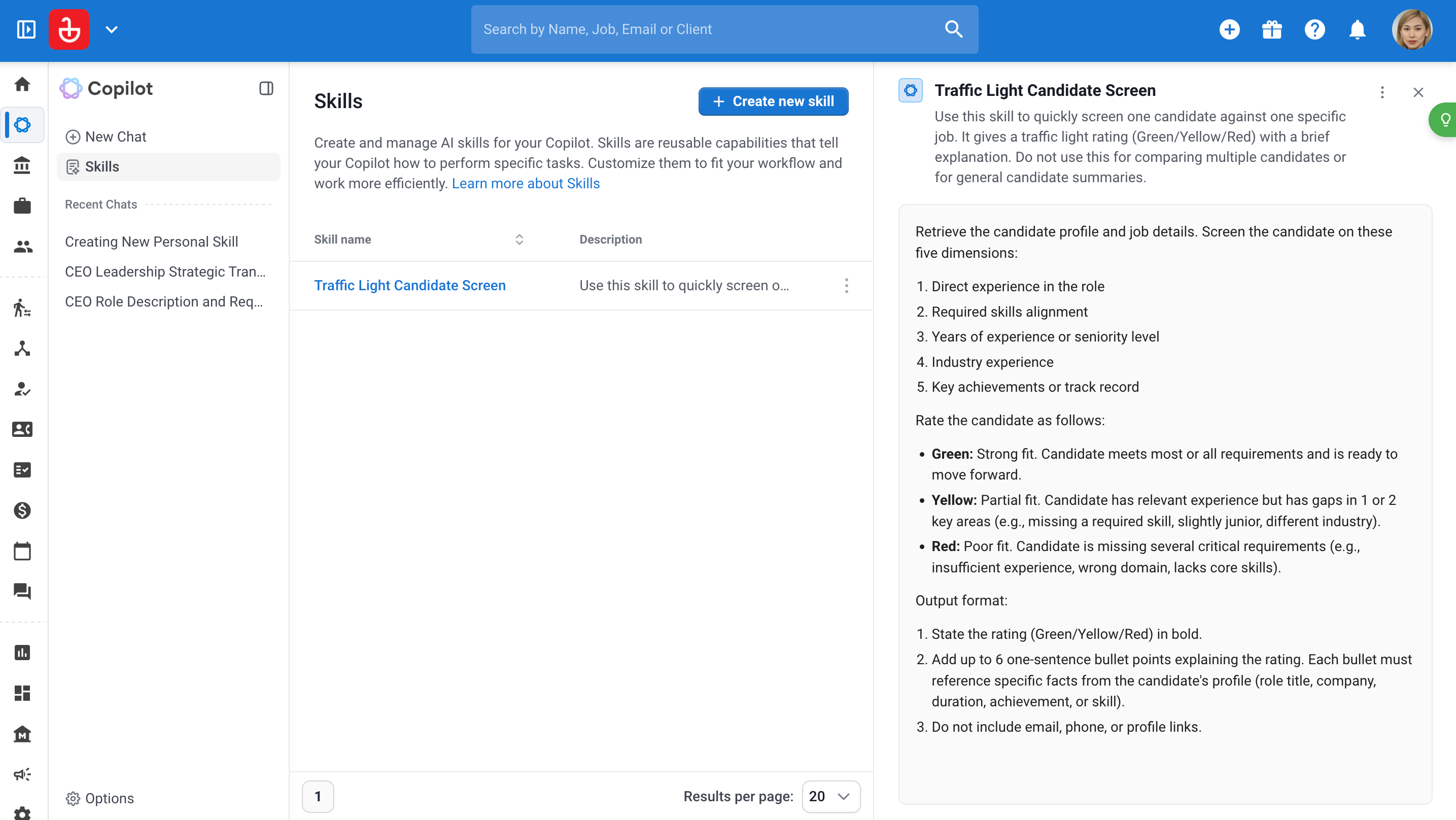
Cliquez sur Compétences dans le menu latéral du Copilot pour ouvrir votre bibliothèque de Compétences.
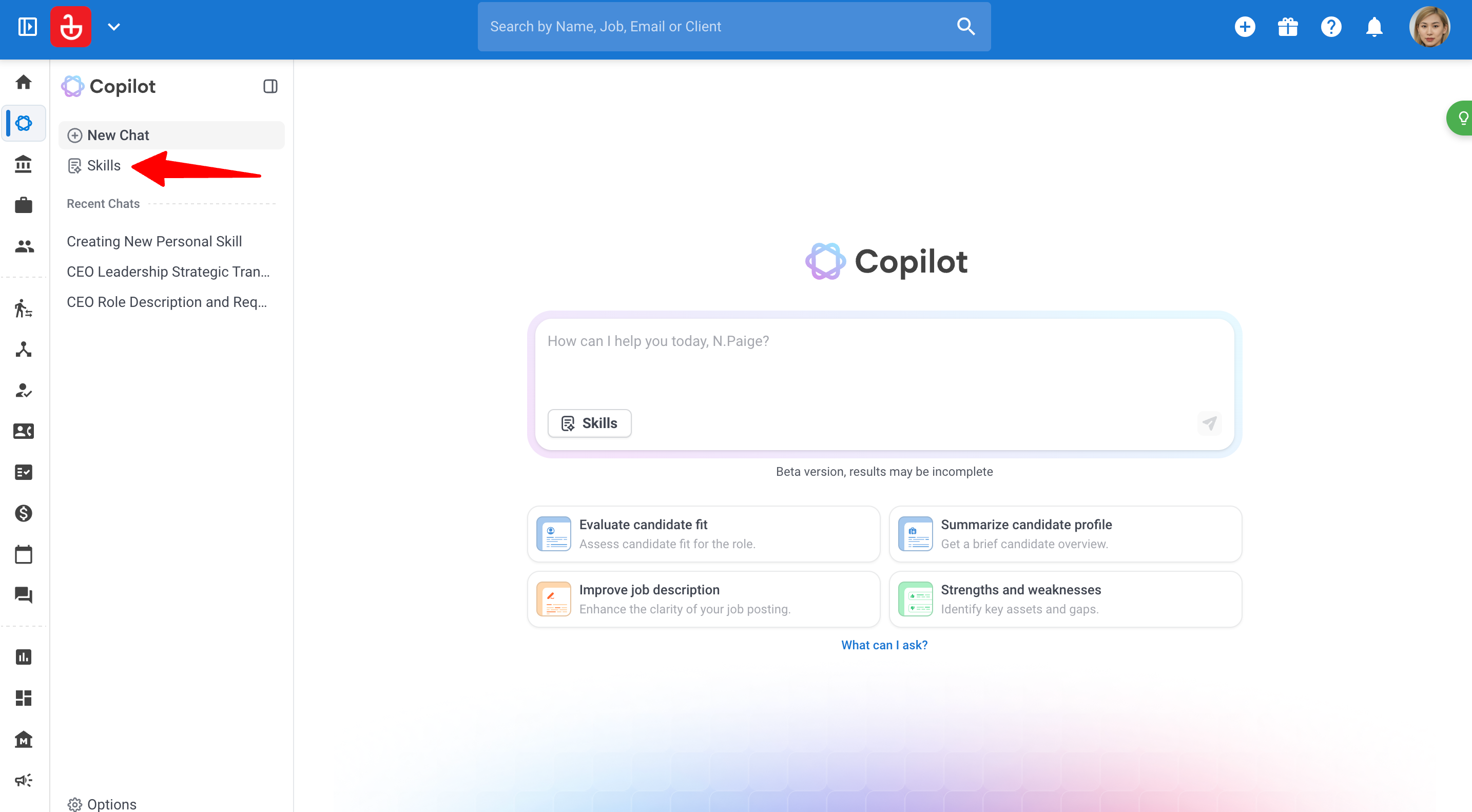
-
Cliquez sur le nom d'une Compétence pour prévisualiser ses instructions complètes.
Modifier une Compétence
-
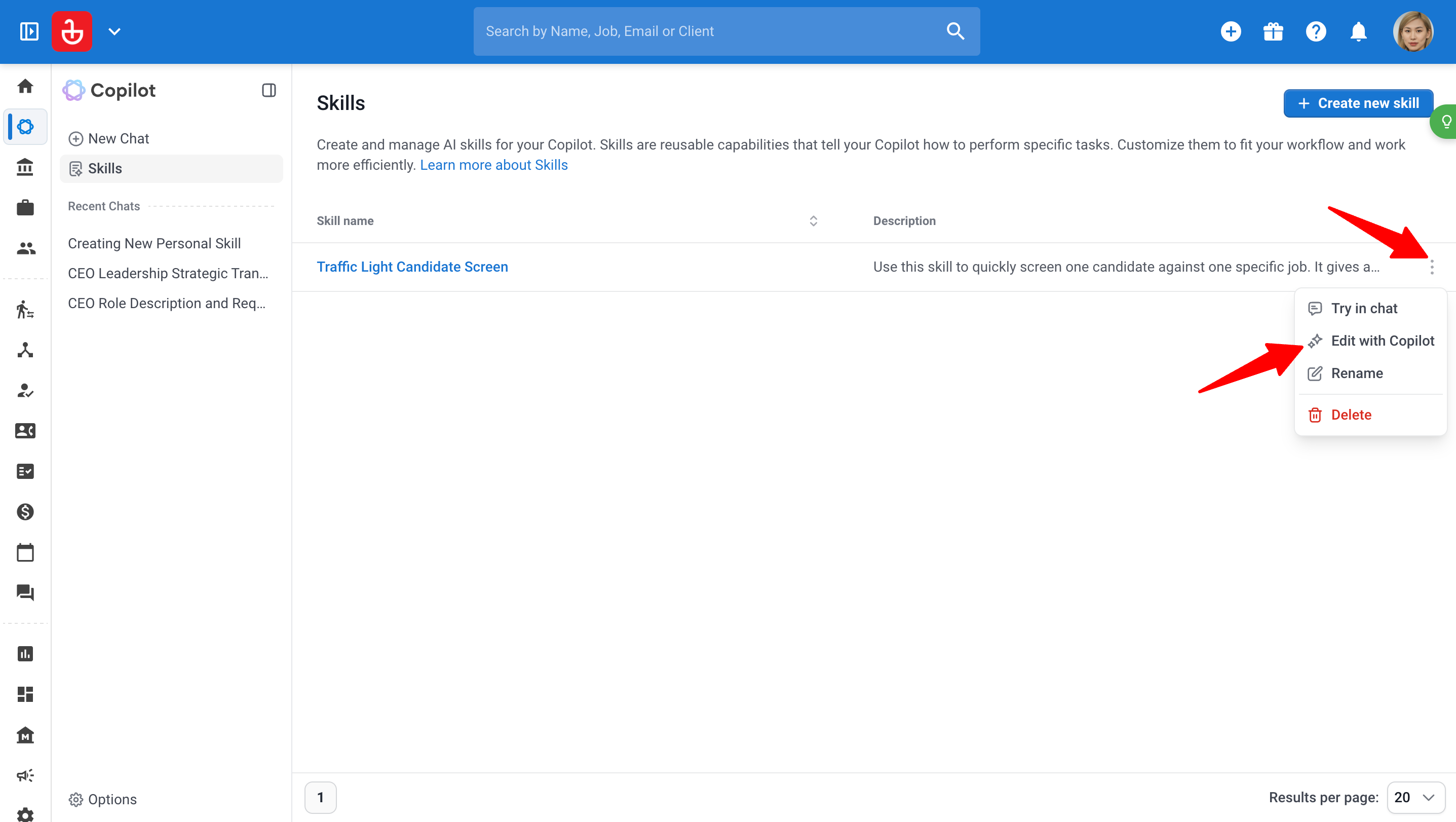
Cliquez sur Compétences dans le menu latéral du Copilot pour ouvrir votre bibliothèque de Compétences.
-
Ouvrez le menu à trois points et sélectionnez Modifier avec Copilot.
-
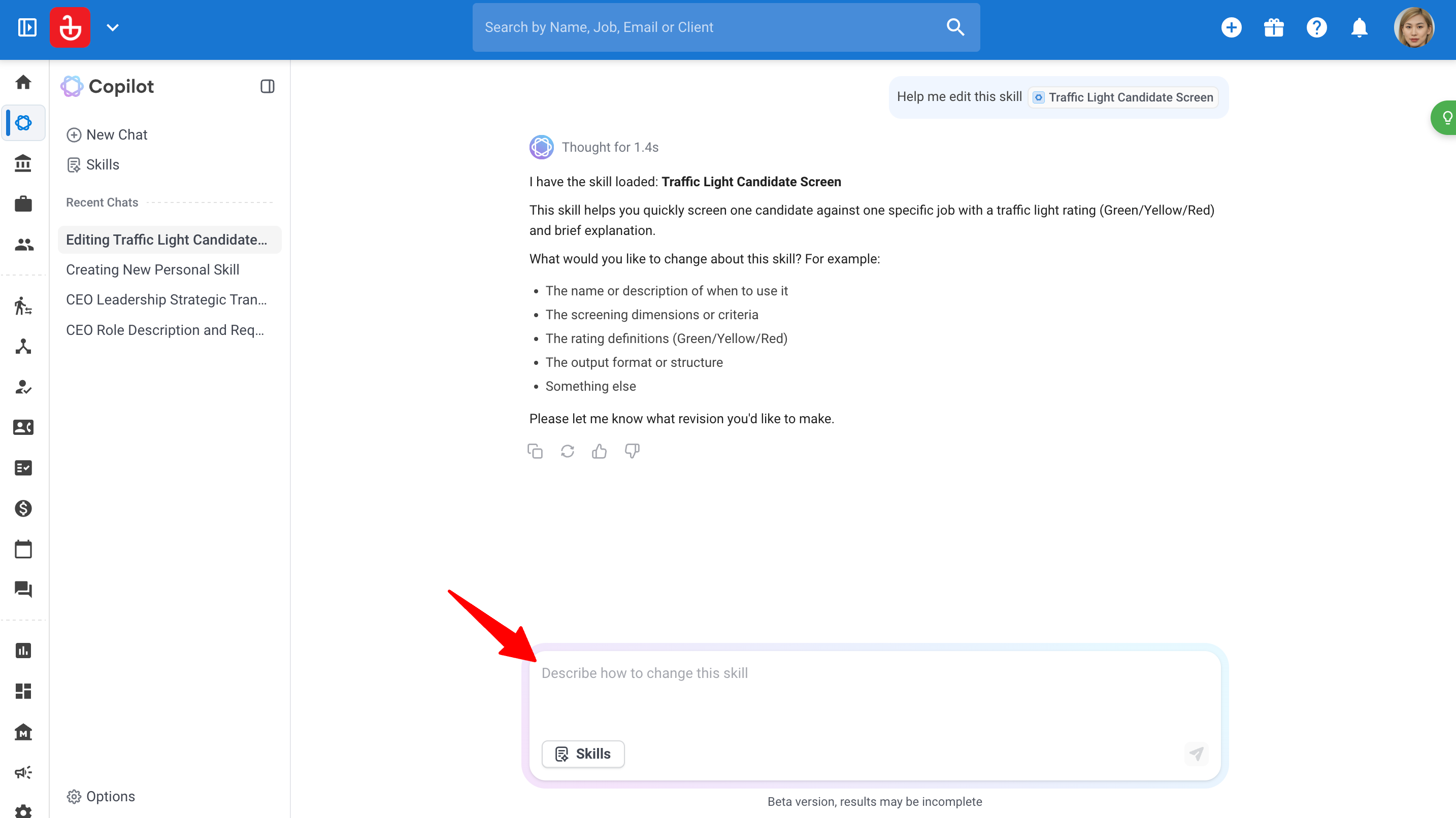
Décrivez ce que vous souhaitez modifier. Votre Compétence reste la même jusqu'à ce que vous confirmiez les modifications.
Renommer une Compétence
-
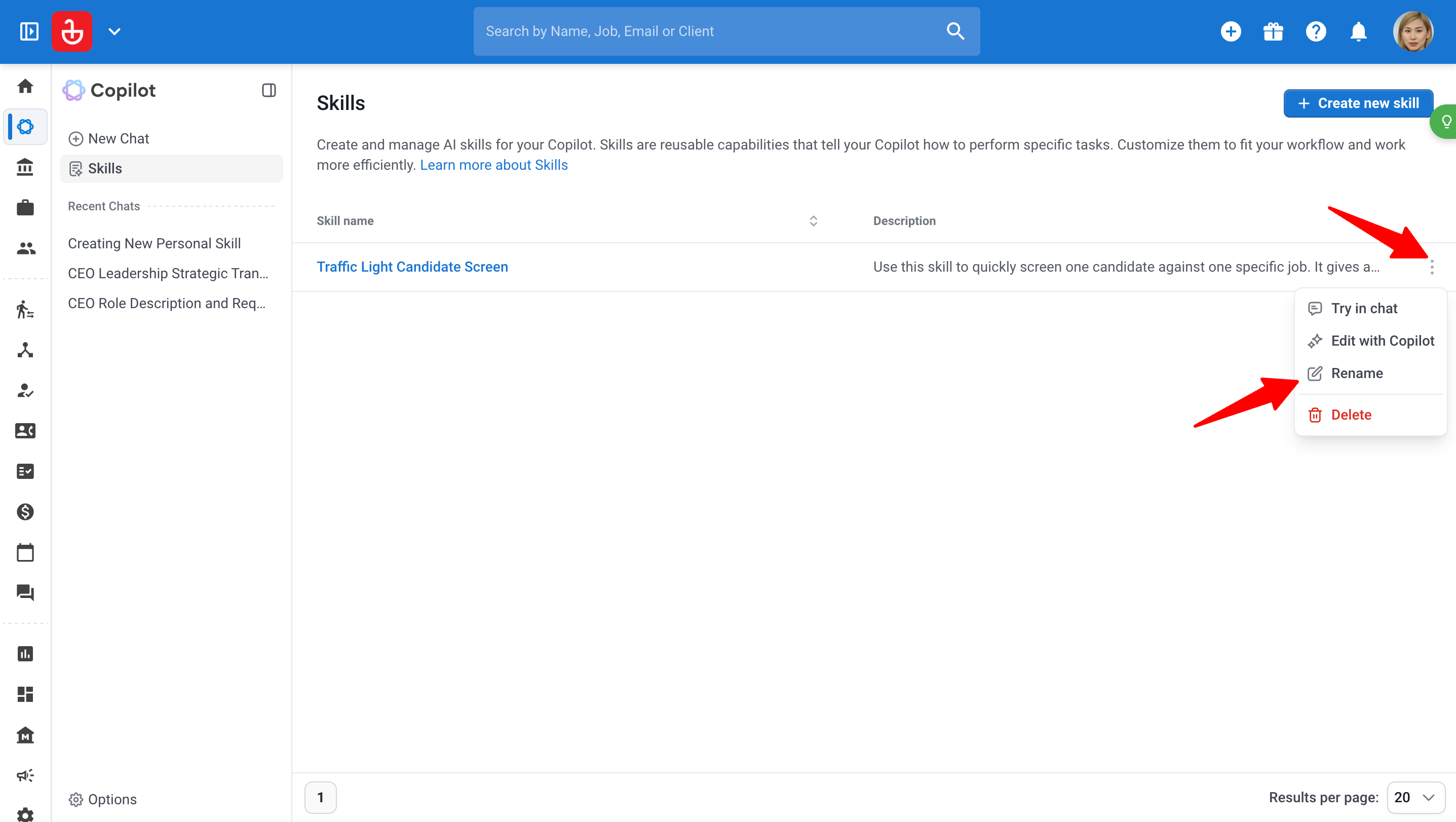
Cliquez sur Compétences dans le menu latéral du Copilot pour ouvrir votre bibliothèque de Compétences.
-
Ouvrez le menu à trois points et sélectionnez Renommer.
-
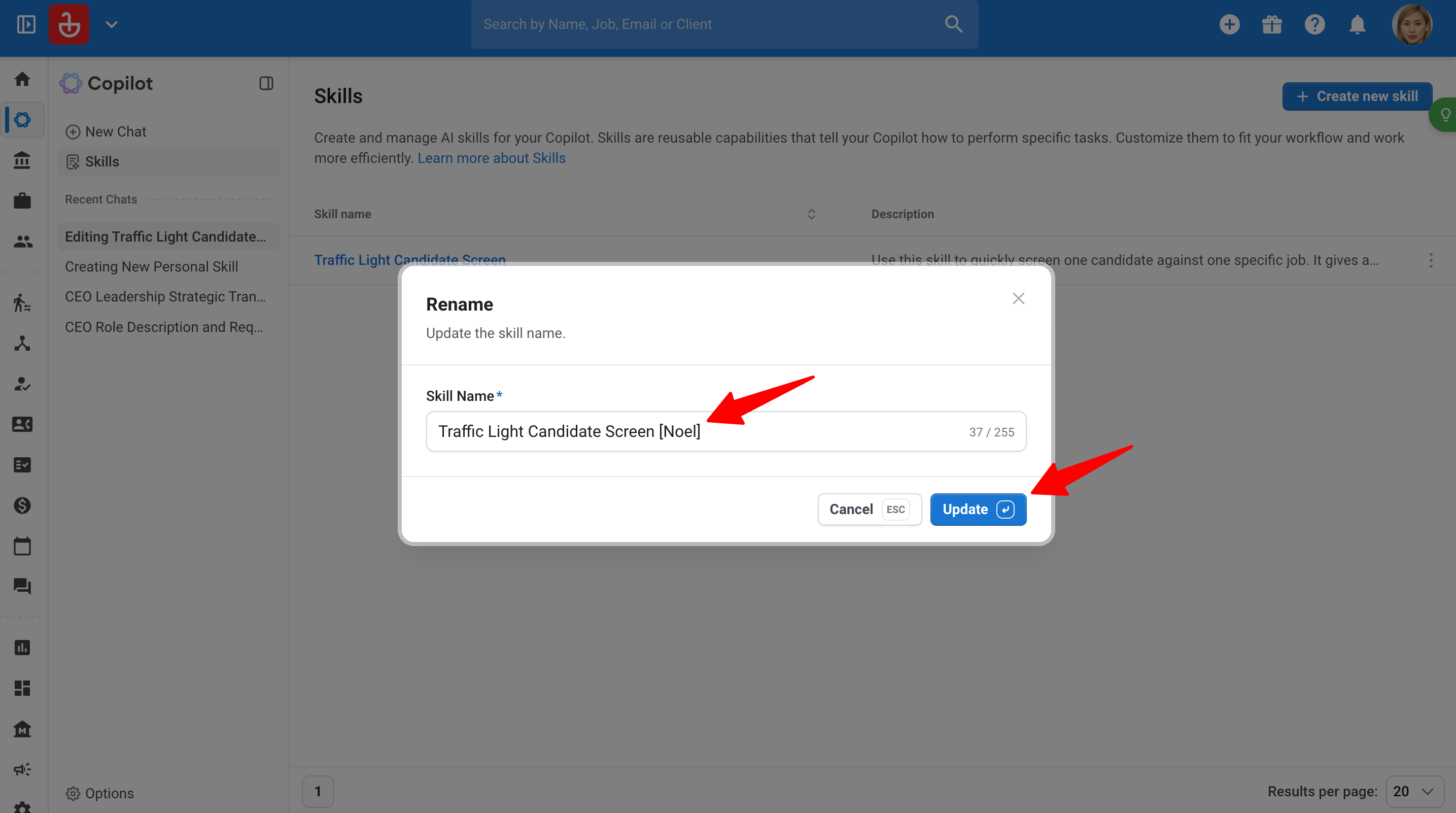
Entrez un nouveau nom (jusqu'à 255 caractères) et cliquez sur Mettre à jour.
Supprimer une Compétence
Les Compétences supprimées ne peuvent pas être récupérées.
-
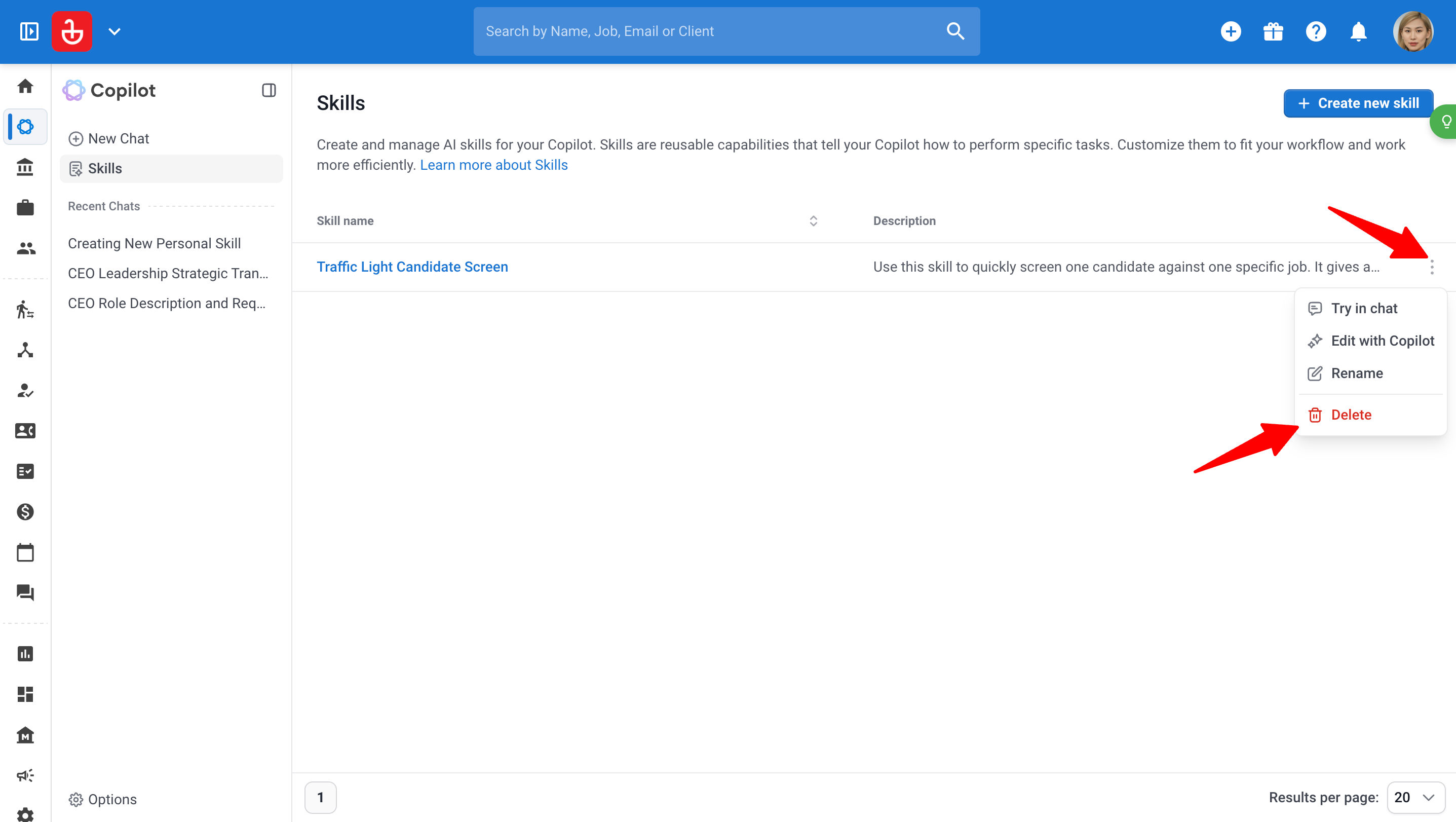
Cliquez sur Compétences dans le menu latéral du Copilot pour ouvrir votre bibliothèque de Compétences.
-
Ouvrez le menu à trois points et sélectionnez Supprimer.
-
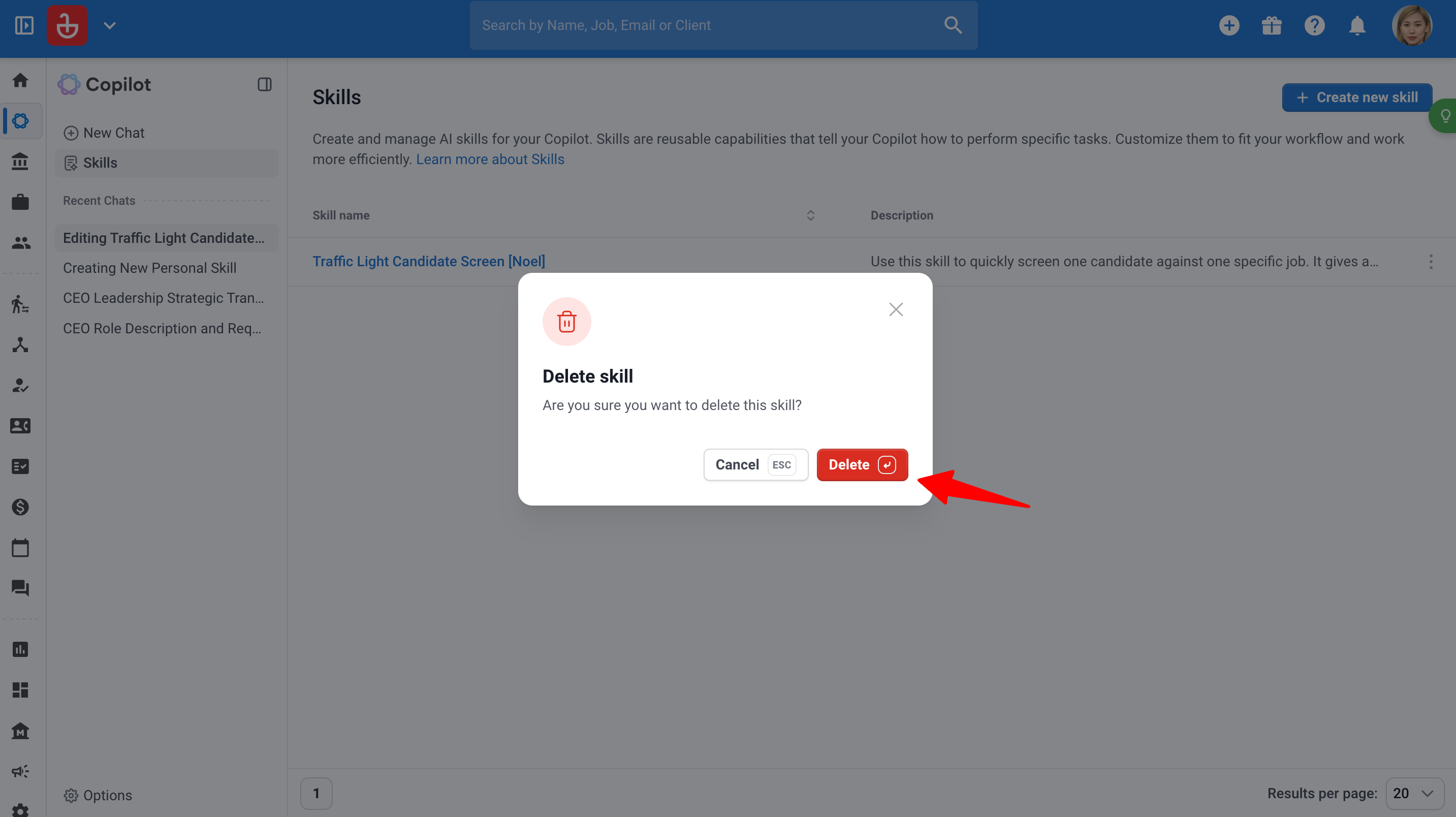
Cliquez sur "Supprimer".
Astuces et FAQ
Astuces pour une bonne Compétence
- Une Compétence, une tâche. Une Compétence pour l'évaluation et une Compétence distincte pour les e-mails de présentation fonctionnent mieux qu'une seule Compétence qui fait les deux.
- Soyez spécifique, pas vague. Évitez les Compétences trop larges comme "Trouver le meilleur candidat" ou "Rechercher tous les candidats". Nommez la tâche exacte, les données d'entrée (par exemple, un candidat et une offre d'emploi), et les critères à utiliser. Plus votre Compétence est explicite dans les limites de ce à quoi AI Copilot peut accéder, meilleurs seront les résultats.
- Décrivez le résultat que vous souhaitez. Précisez la longueur requise, le format à utiliser (points-clés, e-mail, notation) et ce qu'il faut omettre.
- Indiquez quand l'utiliser, et quand ne pas l'utiliser. AI Copilot lit cela pour décider quand appliquer la Compétence automatiquement, et pour éviter de l'utiliser pour la mauvaise tâche.
- Partez de ce qui fonctionne déjà. Si vous avez un prompt qui donne de bons résultats, collez-le lors de la création de la Compétence.
- Testez, puis affinez. Exécutez la Compétence sur quelques candidats et utilisez Modifier avec Copilot pour l'ajuster.
FAQ
- Les autres utilisateurs peuvent-ils voir mes Compétences ?
Non. Les Compétences sont personnelles. Chaque utilisateur ne voit que les Compétences qu'il a créées, même au sein du même compte. - Une Compétence peut-elle accéder à des données auxquelles AI Copilot n'a pas accès ?
Non. Les Compétences utilisent les mêmes données et actions qu'AI Copilot et respectent vos permissions Manatal existantes. - Puis-je importer des fichiers ou des documents dans une Compétence ?
Pas encore. Les Compétences sont actuellement constituées uniquement d'instructions écrites. - Les Compétences utilisent-elles des crédits AI Copilot ?
Oui. L'exécution d'une Compétence utilise des crédits de la même manière qu'une requête AI Copilot classique. L'utilisation dépend de la quantité de données traitées.
Cette fonctionnalité utilise l'IA pour soutenir votre flux de travail de recrutement. Les résultats de l'IA sont censés guider, et non remplacer, votre jugement. Nous recommandons de les examiner dans le cadre de votre processus. Toutes les décisions de recrutement finales demeurent votre entière responsabilité.