This guide covers connecting Manatal MCP Server to ChatGPT.
For an overview of Manatal's MCP server, including what it can do and how to connect other AI tools, refer to this guide.
Connecting to ChatGPT
Prerequisites:
- An active Manatal Enterprise Plus Plan subscription.
- An active ChatGPT account.
Connect Manatal to ChatGPT from either of these places:
i. From Manatal:
Admin needs to verify that Manatal MCP is enabled (It will be enabled by default).
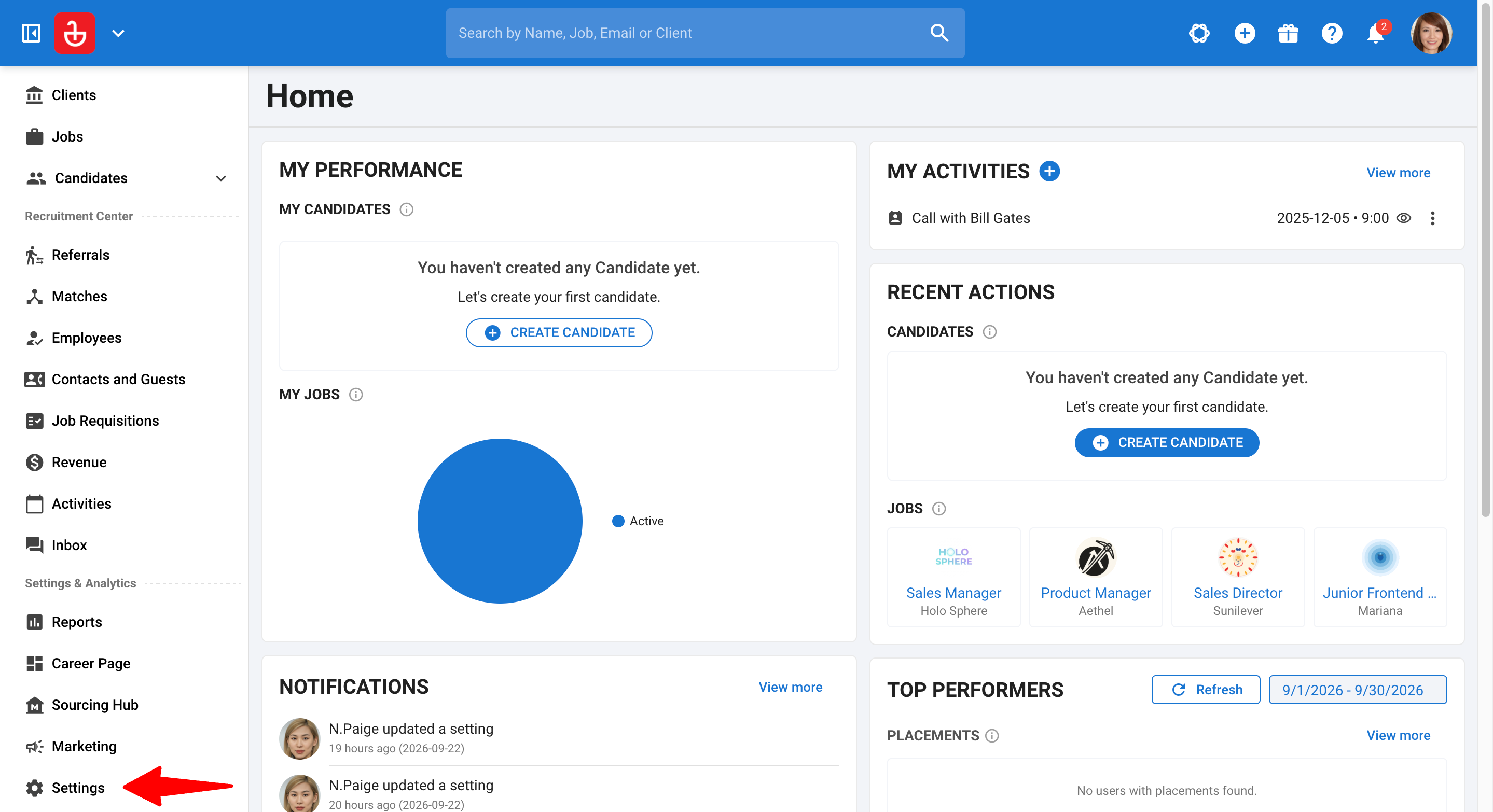
- Head to the following page or click on "Settings" in the left menu.
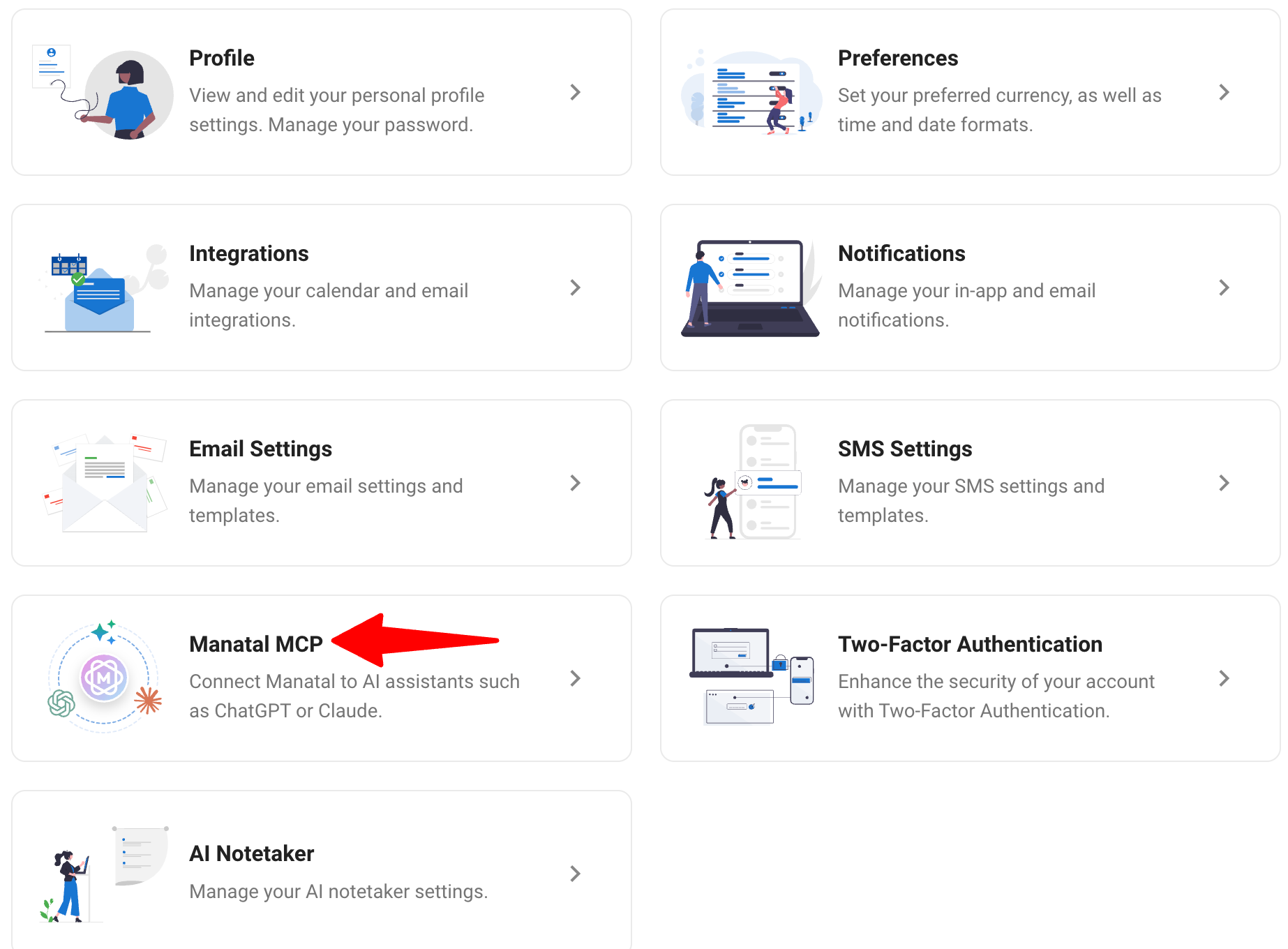
- Click on “Manatal MCP”.
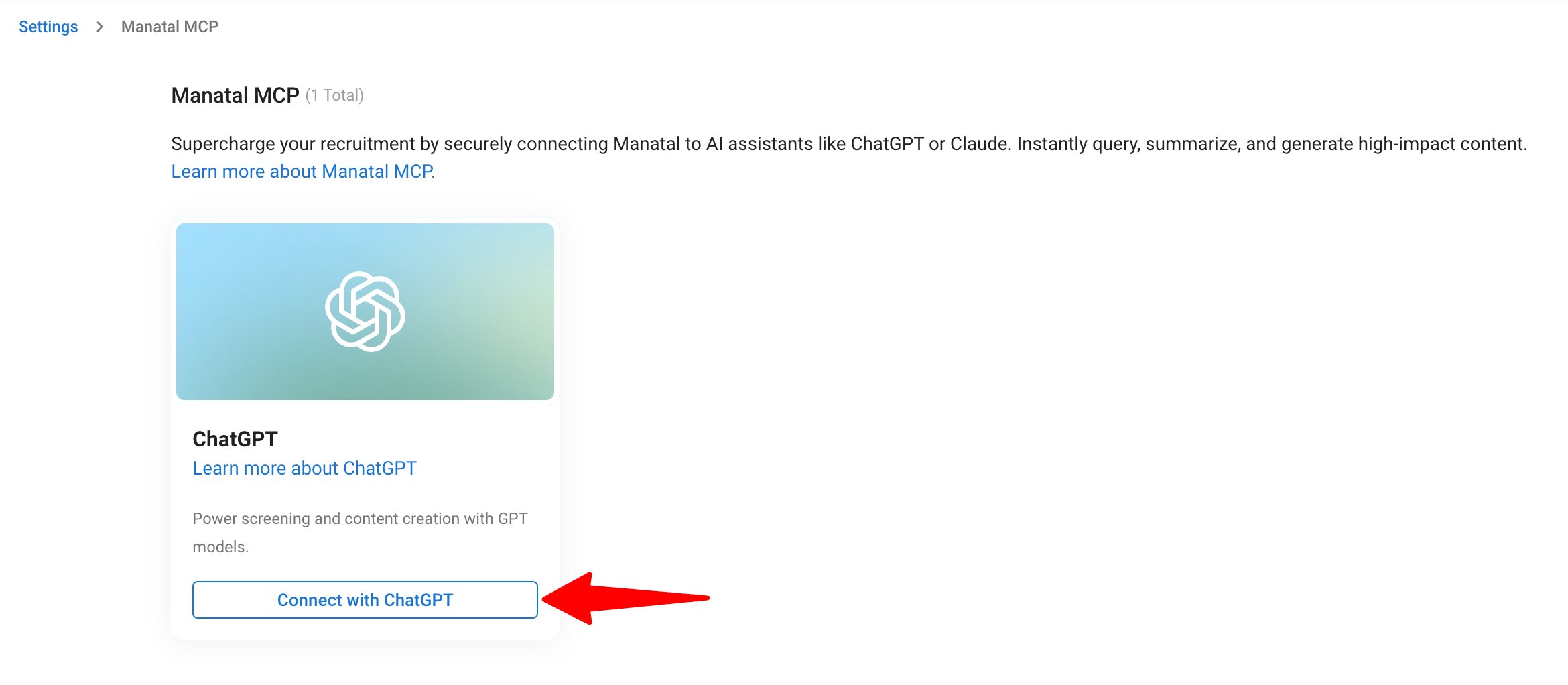
- Identify the “ChatGPT” card and click on “Connect with ChatGPT”.
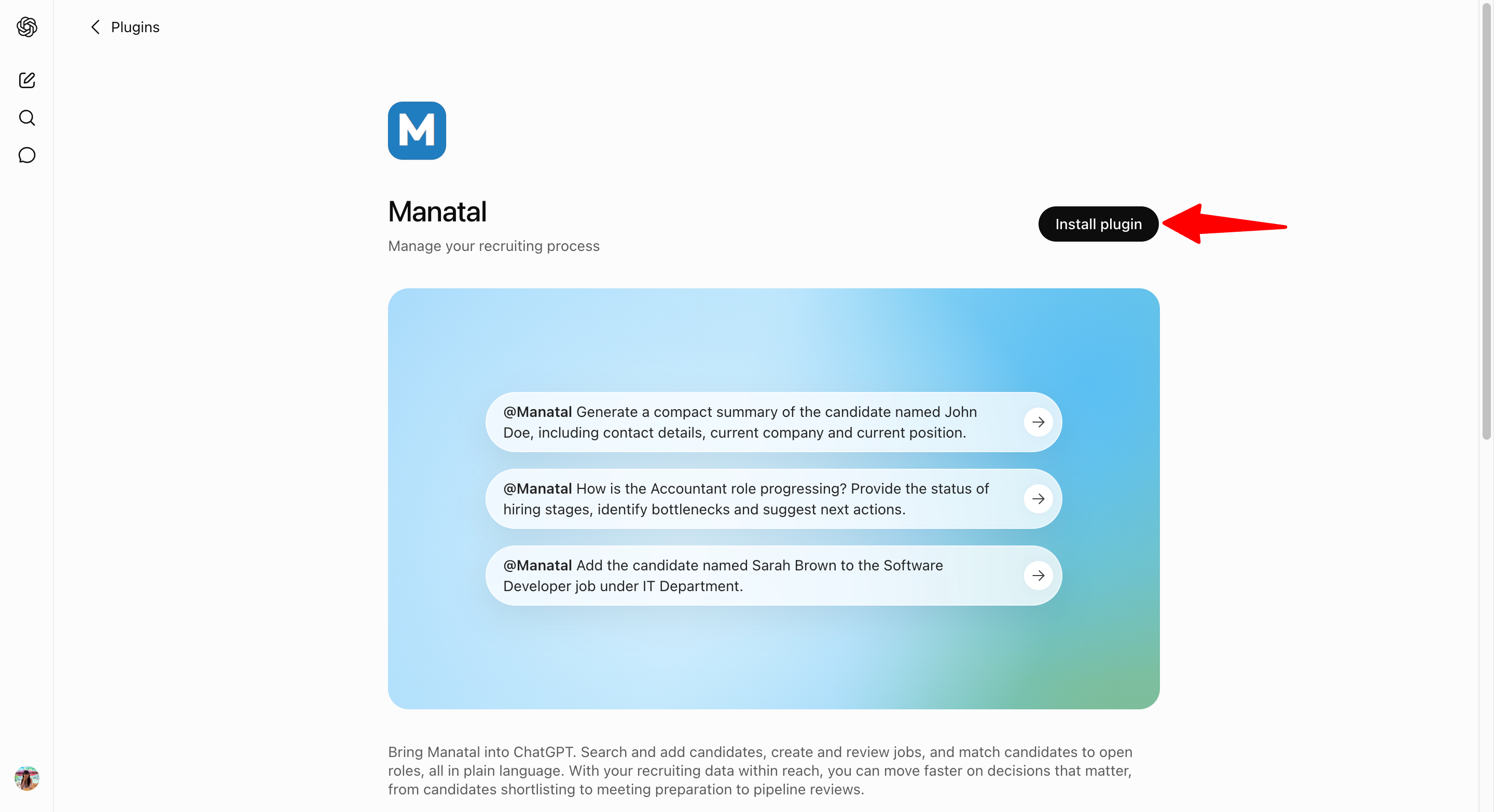
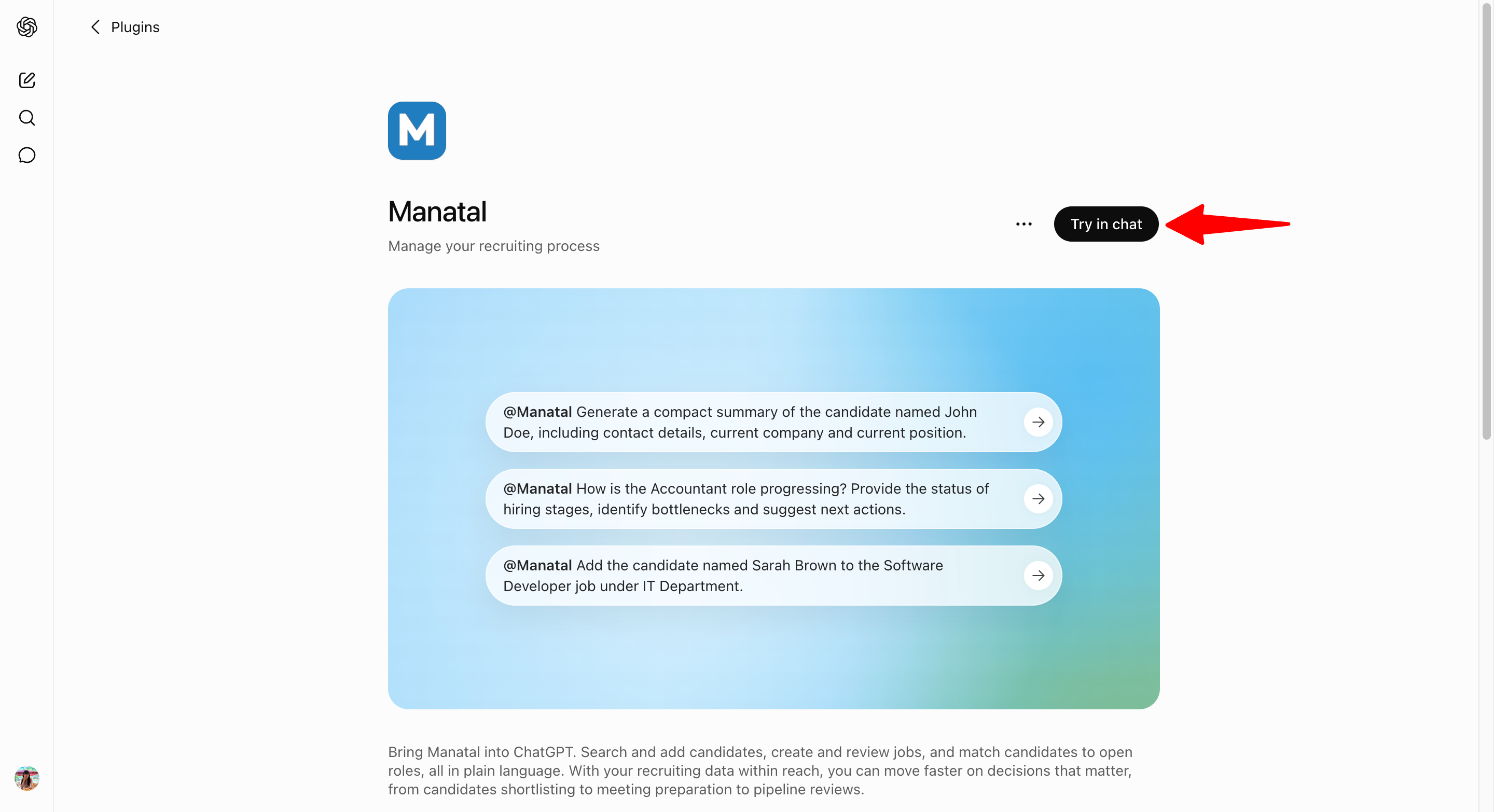
- Once redirected to the ChatGPT Plugin Directory, click on "Install plugin" button.
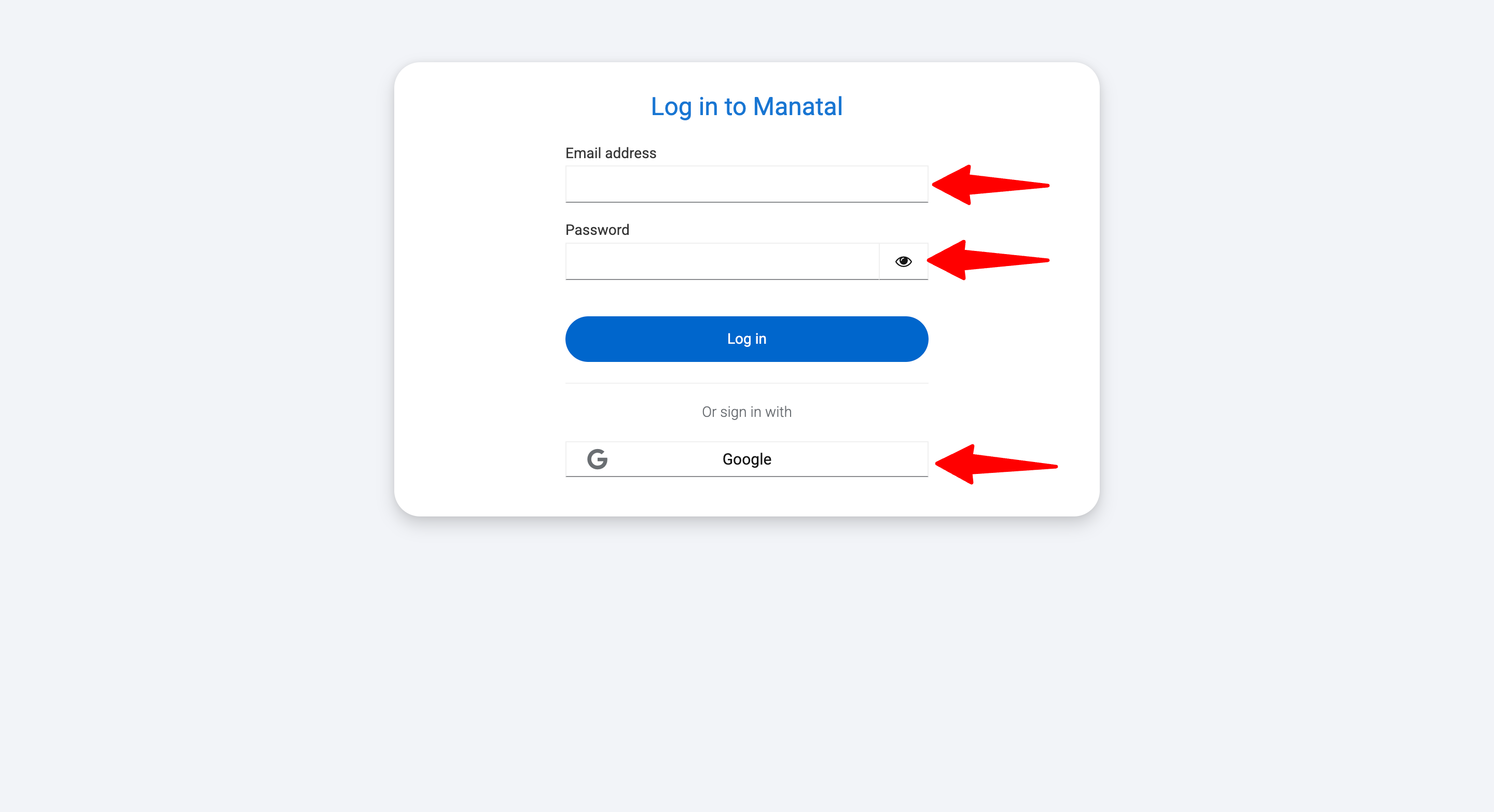
- You will be prompted to login with your Manatal Account (Google also supported).
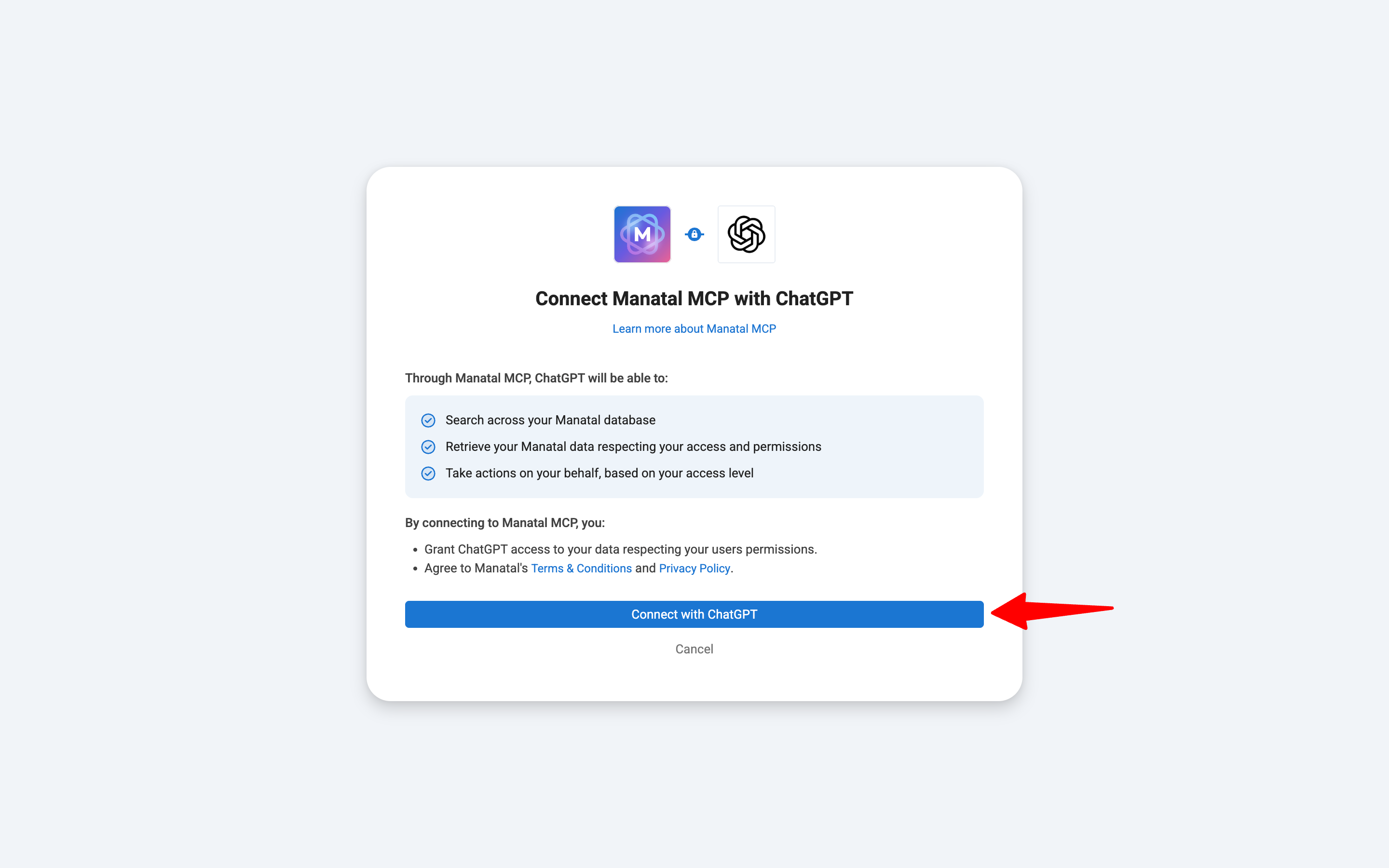
- Click on the"Connect with ChatGPT" button to provide your consent for ChatGPT to access Manatal.
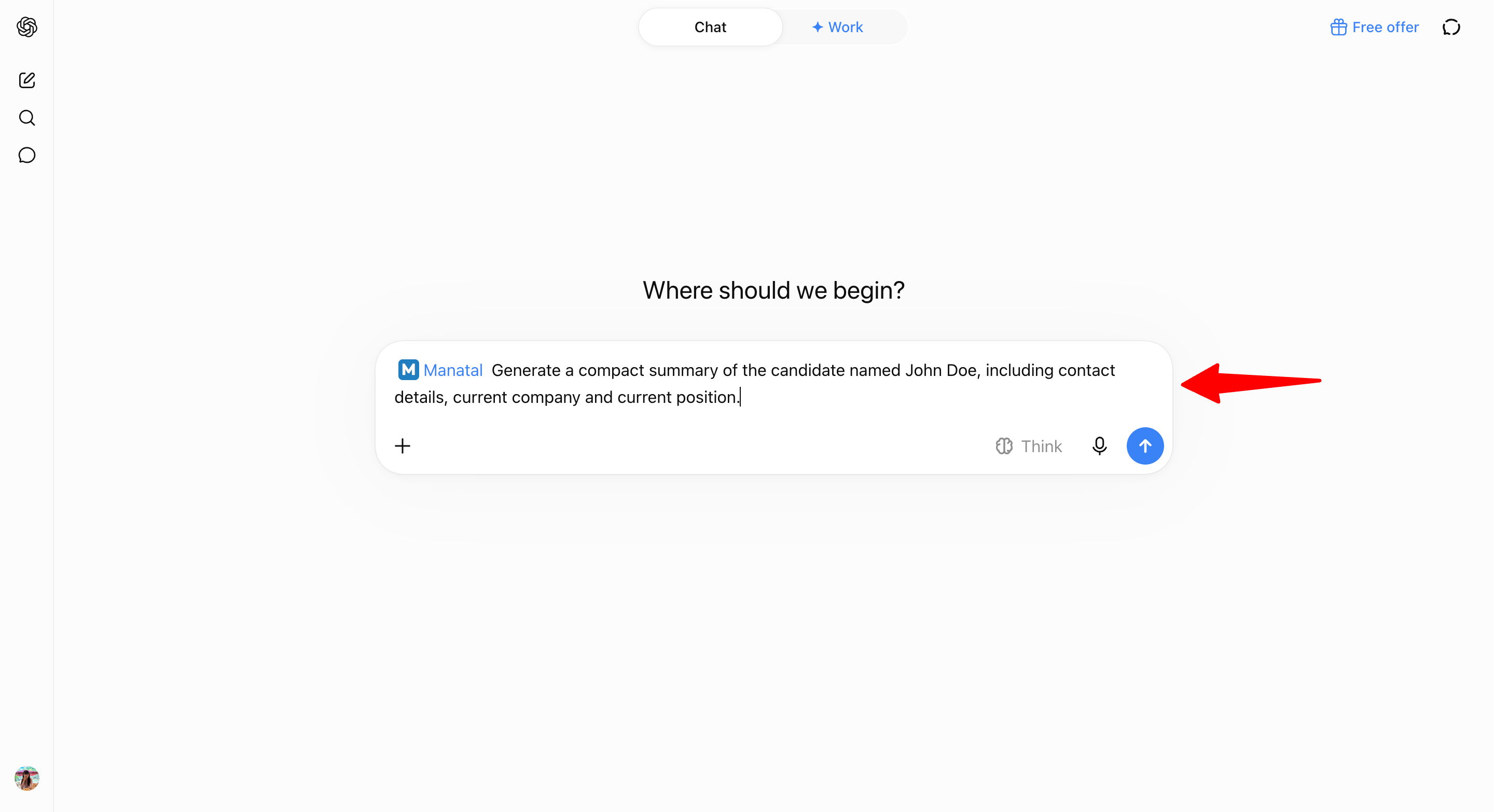
- Start interacting with Manatal directly from ChatGPT.
ii. Alternatively, from ChatGPT:
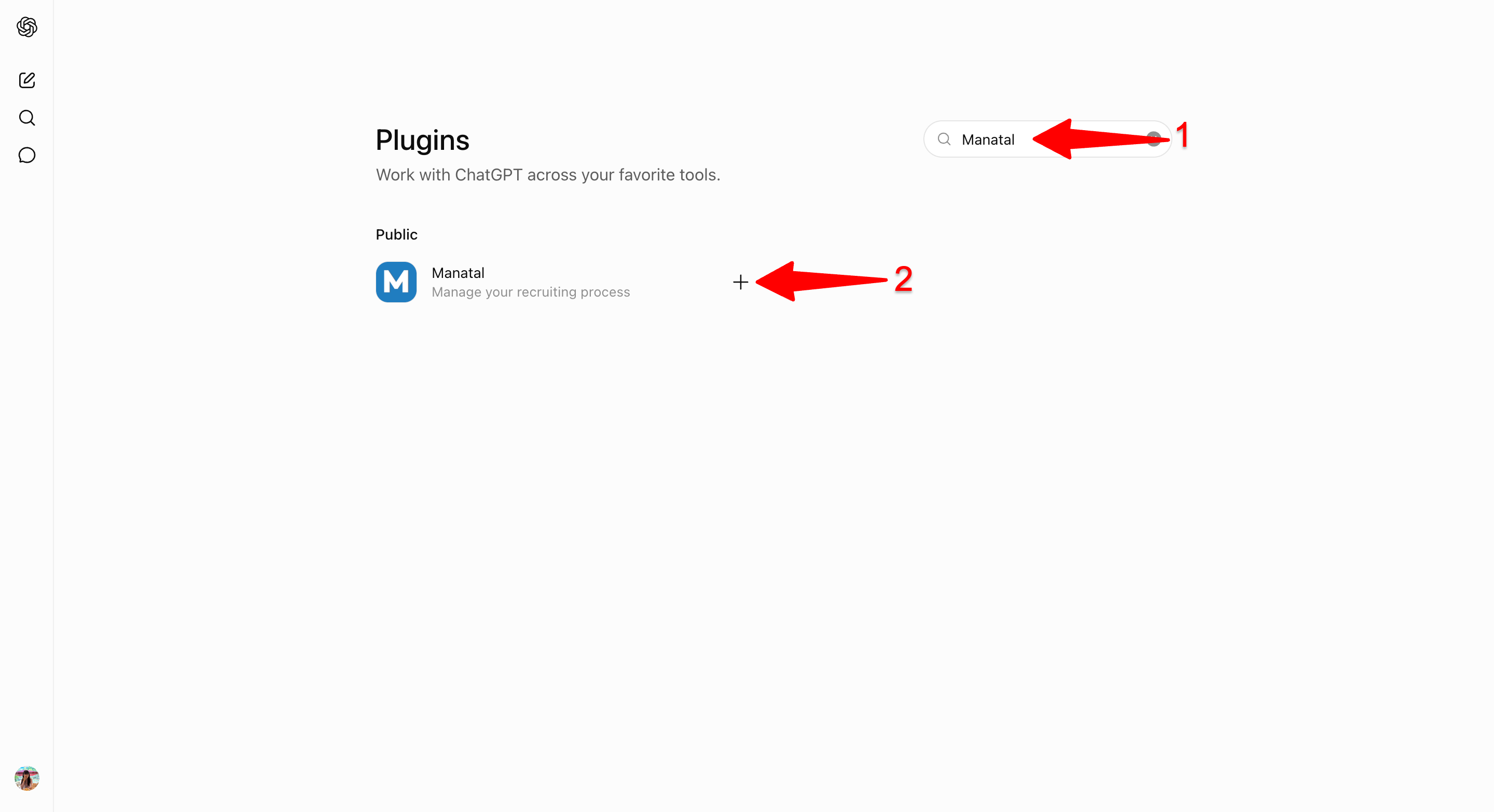
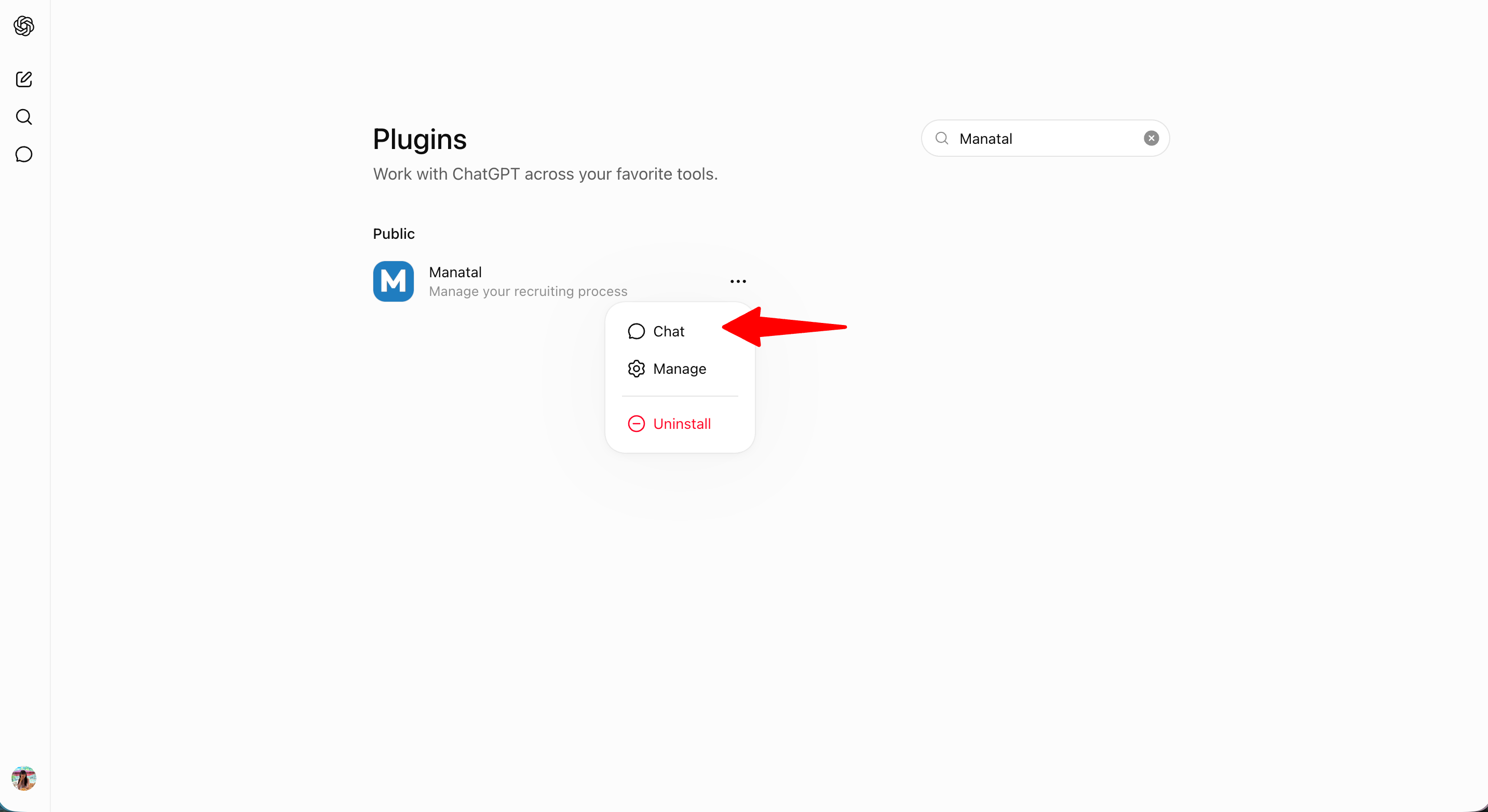
- In the ChatGPT plugin Directory, search for Manatal and click on the + icon next to it.
- You will be prompted to login with your Manatal Account (Google also supported).
- Click on the"Connect with ChatGPT" button to provide your consent for ChatGPT to access Manatal.
- Start interacting with Manatal directly from ChatGPT.
Switching from the Custom MCP Plugin to the Official ChatGPT Plugin
- This applies to you if you previously connected Manatal to ChatGPT by pasting an MCP Server URL.
- If you installed Manatal from the ChatGPT Plugin Directory or via the Settings page in Manatal, you're already on the official plugin and don't need to do anything.
Connecting through the custom MCP plugin still works, but we highly recommend switching to the official ChatGPT plugin for a better experience and access to the latest tools.
Why switch: the official ChatGPT plugin gives you:
- Stronger Security: Each user signs in with their own Manatal account and permissions. The custom MCP plugin method relies on a single account-wide credential with admin-level access, shared across every connected tool.
- Simpler Setup: Install directly from the ChatGPT Plugin Directory. No MCP Server URL to generate, copy, or circulate among your team.
- Access to the Latest Tools: New capabilities are added only to the official plugin.
Switching takes two steps: disconnect your current connection, then install the official plugin.
Step 1: Disconnect your custom MCP plugin connection
How you disconnect depends on whether other AI tools use the same MCP Server URL.
-
If other AI tools also use your MCP Server URL:
- Open ChatGPT and click on "Settings".

- Go to the Plugins page and select your custom Manatal plugin.

- Click on the 3-dots and then "Disconnect".

- Open ChatGPT and click on "Settings".
-
If ChatGPT is the only tool using your MCP Server URL
Important- This can only be done by an Admin.
- Disconnecting affects everyone connected through this MCP Server URL, not just you, and their access ends immediately. Notify your users beforehand and guide them to official ChatGPT plugin connection so they can set it up on their own.
- If other AI tools are connected to your account, do not disconnect your MCP Server URL. That URL is shared across every connected tool, and disconnecting it will disconnect them all. Use the ChatGPT-side steps mentioned above instead.
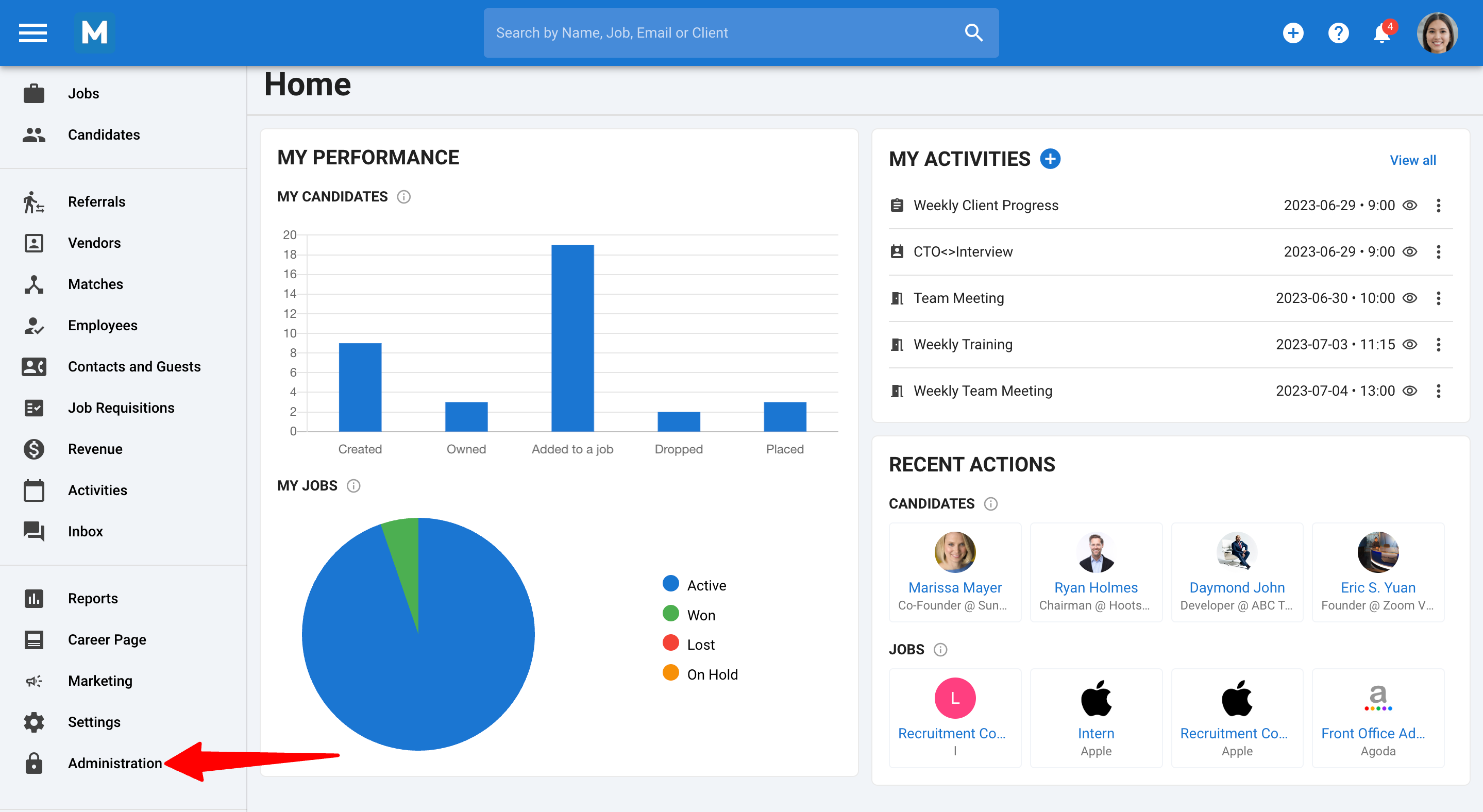
- Head to the following page by clicking on "Administration" from your side menu and open the "Integrations" category.
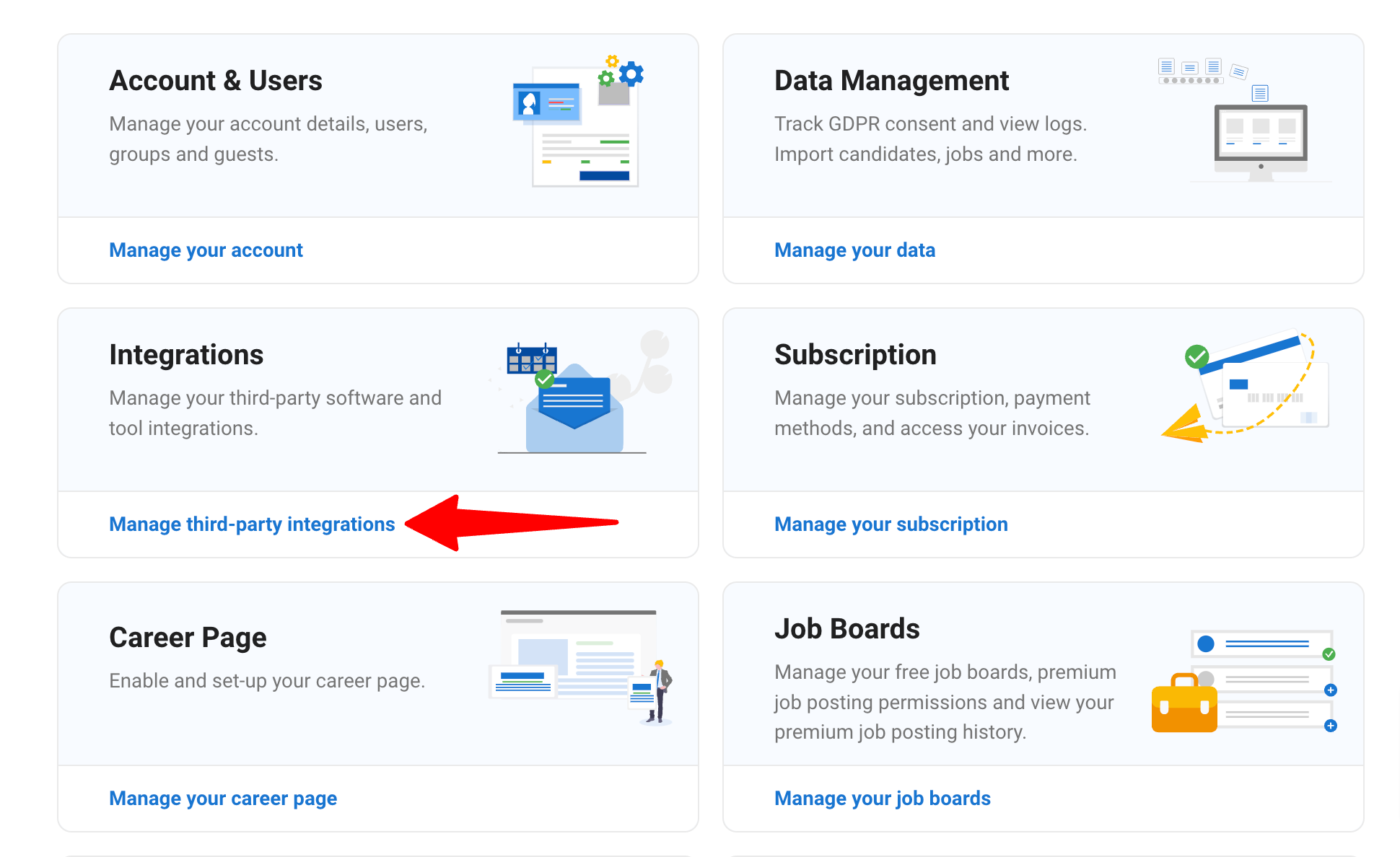
- In the Integrations page, search for "Manatal MCP" and click on "Configuration".

- Click on the settings icon and "Disconnect".

- Click "Continue".

Step 2: Install the official ChatGPT plugin
Follow the steps to connect to ChatGPT above.