What is n8n?
n8n is an open-source workflow automation platform that lets you connect Manatal with hundreds of other tools - including Slack, Google Sheets, HubSpot, Salesforce, Microsoft Teams, and more. Unlike other automation tools, n8n can be self-hosted for complete data privacy, or used via n8n Cloud.
Every automation in n8n is called a Workflow, built from two core components:
- The Trigger Node: The event that starts the workflow (e.g., a new Candidate is created in Manatal).
- The Action Node: The automated response in another app (e.g., send a message to a Slack channel).
What is the Manatal n8n Integration?
This integration acts as a bridge between Manatal and hundreds of apps, letting you automate your work and boost productivity.
- The Manatal node (
@manatal/n8n-nodes-manatal) is a verified community node. Verification means it has passed n8n's security and quality review, making it an official integration available to both Cloud and self-hosted users. - View the complete list of Manatal triggers and actions in this guide.
Why use the Manatal n8n Integration?
Integrating Manatal with n8n allows your team to automate repetitive recruiting tasks, keep your tools in sync, and build fully custom workflows without writing code:
- Save Hours of Admin: Automatically push hired candidate data to your HRIS, payroll system, or CRM the moment a match is marked as hired.
- Enhance Communication: Notify your team on Slack or Microsoft Teams in real time when a candidate is moved to a new stage or a job status changes.
- Standardize Processes: Ensure every new applicant is sent an assessment invite, a background check request, or a GDPR consent form - without anyone on your team needing to remember to do it.
- Build Your Own Solutions: You don't need to wait for our team to build a specific integration. Connect Manatal to any tool in your stack and build workflows tailored to your unique hiring process.
Install the Manatal Node
How you install the Manatal node depends on whether you are using n8n Cloud or a self-hosted instance.
There are four ways to install community nodes.
1. Nodes Panel
Self-Hosted Prerequisites
Before installing the Manatal node, you need a running n8n instance:
- Install Node.js - Download it from nodejs.org.
- Install n8n - see n8n's installation options guide.
Verified community nodes can be installed directly from the n8n canvas - no settings page required.
- Open a workflow in your n8n Cloud instance. Click the "+" button to open the nodes panel.
- Search for 'Manatal'.
- Click the node and select your trigger or action. Learn more in this guide.
2. Settings GUI (Self-Hosted)
- In your n8n instance, go to Settings and then to Community Nodes.
- Click "Install a community node".
- Enter the package name:
@manatal/n8n-nodes-manatal - Agree to the risk notice and click "Install".
The node will be available immediately without restarting your instance. Learn more in this guide.
3. Command Line (Self-Hosted)
If your instance does not support GUI installation, you can install the node manually via npm, then restart your n8n instance.
- Access your Docker shell:
docker exec -it n8n sh
- Create
~/.n8n/nodesif it doesn't already exist, and navigate into it:
mkdir ~/.n8n/nodes
cd ~/.n8n/nodes
- Install the node:
npm install @manatal/n8n-nodes-manatal
- Restart your n8n instance after installation. See n8n's manual installation guide for more details.
4. Configuration File (Self-Hosted)
If your IT team sets up n8n instances automatically, the Manatal node can be included in your instance's configuration so it installs on startup, with a specific version selected. This is usually handled by whoever manages your n8n deployment.
Ask them to refer to n8n's environment variable installation guide for the setup steps. The package name is @manatal/n8n-nodes-manatal.
Enable the n8n Integration
Access to the Manatal Open API is required in order to integrate n8n with Manatal.
To ensure the best experience for all customers, Manatal applies a fair usage cap on certain tools and features. If you have reached these limits due to your specific needs, please contact our support team to discuss increasing your usage allowance.
Retrieve Your Manatal API Key
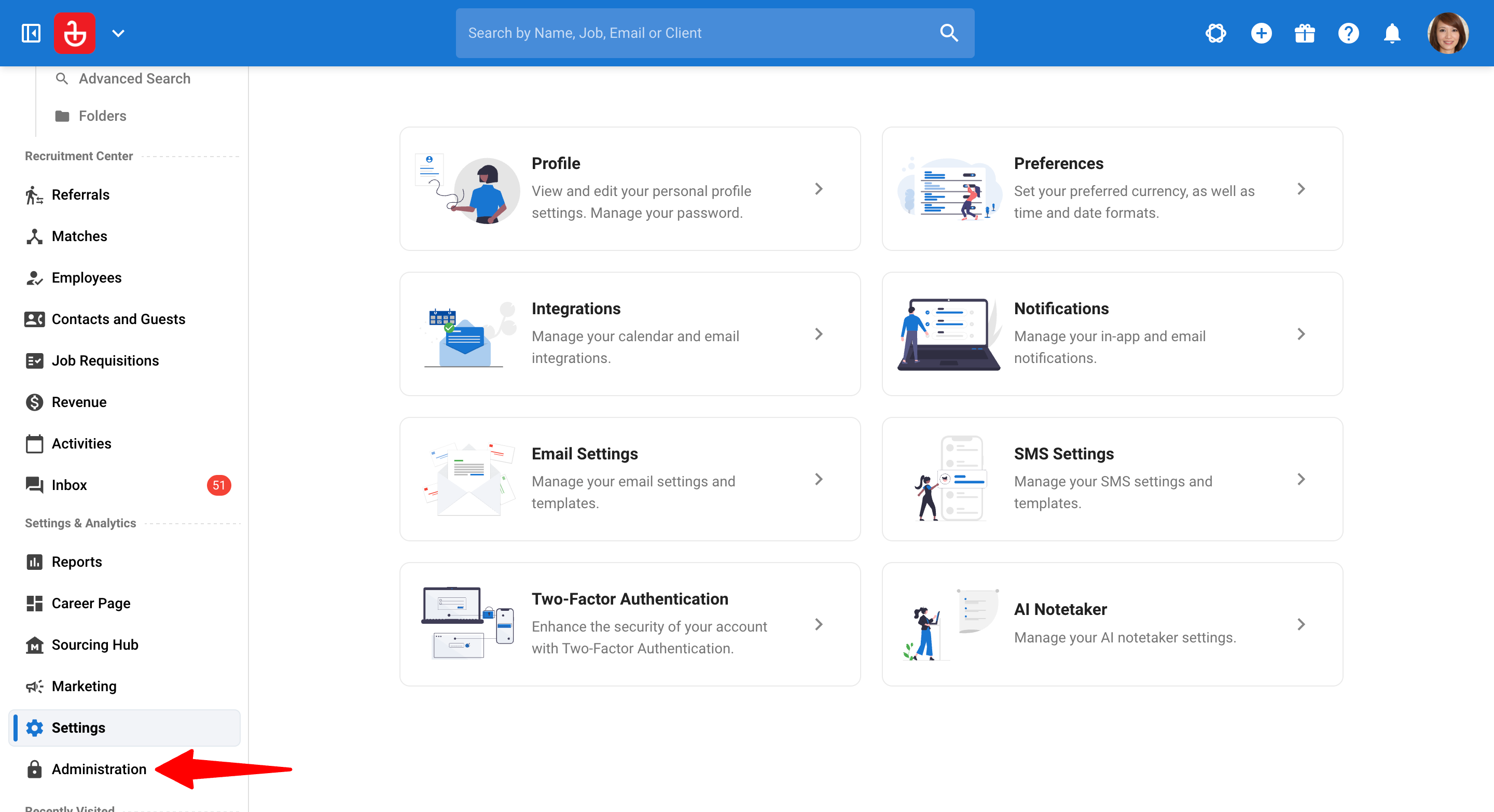
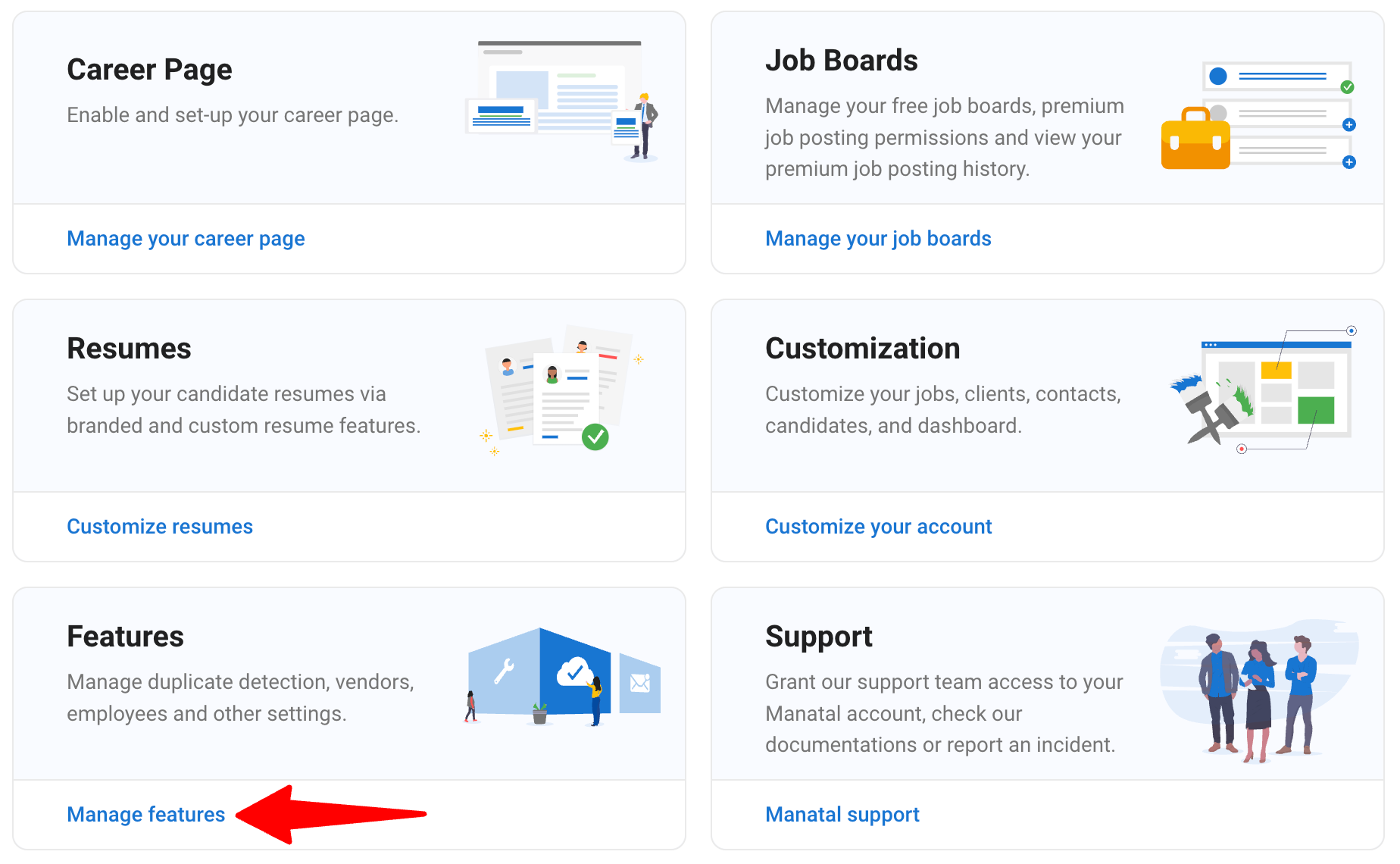
- Head to the following page. Alternatively, click on “Administration” from your side menu and open the “Features” category.
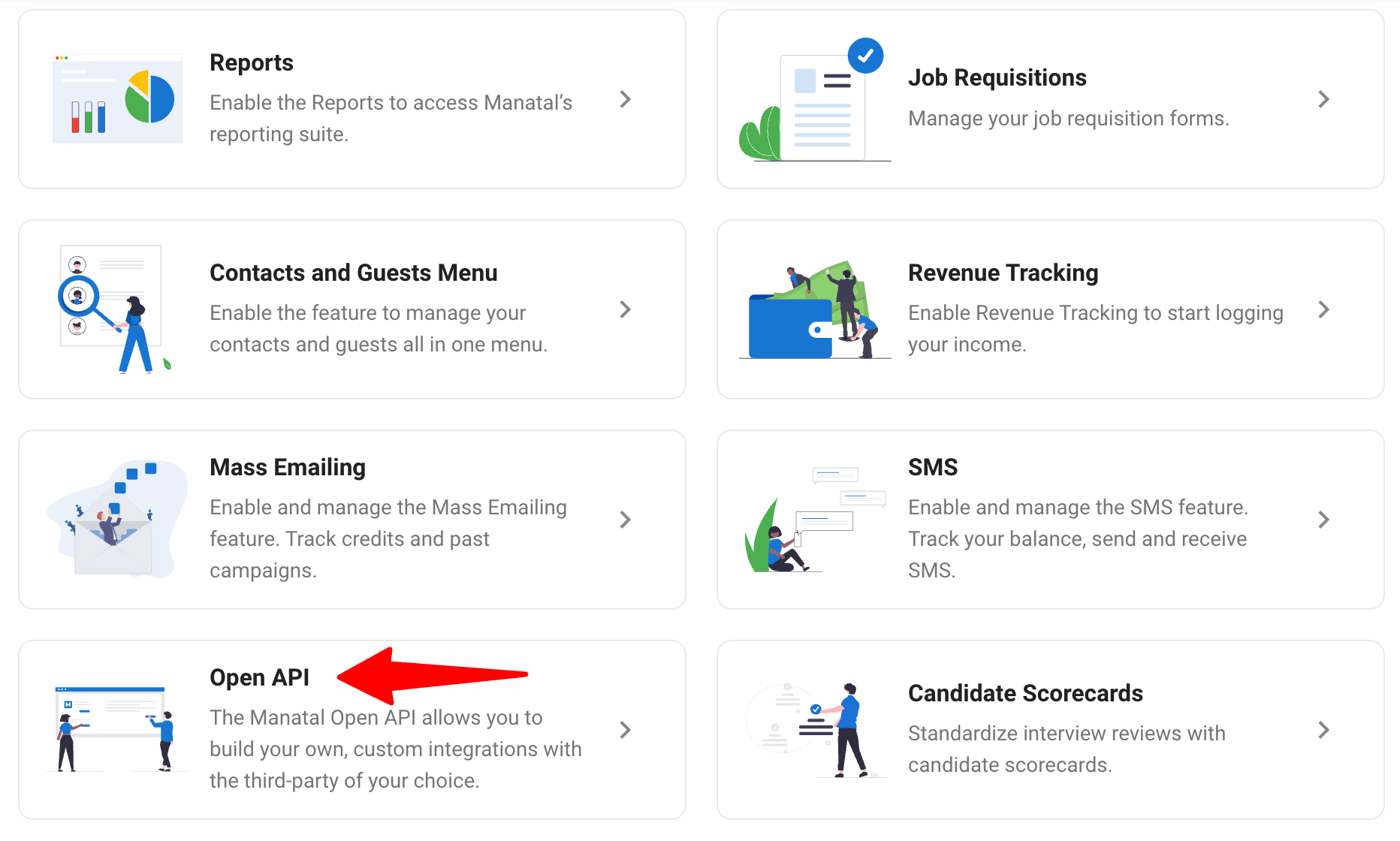
- Click on “Open API”.
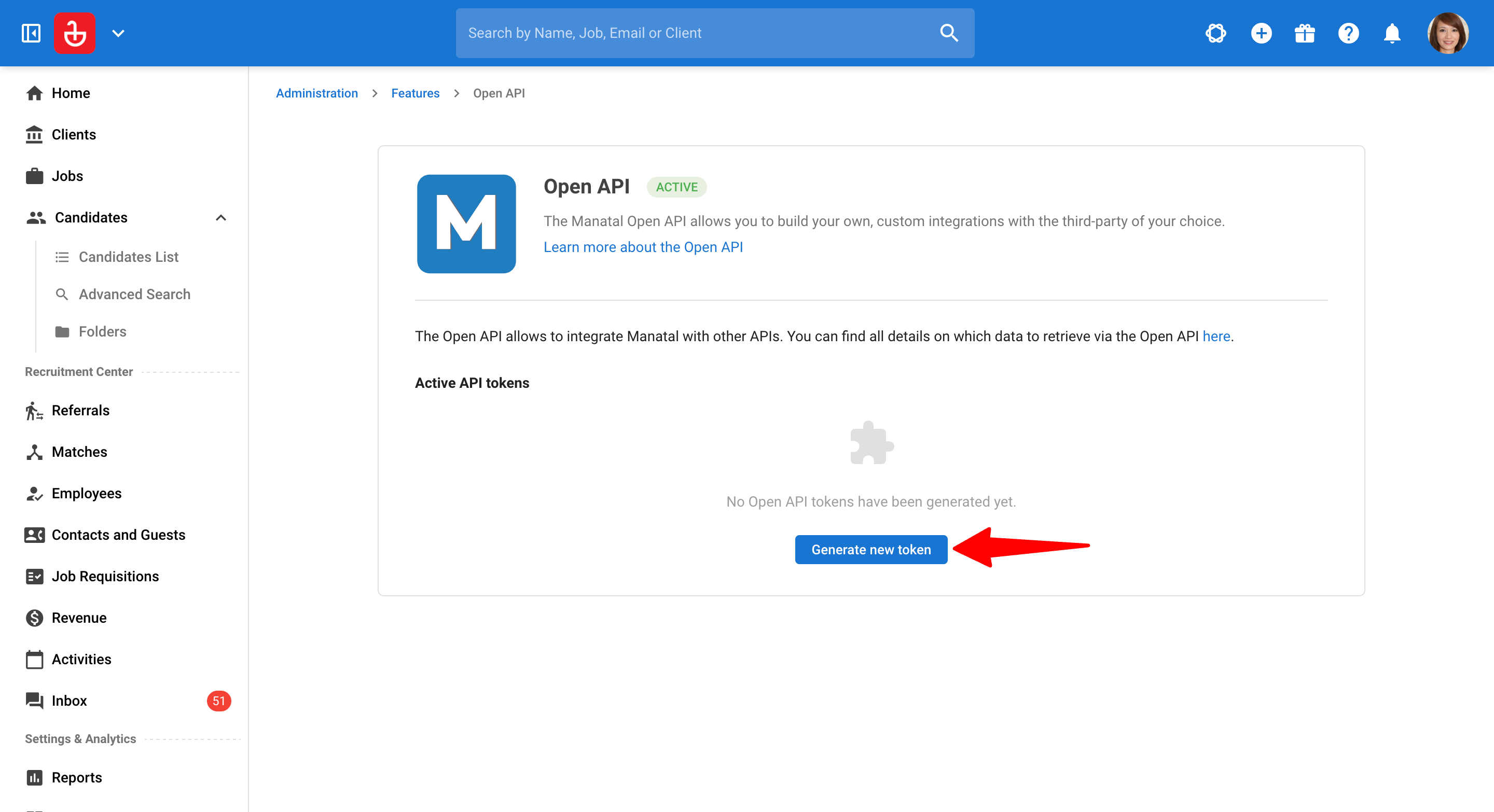
- Click on “Generate new token”.
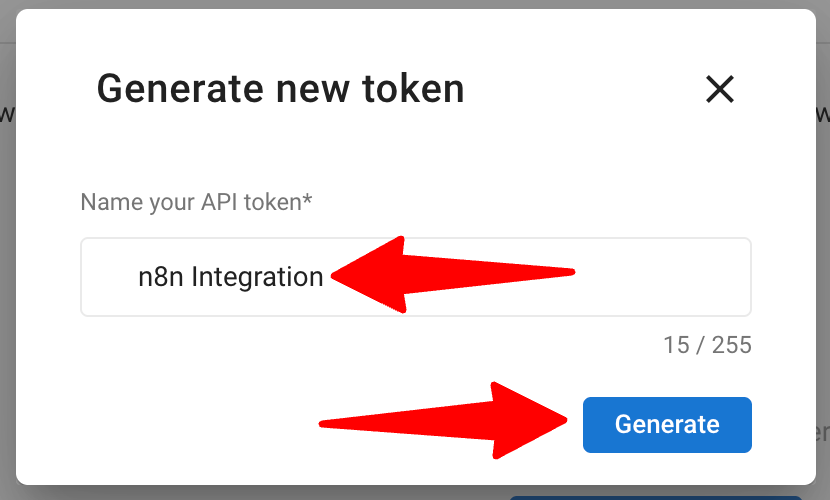
- Fill in the API token name (e.g., "n8n Integration") and click on “Generate”.
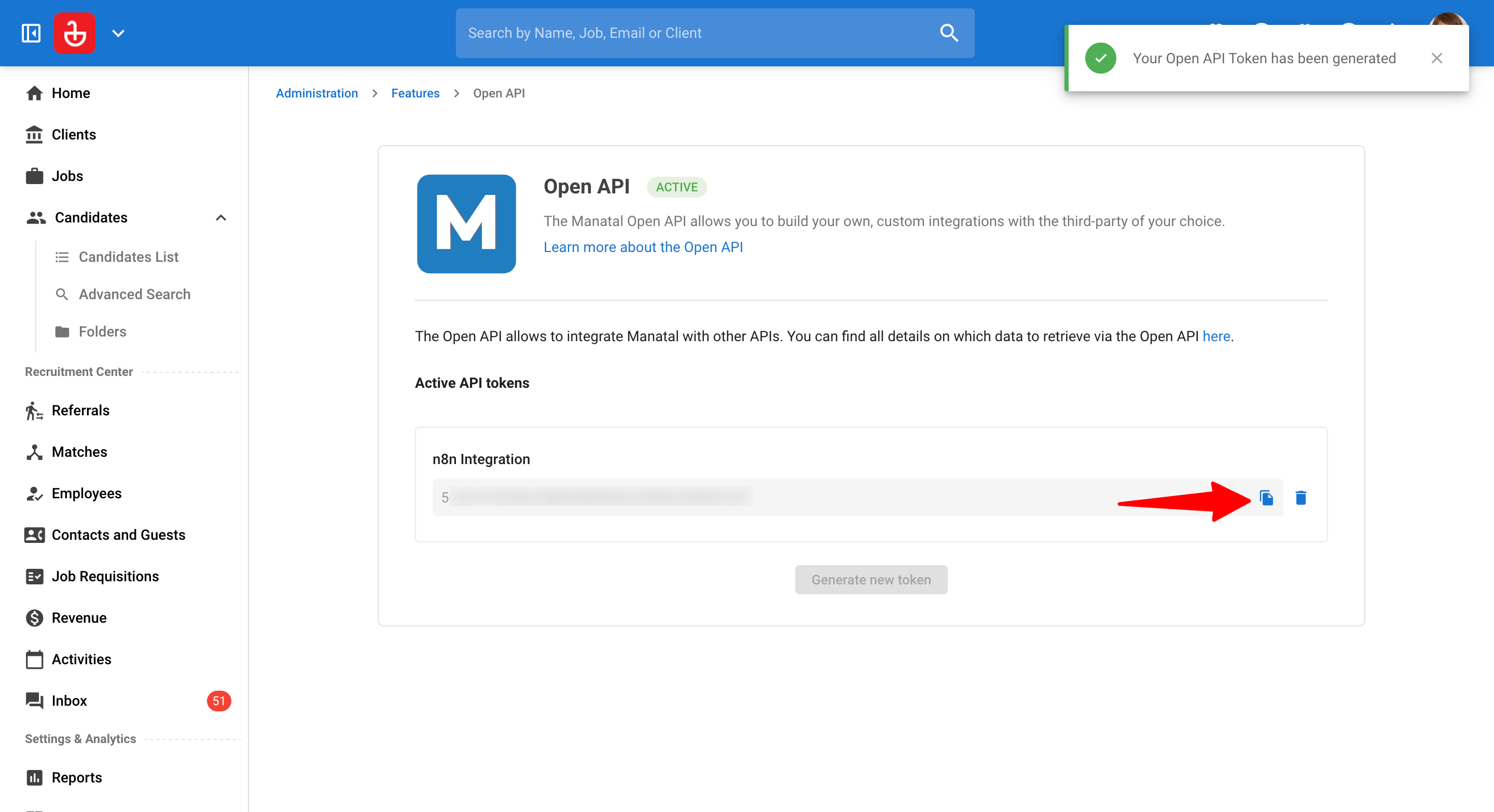
- Copy the generated API key.
- Log in to your n8n account and locate the Manatal app connection. Enter the Manatal API token to complete the integration. Learn more here.
Common Use Cases
Use these workflows as inspiration for what's possible when you connect Manatal to your broader recruiting stack.
Electronic Signatures & Offers
Use Case: Automatically trigger legal documents and offer letters the moment a candidate is moved to the "Offered" stage. You can pre-fill these documents with data pulled directly from Manatal (such as name, salary, or job title), ensuring accuracy and saving your team from repetitive data entry.
- DocuSign: On Match Moved, filtered to the Offered stage → Send the appropriate offer letter or employment contract for e-signature.
- Dropbox Sign: On Match Moved, filtered to the Offered stage → Send a signature request pre-filled with candidate and job details.
- PandaDoc: On Match Moved, filtered to the Offered stage → Generate and send a contractor agreement pre-populated from Manatal.
AI-Powered Resume Screening
Use Case: Screen candidates at scale. When a new candidate is added to Manatal, an AI model scores and summarizes their fit against the job, writes the result back as a Note on their profile, and alerts a recruiter when the score passes your threshold.
- OpenAI: When a Candidate is Created in Manatal → Send their resume and job description to a GPT model and write the fit score back as a Manatal Note.
- Anthropic Claude: When a Candidate is Created in Manatal → Generate a detailed assessment with Claude and add it as a Manatal Note with experience gap flags.
- Google Gemini: When a Candidate is Created in Manatal → Extract structured data (skills, experience, education) from the resume and update the Manatal candidate profile.
- Slack: Continuing the same workflow, when the score passes your threshold → Post a candidate summary to your recruiter channel.
HRIS & Onboarding
Use Case: Bridge the gap between recruitment and HR. Once a match reaches your "Hired" stage, sync the candidate's data directly to your HRIS to kick off onboarding, and open the supporting tasks automatically.
- BambooHR: On Match Moved, filtered to the Hired stage → Create a new employee record pre-filled with candidate data.
- Workday: On Match Moved, filtered to the Hired stage → Initiate a hire transaction and assign the correct onboarding checklist.
- Jira: On Match Moved, filtered to the Hired stage → Create an onboarding task ticket and assign it to the relevant team.
Recruitment Data Sync & Reporting
Use Case: On a nightly schedule, pull every candidate, match, and job updated since the last run and write them directly to your database or data warehouse. Keeps your BI dashboards current without manual exports or middleware.
- PostgreSQL / MySQL: On a nightly Schedule trigger, Get Candidates and Matches → Upsert records into your internal recruitment database.
- Google BigQuery: On a nightly Schedule trigger, Get Candidates and Matches → Stream records into your data warehouse for large-scale analytics.
- Google Sheets: On a nightly Schedule trigger, Get Many updated Matches → Append a daily pipeline summary for stakeholders.
Interview Scheduling & Follow-Up
Use Case: Send a confirmation email the moment an interview is scheduled, preparation materials 24 hours before, and a day-of reminder on the morning of the interview, all from a single stage change in Manatal.
- Gmail / Outlook: On Match Moved, filtered to the Interview stage → Send a confirmation immediately, prep materials after 24 hours, and a reminder on the morning of the interview.
- Google Calendar: On Match Moved, filtered to the Interview stage → Create a calendar invite for the candidate and the interview panel.
Team Communication
Use Case: Keep the whole team updated in real time. Post a summary of pipeline movement directly to your team's chat platform.
- Slack: On Match Moved → Post a stage-change summary to your recruiting channel.
- Microsoft Teams: When a Candidate is Created in Manatal → Post a candidate summary card to your hiring team channel.
Best Practices for Building Workflows
- Activate Your Workflow:
- n8n registers the trigger with Manatal only when a workflow is switched on. While a workflow is inactive, Manatal events will not reach it. Build and test using n8n's manual test controls, then activate when you are ready to go live.
- Start with a simple 2-node workflow.
- Before building complex, multi-stage workflows, start with a single Trigger and a single Action (e.g., Manatal to Slack). Once you are comfortable with the data flow, you can begin adding more steps.
- Use Descriptive Naming Conventions:
- As you create more automations, it can become difficult to manage them. Name your workflows based on the flow, such as: "[Manatal → DocuSign] Send Offer Letter when Stage is Offered." You can also tag your workflows to group related automations together.
- Leverage "IF" Nodes:
- Triggers fire on every matching event in Manatal. Use n8n's built-in IF node to ensure the workflow only continues when specific criteria are met (e.g., only a particular pipeline stage, or only "Full-Time" job types). This keeps your data clean and reduces unnecessary executions. Learn more about splitting workflows with conditionals.
- Test with “Dummy” Data:
- Create a test candidate or job in Manatal to trigger your workflow for the first time. This allows you to see exactly how the data appears in the destination app before applying it to real applicants. You can review each run in your execution history to see exactly what data passed through every step.
- Configure an Error Workflow:
- n8n lets you assign a dedicated error-handling workflow, so your team is automatically notified if an automation fails. This keeps your data pipeline reliable. See n8n's guide to handling errors gracefully.
For more on designing, testing, and maintaining workflows, see n8n's guide to building workflows.
FAQ
Q1. What Manatal Triggers and Actions are available in n8n?
The integration provides 7 triggers and 69 actions across 19 resources. You can view the full list on our Triggers and Actions reference page.
Q2. Do I need a paid n8n account to use the Manatal integration?
You can start with n8n's free Cloud plan, or self-host n8n for free. Depending on the complexity of your workflows or your monthly execution volume, you may eventually need a paid n8n subscription.
Q3. Which Manatal plans include access to the n8n integration?
The integration requires Open API access, which is included in our Enterprise Plus plan. If you are on a different plan, please contact our support team to discuss upgrading or enabling API access for your account.
Q4. Is the data transfer between Manatal and n8n instant?
Near-instant. As soon as a trigger event occurs (like a new candidate creation), the data is sent to your active n8n workflow via webhook within seconds.
Q5. I'm getting an 'Unauthorized' error; how do I fix it?
This usually means the API Token has been deleted or deactivated within Manatal. To fix this, simply generate a new Open API token in your Manatal Administration settings and update the credential in the "Credentials" section of your n8n instance.
Q6. Can I delete Manatal records through n8n?
No. For safety, the integration deliberately provides no delete operations. Records can be created, retrieved, and updated only.