What is the SHL Talent Central Integration
The SHL Talent Central integration allows users to send assessments to candidates directly from the job pipeline and view the results within Manatal. SHL Talent Central is a secure, cloud-based platform used by employers to administer talent assessments, including cognitive tests, personality tests, and video interviews. Learn more about SHL on their website.
- This integration requires active accounts on both SHL Talent Central and Manatal.
- Your SHL Username and Password are provided by SHL. Please note that Manatal does not issue credentials, resell assessments, or handle billing. All assessment costs are billed directly to you by SHL based on your agreement.
Enable the SHL Talent Central Integration
This can only be done by an Admin.
-
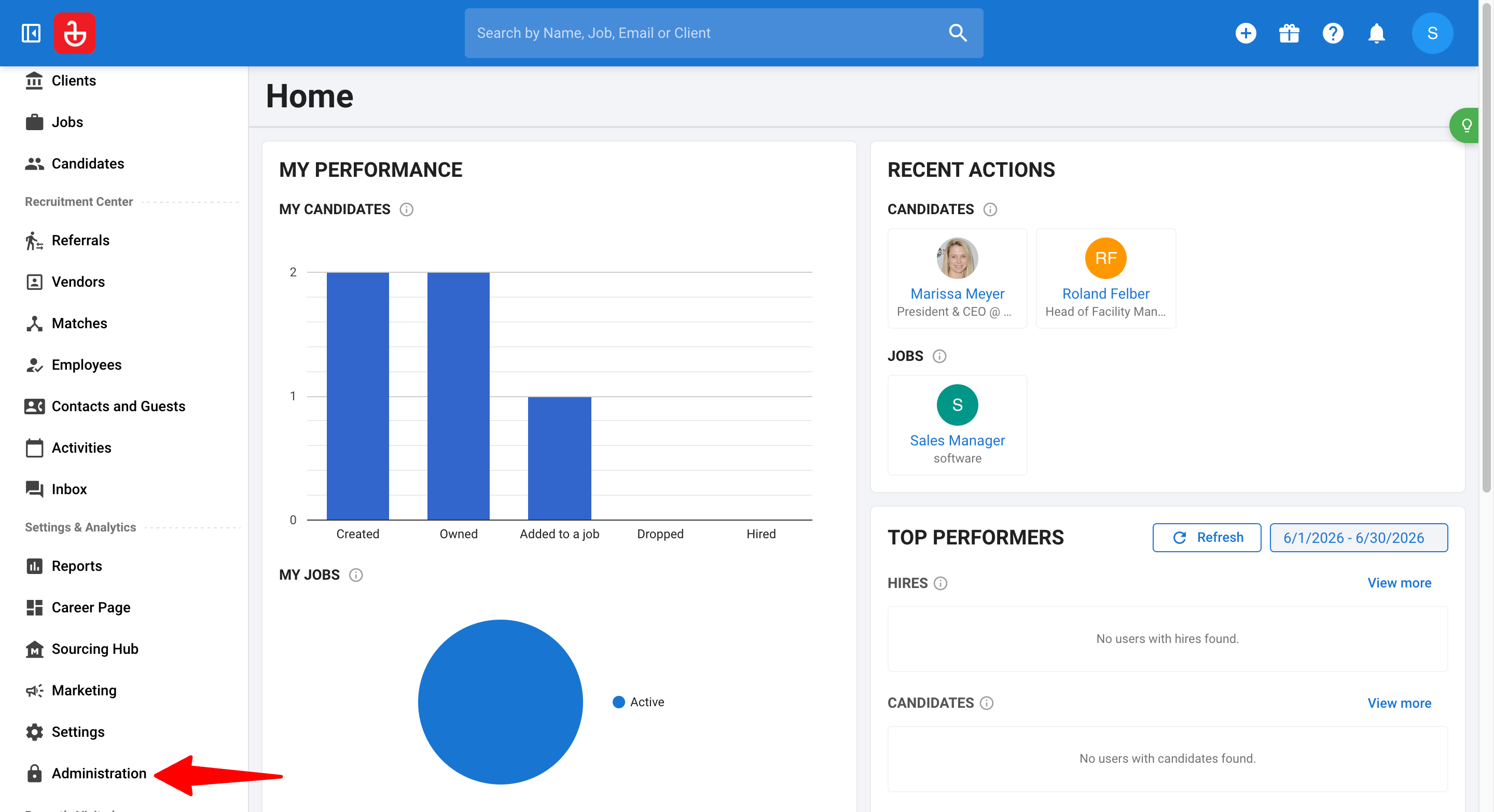
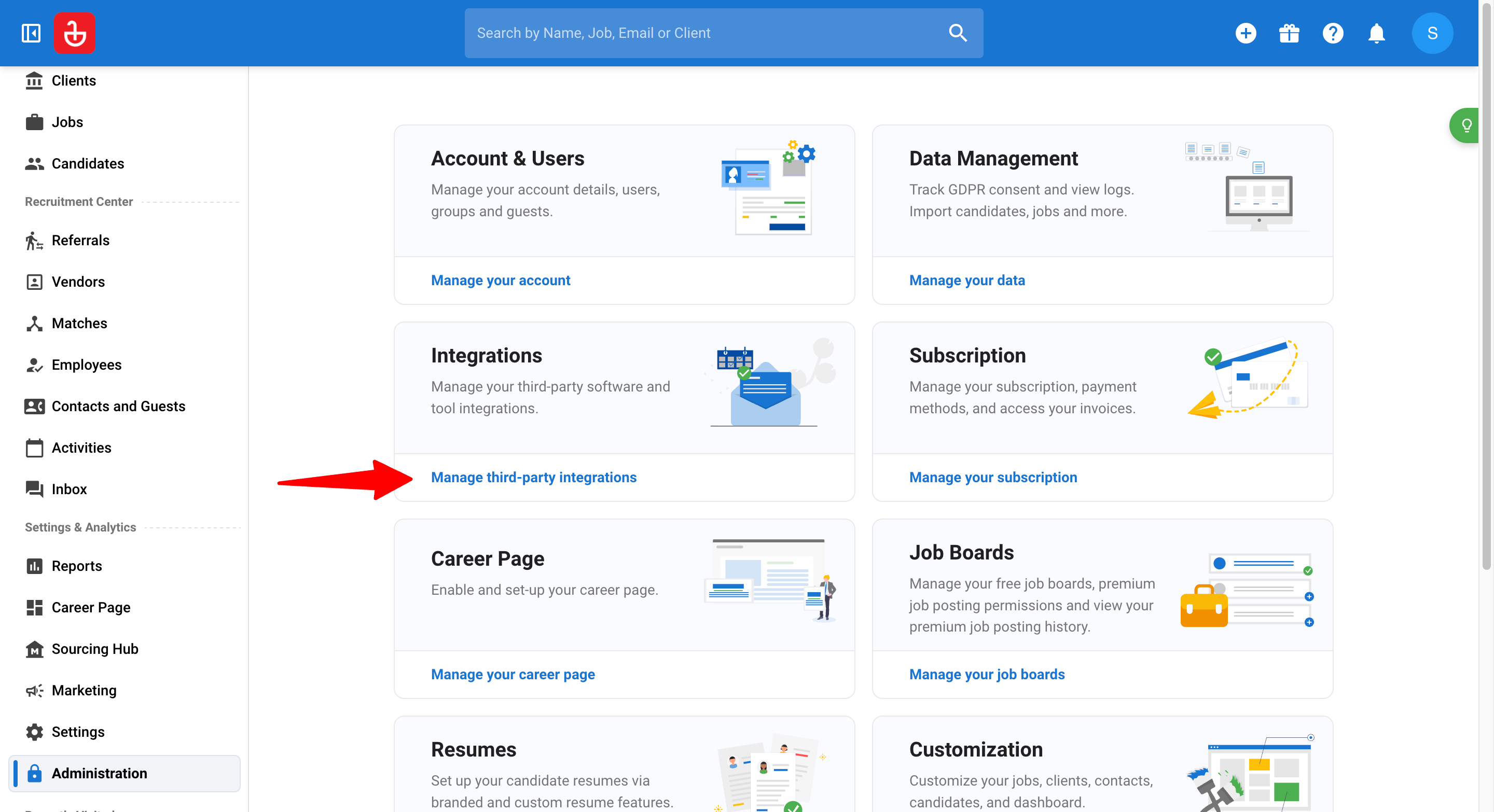
Head to the following page. Alternatively, click on "Administration" from your side menu and open the "Integrations" category.
-
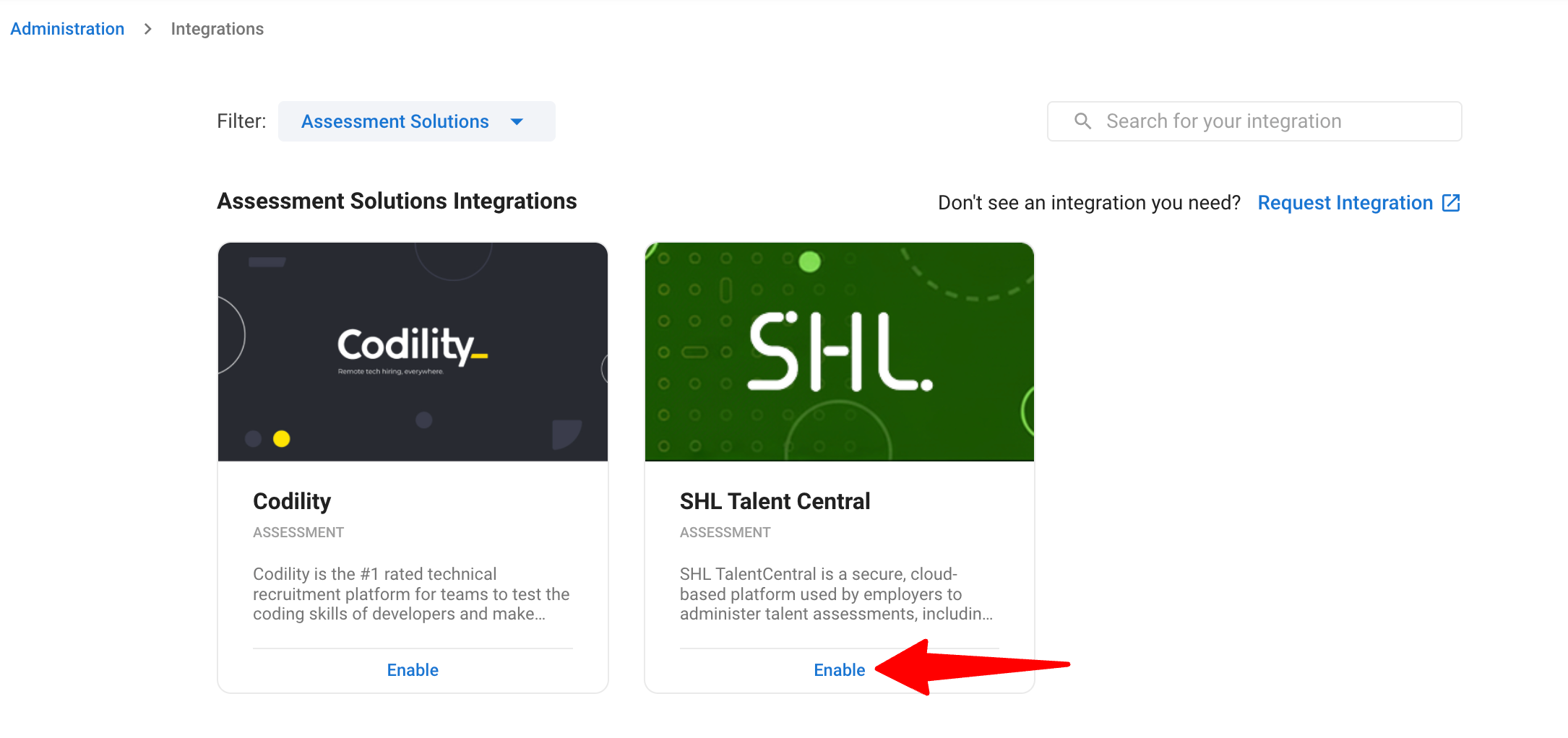
Click on "Enable" in the SHL Talent Central card.
The integration is listed under "Assessment Solutions".
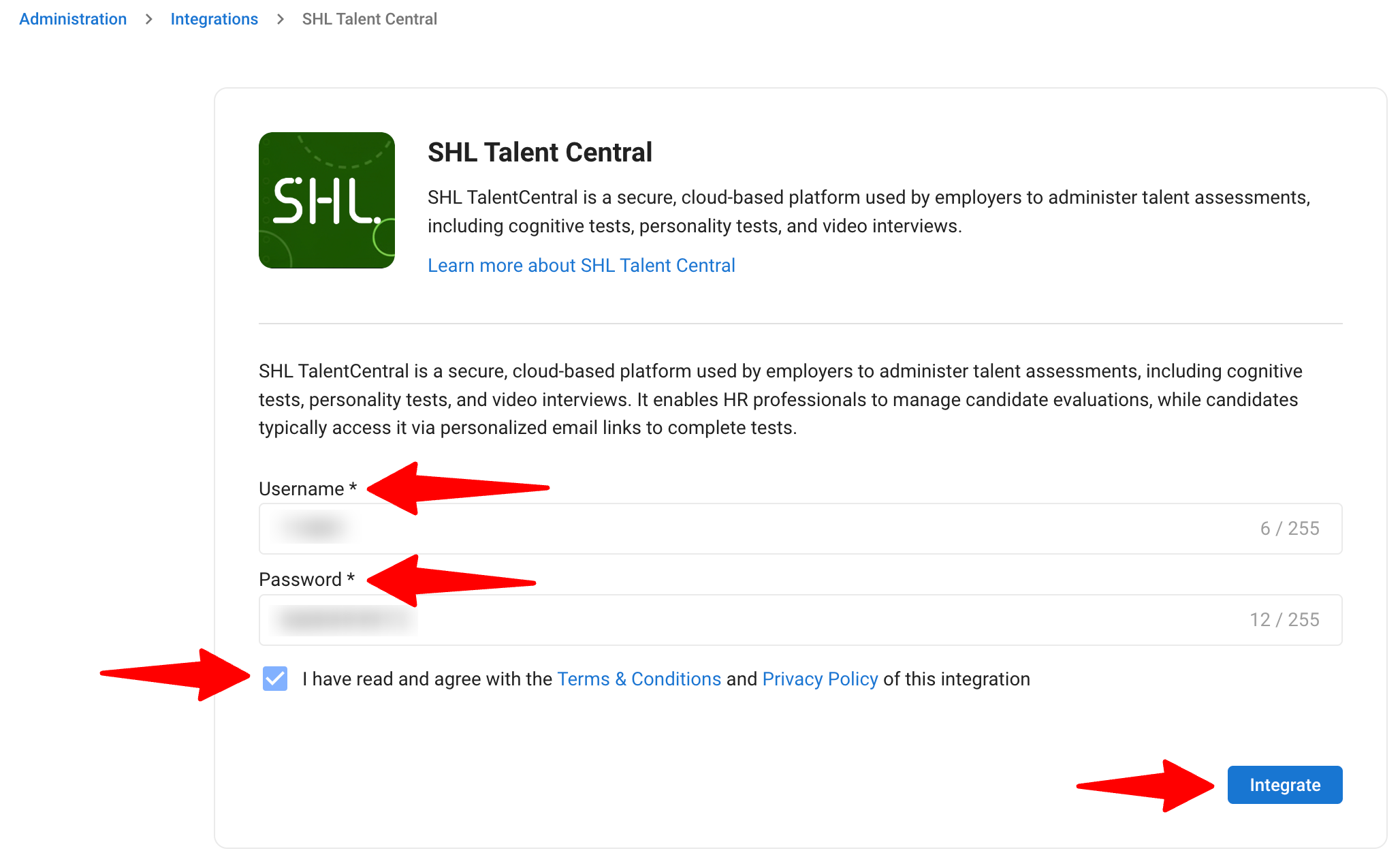
- Input your SHL Username and Password, agree to the provider's Terms & Conditions and Privacy Policy, then click "Integrate".
- Your SHL Username and Password are the credentials provided to you by SHL.
- If you do not have them, contact your SHL account representative.
- The credentials are set at the account level, so all users on your account will send assessments through the same SHL connection.
Sending SHL Assessments to Candidates
Assessments can be sent by users with any access role (admin, manager, consultant and recruiter). Learn more about user roles in this article.
-
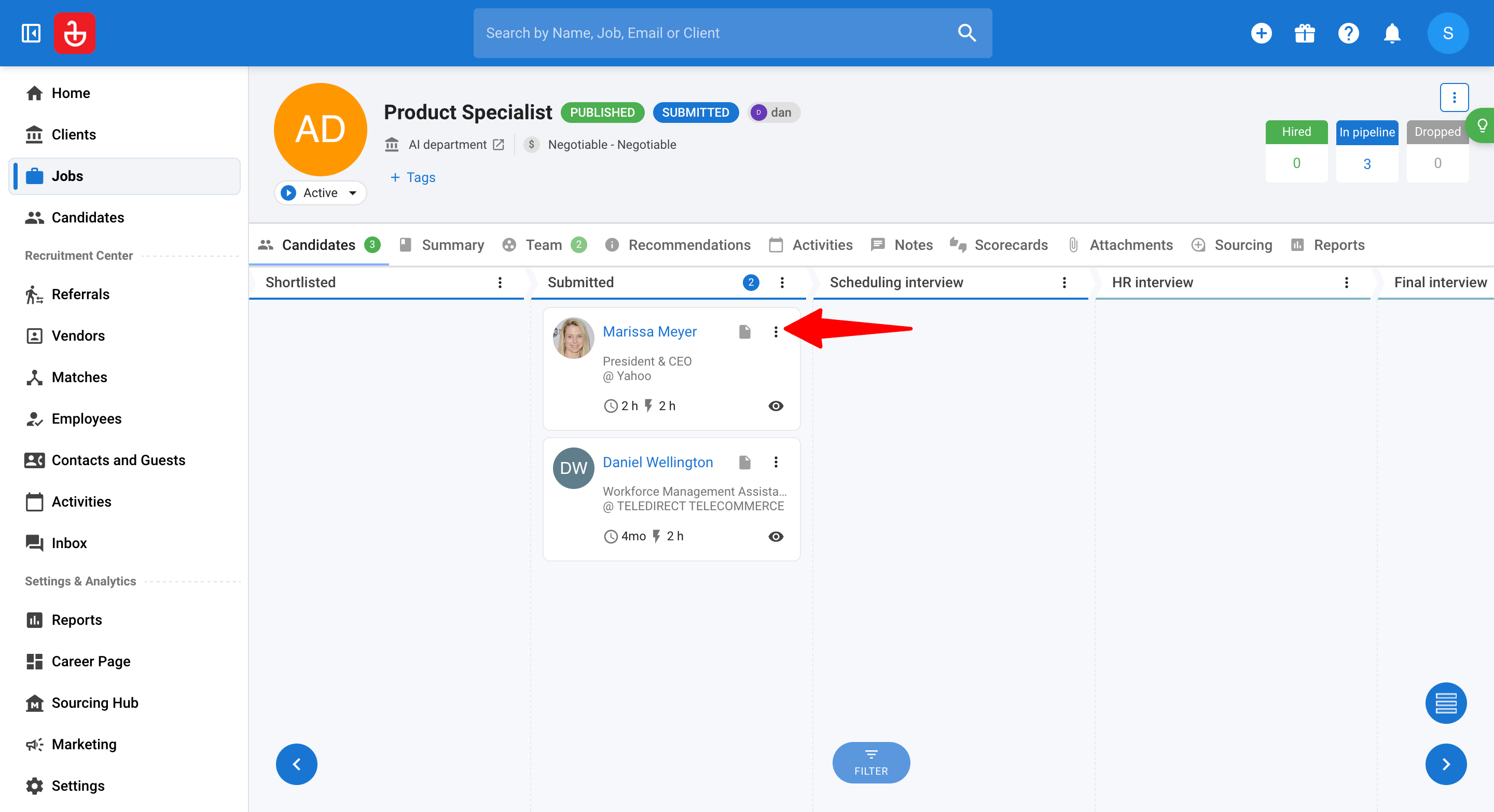
From any job pipeline, click on the "3-dots" next to the candidate you wish to send an assessment to.
-
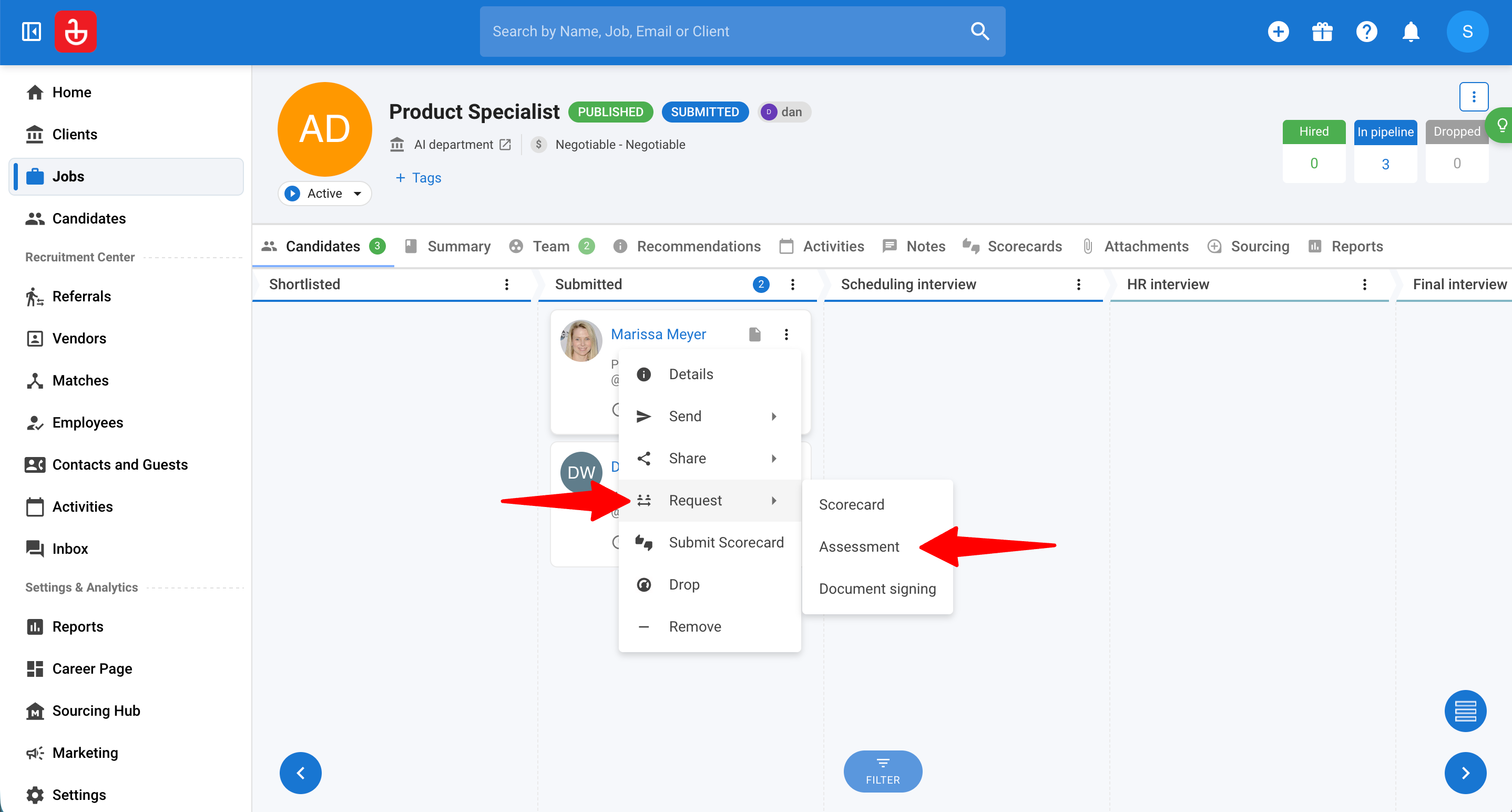
Click on "Request" then on "Assessment" from the dropdown menu.
-
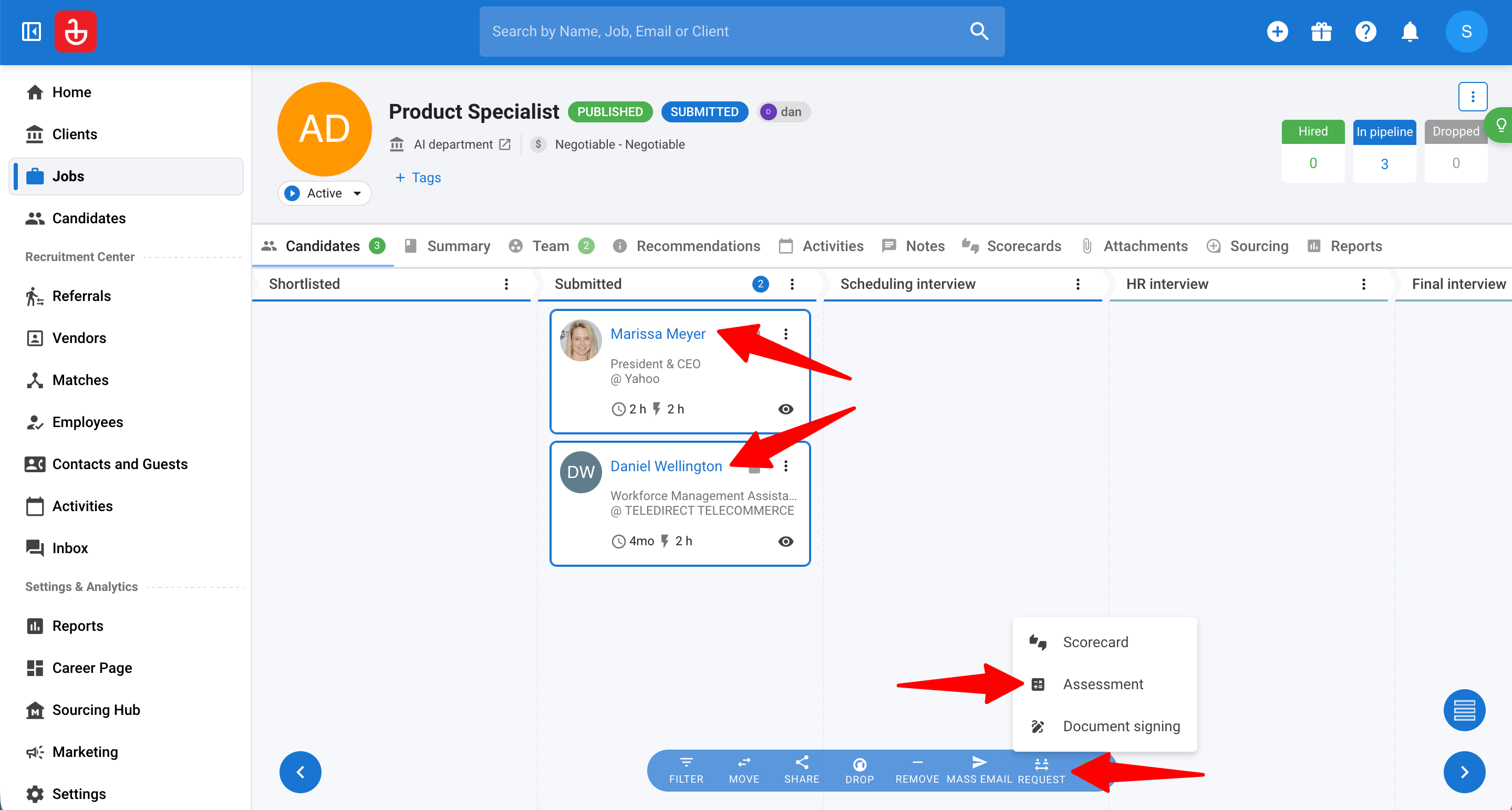
To send an assessment to multiple candidates at once, select the candidates then click on "Request" and "Assessment".
-
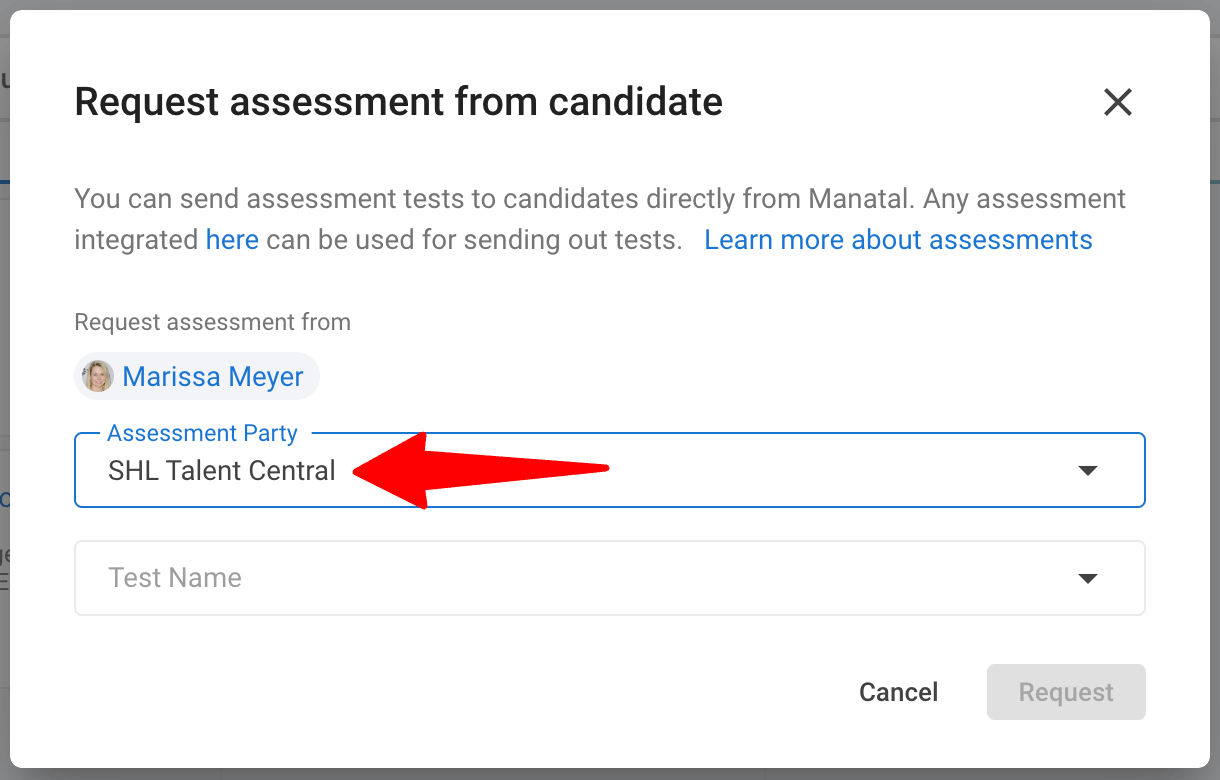
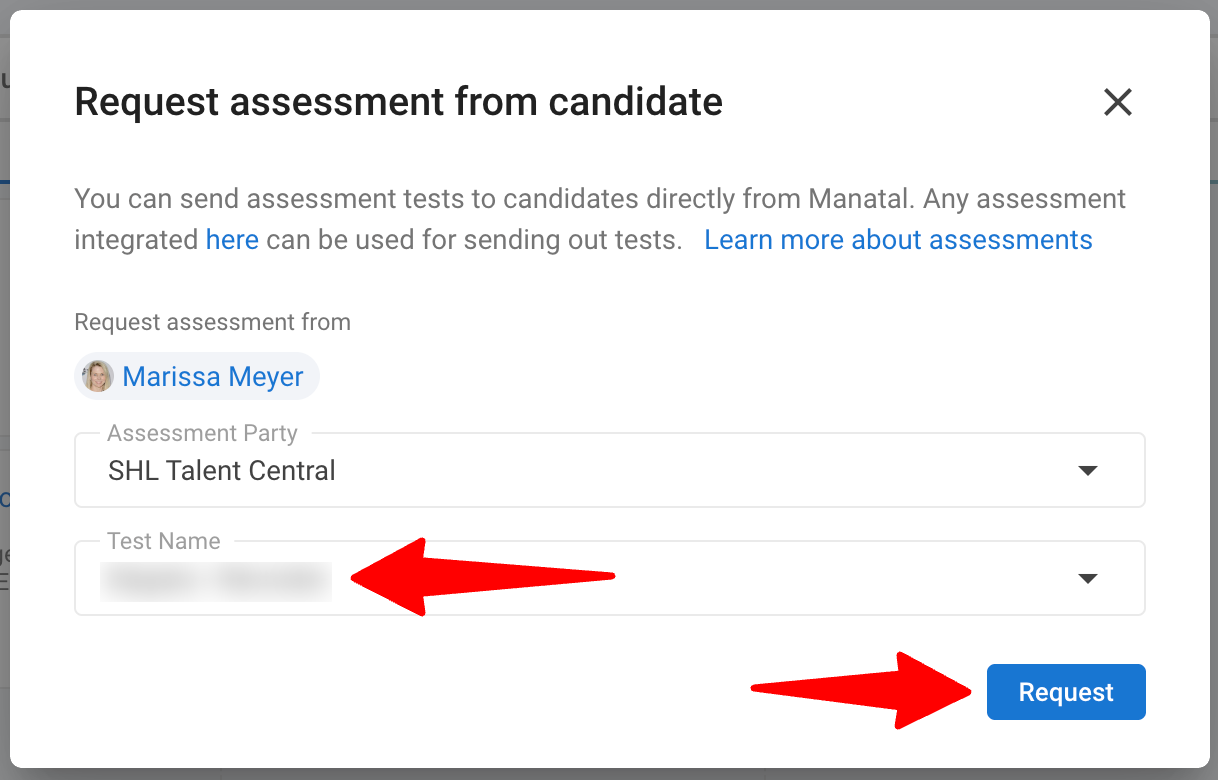
In the "Request assessment from a candidate" pop-up, select "SHL Talent Central" from the "Assessment Party" dropdown.
-
Select the "Test Name" to be sent, then click "Request".
Available assessments depend on your SHL account settings. New assessments can be created directly from your SHL account.
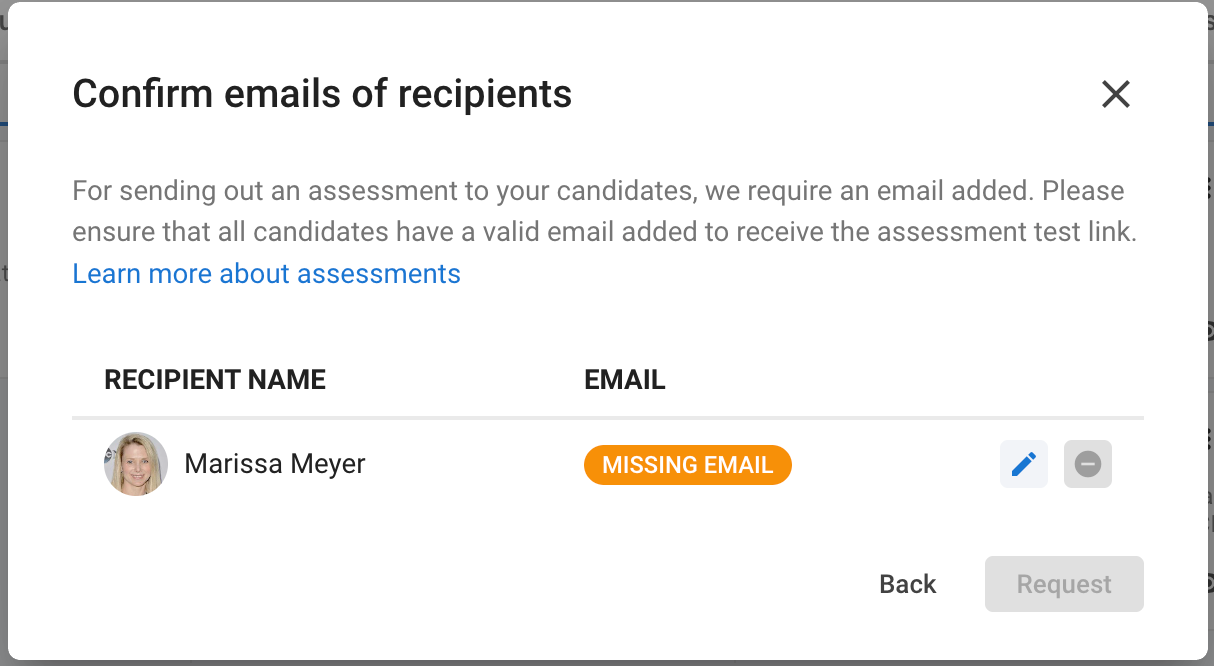
- SHL requires a first name, last name, and email address for each candidate.
- If a candidate is missing an email, Manatal will prompt you to add the missing information before the assessment can be sent.
- SHL will email the assessment link directly to the candidate's email address. A confirmation message will appear once the request has been sent successfully.
View Candidate Responses in Manatal
-
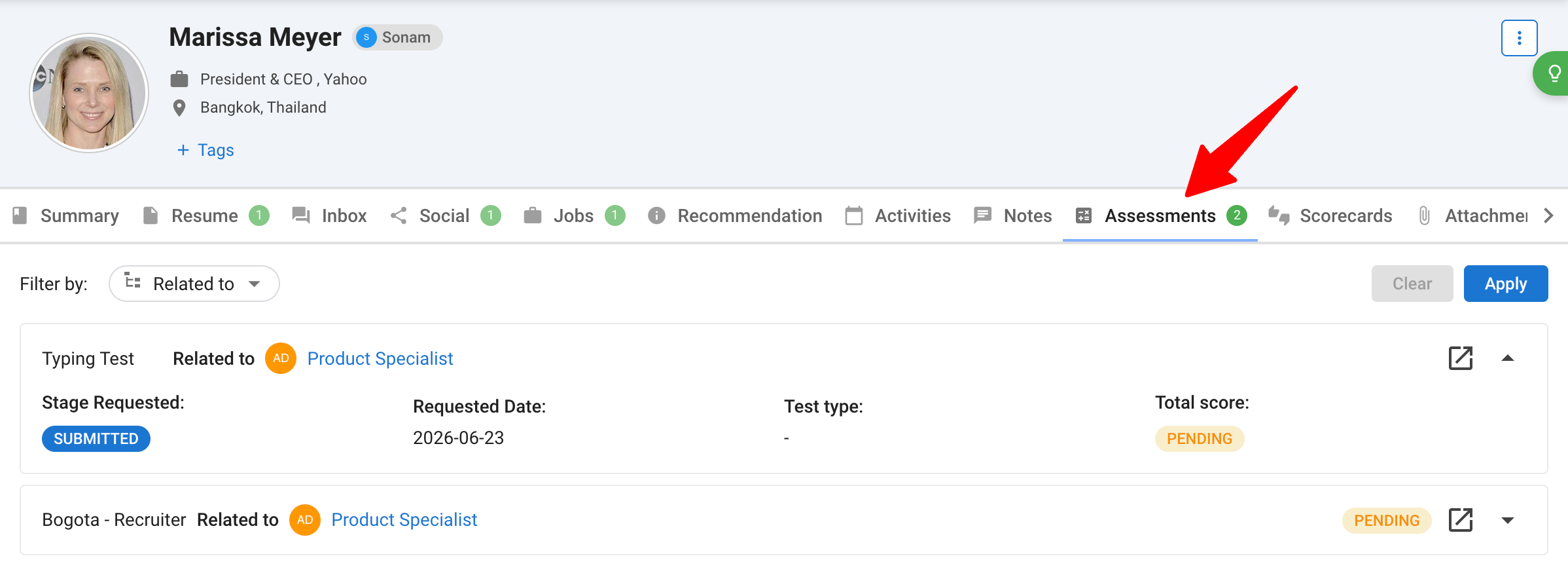
In order to view the status and the results of the assessment, head to the "Assessments" tab in the candidate's profile or the "Assessments" tab of the job.
-
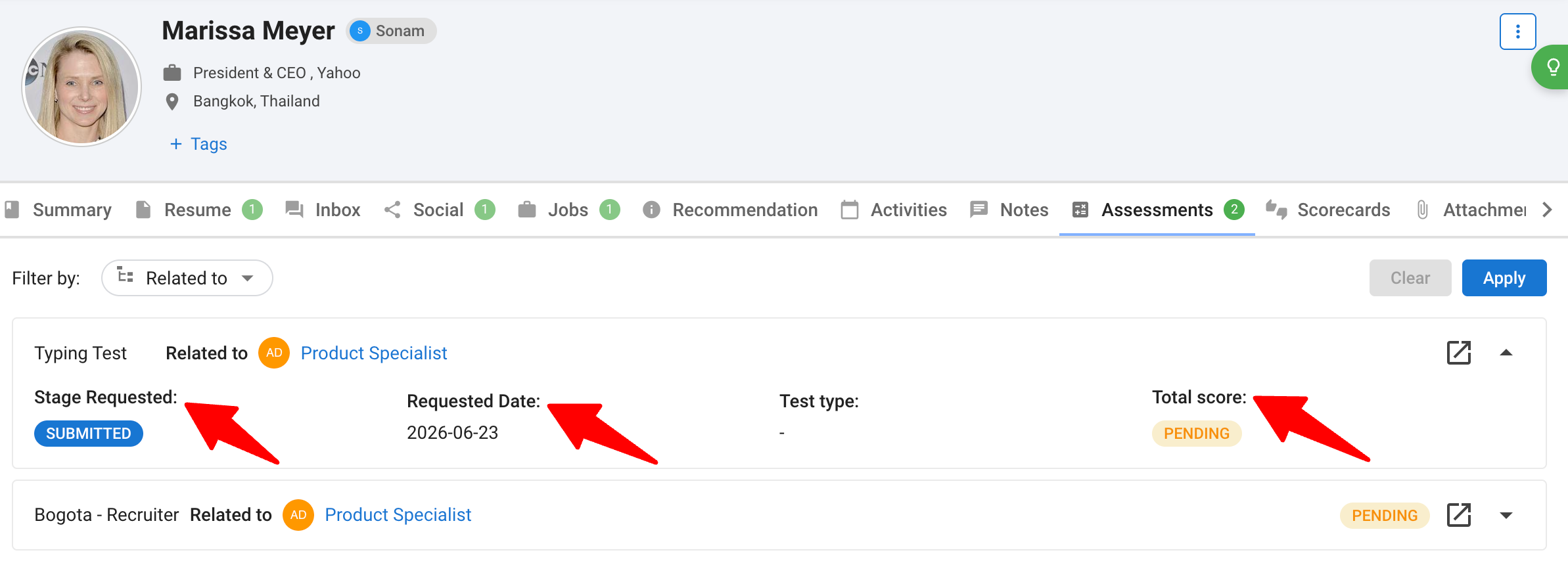
Each assessment entry displays the following details:
- Stage Requested — the pipeline stage the candidate was in when the assessment was requested.
- Requested Date — the date the assessment was sent.
- Total Score — the score once the candidate completes the assessment.
NoteWhile waiting, this shows as "Pending". If the request could not be sent, it shows as "Sending Failed".
-
The score will be displayed once the assessment has been completed by the candidate. To view the full report, click on the report icon to download it for review.

-
It is possible to access the assessment link sent to the candidate by clicking on the external link icon, which opens in a new tab.

FAQ
1. Does the SHL integration cost extra in Manatal?
- No. Like other assessment integrations, it is available on all plans at no additional cost from Manatal. Assessment costs are governed by your separate agreement with SHL.
2. Can I send assessments to multiple candidates at once?
- Yes. Select multiple candidates from the Kanban or table view of a job, then click "Request" → "Assessment".
3. What does "Pending" or "Sending Failed" mean?
- "Pending" means the assessment was sent, but the candidate has not yet completed it. "Sending Failed" means the request could not be delivered to SHL, often due to missing candidate information. You can correct the candidate's details and request the assessment again.
4. Can I use multiple Assessment integrations at the same time?
- Yes. Multiple assessments can be enabled simultaneously. When requesting an assessment, you choose the provider from the "Request options" dropdown.