This can only be done by an Admin.
To modify your career page, please first activate the career page feature by following these instructions.
Email Automation
There are two ways to get to the Email Automation settings page, as we have both a legacy and an advanced career page. Choose the path that corresponds to your current career page version:
For the Legacy Career Page
Manage the email address from which automated correspondence will be sent.
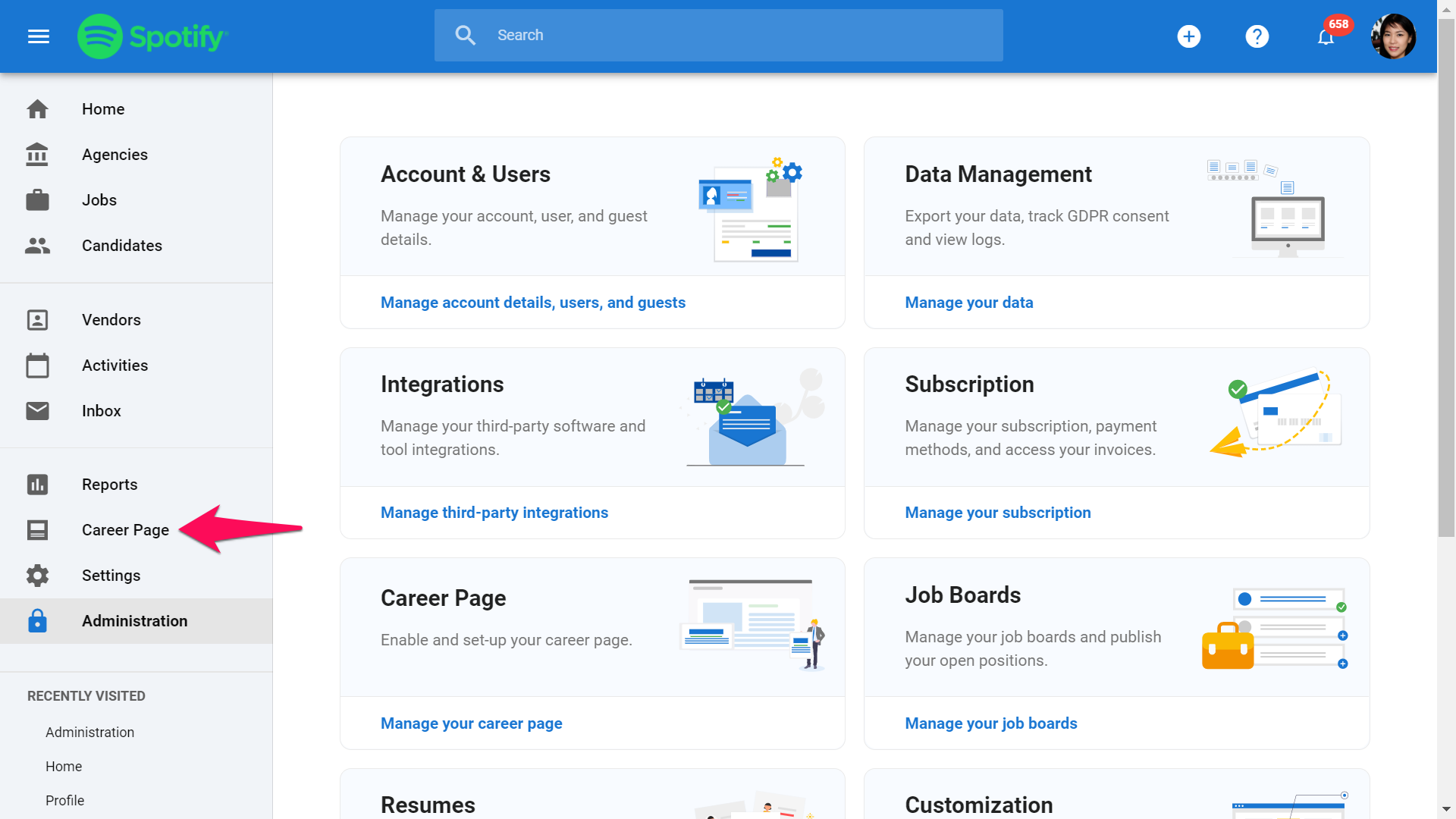
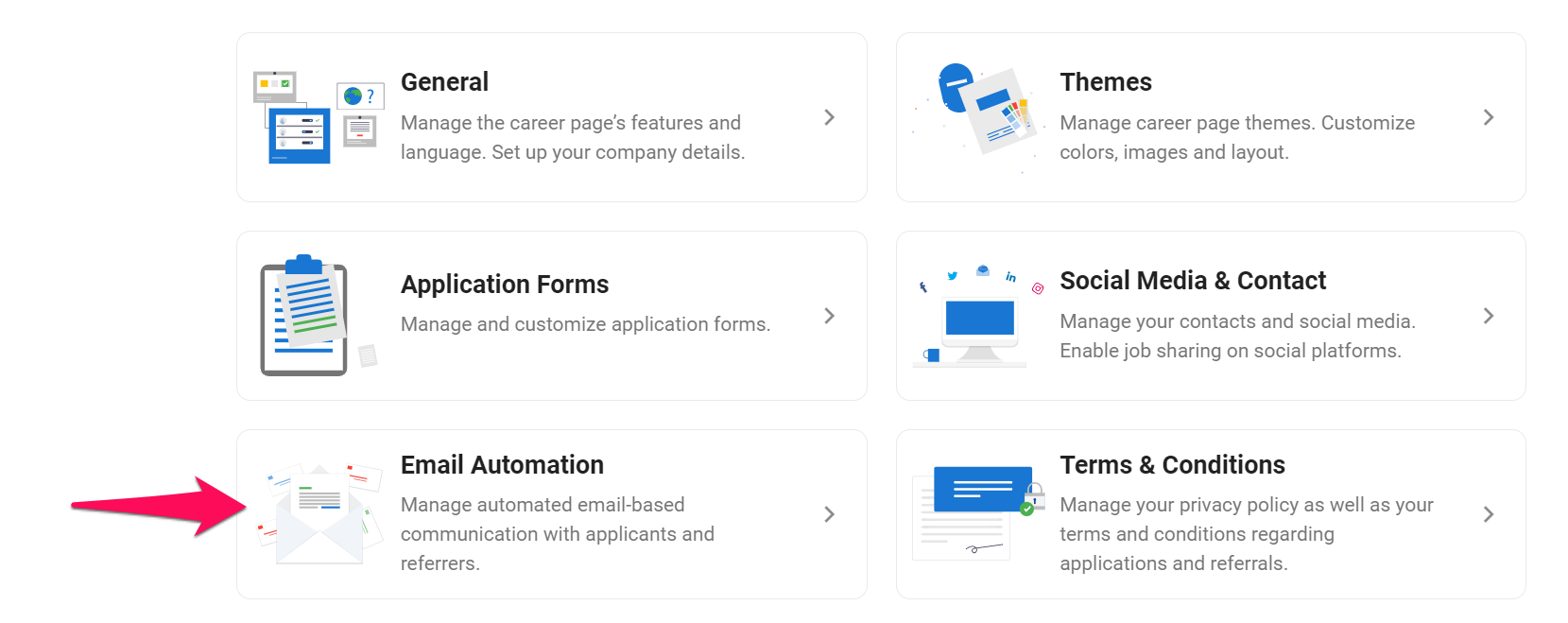
- Head to the following page. Alternatively, click on "Career Page" from your side menu and then open the "Email Automation" category then click on "Email Address".
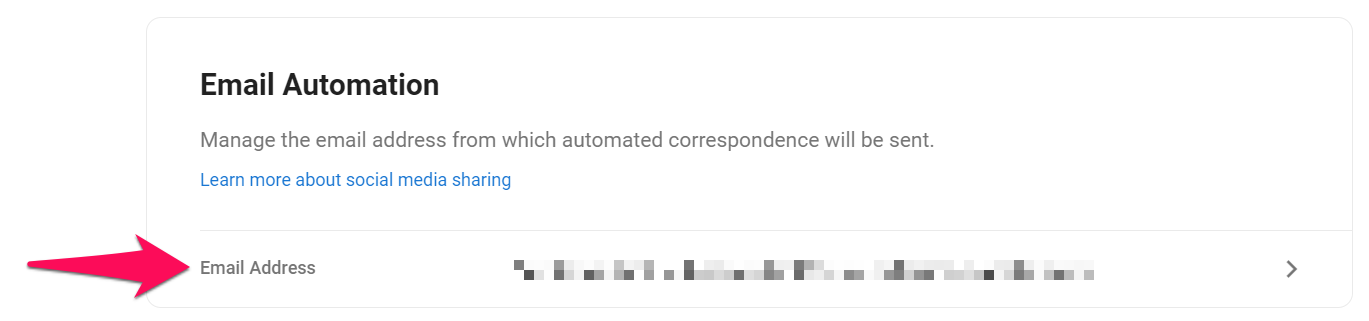
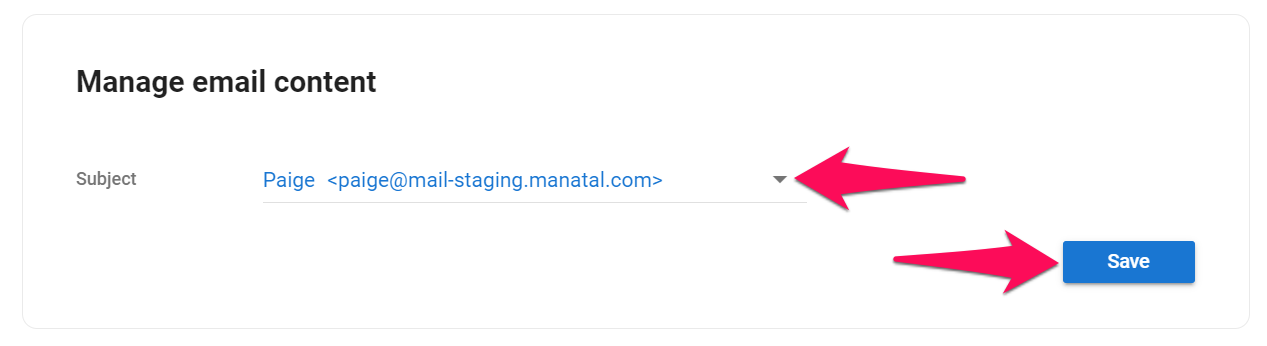
- From here, simply select your preferred email address from the dropdown menu, and then click "Save" to confirm your choice.
- This dropdown list automatically combines two types of emails: the default
mail.manatal.comaddress for each user, plus any G Suite/Gmail or Outlook accounts integrated by your team.
For the Advanced Career Page
Manage the email address from which automated correspondence will be sent.
-
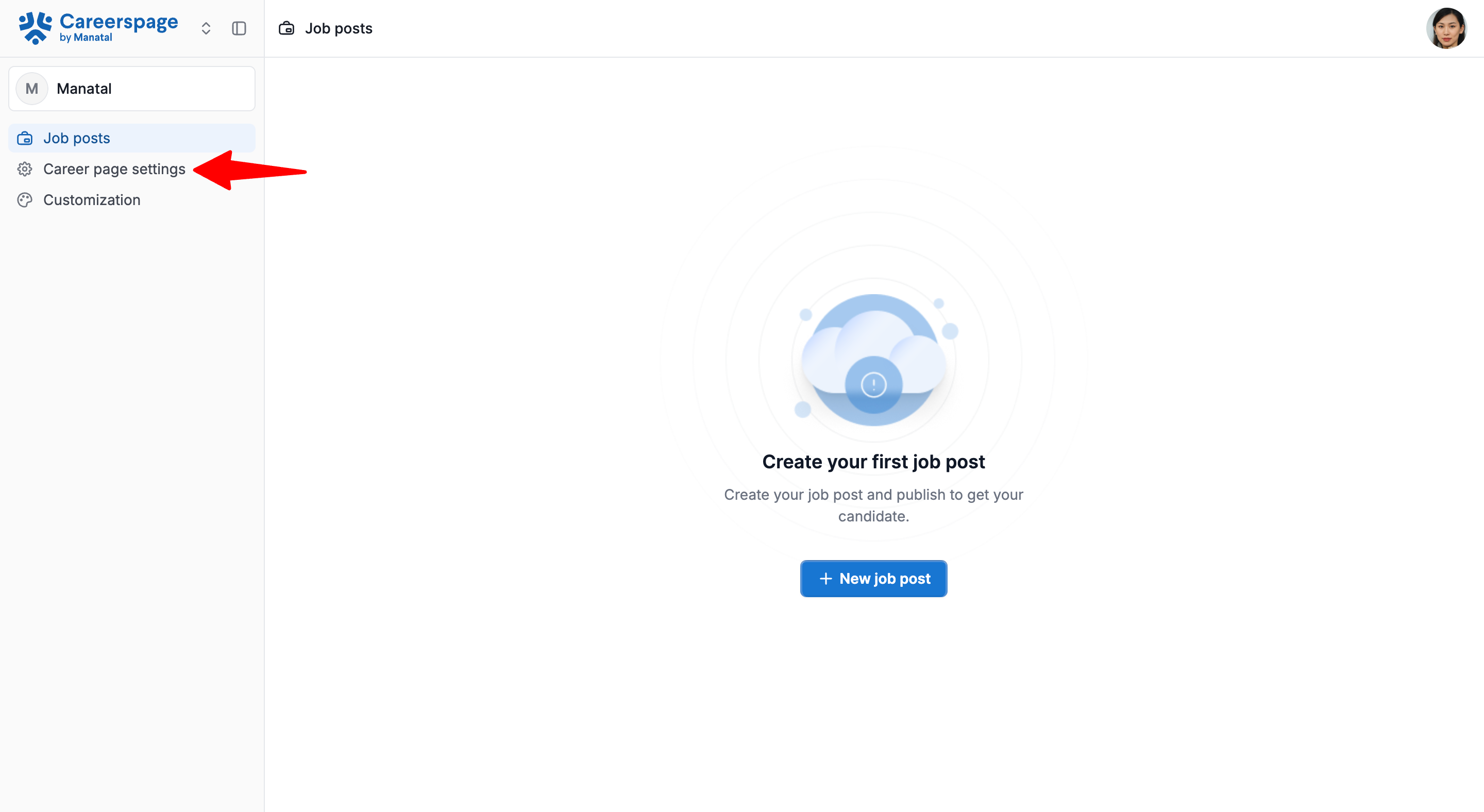
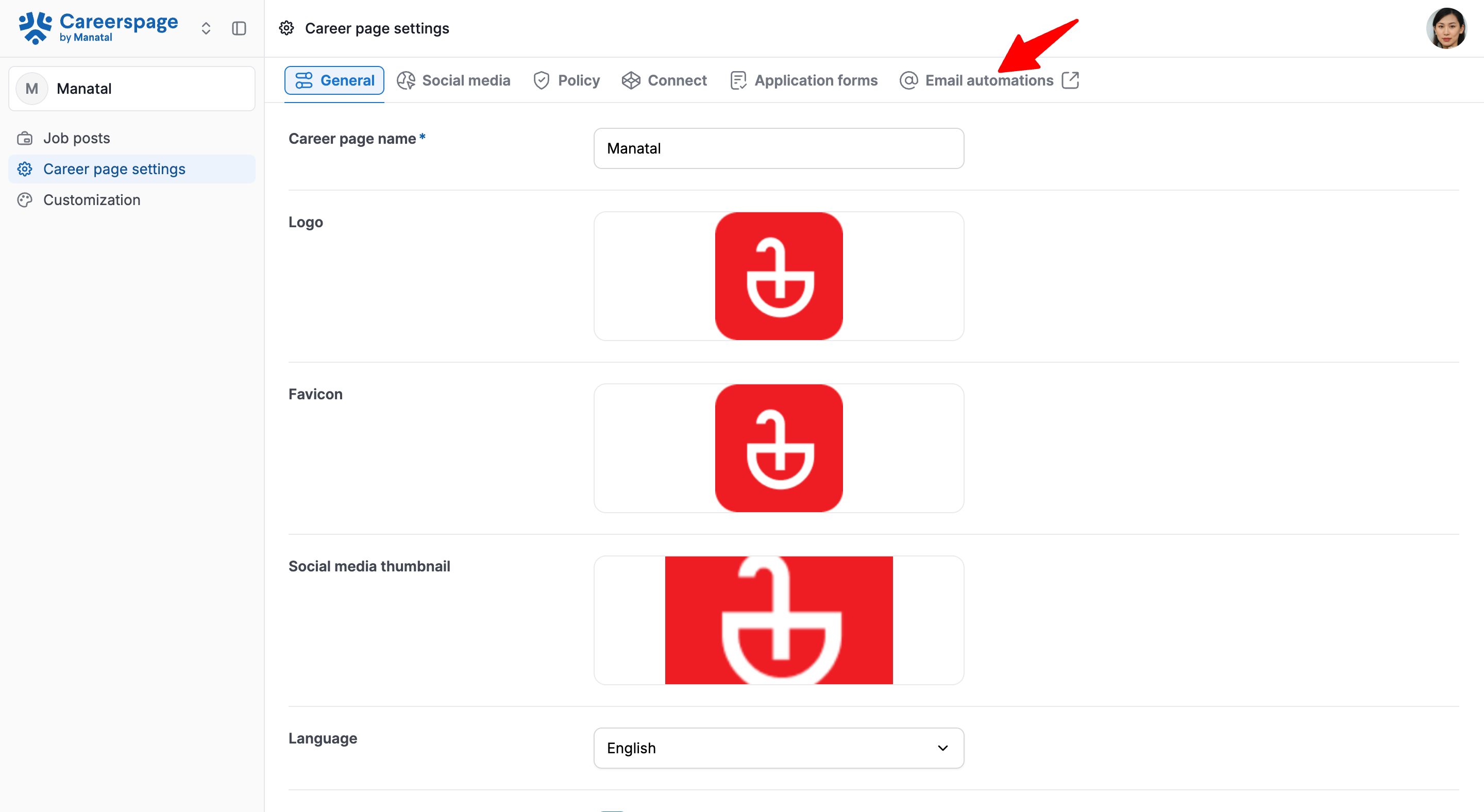
Click on "Career page settings" from your side menu and then open the "Email automations" tab.
-
You'll be redirected to this page where you can click on the "Email address" tab in the "Email Automation" category.
- From here, simply select your preferred email address from the dropdown menu, and then click "Save" to confirm your choice.
- This dropdown list automatically combines two types of emails: the default
mail.manatal.comaddress for each user, plus any G Suite/Gmail or Outlook accounts integrated by your team.
Post-Application Emails: Candidates
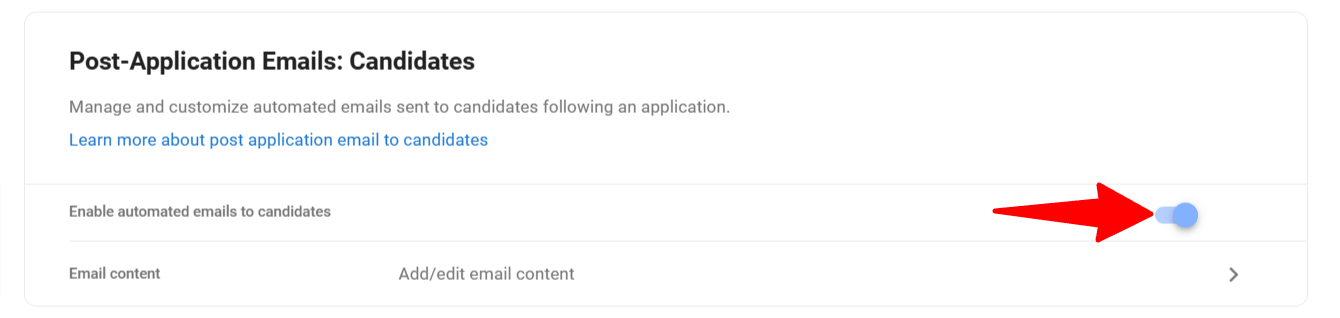
Manage and customize automated emails sent to candidates following an application.
Enable Post-Application Emails
- Click on "Career page settings" from your side menu and then open the "Email automations" tab.
- You'll be redirected to this page where you can enable automated emails to candidates.
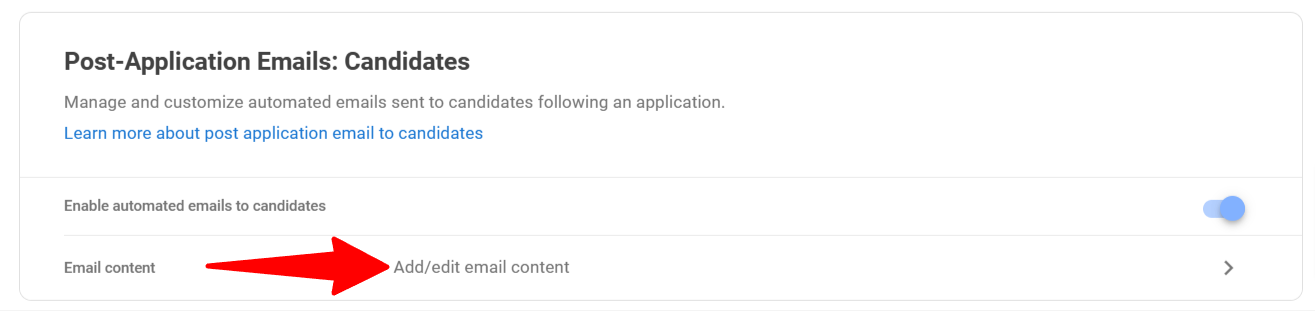
Customize Post-Application Emails
- Click on "Career page settings" from your side menu and then open the "Email automations" tab.
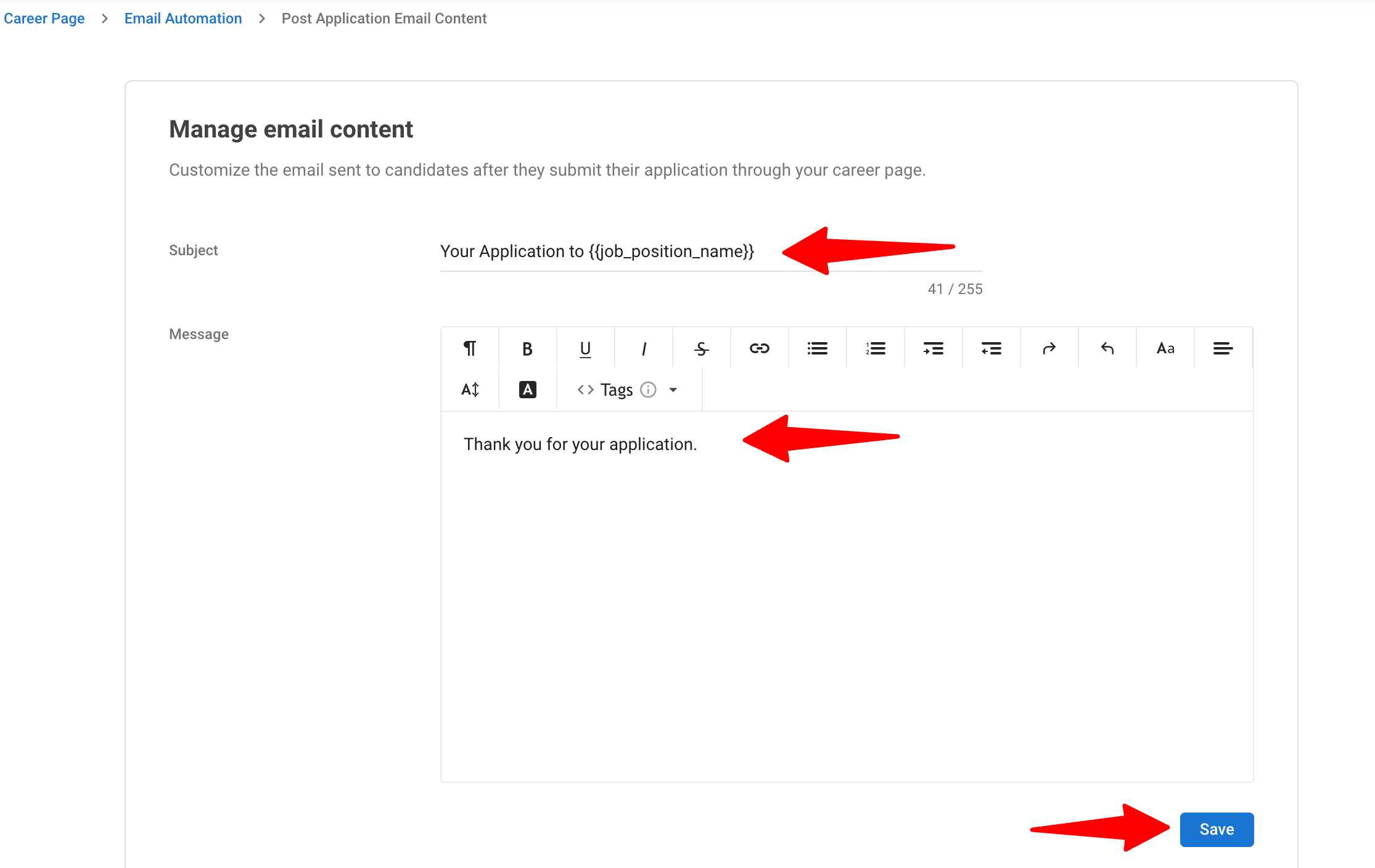
- You'll be redirected to this page then open the "Email Content" under the Post-Application Emails:Candidates.
- Edit email subject and content. Click "Save".
Post-Application Emails: Open Applications & Job Board Candidates
The post-application email settings configured above apply exclusively to candidates who apply directly through the openings listed on your career page. Candidates who apply via the Open Application form or external job boards (such as Indeed, ZipRecruiter, or LinkedIn) are not covered by these settings.
To send automated post-application emails to candidates from these external sources, you can utilize the Workflow Automation feature.
Automation is available only on Enterprise and Enterprise Plus plans.
How to set it up:
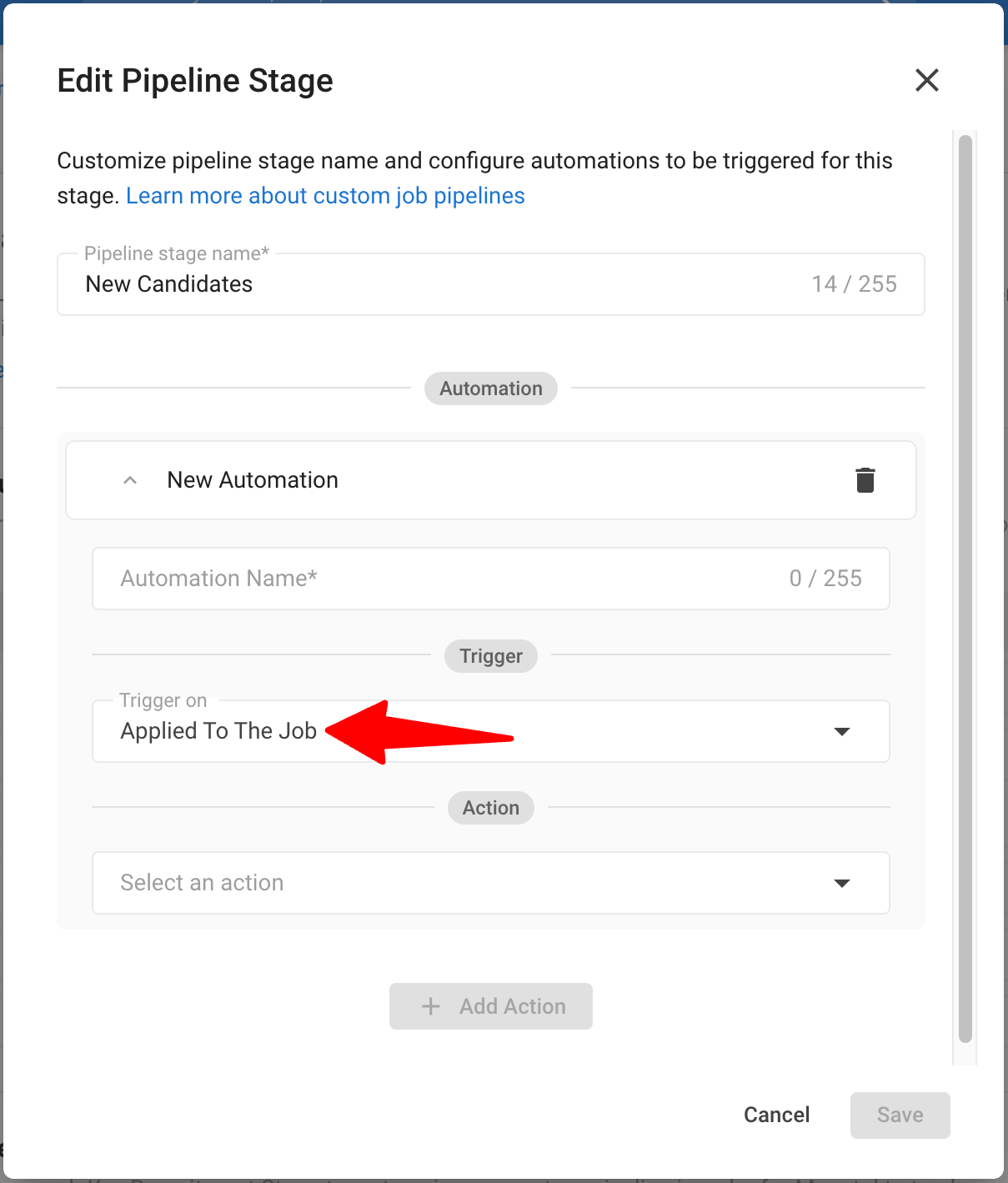
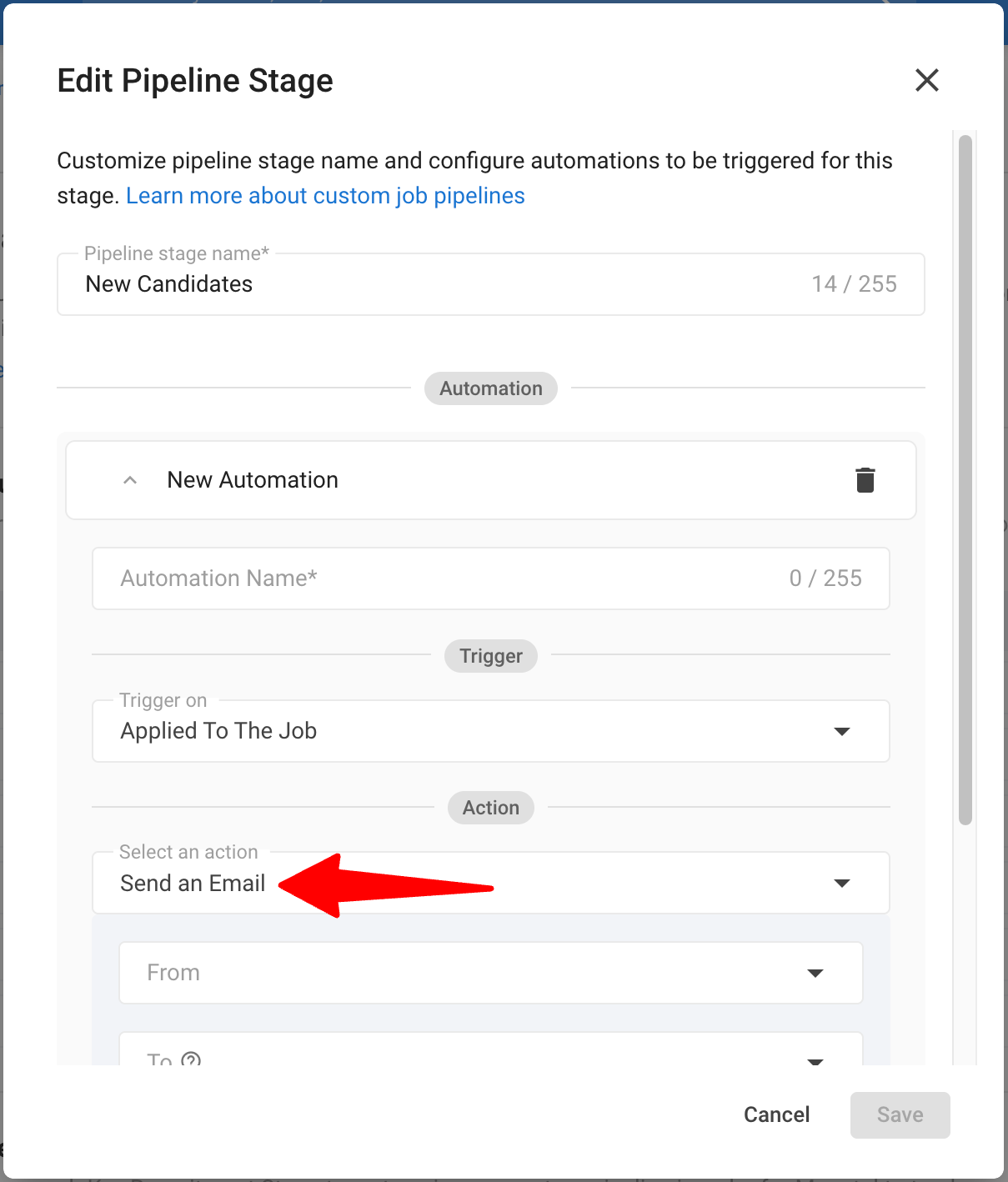
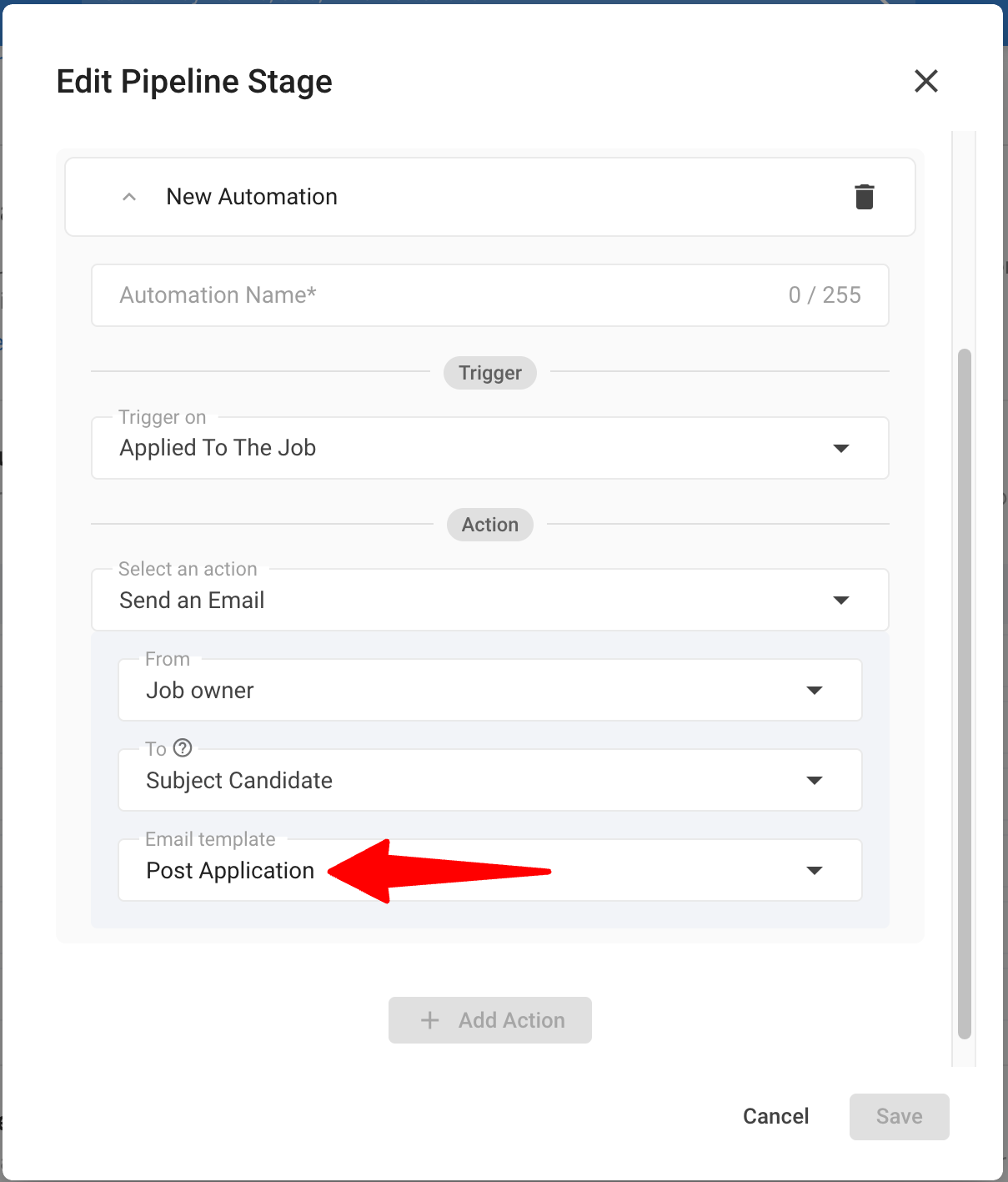
Create an automation for the first stage in your job pipeline by setting the trigger to "Applied To The Job" and the action to "Send Email" using your chosen email template. Learn more in this guide.
- The "Applied to the Job" trigger will run for any candidate entering the first pipeline stage, including those from your career page. If you already have standard post-application emails active, career page applicants will receive two emails. To prevent this, you can:
Option A: Limit the automation to specific jobs that aren't published on your career page.
Option B: Disable the standard career page post-application email and use Workflow Automations for everyone.
Post-Referral Emails: Referrers
Manage and customize automated emails sent to referrers following a referral.
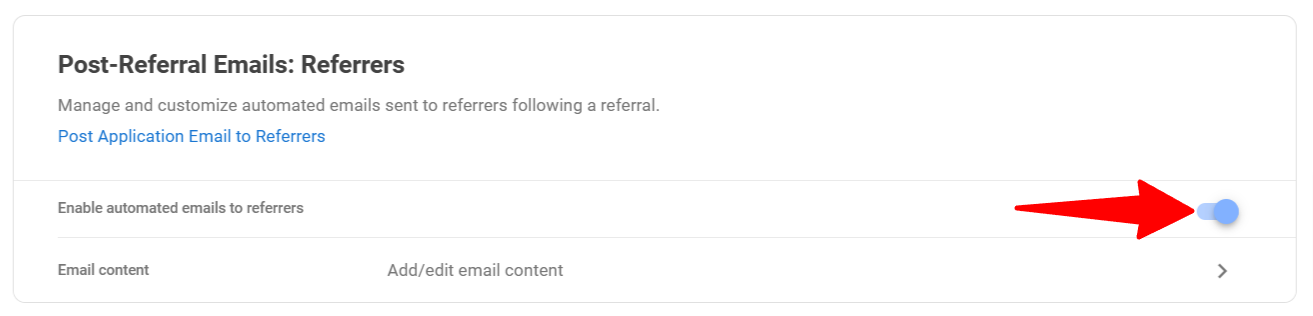
Enable Post-Referral Emails
- Click on "Career page settings" from your side menu and then open the "Email automations" tab.
- You'll be redirected to this page where you can enable automated emails to referrers.
Customize Post-Referral Emails
- Click on "Career page settings" from your side menu and then open the "Email automations" tab.
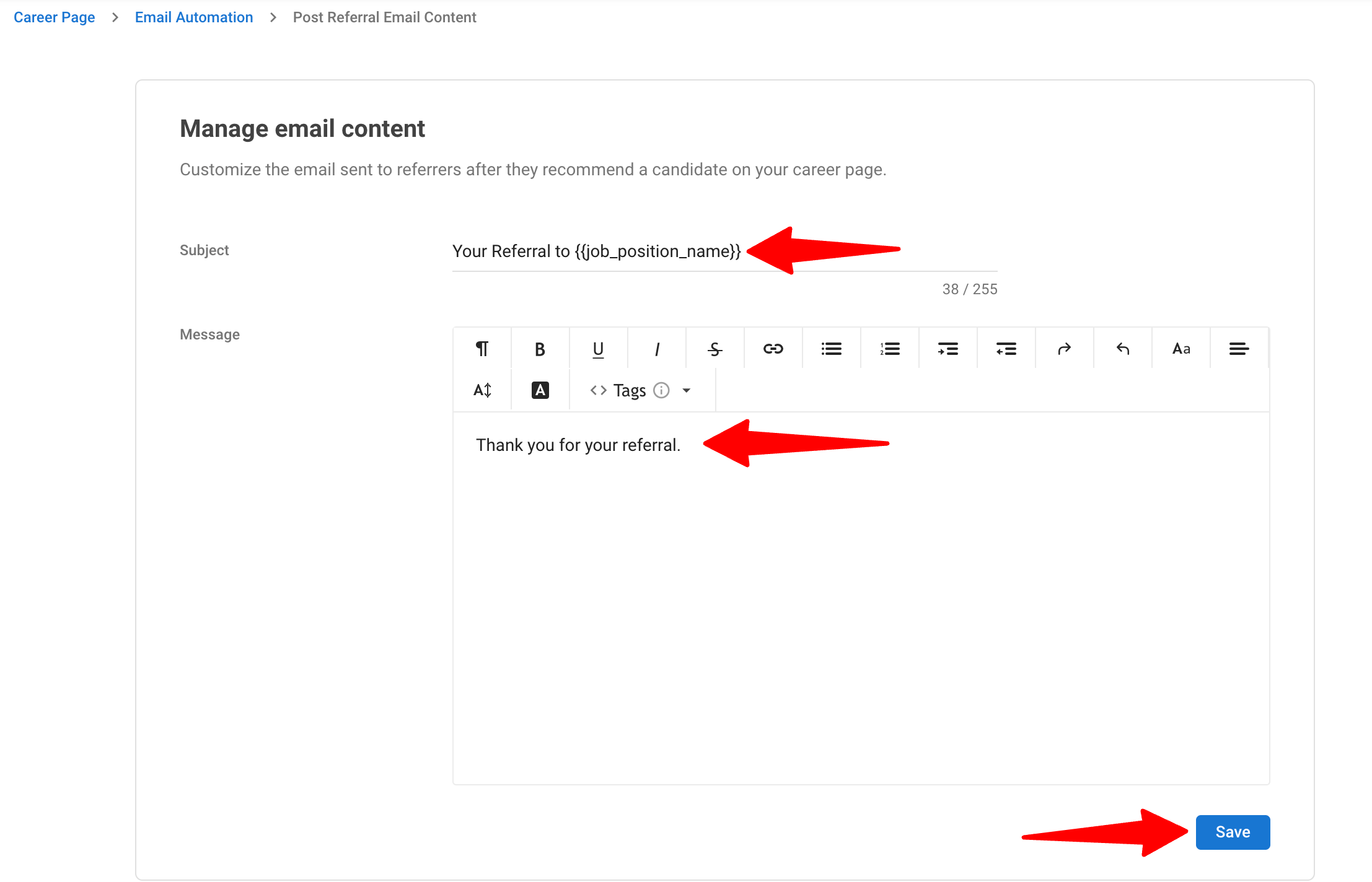
- You'll be redirected to this page then open the "Email Content" under the Post-Application Emails:Referrers. Edit email subject and content. Click "Save".
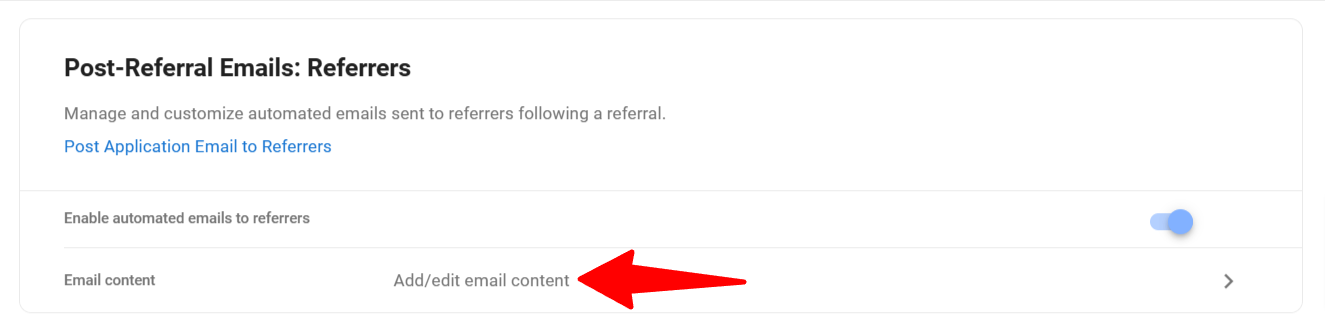
- Edit email subject and content. Click "Save".