What is the Invirtus Integration?
Invirtus enables teams to validate technical candidates’ skills directly within their hiring workflow. Invirtus automatically generates fully customized, AI-powered video interviews tailored to each role, lets you send them to candidates, track progress, and keeps the entire evaluation process centralized in Manatal. Once completed, you unlock a rich, data-driven Invirtus report inside each candidate profile covering both technical and soft skills to support faster, more confident, and better-informed hiring decisions. Learn more about Invirtus on their website.
Enable the Invirtus Integration
- This integration requires Manatal's Open API feature.
- This integration requires active accounts on both Invirtus and Manatal.
- This can only be done by an Admin.
Configure Job Stages
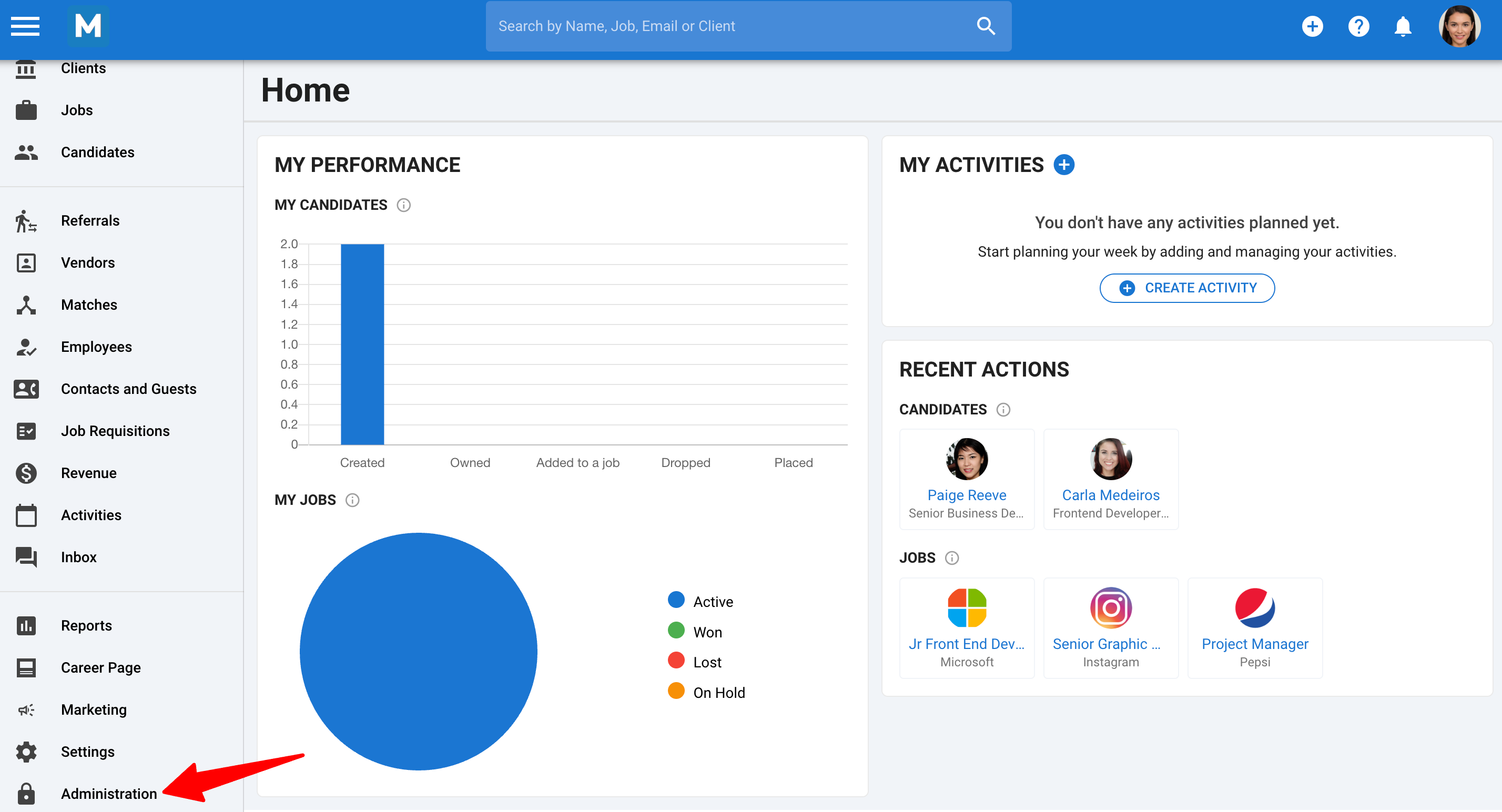
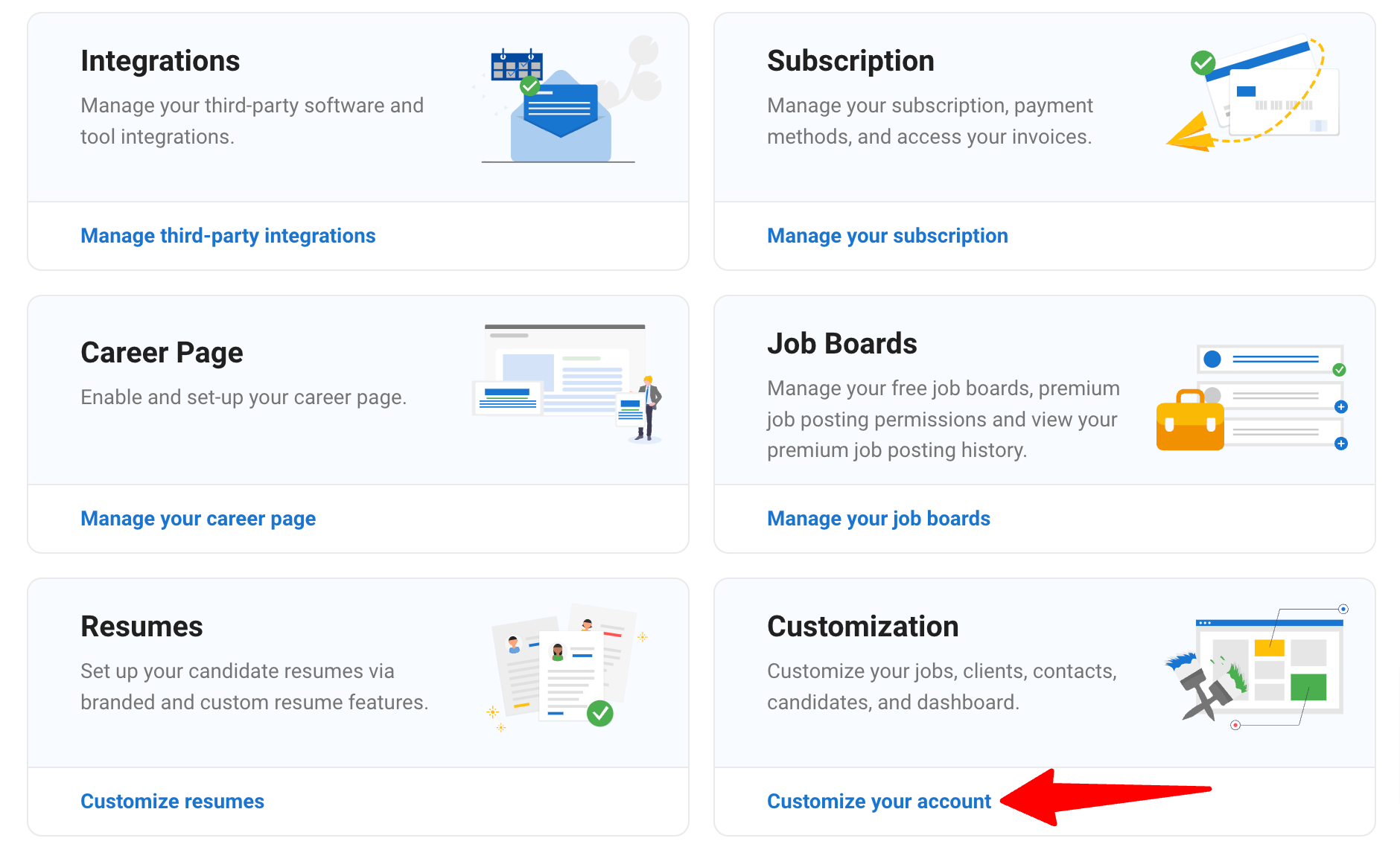
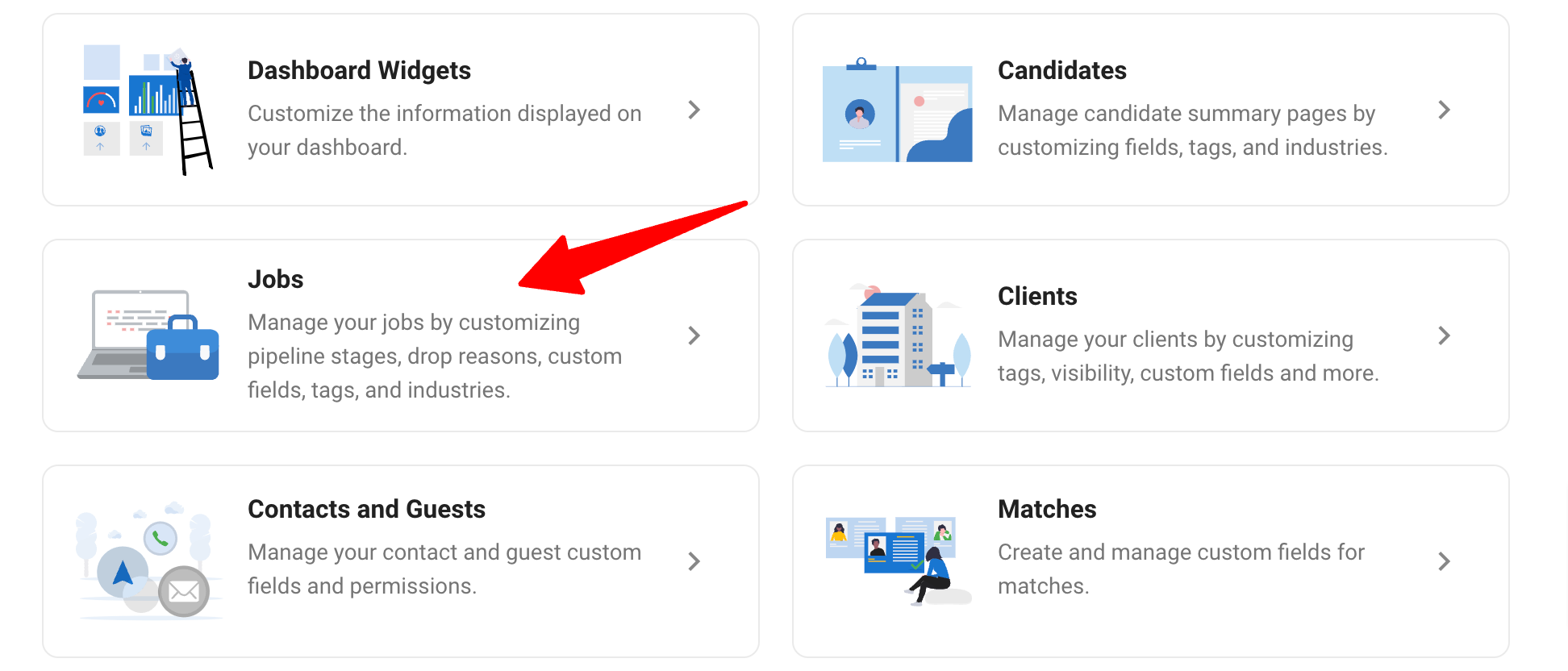
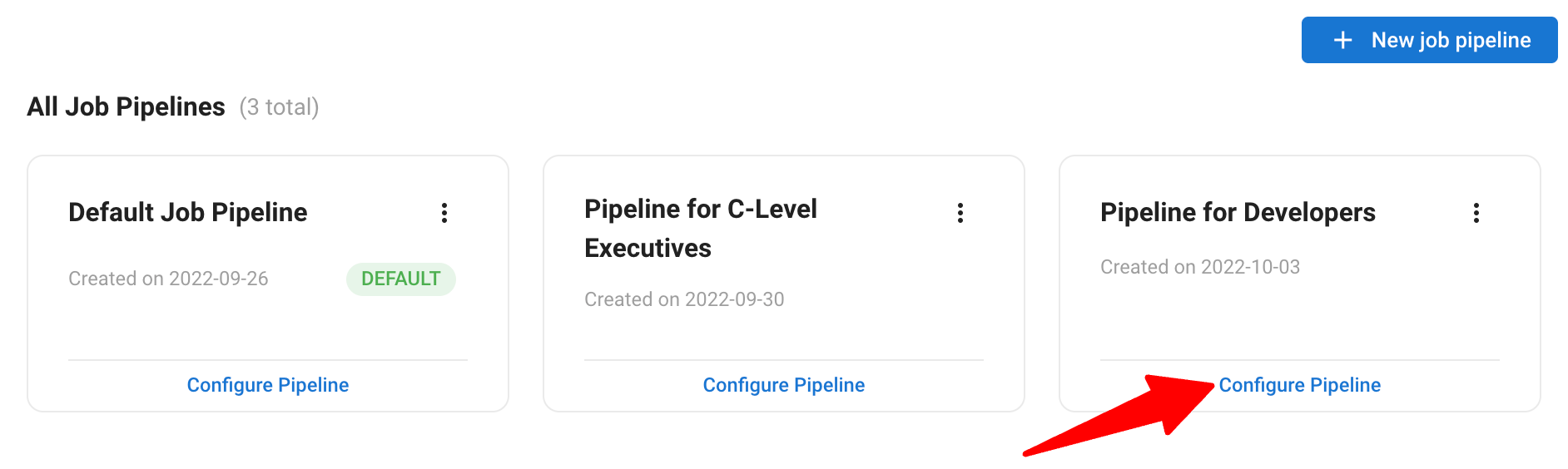
- Head to the following page. Alternatively, click on "Administration" from your side menu, open the "Customization" category and then the "Jobs" category then click on "Customize pipeline stages".
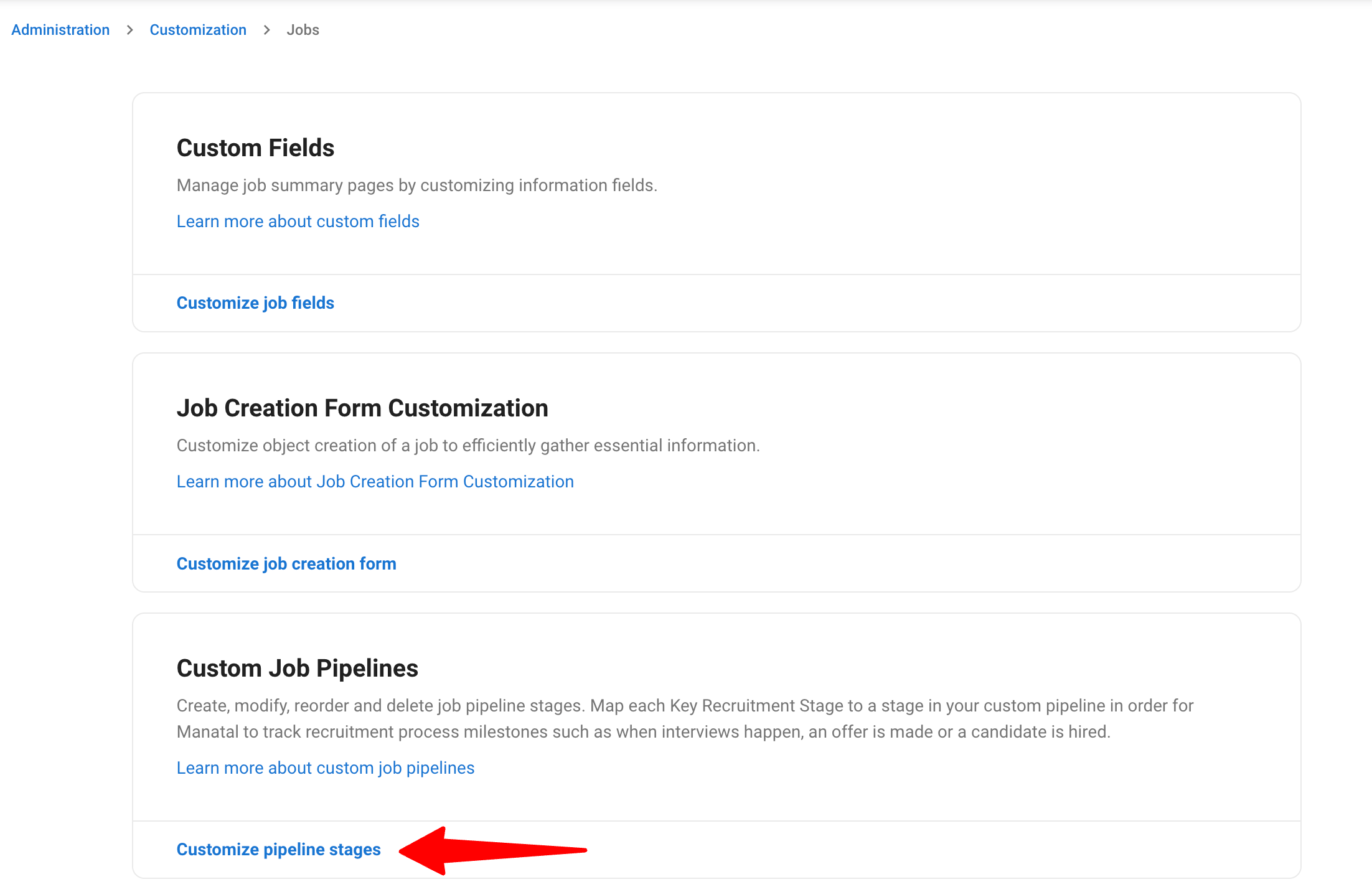
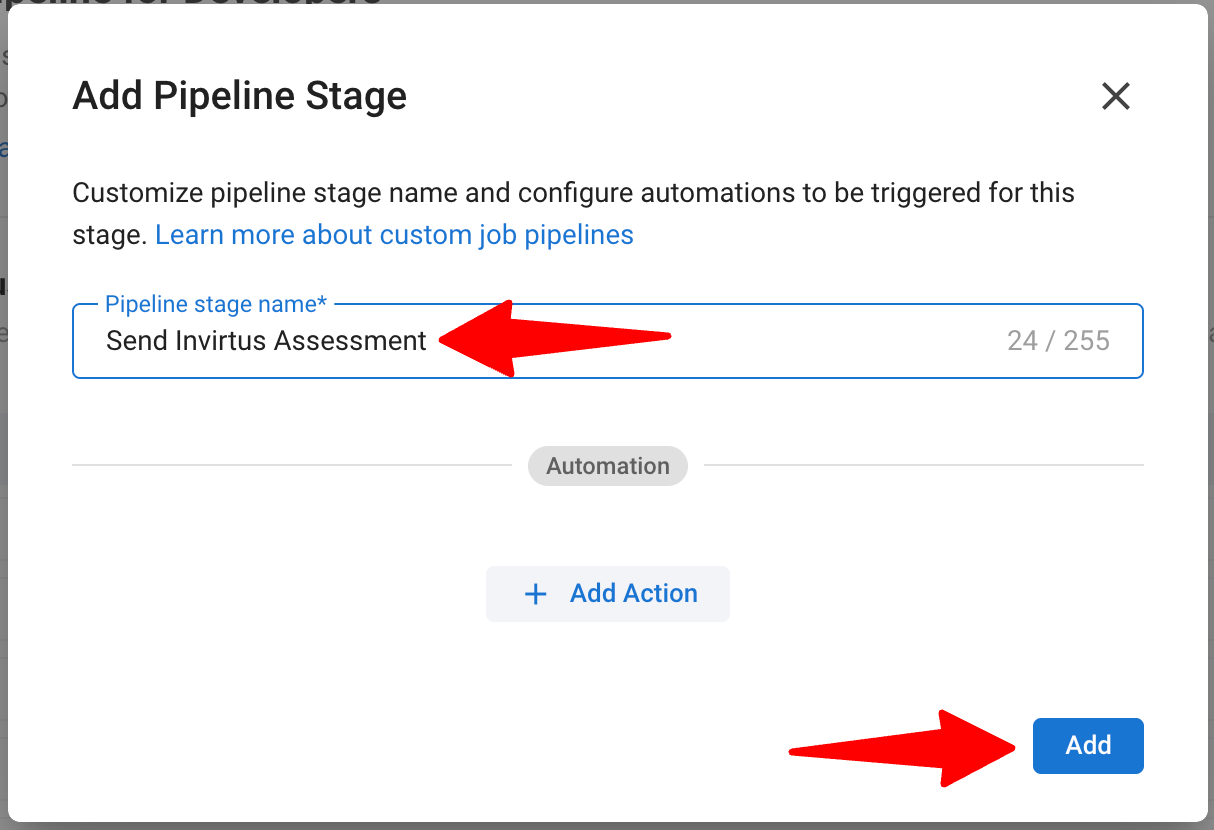
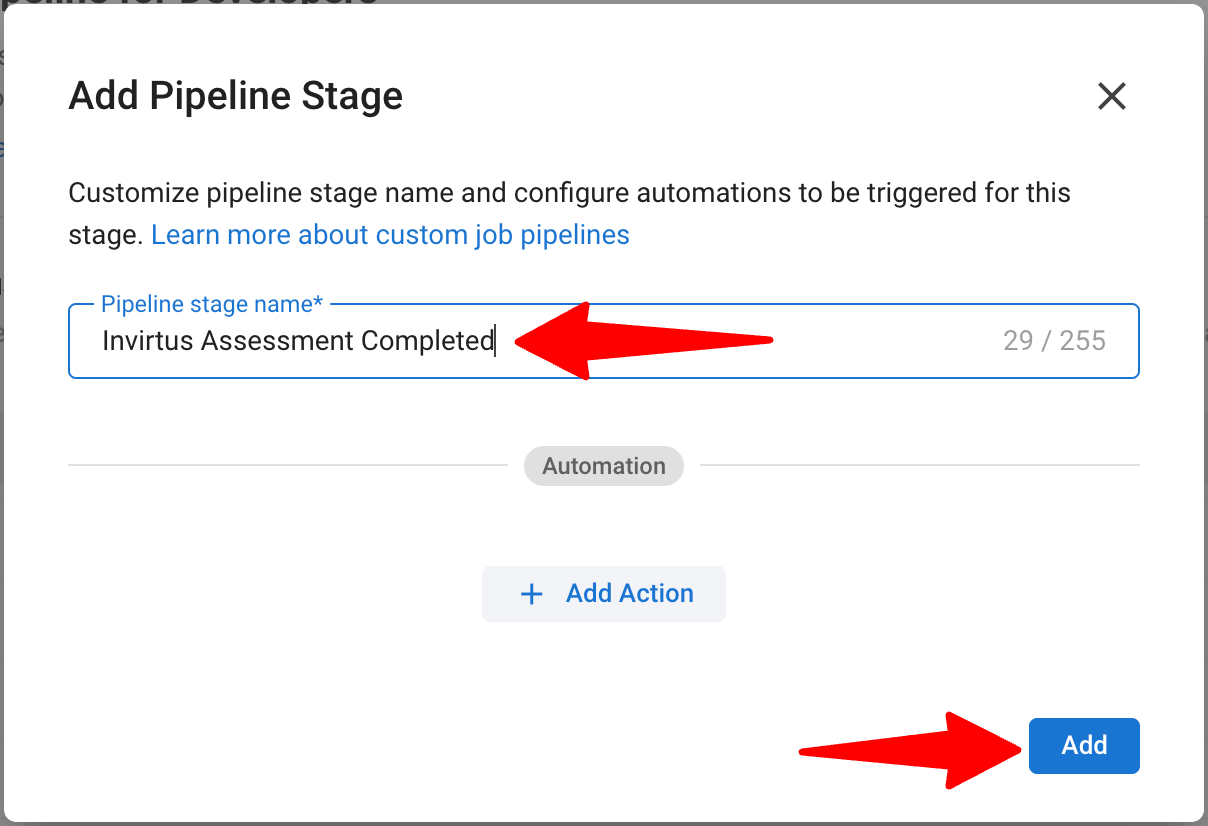
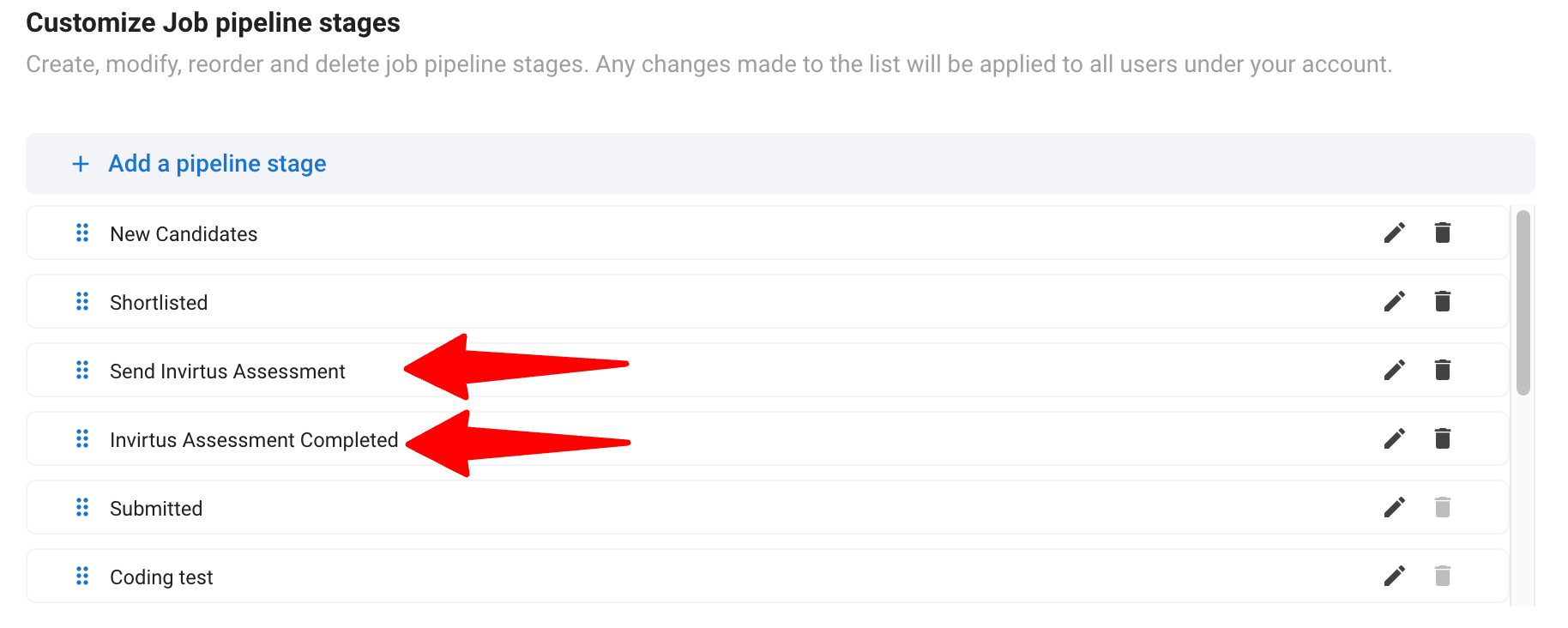
- Click on "Configure Pipeline" for the job pipeline you want to set up the integration for. Add the following two custom pipeline stages, and make sure the stage names match the ones given below:
- Send Invirtus Assessment: Stage at which candidates are sent the interview.
- Invirtus Assessment Completed: Stage indicating completion of the interview.
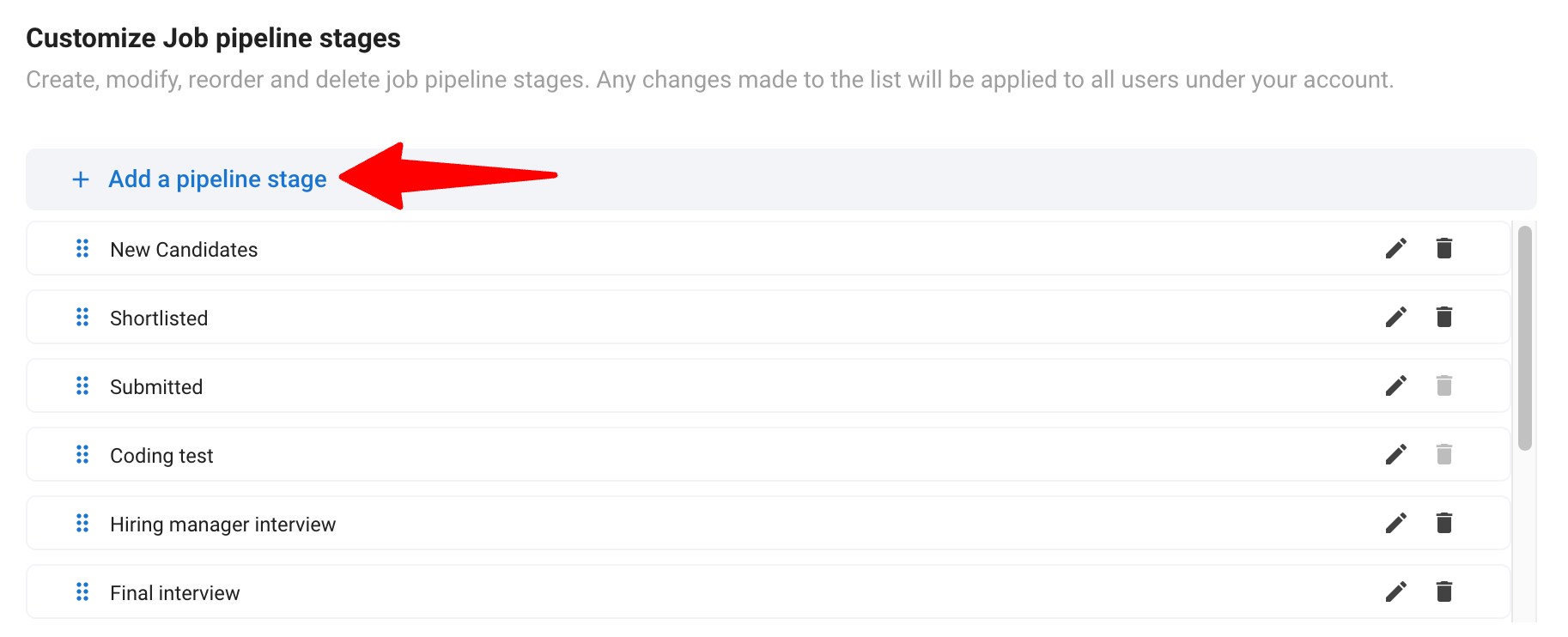
- Reorder the stages appropriately:
- Ensure the Send Invirtus Assessment is placed right above the Invirtus Assessment Completed.
To learn more about customizing job pipeline stages, refer this article. You can add the two custom pipeline stages to as many job pipelines as you want.
Retrieve Your Manatal API Key
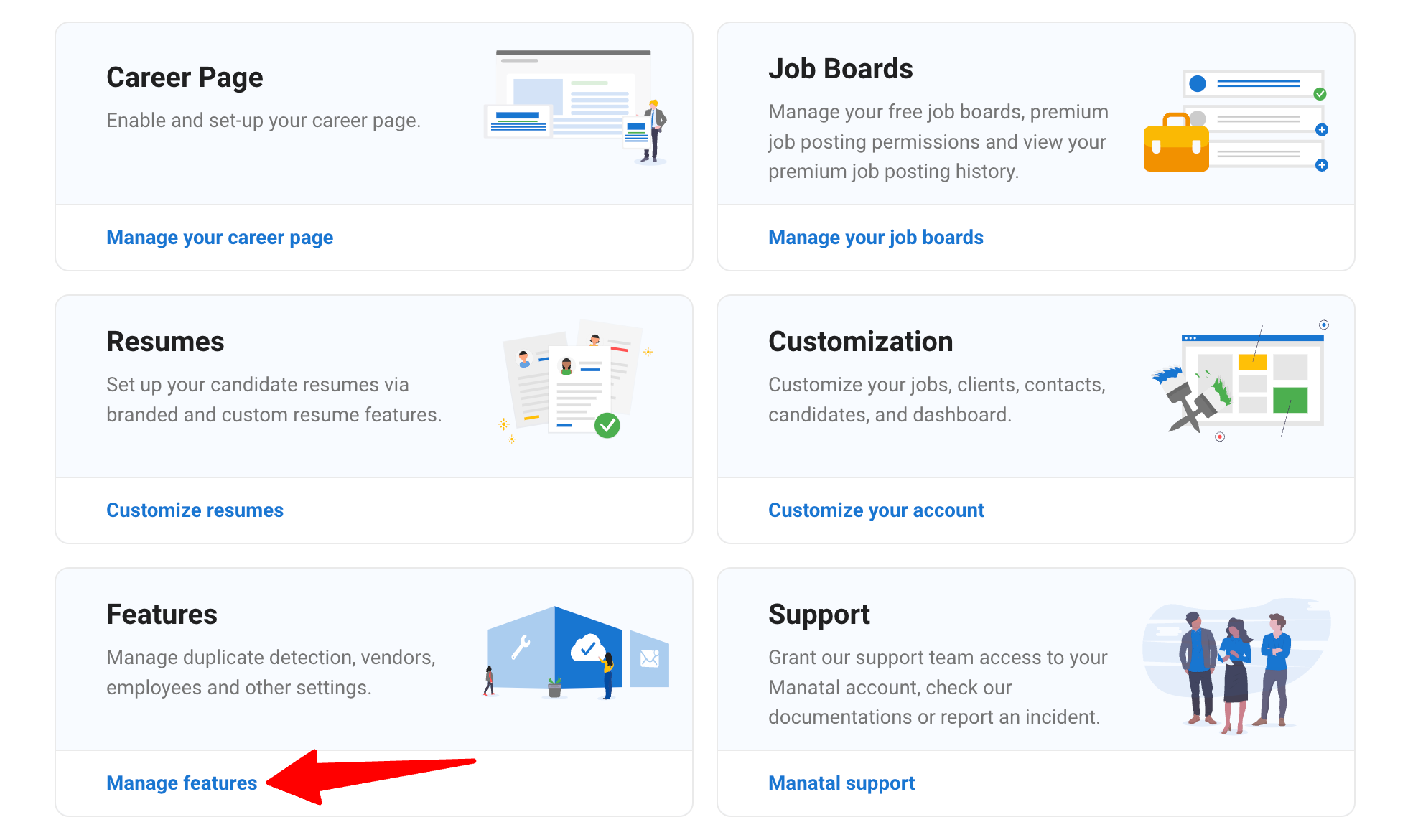
- Head to the following page. Alternatively, click on "Administration" from your side menu and open the "Features" category.
-
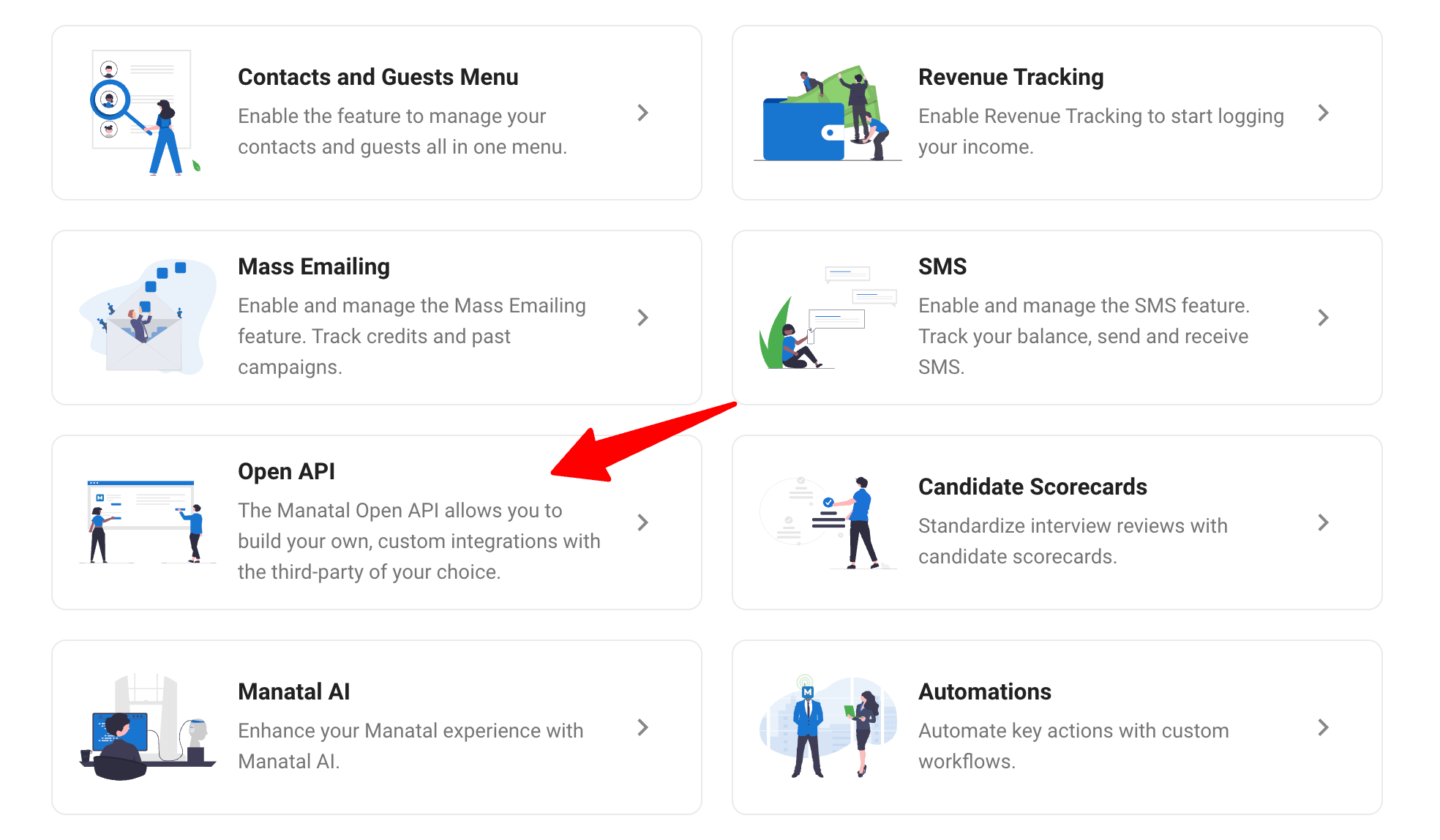
Click on "Open API".
-
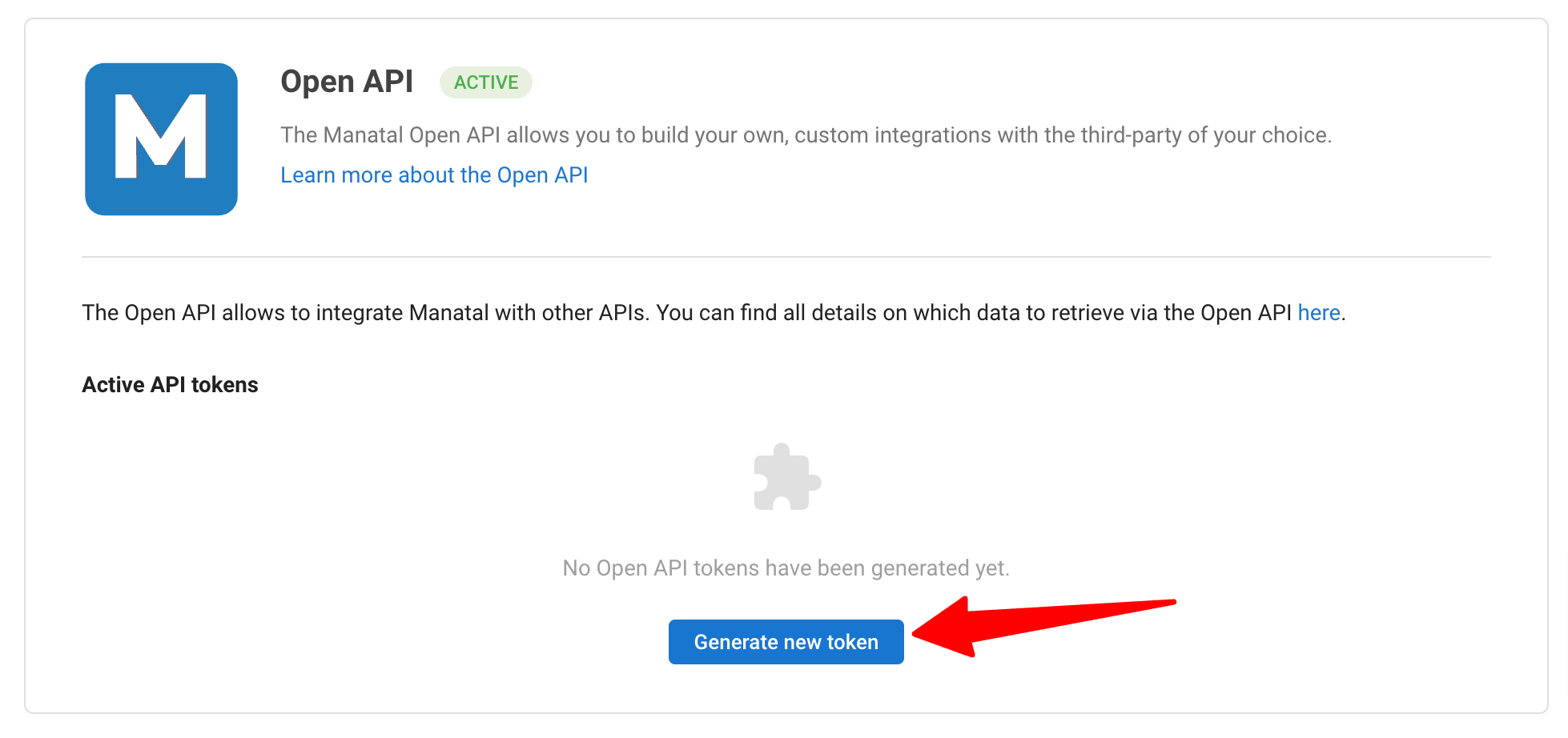
Click on "Generate new token".
-
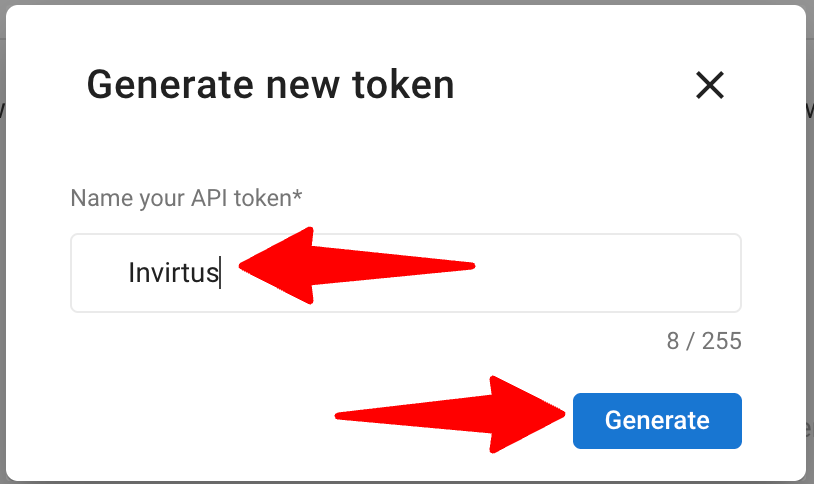
Fill in the API token name and click on "Generate".
-
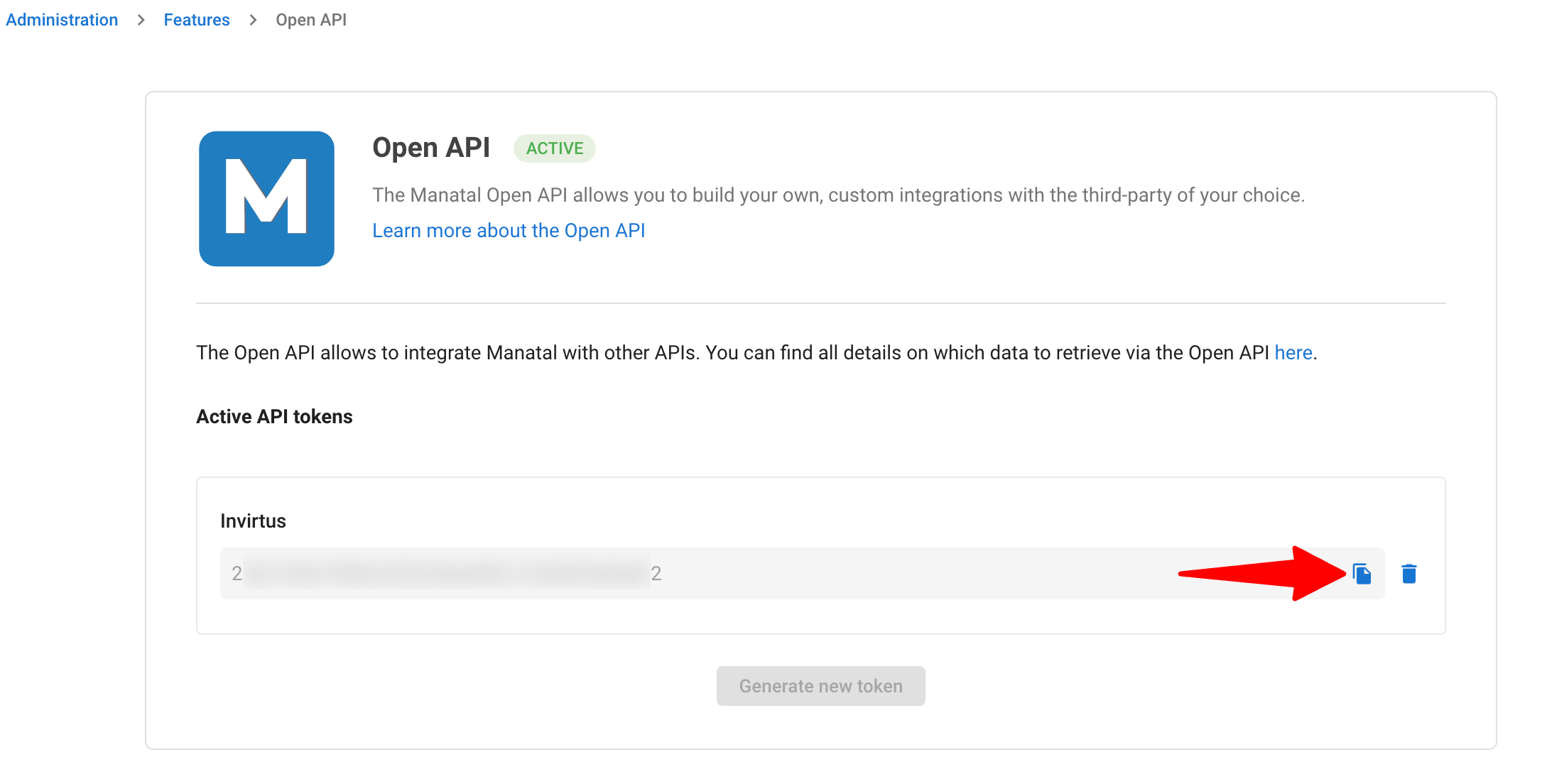
Copy the generated API key.
Treat your Open API token like a password and do not share it outside your organization.
- Log in to your Invirtus account. Locate the Manatal integration section and paste the Manatal API token to complete the integration.
Using the Invirtus Integration
Sending Invirtus Interviews to Candidates
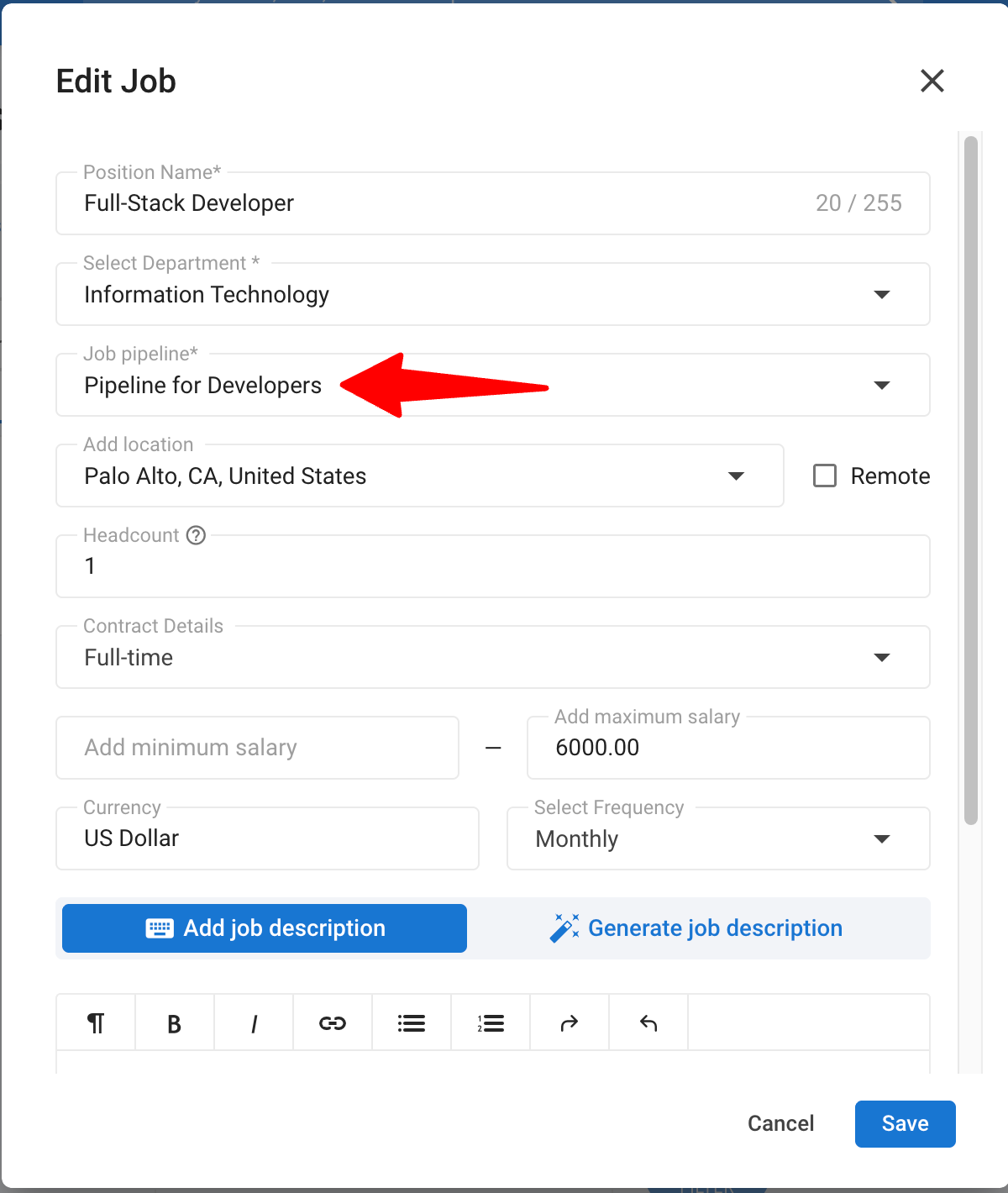
- Apply the pipeline to a job, and your two newly created stages will be visible.
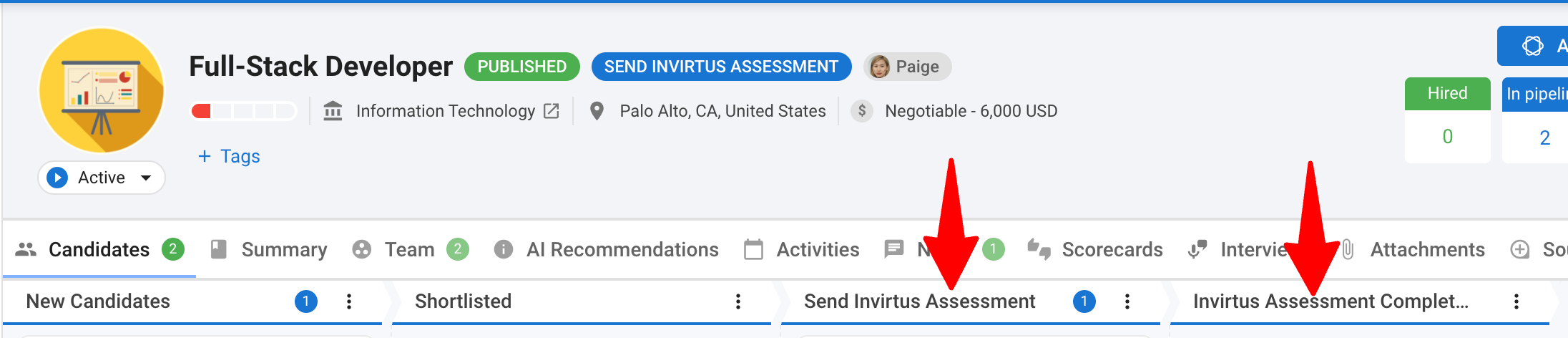
2. When a candidate reaches the 'Send Invirtus Assessment' stage in the job, the job details are automatically synced from Manatal to Invirtus, and a corresponding position is created.
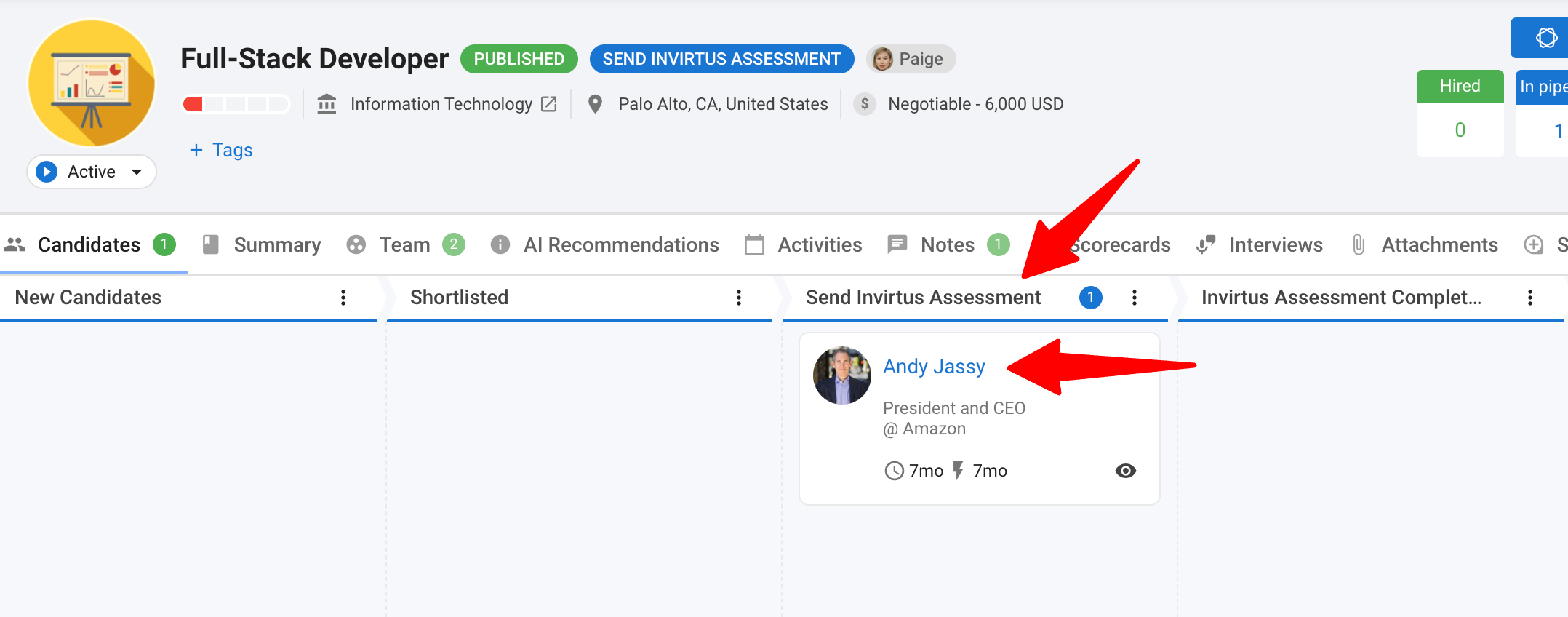
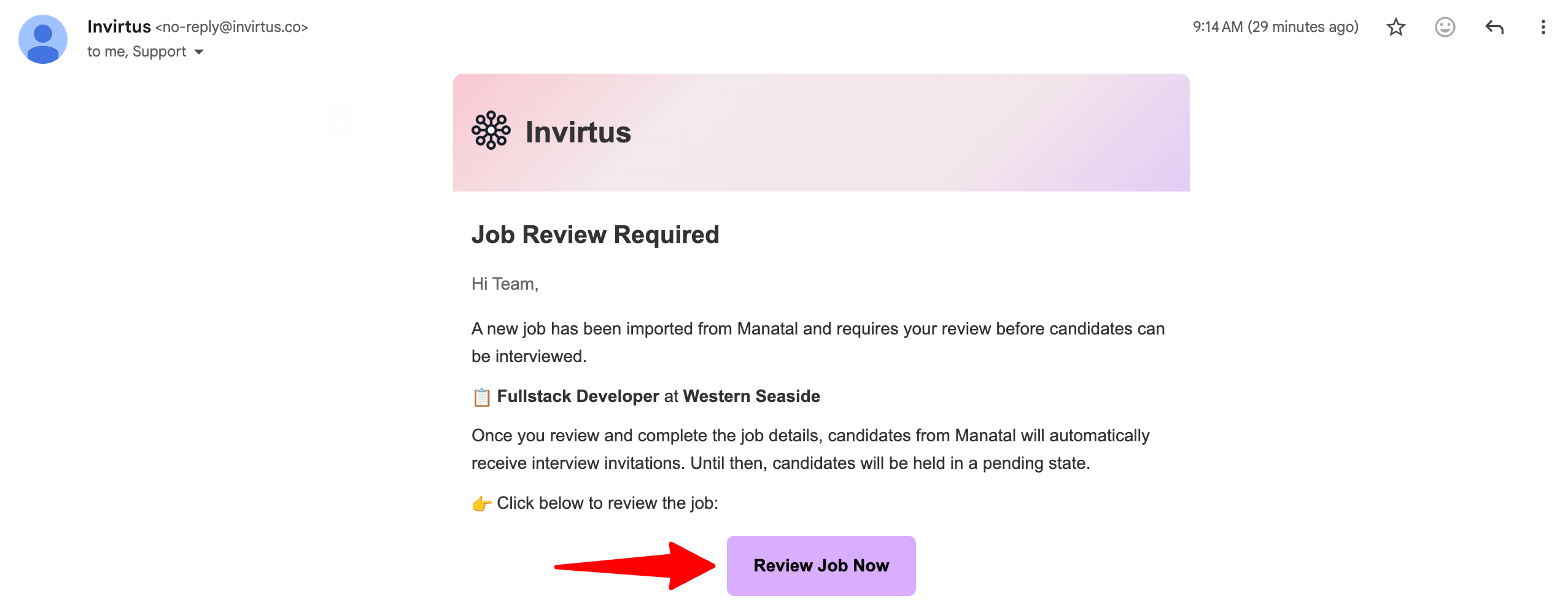
- For the very first candidate moved to the stage, you may receive an email notification from Invirtus.
- You must configure the job in Invirtus first. Unless this is done, emails won't be sent to the candidates.
- Log in to your Invirtus account to review and refine the imported job details. This ensures the AI generates the most relevant interview questions for that specific role.
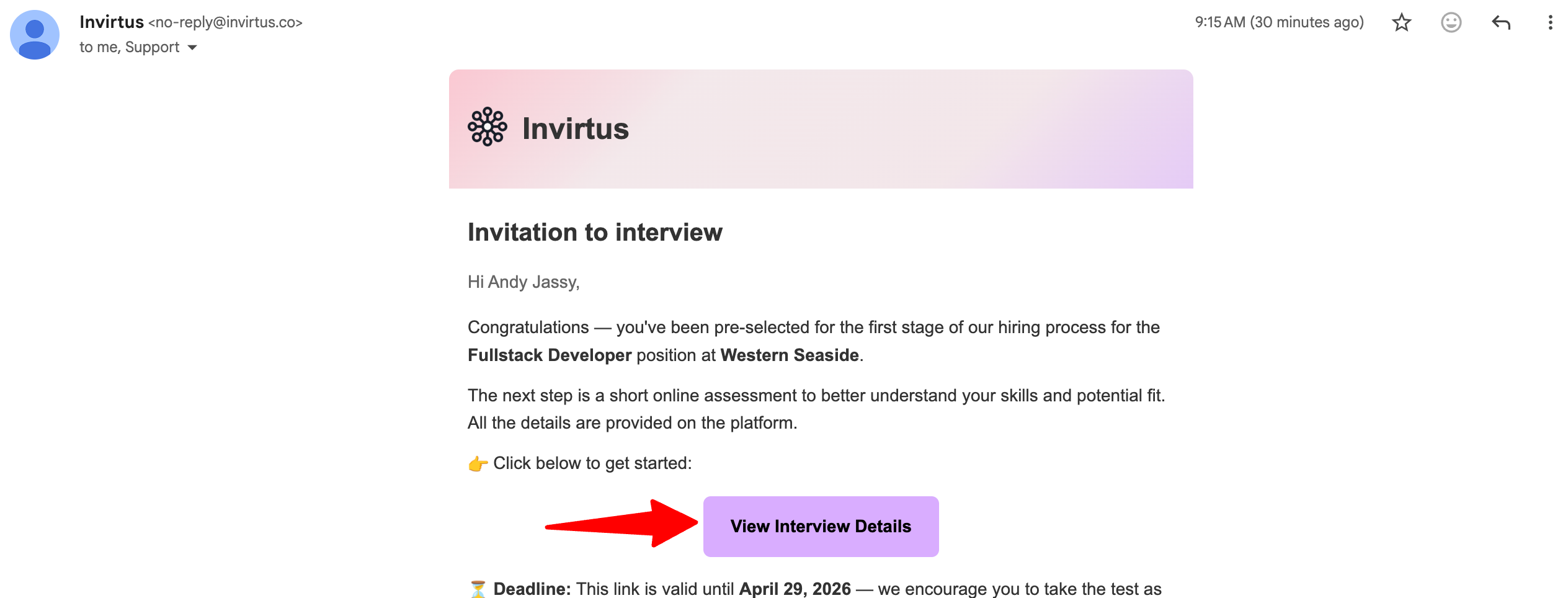
- Once you have refined the job details in Invirtus, every candidate moved to the “Send Invirtus Assessment" stage will automatically receive an email invitation containing their unique video interview link.
The first candidate moved to this stage will receive the email once the job is fully configured in Invirtus.
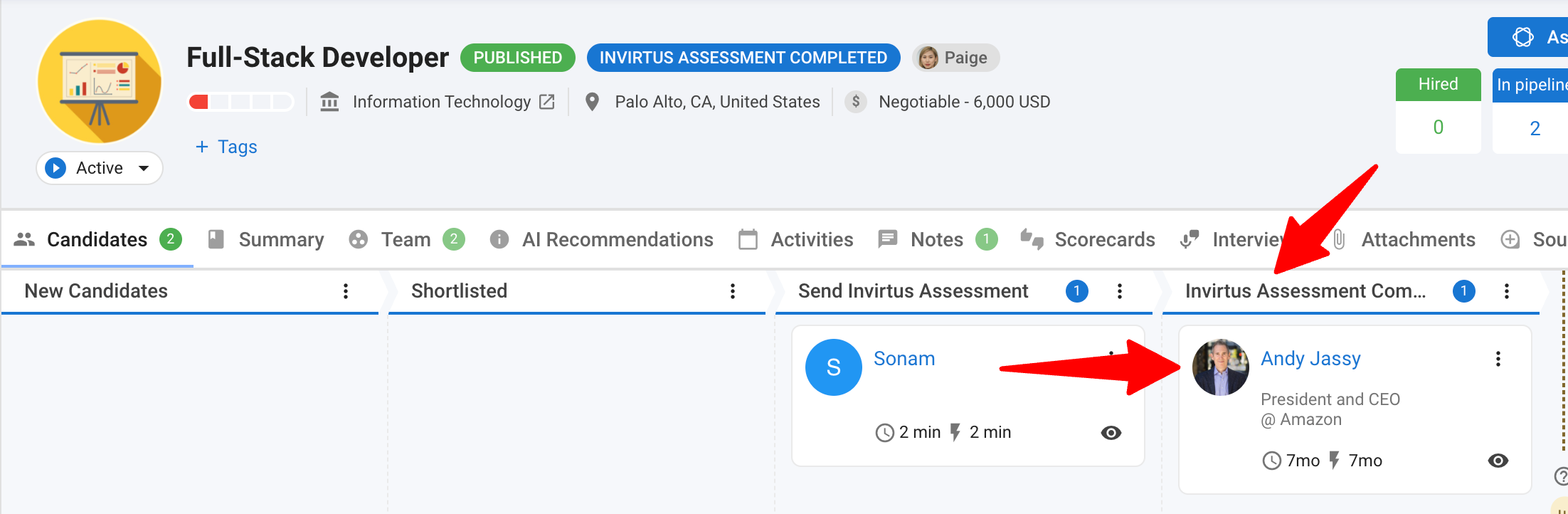
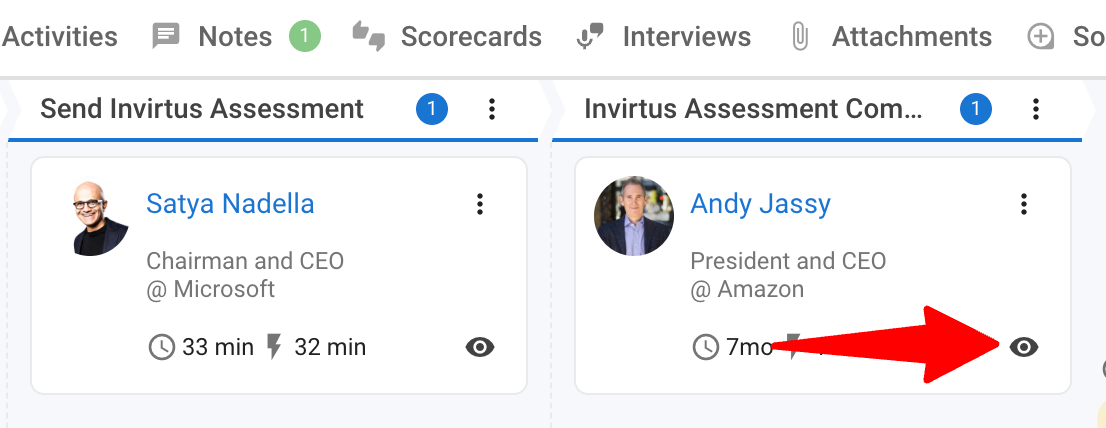
- Once a candidate completes their Invirtus Interview, the candidate will automatically be moved into the "Invirtus Assessment Completed" stage, signaling that their assessment is ready for review.
View Candidate Responses in Manatal
Once a candidate completes their AI-powered interview, Invirtus automatically syncs the results directly to their profile in Manatal. You can review these evaluations in two ways: as a quick-glance summary in the Notes tab or as a comprehensive PDF report in the Attachments tab.
Reviewing the Assessment Summary (Notes)
The Notes section provides a high-level breakdown of the candidate's performance and a direct link to the full interview session.
- Open the candidate’s profile by clicking on the eye icon.
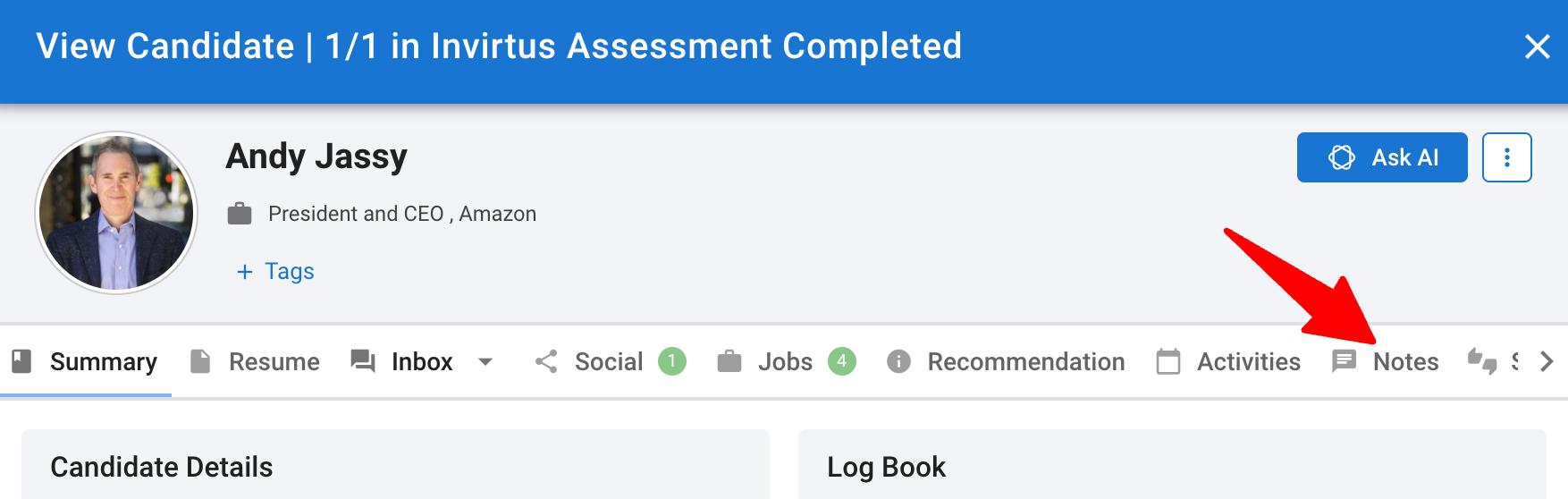
- Click on "Notes".
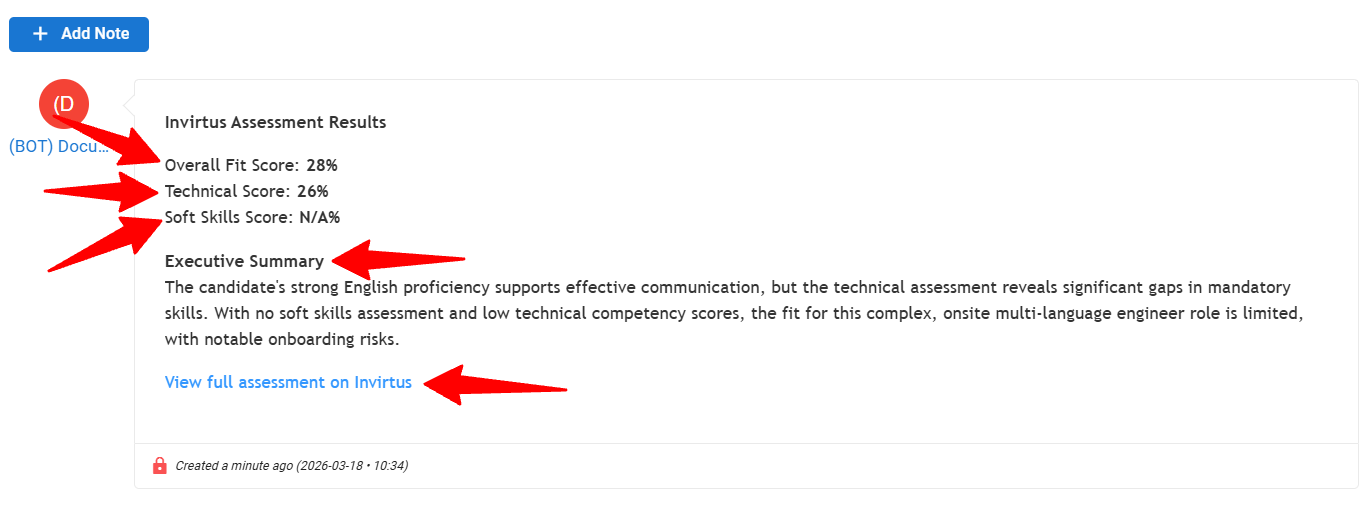
- Locate the assessment result.
The note will contain:- Overall Fit Score: A high-level rating of the candidate's suitability.
- Technical Score: Proficiency in required technical skills.
- Soft Skill Score: Analysis of communication and interpersonal traits.
- Executive Summary: A concise AI-generated overview of the candidate.
- Interactive Links: Click the provided links to access the detailed results within the Invirtus Interface.
Reviewing the Detailed Report (Attachments)
For a deep dive into the candidate’s vetting data, you can access the full PDF report attached.
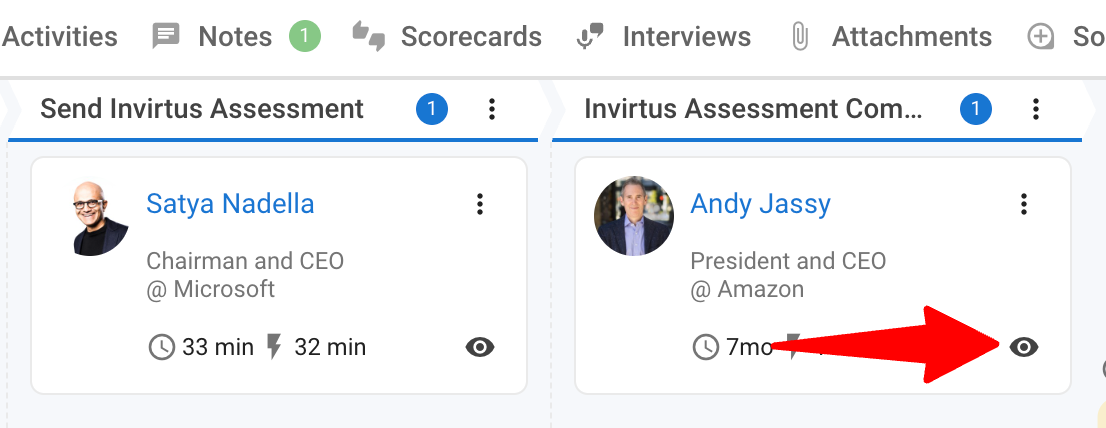
- Open the candidate’s profile by clicking on the eye icon.
- Click on "Attachments".
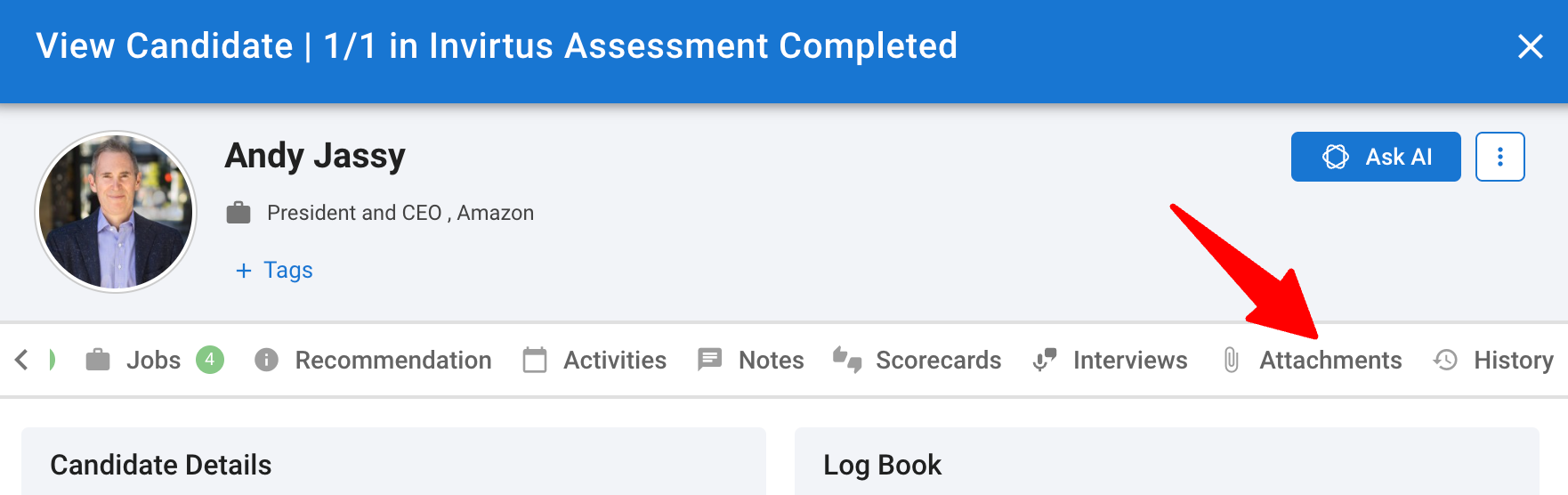
- Locate and click on the Invirtus Assessment Report PDF file to view or download the complete evaluation.

FAQ
Q1: What information is synced from Manatal to Invirtus?
- Location & Remote Policy
- Required Degree & Years of Experience
- Contract Type
- Job Description
- Organization Details
Q2: Can I customize the interview questions and how they are graded?
Yes. All customization happens within the Invirtus platform. You have full control over:
- Interview Questions: Choose exactly what the AI asks.
- Question Ordering: Determine the flow of the interview.
- Requirements: Set the benchmarks for candidate qualifications.
- Evaluation Criteria: Define the specific skills or traits the AI should prioritize when scoring responses.
Q3: What should I do if my API key is not connecting?
- Verify that the API key copied from Manatal is correct and entered accurately into Invirtus. Check your integration settings and permissions. For further assistance, contact Invirtus or support@manatal.com for assistance.
- Ensure that the job pipeline stages for “Send Invirtus Assessment” and “Invirtus Assessment Completed” are configured correctly.