- This feature is only available in the Enterprise Plus plan.
- This feature is currently in Beta. You may expect updates, and changes to accessibility or pricing as we refine and enhance it. We value your patience and welcome any feedback you may have. Thank you for being an early adopter!
What is the Job Requisition Approval Flow?
The Job Requisition Approval Flow lets you set up multi-step, multi-approver sign-off chains on your job requisitions. Learn more about Job Requisitions in this article.
Instead of running approvals over scattered emails, the entire process happens inside Manatal: approvers are notified automatically, approve or decline in-app, and the job is automatically created once the requisition is fully approved.
Admins build an approval flow, link it to a job requisition form, and from then on every matching requisition is routed automatically. Each requisition keeps a full approval history, so you always know who approved what and when.
Building an Approval Flow
- The Job Requisitions feature must be enabled to access the feature. Refer to this article for more information.
- This can only be done by an Admin.
-
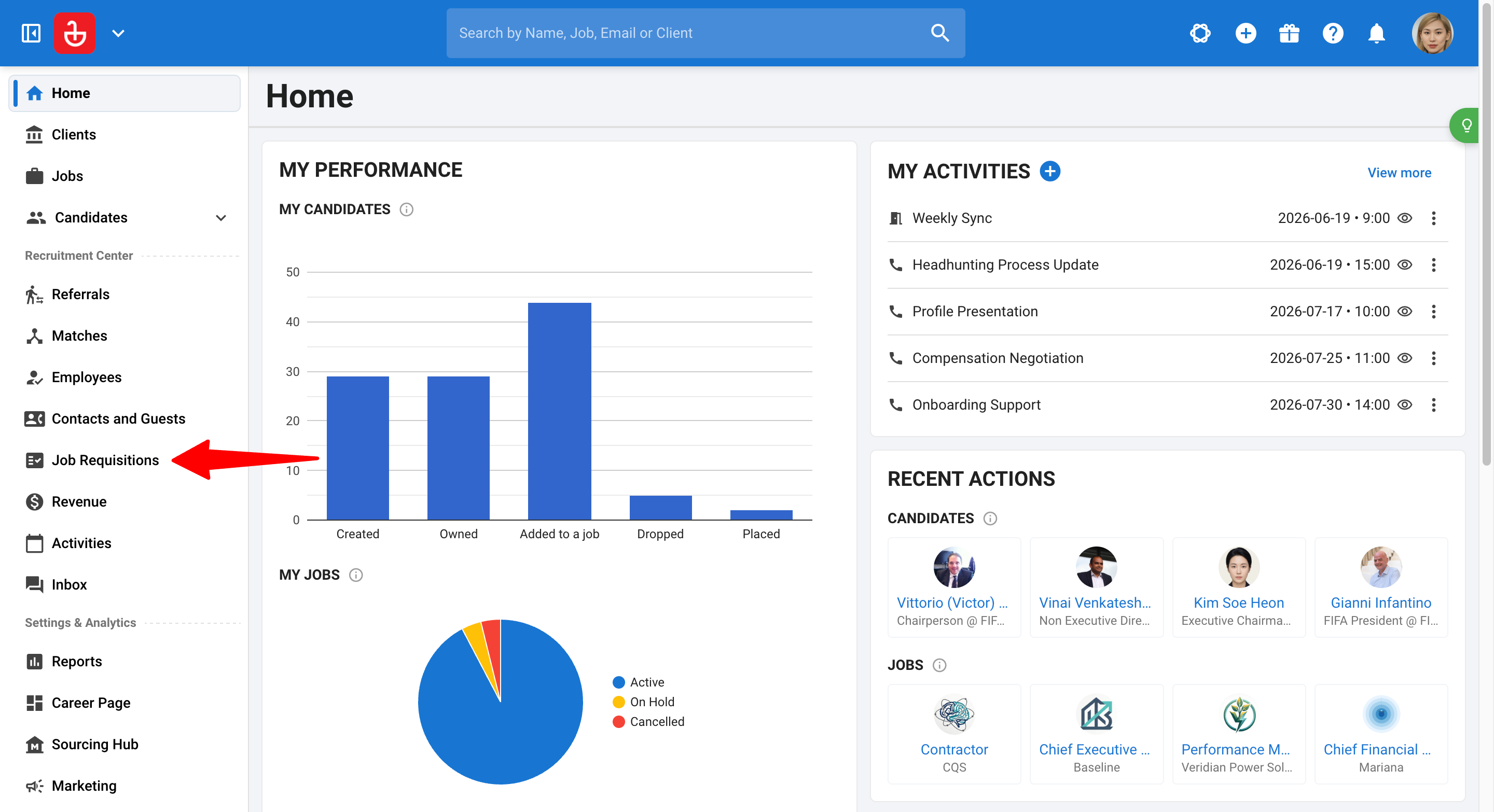
Head to the following page. Alternatively, click on "Administration" from your side menu, open "Features", select "Job Requisitions", then click "Approval flows".
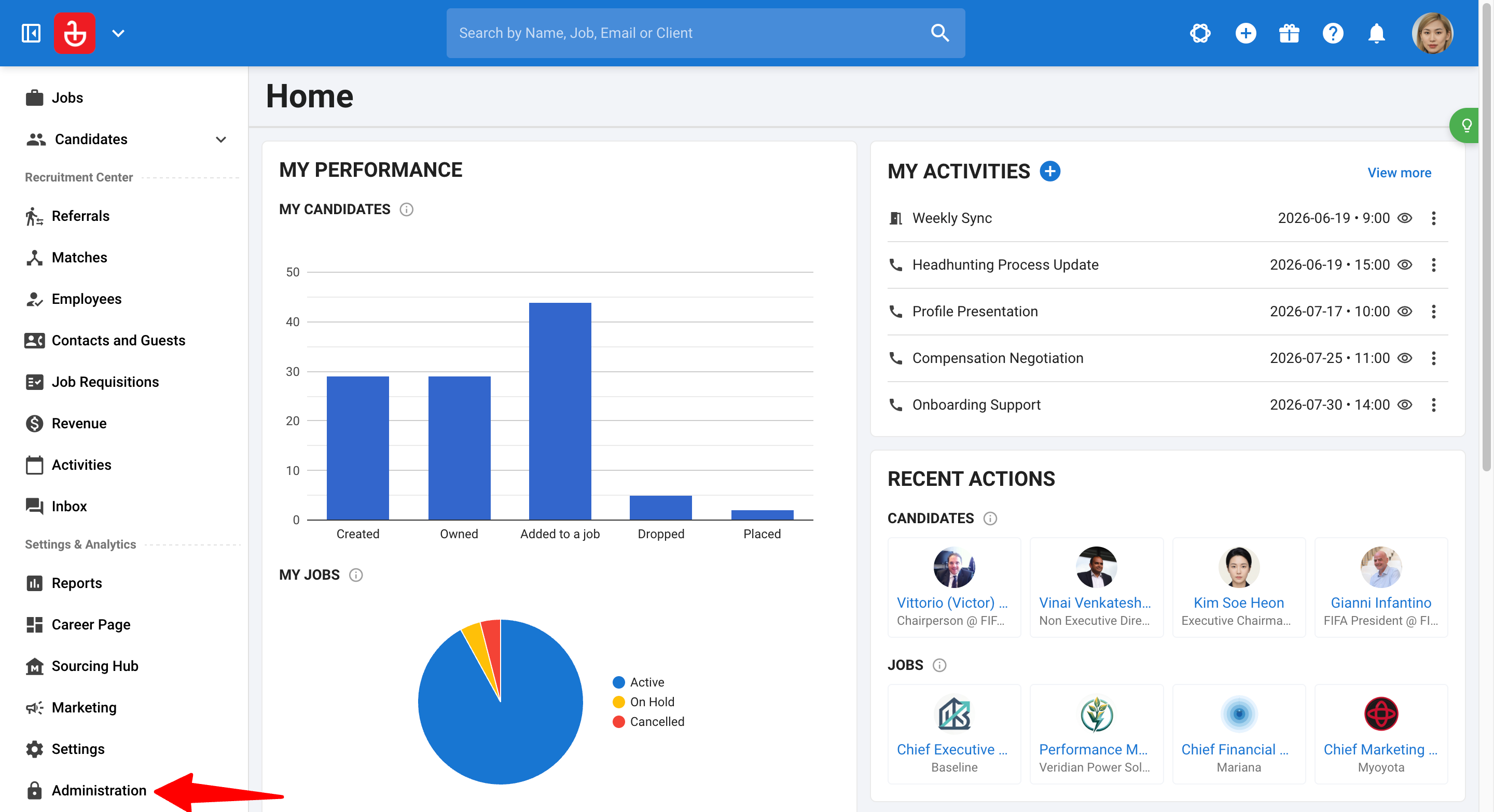
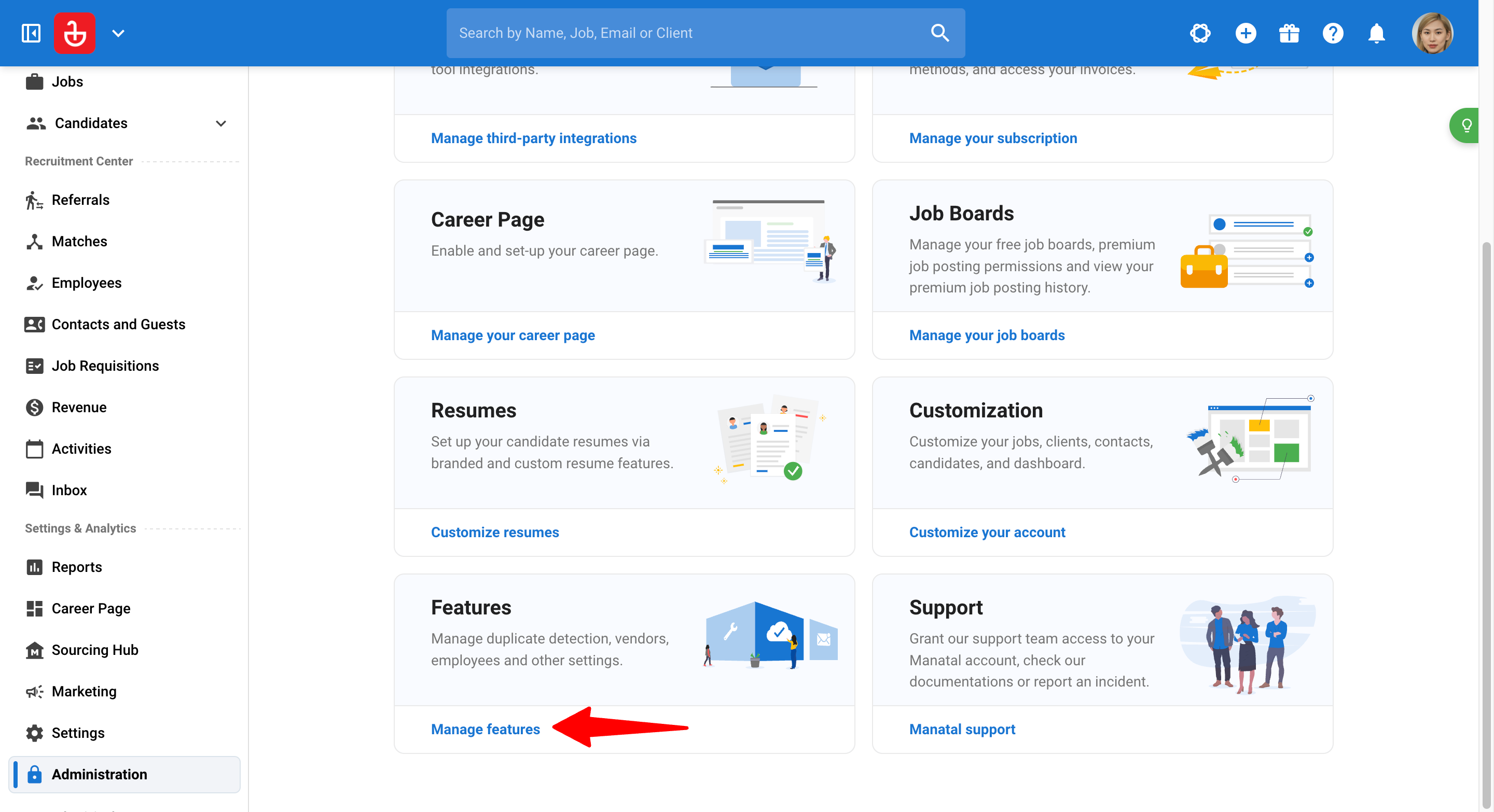
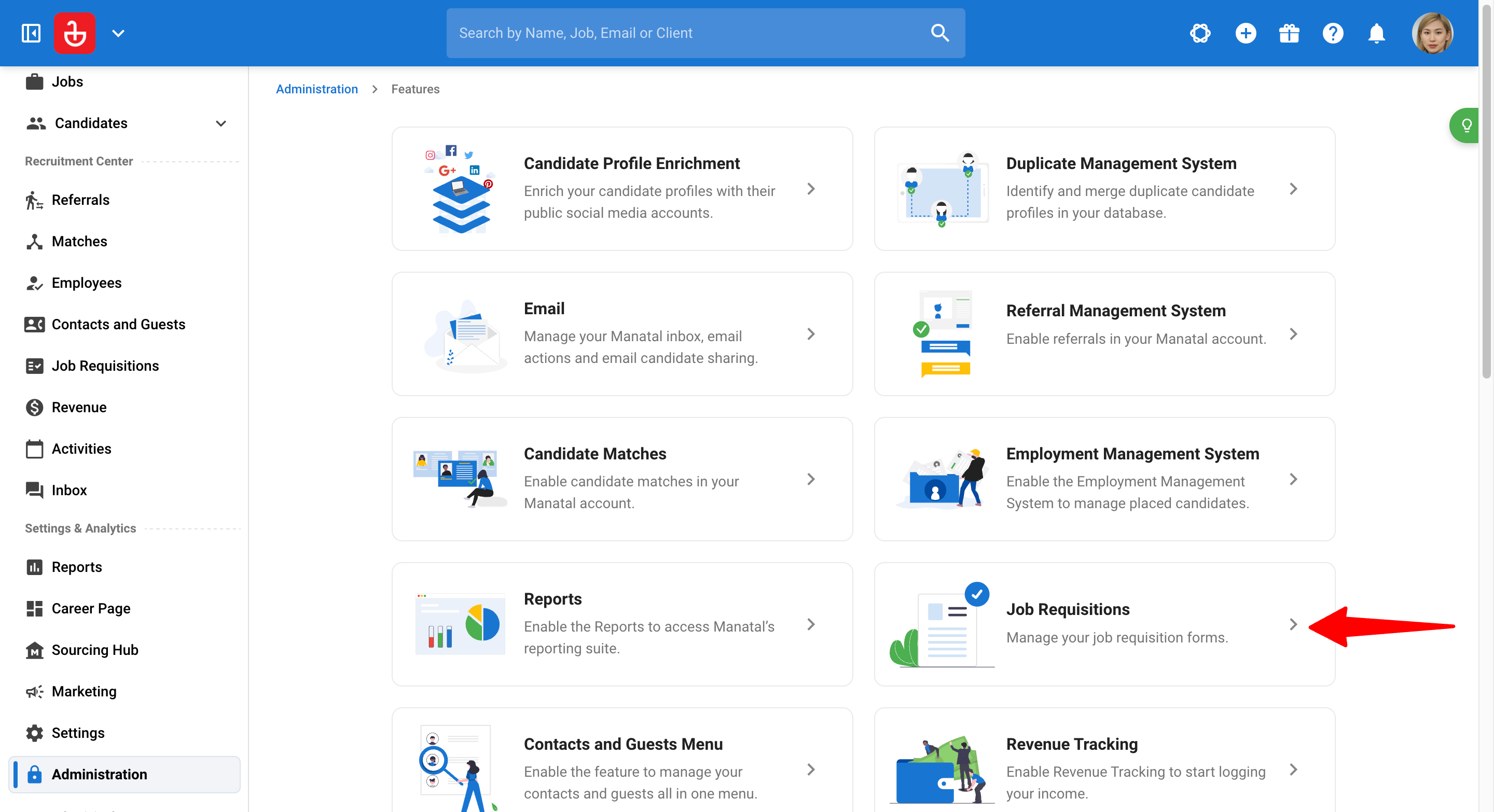
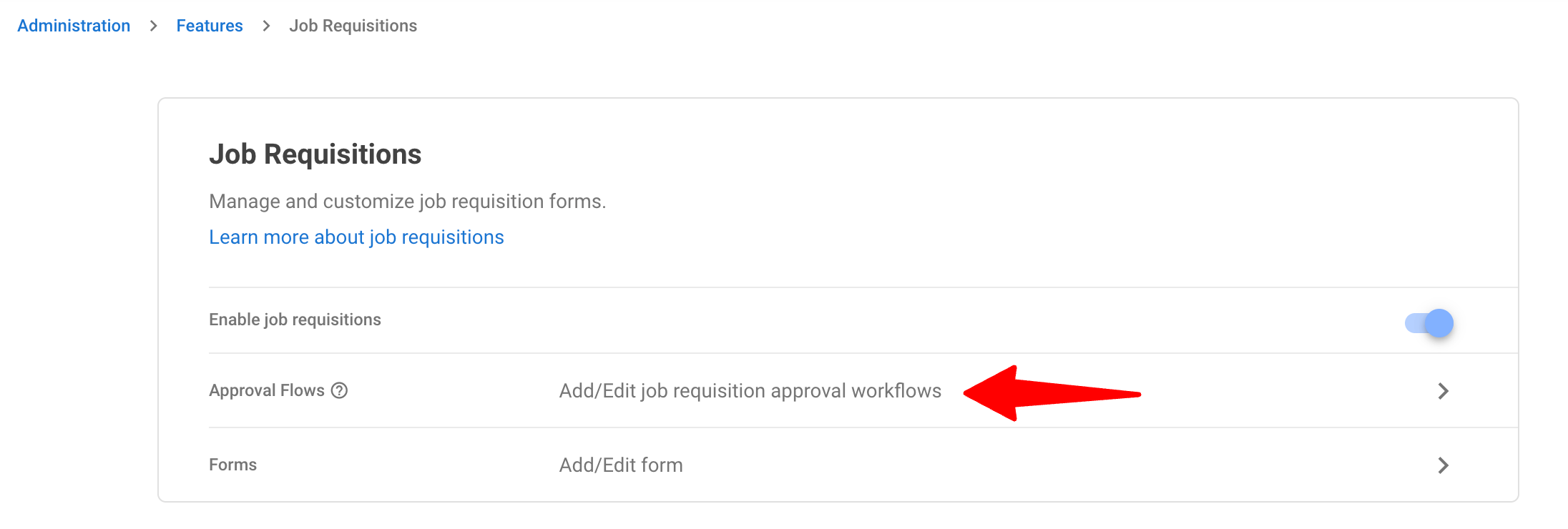
-
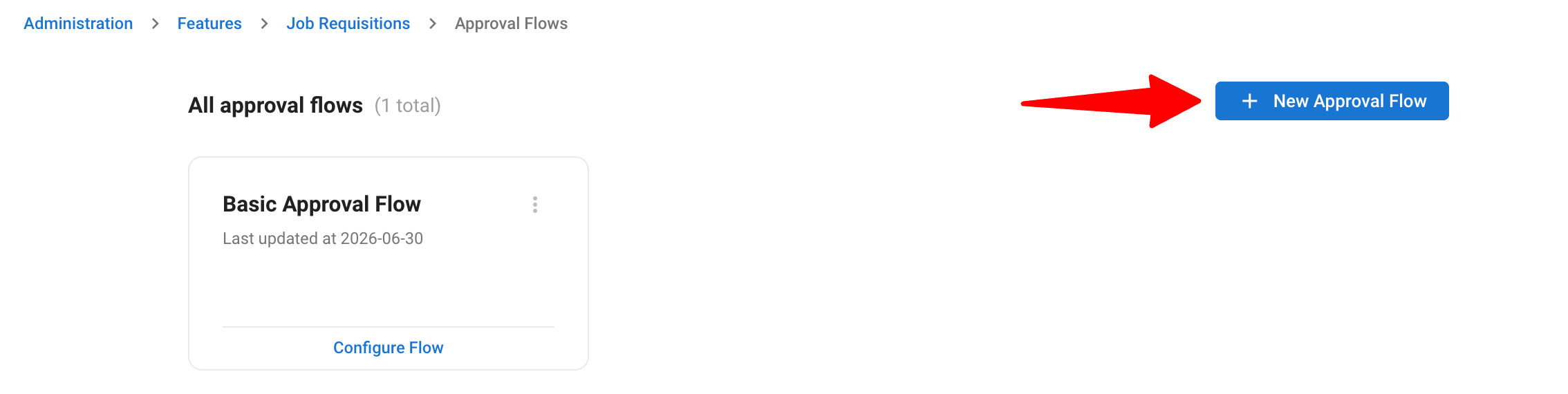
Click "New Approval Flow" button.
NoteThe Approval Flows page lists all your existing flows, along with a default flow that is always available to start from.
-
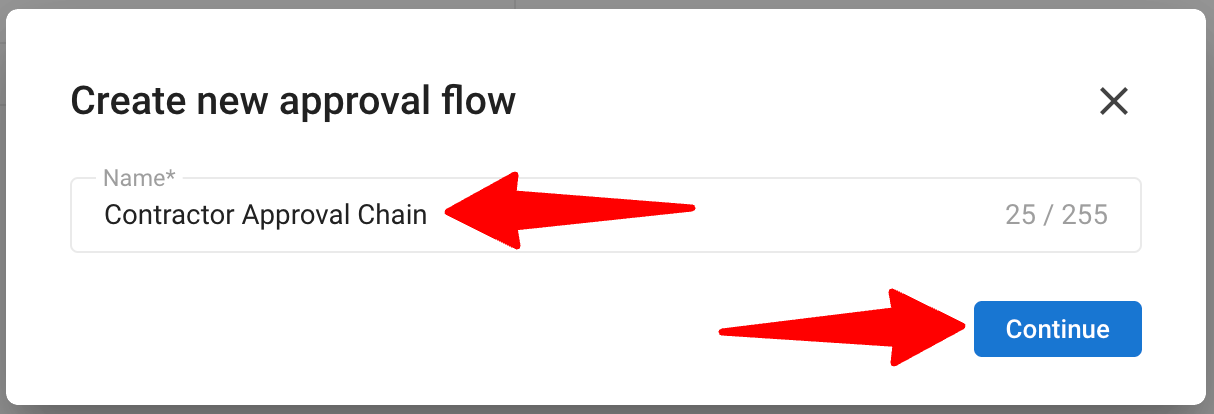
Enter a name for your flow (up to 255 characters), and click "Continue".
-
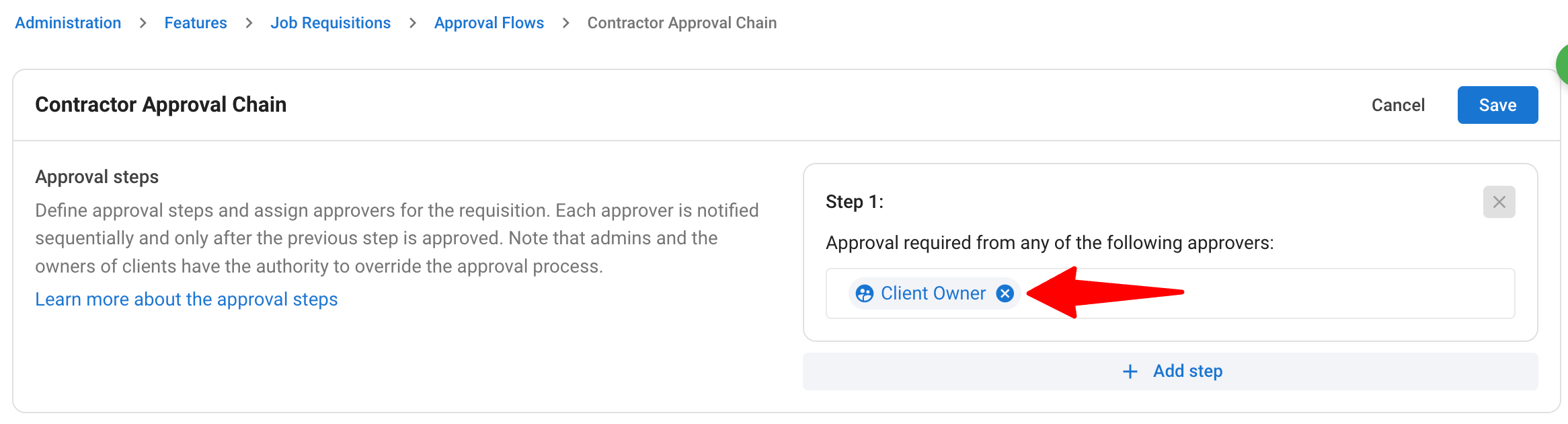
The editor opens with Step 1 already created and prefilled with the Organization Owner as the first approver.
-
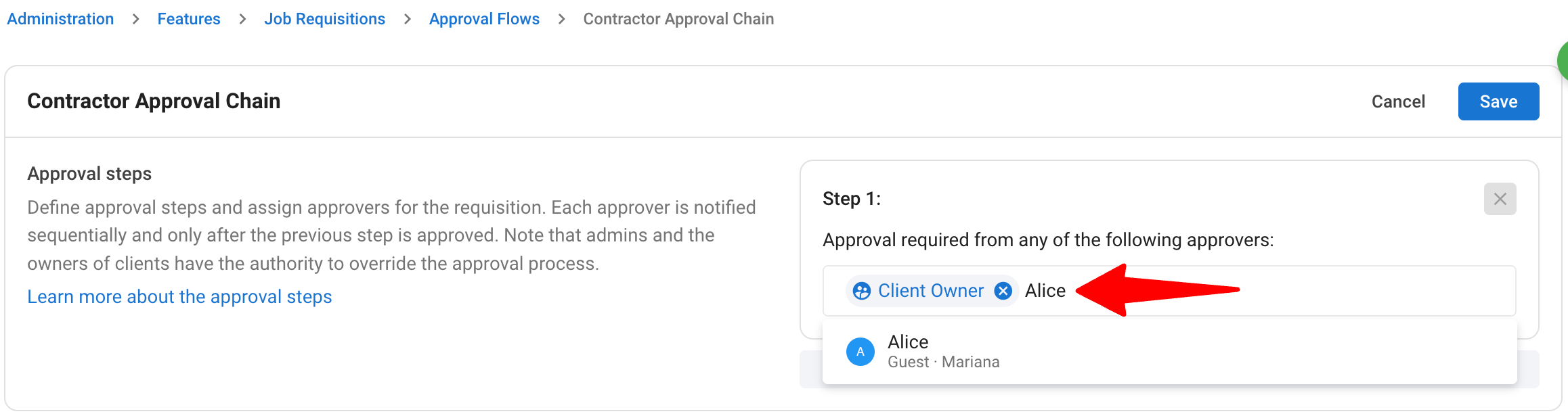
For each step, assign approvers by searching for them by name or email.
 Note
Note- You can add up to 5 approvers per step.
- If an approver isn't found in the search, you can invite a new user or create a new guest directly from the results. To learn more about guests, refer to this article.
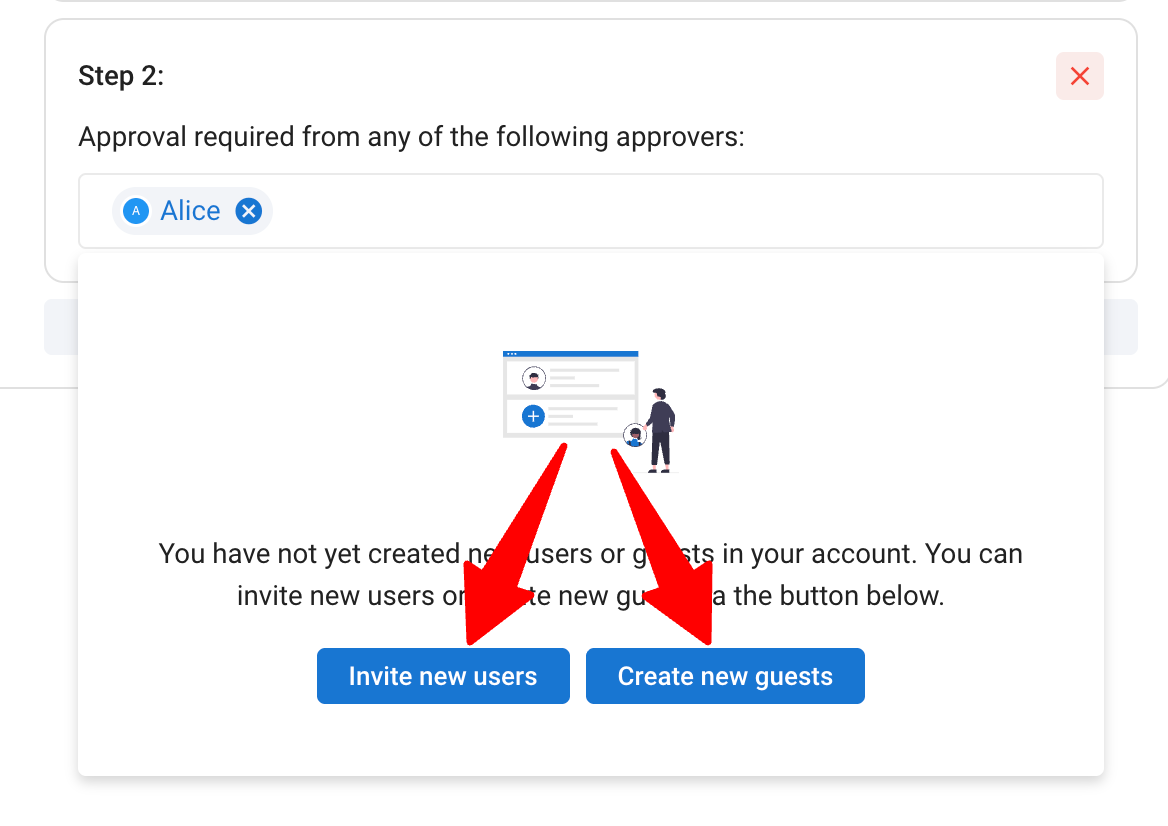
- Approvers can be internal users or external guests, and the same person can be assigned across multiple steps if needed.
-
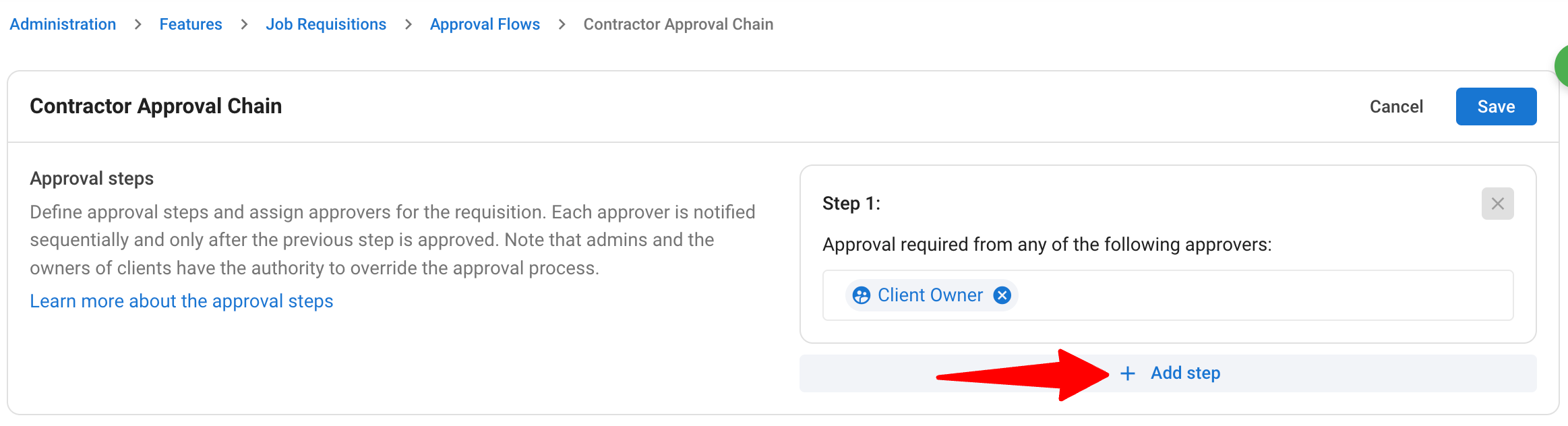
Click "Add step" to add more steps.
Note- A flow can have up to 10 sequential steps.
- Steps are approved in order: the requisition only advances to the next step once the current one is approved.
-
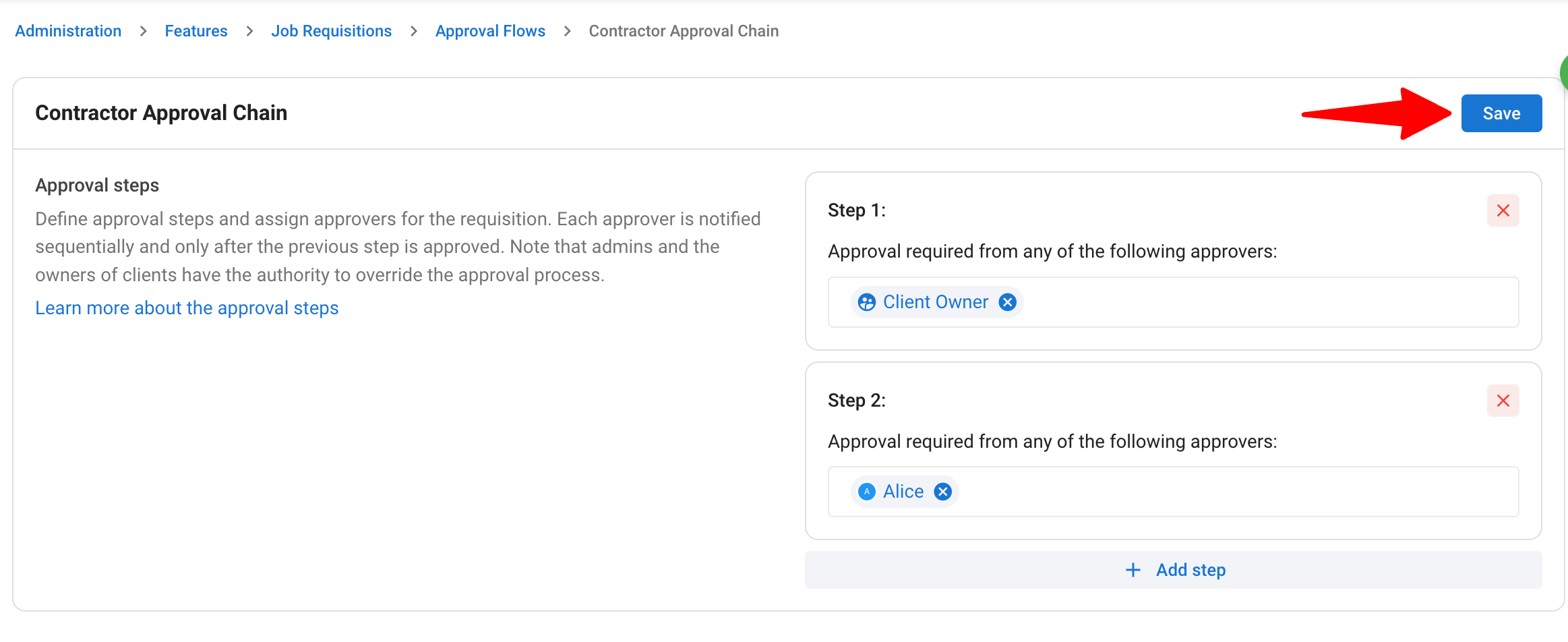
Click "Save" once your flow is configured.
Managing Approval Flows
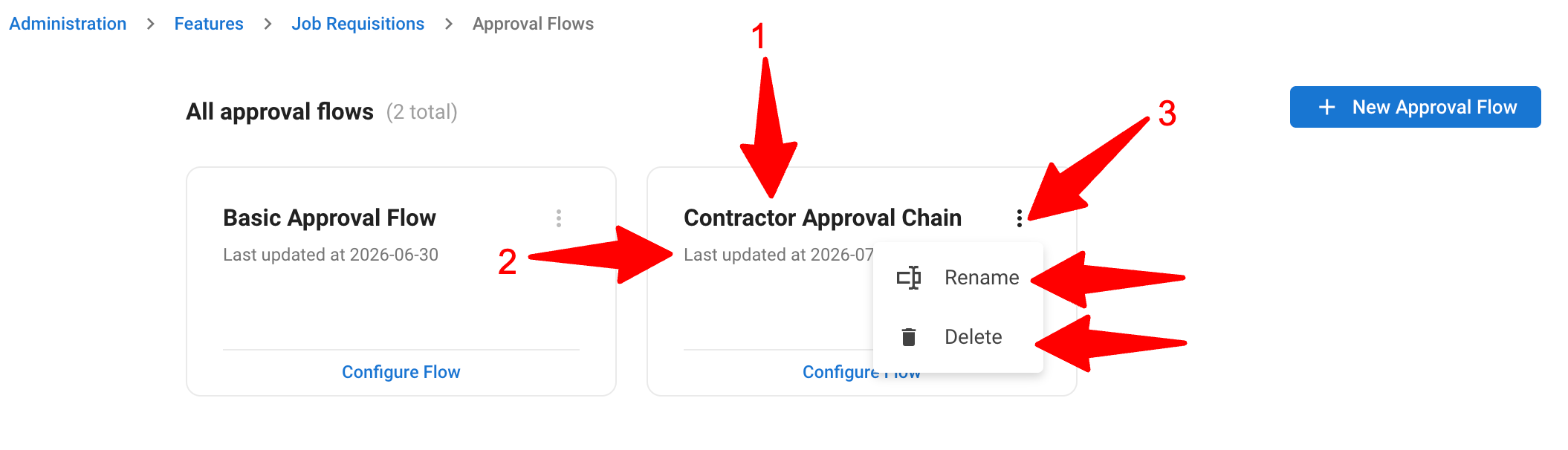
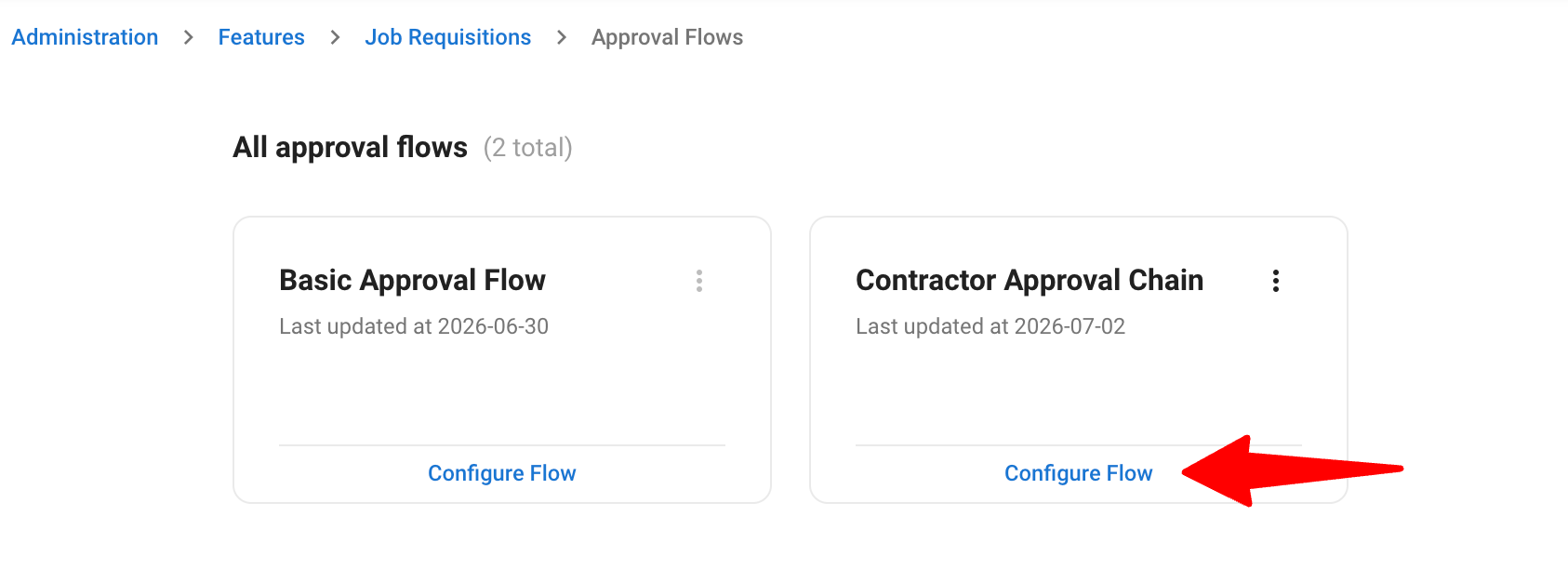
On the Approval Flows page, each flow displays its name, the date it was last updated, and a three-dot menu with options to rename or delete.
Flows in use: A flow currently bound to active requisitions opens in read-only mode and cannot be deleted. This protects any requisitions that are mid-approval.
-
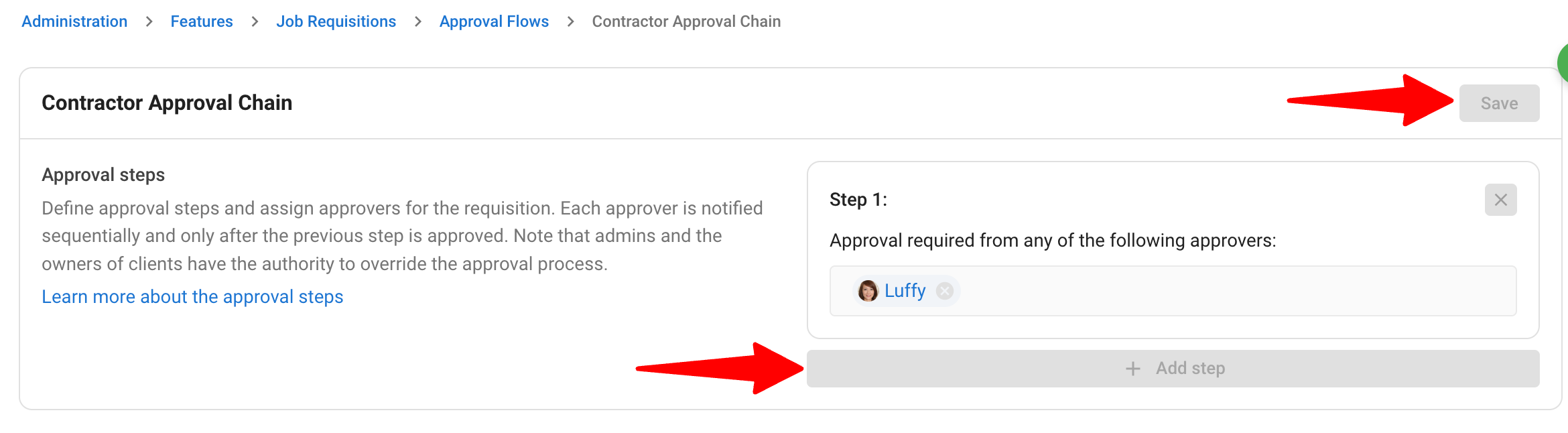
To edit a flow: Click on "Configure Flow" to manage steps and approvers.
NoteRemoving a step in the middle automatically renumbers the remaining steps to keep the order intact.
-
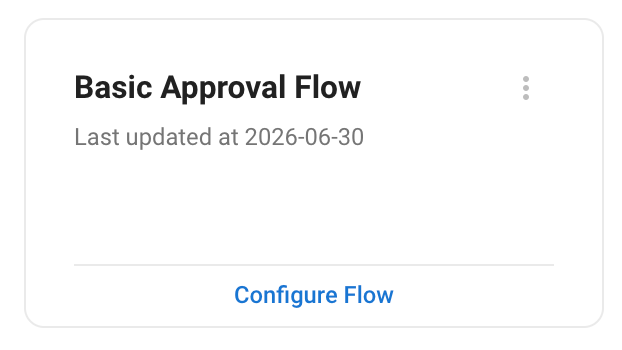
Default system flow: The default system flow provided out of the box can't be overwritten. If you edit it, you'll be prompted to save your changes as a new flow instead, keeping the original intact.
-
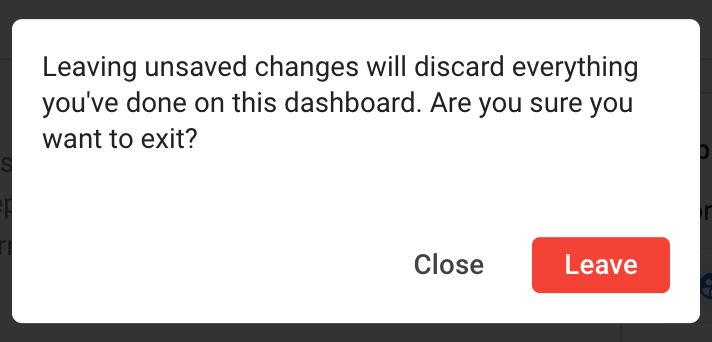
Unsaved changes are protected: if you try to navigate away or cancel mid-edit, you'll get a warning prompt before anything is lost.
Linking an Approval Flow to a Job Requisition Form
-
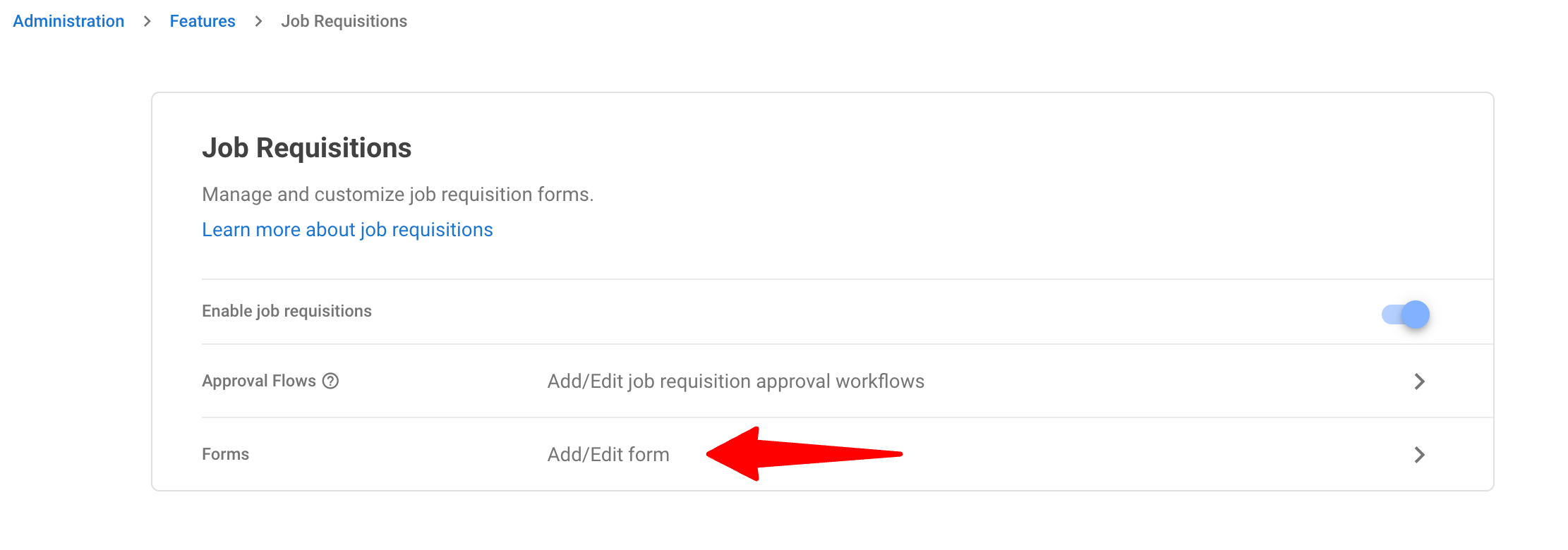
Head to the Job Requisitions Forms page. Alternatively, click on "Administration" from your side menu, open the "Features" category and then the "Job Requisitions" category then click on "Forms".
NoteLearn about Job Requisitions Forms in this article.
-
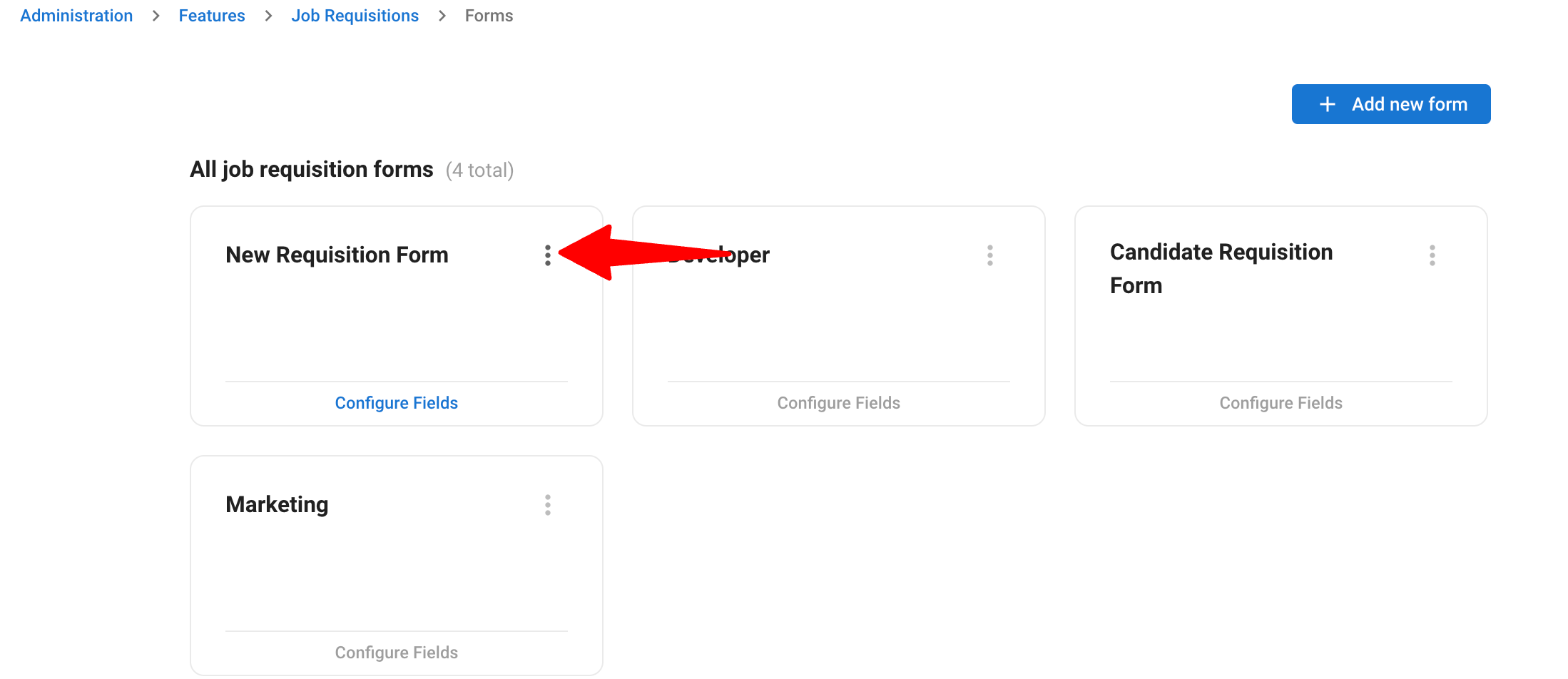
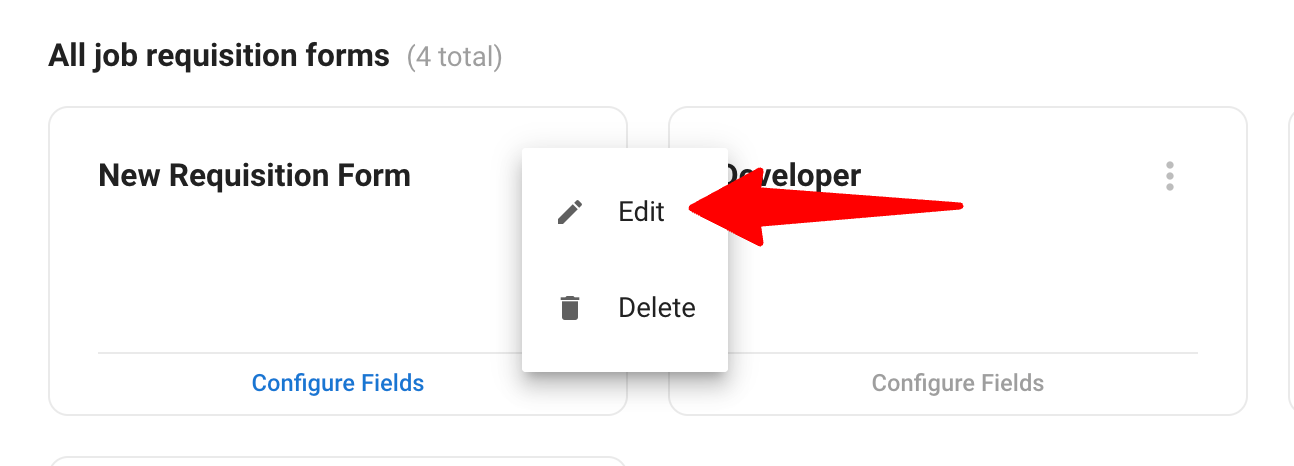
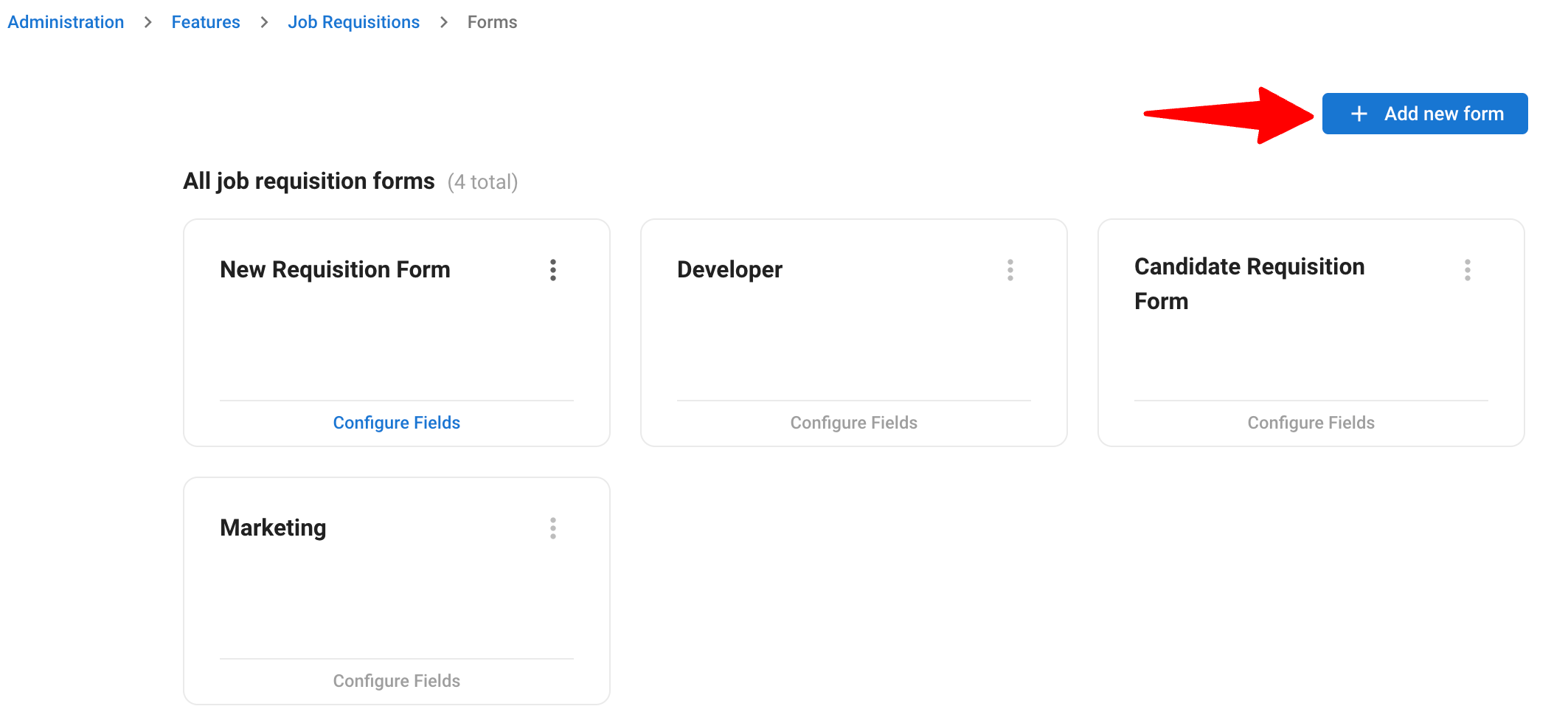
Edit an existing form by clicking on the 3-dots and then "Edit" or click "+ Add New Form".
-
In the configuration modal, use the "Approval flow" dropdown to select the flow you want to bind to this form.
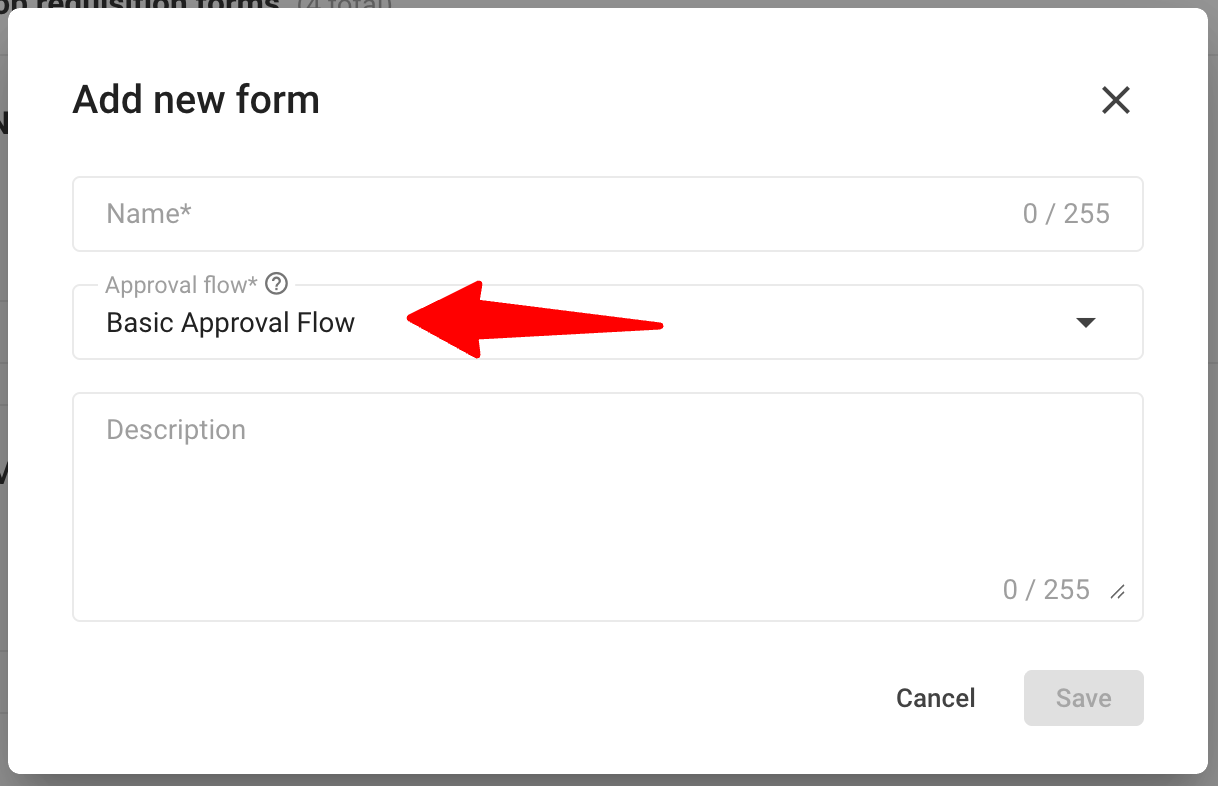 Note
NoteYou can also create a new flow on the spot using the option at the bottom of the dropdown, without leaving the form.
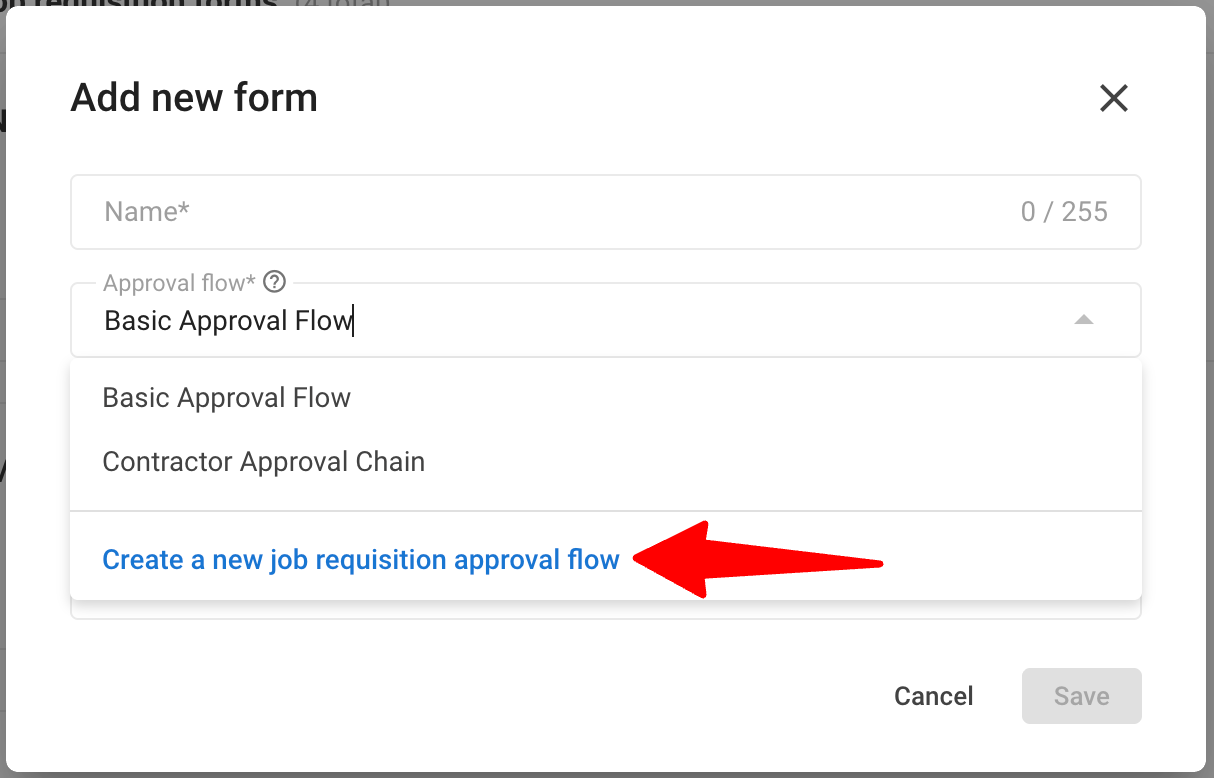
-
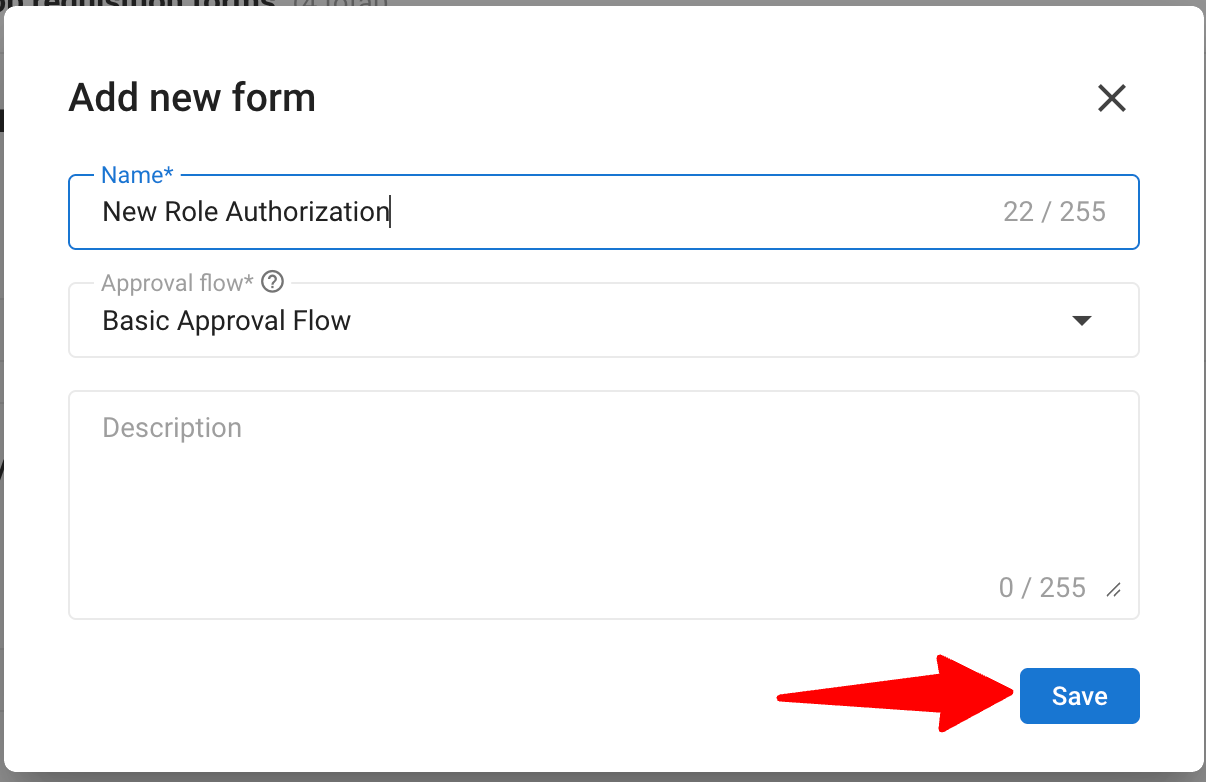
After the approval flow has been selected, click "Save".
NoteFrom now on, any requisition created with this form will automatically follow the selected approval flow.
Tracking Requisitions
-
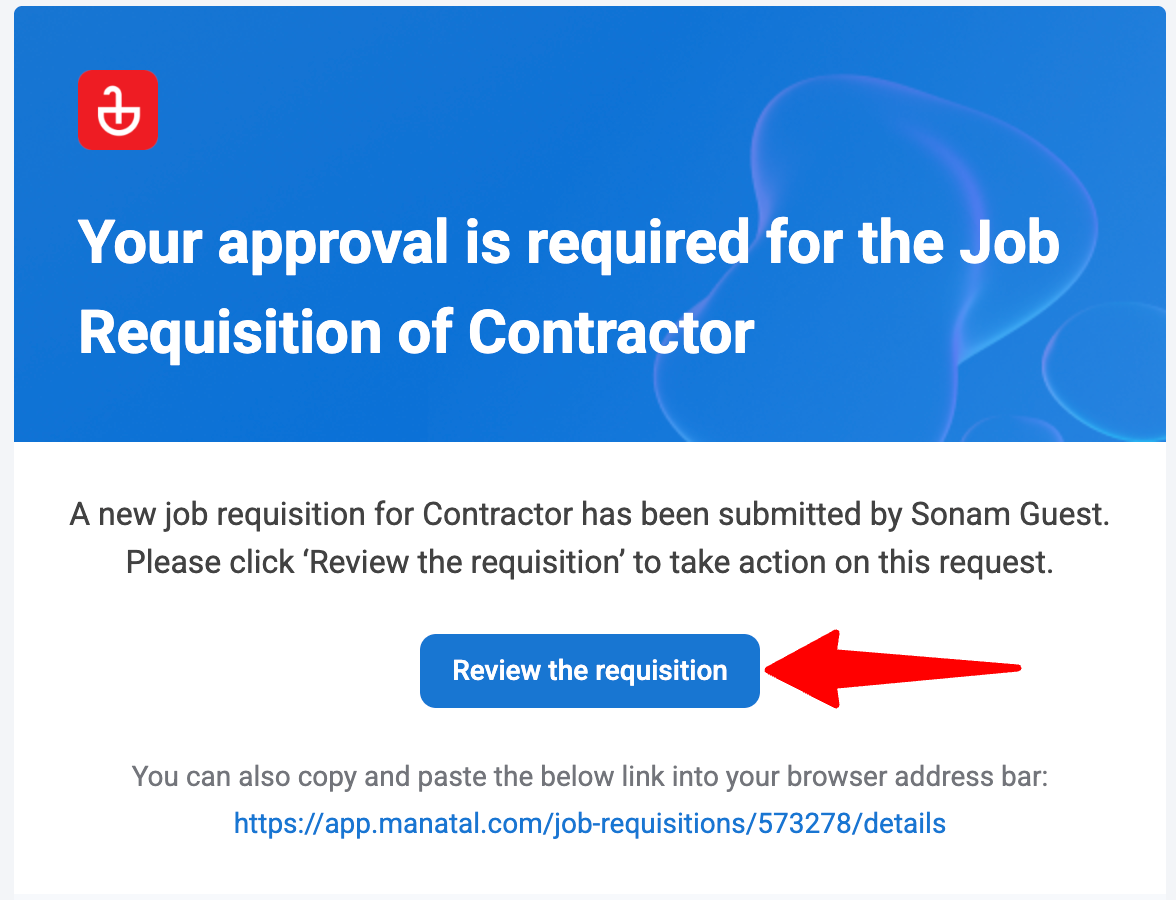
When a requisition is created using a form that has an approval flow, it is automatically routed, and the first step's approvers are notified by email.
-
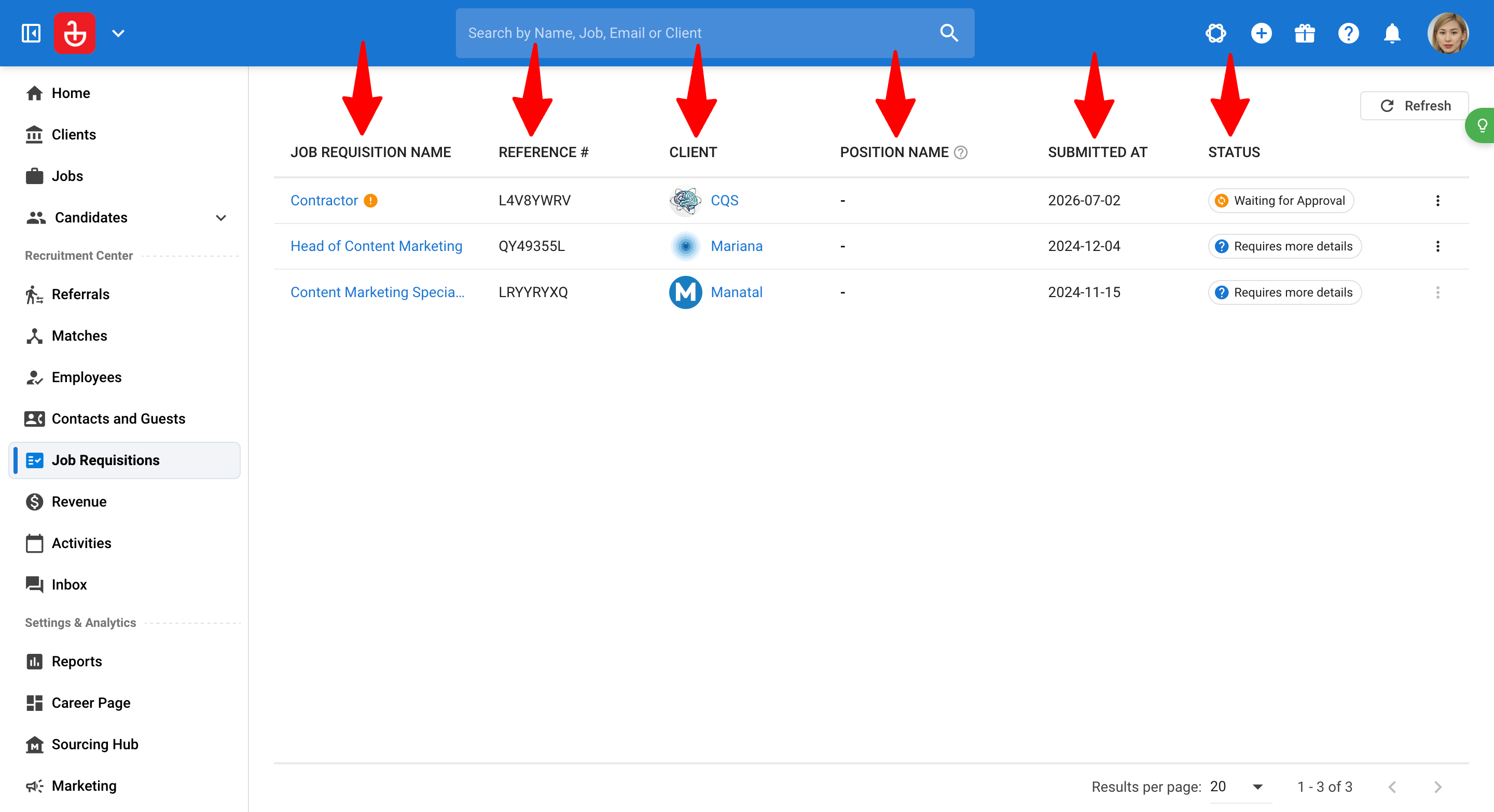
To track the job requisitions, click on "Job Requisitions" menu. In the table, it shows the Name, Reference, Organization, Position Name, Submitted At, and Status of each requisition.
ImportantA requisition moves through these statuses:
- Waiting for Approval — currently moving through the approval steps.
- Requires More Details — an approver declined and sent it back for revision.
- Approved — fully approved; the job has been created automatically.
- On Hold — paused by an admin; can be re-opened.
- Cancelled — stopped by an admin; can be restarted.
-
If a requisition needs your approval, an orange in-app alert will flag it so you can easily spot it.

-
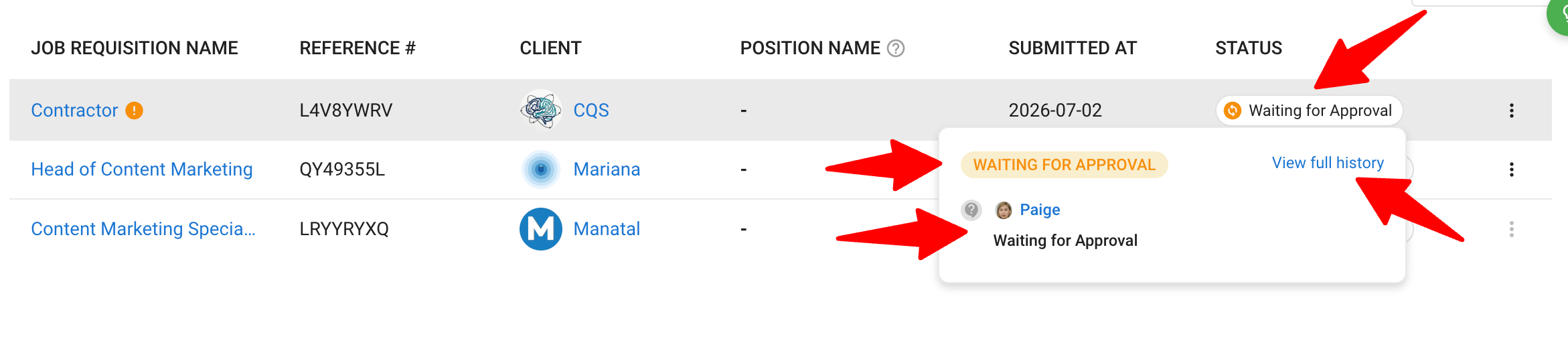
Hover over a status chip to see the latest status, the eligible approvers for the current step, and a link to the full approval history.
-
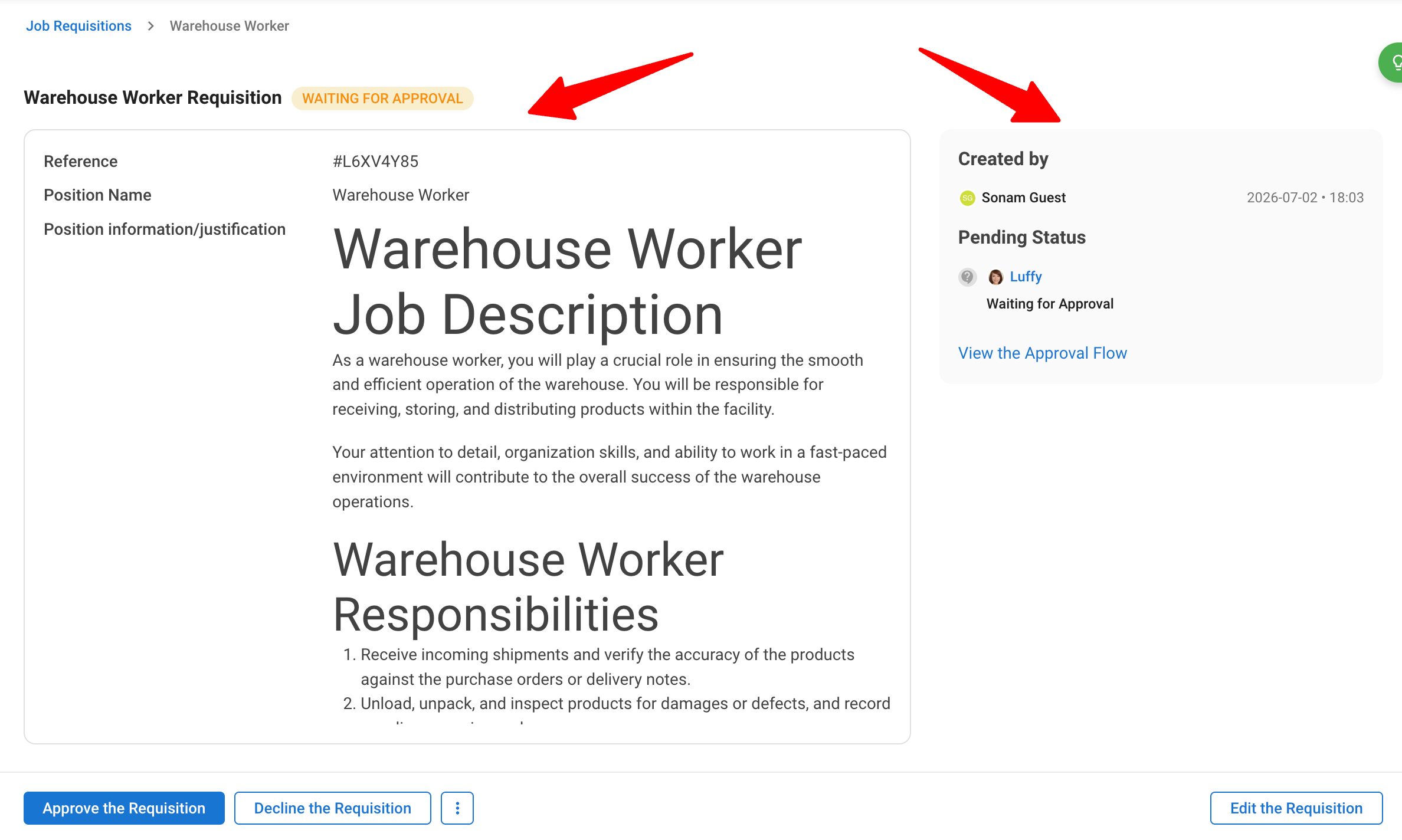
Click a requisition's name to open its Details page, where you can see the full content and the complete approval history (ordered with the most recent action at the top).
Approving or Declining a Requisition
- Approvers receive an email when it's their turn to review, with a direct link to the requisition. You'll also see the in-app orange alert on requisitions that need your action.
- On the requisition's Details page, review the content and the approval history so far.
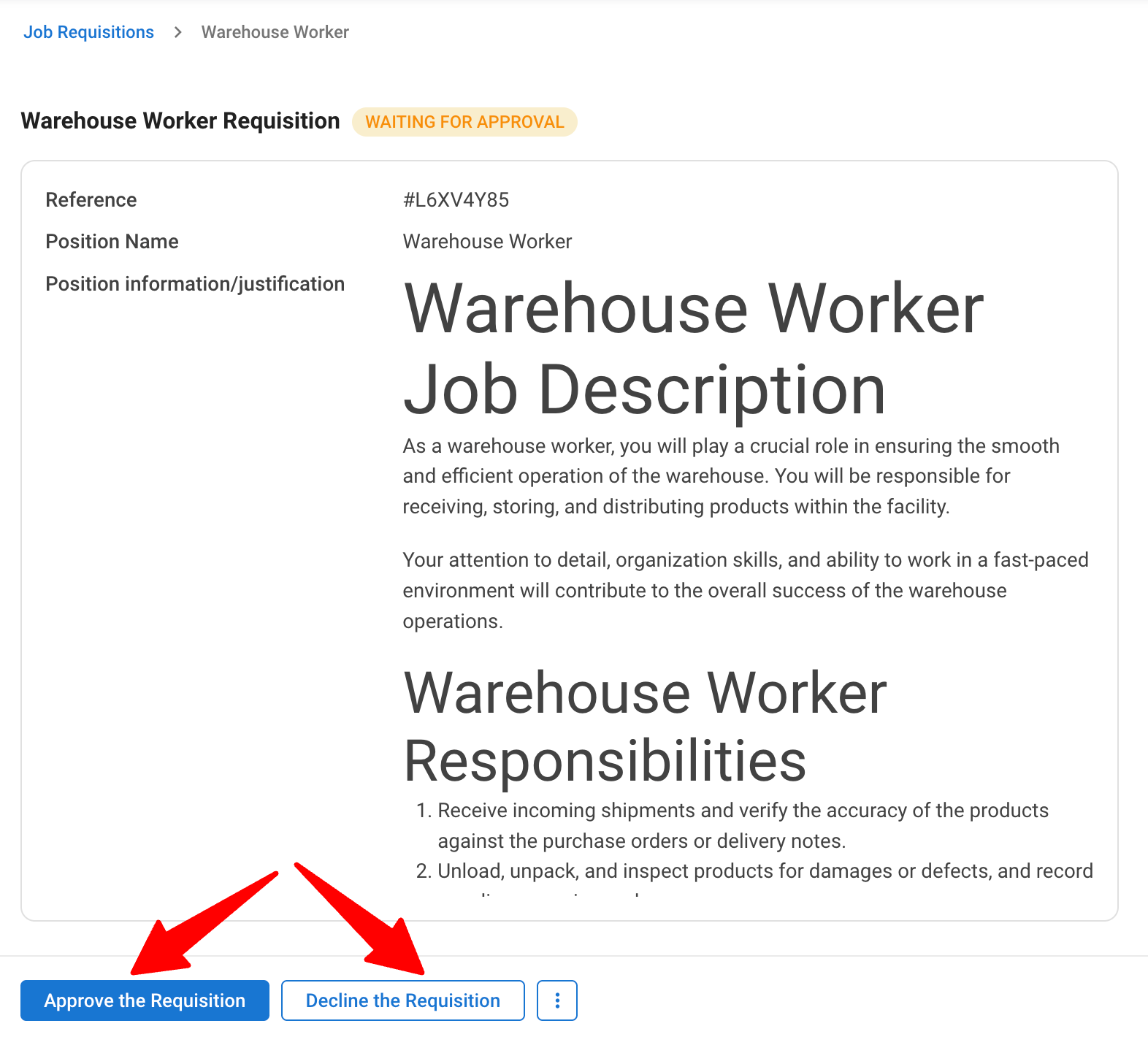
- Click "Approve" to record your approval and advance the requisition to the next step, or "Decline" to send it back.
Note
If a step has multiple approvers, any one of them can approve it. A single approval moves the requisition to the next step.
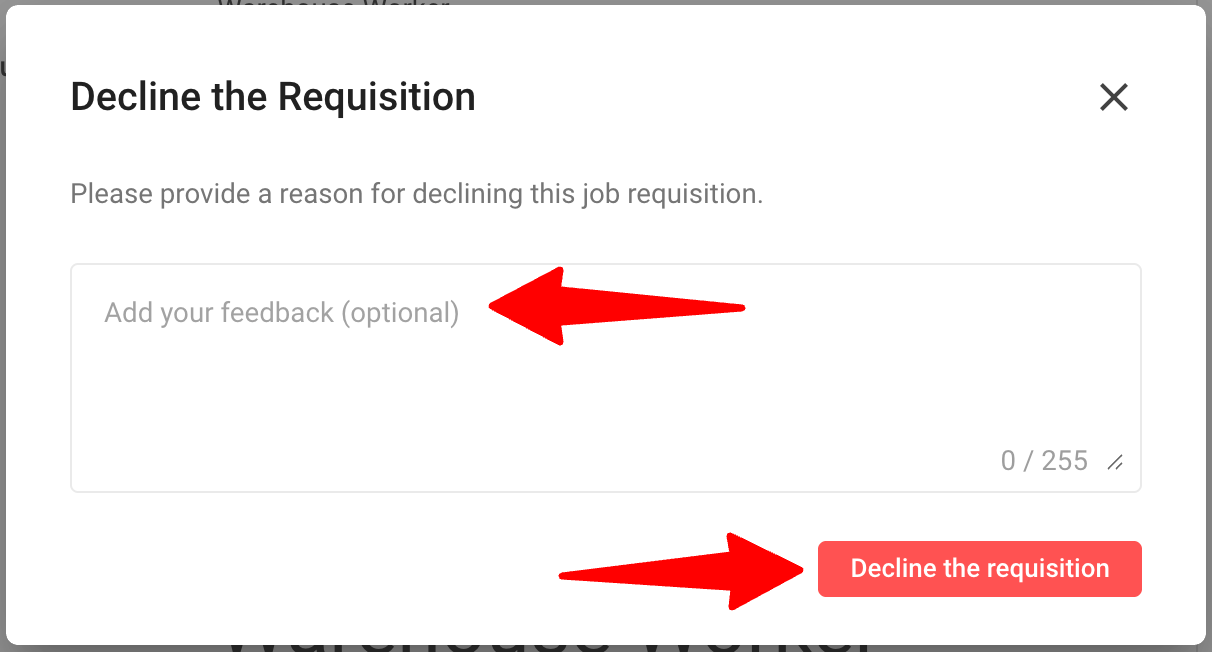
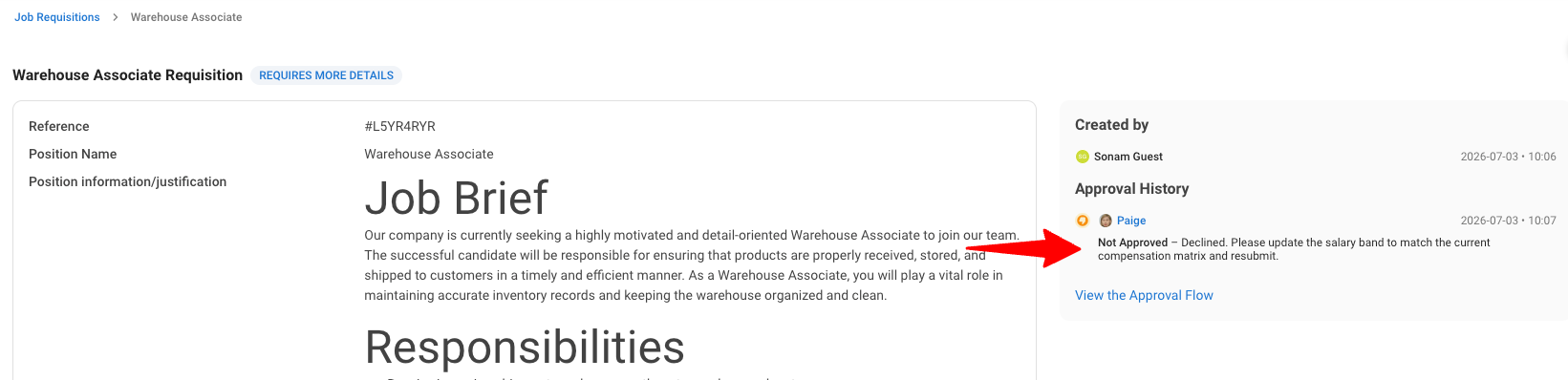
4. When declining, you can add an optional reason (up to 255 characters). This is saved to the approval history so the requester knows what to revise.
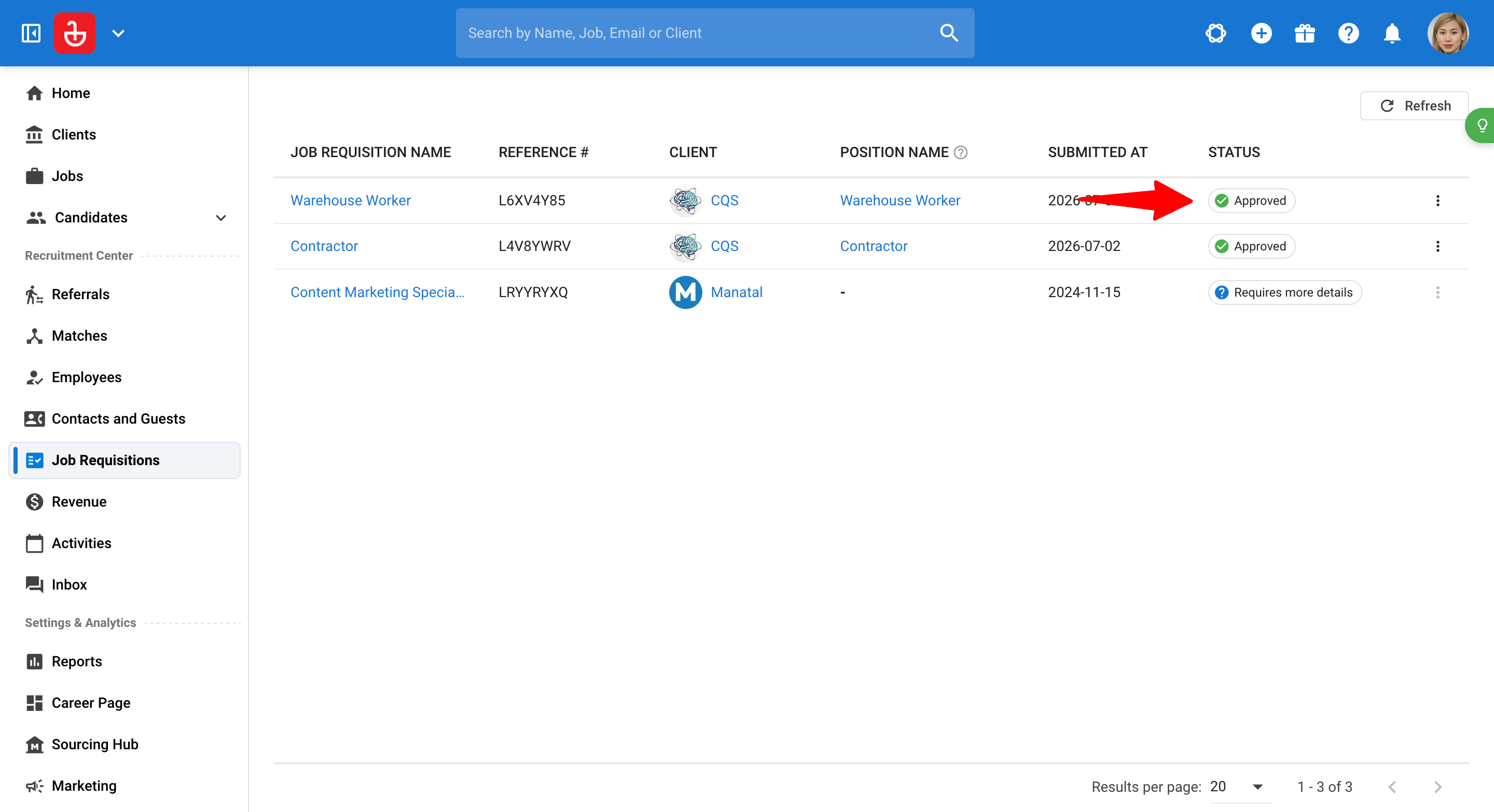
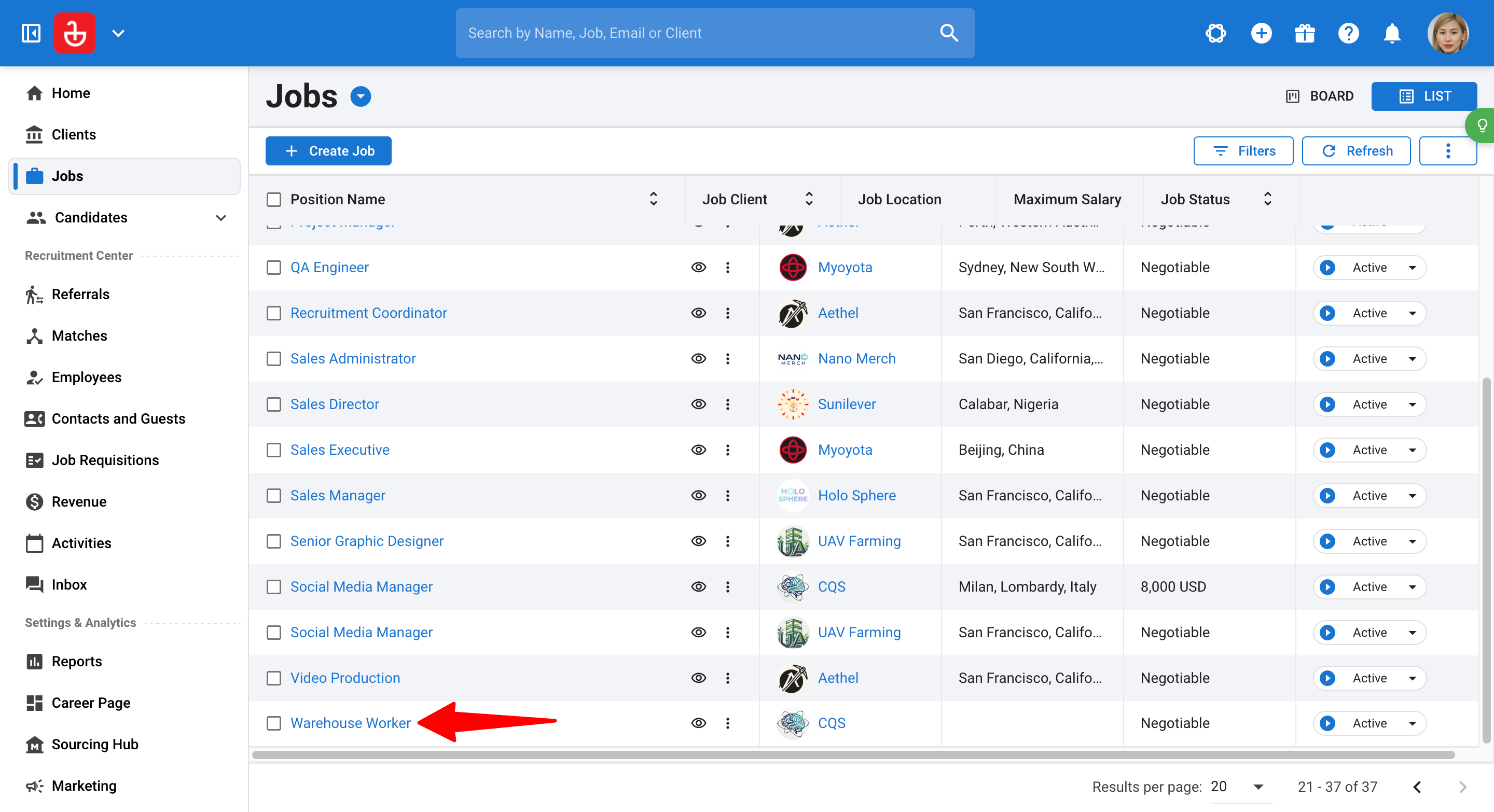
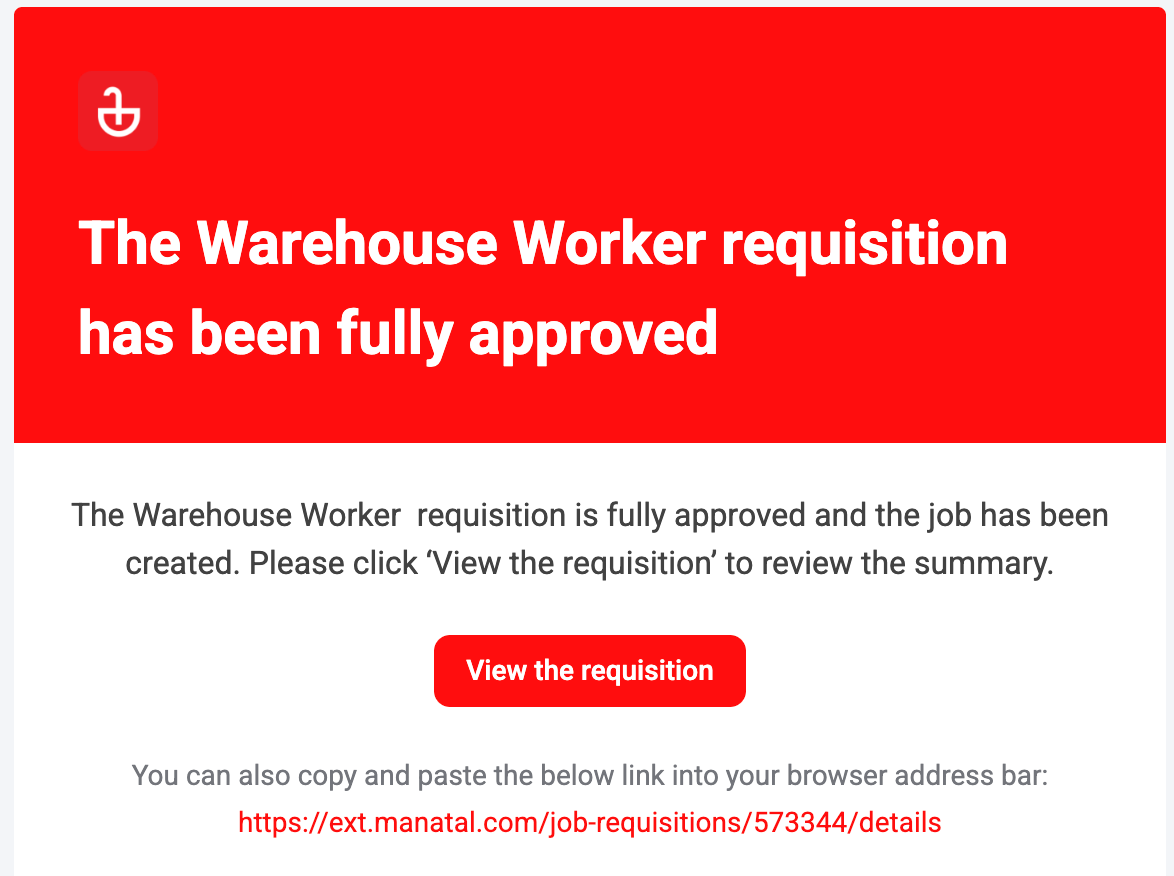
Each approval advances the requisition automatically and notifies the next step's approvers. Once the final step is approved, Manatal automatically creates the job, assigns the Organization Owner as the Job Owner, and notifies the relevant people.
FAQ
1. How many approval steps and approvers can I have?
Each approval flow supports a maximum of 10 sequential steps, with up to 5 approvers per step.
2. Who can approve at each step?
Any one of the assigned approvers on a step can approve it; approval is not required from all of them. Once anyone approves, the requisition moves to the next step.
3. Can the same person approve at multiple steps?
Yes. The same user can be assigned as an approver across multiple steps.
4. What happens once all steps are approved?
The job is created automatically and the requisition moves to the Approved status. The job owner is set to the Organization Owner of the originating organization.
5. Can an Admin approve on someone else's behalf?
Yes. Admins can override and approve any step, even if they aren't the assigned approver. The action is recorded under the Admin's name in the approval history.
6. What happens when an approver declines?
The requisition moves to "Requires More Details" and is sent back along with the decline reason (if one was given). It does not continue to the next step until it's revised and resubmitted.
7. Can I edit an approval flow that's already in use?
No. If a flow is in use by a pending requisition, it can't be edited. This avoids issues with changes happening mid-approval. To make changes, make sure the requisitions using it are closed, or create a new flow.
8. Can Guest users participate in approvals?
Yes. Guest users can be added to approval steps and can approve or decline from the Guest portal. Guests see the requisition details and action buttons, but not the full approval history (which is available in the main app only).
- To learn more about Guest users, refer to this article.
- To learn more about the Guest Portal, refer to this article.
9. How are approvers notified?
Approvers receive an email when it's their turn to review, with a direct link to the requisition. There's also an in-app indicator (an orange alert) in the Job Requisitions table that shows which requisitions need your action.
10. What does an approver see if the requisition was deleted or they lost access?
They see a fallback page, either a "link no longer active" page or a "you do not have permission to view this requisition" page, each with a CTA back to the Job Requisitions table.
11. Are approval emails sent in my language?
Yes. Notification emails are translated based on your language settings. Learn more in this article.