As a Business Development Executive at a headhunting agency, your day often feels like a browser-tab juggling act. You have LinkedIn open in one window, a contact-scraping tool in another, your email client in a third, and a spreadsheet trying to make sense of it all.
What if you could find a high-value prospect, unlock their direct email, and start a conversation, all within a single platform?
With Manatal’s Sourcing Hub and Find Contact Details features, you can. These tools aren't just for finding candidates; they are powerful engines for building your client pipeline.
Here is a step-by-step guide on how to use these features to find your next big client.
The Scenario
- Your Goal: You want to find HR Managers working at IBM in New York, USA, to offer your agency’s recruitment services.
- The Challenge: You need a list of relevant people, their verified email addresses, and a way to track your outreach without manual data entry.
Step 1: Create the Client Profile
Before searching for people, you need a home for them in your database. Creating the client profile first ensures that every lead you address is immediately centralized and visible to your entire team.
- Visit the Clients Menu: On your Manatal’s sidebar, click
Clients.
.png)
- Create Client: Click
+ Create Clientin the top right corner. - Fill Details:
- Name: Enter the client name, in our case, “
IBM”. - Logo: Optionally, upload the logo for the profile to keep your CRM looking professional.
- Name: Enter the client name, in our case, “
- Finish: Click
Continue. Congrats, you have successfully created the client company profile.
.png)
Step 2: Search the Global Talent Pool (Sourcing Hub)
Expand your search beyond limited networks with the Sourcing Hub. This specialized tool within Manatal allows recruiters to search an external global database of over 700 million candidate profiles.
Note: The Sourcing Hub database is sourced from a third-party provider and is completely separate from your internal Manatal database.
- Access the Hub: On your Manatal sidebar, click
Sourcing Hub.
.png)
- Set Your Filters: To find our target HR Manager in NY, use the filters on the right-hand side:
- Job Title: Type
HR Manager. (You can also widen the search by adding more titles such asTalent Acquisition ManagerorHuman Resources Manager). - Location: Type
New York. - Company: Type
IBM. - Experience: You probably want decision-makers. Use the slider to select
3 to 10 yearsor10+ yearsof experience.
.png)
- Job Title: Type
- Refine & Search: Click
Search.
Step 3: Import Your Leads
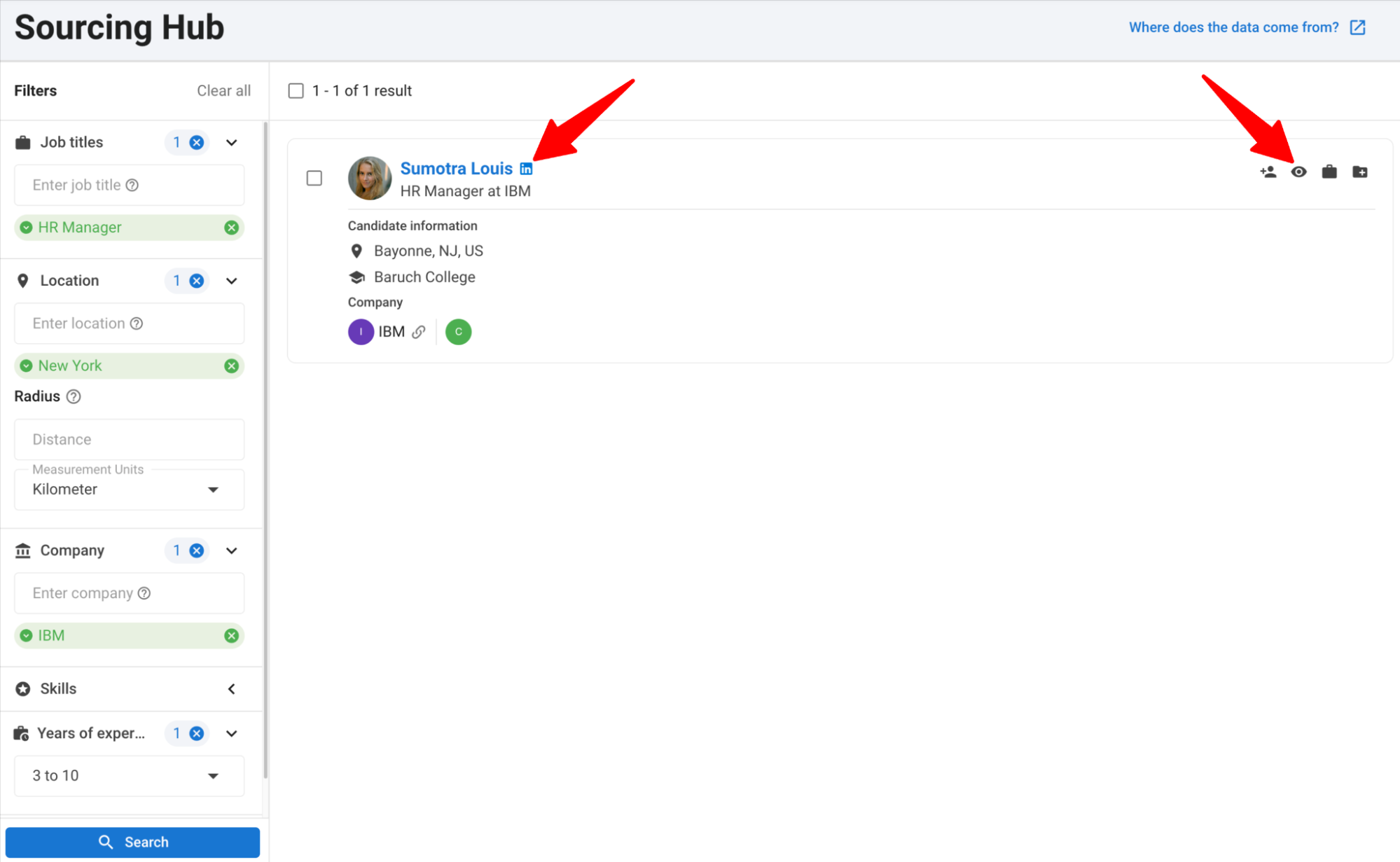
You will now see a list of profiles matching your criteria. These are your potential leads.
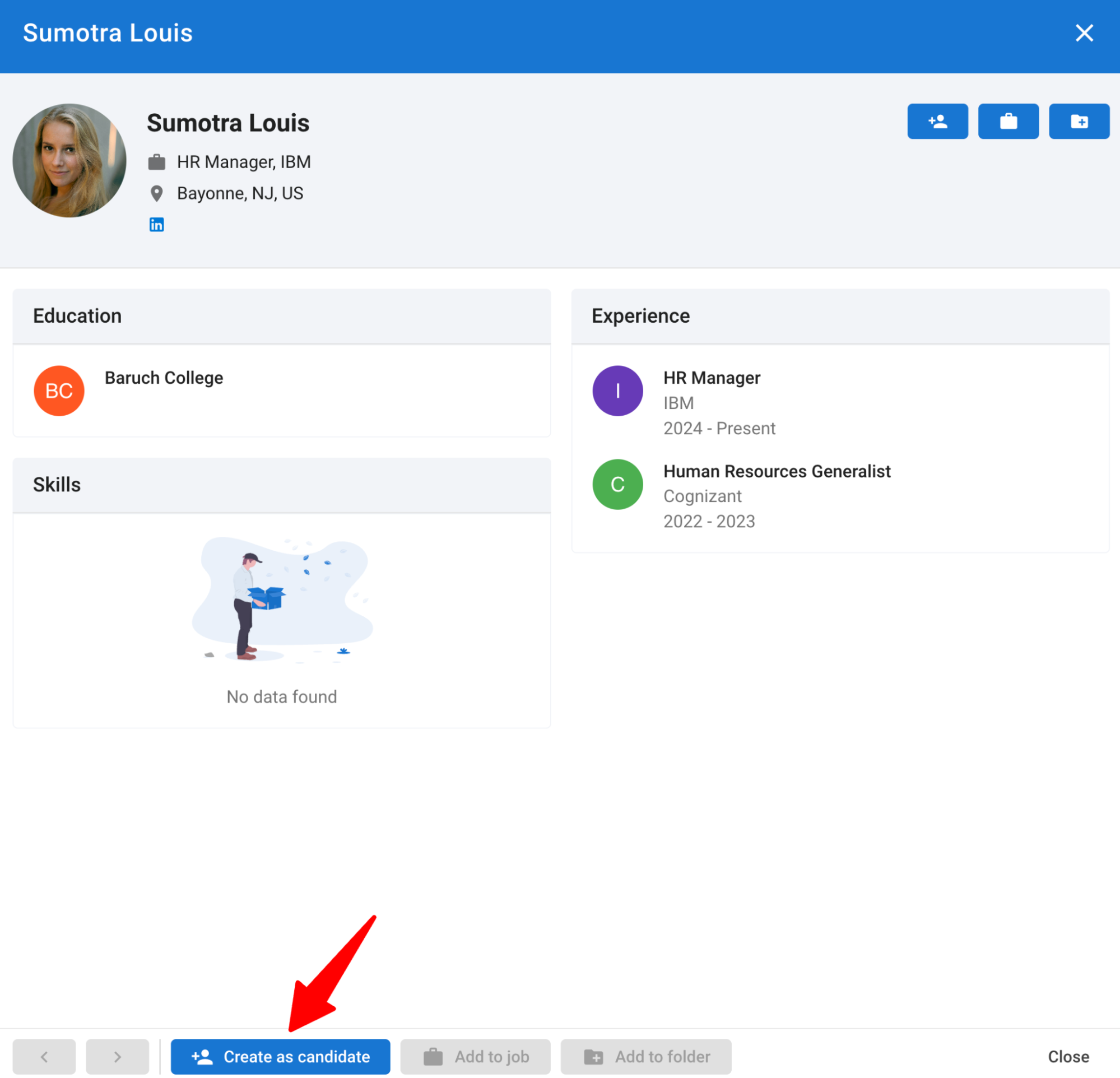
- Review Profiles: Click
Quick Viewon a profile to skim their summary, current company, and experience to ensure they fit your "ideal client" persona.
Tip: You can also click theLinkedIn logoin the Quick View to directly access their LinkedIn profile.
- Add to Manatal: Select the profile you want to target and click
Create as candidate.
- Convert to Contact:
- Go to the newly created candidate profile.
- Click the “
three dots” button at the top right corner. - Select “
Link to Contact/Guest”.
.png)
- Click
Create as a new contact or guestto attach the lead to IBM in your account.
.png)
- Choose “Contact” in
Creation type, pick IBM in theSelect clientdropdown (i.e., the recently created profile), and clickCreate.
.png)
- Why Link to contact? Since Sourcing Hub imports profiles as "candidates" by default, linking them to an actual contact profile makes it easier to track your business development activities and associate them with the correct Client Company.
Step 4: Unlock Verified Contact Info
Now that the contact is in your database, you need a way to reach them. This is where the Find Contact Details feature shines.
- Look for the
Find contact detailsbutton next to the email or phone fields on the profile. - Click it and confirm the credit usage.
- Watch the magic happen: Manatal will scour the web to find personal and professional email addresses and phone numbers.
.png)
Step 5: Outreach & Tracking
You have your target, their email, and the company profile. Now, close the loop.
- Visit the Client Profile: Click
Clientson the left menu and select ‘IBM’. Click onContactsTab.
- Here you will see the recently created HR Manager attached to the company. Everything is centralized in one view and visible to all users on your team. - Select the Contact: Click on the specific account name to reach out directly.
.png)
- Email Directly: Click on the Click the
Inboxtab in the menu bar. Then Click+ Composeto start writing an email.
.png)
- Use a Template: Select a pre-saved "
BD Introduction" template to save time and ensure consistency. You can also customize the template as you see fit before sending.
.png)
- Send & Log: Once sent, the email is automatically logged in the Inbox tab of that candidate.
Scale Your Outreach: If you have multiple contacts linked to the client profile, you can select multiple accounts at once and conduct mass email campaigns to reach the entire decision-making unit efficiently.
.png)
Why This Workflow Wins
By moving your Business Development process into Manatal, you gain four massive advantages:
1. Centralized Sales & Recruitment
You can now scout for clients (to give you roles) and scout for candidates (to fill roles) in the same system.
2. An Organized Lead Database
No more leads.xlsx saved on your desktop. Your prospects are stored securely in the cloud, searchable, and organized by profiles that the whole team can see.
3. Immediate Actionability
The gap between "finding a name" and "sending an email" is closed. You find the lead, enrich their data, and outreach to them without ever leaving the tab.
4. Every Action is Logged
In sales, follow-up is everything. Because every email and note is logged automatically, you (and your manager) have a clear history of every interaction. You’ll never accidentally pitch the same person twice or forget to follow up on a hot lead.
Ready to Supercharge Your Business Development?
Stop juggling tools and start closing deals. Manatal gives you the power to find, enrich, and contact your next big client in minutes.
Head over to the Sourcing Hub and Find Contact Details today and start searching for your next big client.
Not already a user?
Start your 14-day Free Trial | Book a Demo